Key takeaways
- Connect the modem or gateway to the router’s WAN port and update the firmware.
- Use a distinct network name and a strong WPA2/WPA3-compatible password.
- Enable automatic firmware updates if the router supports them.
- Rename connected devices so the console, PC, TV, and streaming boxes are easy to identify.
- Enable QoS only after recording normal download and upload speeds.
- Test latency while another device performs a large download or cloud upload.
- Move the router before buying a range extender; poor placement is often the real coverage problem.
What's inside
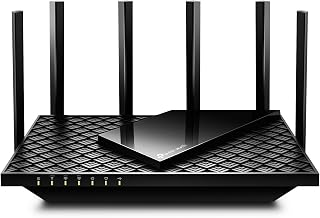
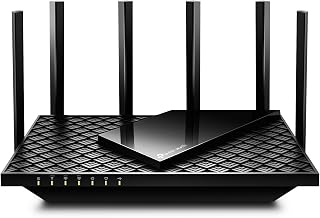
The best 2026 router for TV and gaming under $150 is usually the TP-Link Archer AX55, because it combines dependable Wi-Fi 6 coverage, gigabit Ethernet, QoS controls, and simple setup without charging for unnecessary gaming branding.
It is not automatically the fastest choice for every home, though. The right router depends on how far the TV and console are from the router, how many devices share the connection, whether your internet plan exceeds 1Gbps, and whether you can run Ethernet. The models below are sensible budget choices for households that stream, play online, and need stable wireless service rather than peak benchmark speed.
Best routers under $150 for a TV and gaming
| Router | Typical market range | Best fit | Important strengths | Main limitation |
|---|---|---|---|---|
| TP-Link Archer AX55 | Usually $80–$120 | Most households | Wi-Fi 6, gigabit ports, QoS, easy app setup | No multi-gigabit Ethernet |
| ASUS RT-AX58U | Usually $90–$140 | Players who want detailed controls | Strong configuration options, AiMesh support, adaptive QoS | Interface has more settings to learn |
| NETGEAR Nighthawk RAX50 | Usually $100–$150 | Busy homes with many Wi-Fi clients | Wi-Fi 6 capacity, solid coverage, useful traffic management | Advanced features may require extra services or accounts |
| TP-Link Archer AX73 | Usually $110–$150 when discounted | Larger single-floor homes | Higher-class Wi-Fi 6 hardware and broader coverage | Still limited to gigabit wired networking |
Why the Archer AX55 is the best overall pick
The Archer AX55 is a balanced choice for a console or gaming PC in one room and a 4K television in another. It supports Wi-Fi 6, including OFDMA and beamforming, and has four gigabit LAN ports. Those features help it serve multiple phones, laptops, streaming boxes, consoles, and smart-home devices without behaving like an older Wi-Fi 5 router under load.
Its advantage for gaming is not that it magically lowers the internet provider’s ping. Instead, its QoS tools can reduce the delay created when another device saturates the upload or download connection. That distinction matters: a router can manage local congestion, but it cannot repair a poor route between your provider and a game server.
Choose the AX55 when your internet plan is 1Gbps or less, your home is small or medium-sized, and you want setup to be straightforward. Connect the console or PC by Ethernet whenever practical, then use Wi-Fi for the TV and less latency-sensitive devices.
When another router makes more sense
Choose the ASUS RT-AX58U for control
The RT-AX58U is a better fit if you want to tune adaptive QoS, inspect connected clients, configure guest networks, or build an ASUS AiMesh system later. It is particularly useful for someone who would rather adjust traffic rules manually than rely entirely on automatic prioritization.
Its gigabit WAN and LAN ports make it a normal fit for internet plans up to 1Gbps. It is not the right upgrade if your provider delivers more than 1Gbps and you want to use that full speed over a wired connection.
Choose the NETGEAR Nighthawk RAX50 for a crowded household
The RAX50 is worth considering when many devices are active simultaneously: several phones, work laptops, security cameras, streaming devices, and a console or gaming PC. Its Wi-Fi 6 radio has more capacity than basic dual-band routers, although placement and channel interference still matter more than the product name.
Check the included software terms before buying. Some advanced security or management functions on router platforms can involve optional subscriptions. The core routing, wireless, and wired functions should be evaluated separately from those extras.
Choose the TP-Link Archer AX73 for extra wireless headroom
The Archer AX73 is the choice when the router must cover a larger single-floor area or more distant rooms and it is available within the $150 budget. Its higher Wi-Fi class provides more potential wireless capacity than the AX55, but it will not overcome thick concrete, metal ductwork, or a badly placed router.
Decision matrix: match the router to your setup
| Your situation | Recommended direction | Why |
|---|---|---|
| Console is within one room of the router | Archer AX55 with Ethernet | A cable removes wireless interference from the most latency-sensitive device. |
| TV is two rooms away and streams in 4K | AX55 or AX73, placed centrally | Stable 5GHz coverage is more useful than a high maximum link rate. |
| Four or more people stream, work, and play together | RAX50 or AX73 | Extra Wi-Fi capacity helps when many clients compete for airtime. |
| You want detailed QoS and network controls | ASUS RT-AX58U | Its firmware exposes more tuning options than a basic setup. |
| Internet service is faster than 1Gbps | Look for a discounted Wi-Fi 6 or Wi-Fi 6E router with 2.5Gbps Ethernet | All four recommendations have gigabit-class wired limits. |
How much speed does TV and gaming really need?
Streaming video usually consumes more bandwidth than online gameplay. A 4K stream commonly needs about 15–25Mbps, depending on the service and compression. A 1080p stream often needs roughly 5–8Mbps. Online games may use only 0.1–5Mbps during play, but game downloads and updates can consume hundreds of gigabytes.
For example, suppose a household has one 4K TV stream at 20Mbps, a second 4K stream at 20Mbps, two HD streams at 8Mbps each, and a game download using 150Mbps. The active total is:
20 + 20 + 8 + 8 + 150 = 206Mbps.
Allowing around 30 percent for protocol overhead and short bursts gives about 268Mbps. A 300Mbps internet plan can handle that example, but it may leave little room for additional uploads or cloud backups. A 500Mbps plan provides more comfortable headroom. The router should have gigabit Ethernet even when the internet plan is slower, because local file transfers and future service upgrades benefit from it.
Settings that improve gaming and streaming stability
1. Connect the gaming device by Ethernet first
Use a Cat5e or better cable from the console or PC to a LAN port. Ethernet avoids competing with the TV and phones for wireless airtime and usually produces more consistent latency than Wi-Fi. If a cable is impossible, use the 5GHz network when the device is reasonably close; use 2.4GHz only when distance or walls make 5GHz unreliable.
2. Set QoS below the actual connection speed
Run several speed tests at different times, then set QoS bandwidth to about 85–90 percent of the lowest consistent result. For a connection that repeatedly measures 500Mbps down and 20Mbps up, start with approximately 450Mbps download and 18Mbps upload.
This leaves a small queue outside the router instead of allowing the router or modem to build a large buffer. Upload QoS is especially important because a cloud backup or video call can make game latency spike even when download speed appears available.
3. Prioritize the right device, not every device
Give the console or gaming PC high priority, but do not mark every TV, phone, and streaming box as high priority. If all devices receive the same priority, the rule has little value. Keep automatic QoS enabled if you do not know each device’s traffic needs, then verify whether latency improves while another device downloads.
4. Use sensible wireless channels
For 2.4GHz, use 20MHz channel width and select channel 1, 6, or 11 based on the least congestion. For 5GHz, automatic channel selection is normally fine; 80MHz width can increase speed near the router, while 40MHz can be more stable in a crowded apartment. If devices repeatedly disconnect, test with 40MHz rather than chasing a higher theoretical link rate.
5. Place the router for coverage, not appearance
Put it in an open, elevated, central location, away from the television cabinet, metal shelves, cordless-phone bases, and large appliances. Do not hide it behind the TV. A router in a corner may deliver excellent speed in one room while creating a weak signal exactly where the TV is installed.
Easy setup checklist
- Connect the modem or gateway to the router’s WAN port and update the firmware.
- Use a distinct network name and a strong WPA2/WPA3-compatible password.
- Enable automatic firmware updates if the router supports them.
- Rename connected devices so the console, PC, TV, and streaming boxes are easy to identify.
- Enable QoS only after recording normal download and upload speeds.
- Test latency while another device performs a large download or cloud upload.
- Move the router before buying a range extender; poor placement is often the real coverage problem.
Bottom line
For most homes, the TP-Link Archer AX55 is the best budget answer: it has the necessary Wi-Fi 6 coverage, gigabit Ethernet, prioritization controls, and accessible setup for a TV and gaming system. Pick the ASUS RT-AX58U when advanced control matters, the NETGEAR RAX50 for a crowded household, or the Archer AX73 when broader single-router coverage is worth spending near the top of the budget. Whichever model you choose, Ethernet for the gaming device, correctly configured QoS, and careful router placement will affect real-world latency more than a higher advertised Wi-Fi number.