Key takeaways
- Ethernet performance: At least 3-4 Gigabit LAN ports. Your primary gaming device and, if possible, your smart TV or streaming stick via adapter should be wired. Wired cuts jitter from 5-15 ms on Wi-Fi to under 1-2 ms and eliminates contention.
- Latency control, not just speed: Look for Adaptive QoS, Smart QoS, or SQM (Smart Queue Management). Without it, a single 4K stream or cloud backup can spike gaming ping by 40-120 ms.
- Stable 5 GHz coverage: Wi-Fi 6 with 80 MHz channel width and 4 streams (4×4 or 3×3 on 5 GHz) provides more reliable throughput at distance than a cheap 2-stream AX1800 router. Beamforming and a decent amplifier matter more than marketing speed numbers.
- CPU and RAM headroom: Dual-core 1.5 GHz+ with 256-512 MB RAM handles NAT, QoS, and 20-30 devices without rebooting. Low-memory routers collapse when you enable QoS.
- Easy setup and long-term firmware: ASUS, TP-Link, and Netgear all offer mobile apps with automatic firmware updates, device prioritization toggles, and simple QoS presets. At this price, long-term security patches matter more than exotic gaming dashboards.
What's inside
- What Actually Matters for TV + Gaming Under $150
- How Much Bandwidth Do You Really Need? A Worked Calculation
- Ethernet vs. Wi-Fi 6 for TV and Console: Make the Right Call
- Best Gaming Routers Under $150 for TV and Gaming in 2026
- Concrete Settings That Lower Ping Without Losing Streaming Quality
- Easy Setup Checklist for Households That Just Want It to Work
- FAQ
The best 2026 router for TV and gaming under $150 is a Wi-Fi 6 (AX3000 to AX5400 class) router with at least one gigabit Ethernet port for your console or TV, adaptive QoS or SQM for latency control, and stable 5 GHz coverage for the room where you stream — models like the TP-Link Archer AX73, TP-Link Archer AX55, ASUS RT-AX58U / RT-AX3000 V2, and Netgear Nighthawk RAX50 consistently fit that profile in the sub-$150 range.
- What Actually Matters for TV + Gaming Under $150
- How Much Bandwidth Do You Really Need? A Worked Calculation
- Ethernet vs. Wi-Fi 6 for TV and Console: Make the Right Call
- Best Gaming Routers Under $150 for TV and Gaming in 2026
- Concrete Settings That Lower Ping Without Losing Streaming Quality
- Easy Setup Checklist for Households That Just Want It to Work
- FAQ
You do not need Wi-Fi 6E or Wi-Fi 7 at this budget to get low-latency gaming and clean 4K streaming. What matters more is wired priority for gaming, intelligent queue management to prevent bufferbloat, and a 5 GHz radio that can sustain real-world throughput through one or two walls.
What Actually Matters for TV + Gaming Under $150
For a mixed household — one TV streaming 4K HDR, one or two consoles or PCs gaming, plus phones and smart home devices — the bottleneck is rarely raw internet speed. It is how the router shares a limited connection. Prioritize these five criteria in this order:
- Ethernet performance: At least 3-4 Gigabit LAN ports. Your primary gaming device and, if possible, your smart TV or streaming stick via adapter should be wired. Wired cuts jitter from 5-15 ms on Wi-Fi to under 1-2 ms and eliminates contention.
- Latency control, not just speed: Look for Adaptive QoS, Smart QoS, or SQM (Smart Queue Management). Without it, a single 4K stream or cloud backup can spike gaming ping by 40-120 ms.
- Stable 5 GHz coverage: Wi-Fi 6 with 80 MHz channel width and 4 streams (4×4 or 3×3 on 5 GHz) provides more reliable throughput at distance than a cheap 2-stream AX1800 router. Beamforming and a decent amplifier matter more than marketing speed numbers.
- CPU and RAM headroom: Dual-core 1.5 GHz+ with 256-512 MB RAM handles NAT, QoS, and 20-30 devices without rebooting. Low-memory routers collapse when you enable QoS.
- Easy setup and long-term firmware: ASUS, TP-Link, and Netgear all offer mobile apps with automatic firmware updates, device prioritization toggles, and simple QoS presets. At this price, long-term security patches matter more than exotic gaming dashboards.
How Much Bandwidth Do You Really Need? A Worked Calculation
Do not buy for the number on the box (AX3000, AX5400). Calculate your concurrent load. Here is a realistic evening peak for a budget household:
| Activity | Resolution / Rate | Bandwidth Needed (Down) | Bandwidth Needed (Up) | Latency Sensitivity |
|---|---|---|---|---|
| 4K HDR Streaming (Netflix/YouTube) | 3840×2160 @ 60Hz, HEVC | 25-30 Mbps sustained | 0.5 Mbps | Low, but needs stable throughput |
| Online Gaming (Call of Duty, Fortnite, EA FC) | 60-128 tick | 3-6 Mbps | 1-3 Mbps | Very high (jitter < 15ms) |
| Cloud Gaming (GeForce Now / Xbox Cloud) | 1080p @ 60fps | 25-35 Mbps | 5-8 Mbps | Very high (jitter < 20ms) |
| Video Call | 1080p | 4-6 Mbps | 4-6 Mbps | High |
| Background Devices (phones, updates) | Bursts | 5-10 Mbps buffer | 2-5 Mbps buffer | Medium |
| Total Concurrent Peak | ~38-45 Mbps w/ native gaming / ~65-80 Mbps w/ cloud gaming | ~8-15 Mbps |
Takeaway: A 100-200 Mbps internet plan is ample. If your plan is 100 Mbps down / 10 Mbps up, you are fine. The router’s job is to protect the 3 Mbps gaming flow from being queued behind the 30 Mbps video flow. That is why QoS settings deliver more real-world benefit than upgrading to 500 Mbps.
Wi-Fi overhead calculation: A Wi-Fi 6 connection at 80 MHz, 2-stream, typically negotiates 1200 Mbps link rate. Real throughput is ~55-65% of that due to overhead, interference, and distance. At 15 feet through one drywall, expect 450-650 Mbps actual TCP throughput on a good AX3000+ router — still 10x what you need, but cheap AX1800 2×2 routers often drop to 180-250 Mbps in the same spot, leaving less headroom when multiple devices contend.
Ethernet vs. Wi-Fi 6 for TV and Console: Make the Right Call
Decision Matrix: Match Your Layout to the Setup
| Your Situation | Best Sub-$150 Approach | Why |
|---|---|---|
| TV and console/pc in same room as router (within 10 feet) | AX3000 class (e.g., Archer AX55, RT-AX58U) + wire both devices | Wired eliminates Wi-Fi contention entirely; save money on Wi-Fi power you do not need |
| Router in living room, console in bedroom / office (1 wall, 20-35 feet) | AX5400 class with stronger 5 GHz (e.g., Archer AX73, Nighthawk RAX50) + wire console, TV on 5 GHz | Higher-gain 5 GHz and 4-stream design holds 400+ Mbps at distance; wire the device where latency matters most |
| Large apartment, 800+ sq ft, TV far from router | Single powerful AX5400 router centered high on wall, plus dedicated 5 GHz SSID for TV/gaming | One strong radio beats mesh at this budget; mesh under $150 usually forces half-duplex wireless backhaul and raises ping |
| Cloud gaming + 4K streaming simultaneously | Any Wi-Fi 6 router with SQM/QoS and gigabit ports; mandatory Ethernet for cloud gaming device | Cloud gaming needs both bandwidth and 15-25 ms stable jitter; Wi-Fi alone often adds 10-20 ms variance |
If you can run only one Ethernet cable, wire the gaming device first. Streaming apps buffer 10-30 seconds ahead and tolerate a 30 ms Wi-Fi spike. Games do not.
Best Gaming Routers Under $150 for TV and Gaming in 2026
All of these fall into the $90-$150 general market range in 2026 and focus on the right trade-offs for this use case. Avoid any router at this price that still advertises only Wi-Fi 5 (AC) or 100 Mbps ports — those 10/100 Ethernet ports will cap your wired connection at 95 Mbps.
1. TP-Link Archer AX73 / AX5400 Class — Best Overall Coverage
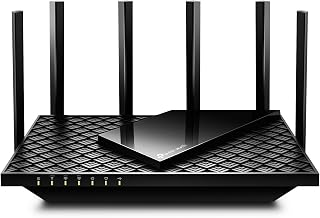
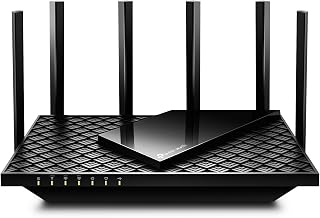
Usually $110-$140. Wi-Fi 6, 4-stream 5 GHz with 160 MHz support, 4x gigabit LAN, and HomeShield QoS. The stronger front-end and 6 antennas give it more stable throughput through a wall than compact AX3000 units. Good pick when the TV is wireless in the next room. Includes OneMesh support if you later add an extender, but use wired backhaul if you do.
2. ASUS RT-AX58U / RT-AX3000 V2 — Best Latency Control
Usually $100-$130. Dual-core with 512 MB RAM, AiProtection, and Adaptive QoS with specific presets for Gaming, Streaming, and Work-From-Home. ASUS QoS lets you drag-and-drop device priority and set bandwidth limits per device. Also supports Merlin-adjacent firmware tuning for SQM if you want cake/fq_codel later. Three gigabit LAN ports plus one 2.5G port on some revisions (WAN/LAN combo).
3. TP-Link Archer AX55 — Best Budget Pick if You Can Wire Everything
Usually $75-$110. AX3000, Intel or Broadcom dual-core depending on revision, 4x gigabit LAN, solid QoS. 5 GHz range is shorter than the AX73 but perfectly fine when router and TV/console share a room. Save the $30-40 difference for a 25-foot Cat6 cable and a simple cable raceway.
4. Netgear Nighthawk RAX50 (AX5400) — Best for Simple App Setup
Usually $120-$150 on sale. Nighthawk app with device manager, 4x gigabit LAN, and Dynamic QoS that auto-detects gaming and streaming. Netgear’s QoS database updates automatically to recognize new games and services. Slightly larger chassis runs cooler under sustained 4K + gaming loads than flat-top designs.
Avoid at this budget: Any “gaming router” that offers only a flashy UI but lacks true SQM/fq_codel or device-level bandwidth control, or any router stuck on Wi-Fi 5. Wi-Fi 6’s OFDMA and target wake time materially reduce jitter when 15+ smart devices share airtime.
Concrete Settings That Lower Ping Without Losing Streaming Quality
After initial setup, apply these values in order. Each has a reason:
- 1. Set correct QoS bandwidth: In QoS settings, manually enter 95% of your measured speed test results (e.g., if you measure 200/20, enter 190/19). Reason: SQM needs slight headroom to manage the queue; at 100% it cannot shape traffic before your ISP buffer fills.
- 2. Prioritize by device, not just by app: Set Console/PC = Highest, Smart TV = High, Phones/Laptops = Normal, Downloads/Backups = Low. Device priority is more reliable than auto game detection on budget firmware.
- 3. Use 5 GHz for TV and gaming, 2.4 GHz for everything else: Create separate SSIDs: “House-5G” and “House-2.4G”. Put TV and console on 5 GHz, put IoT plugs, cameras, and older phones on 2.4 GHz. Reason: Keeps contention off the low-latency band.
- 4. Fix 5 GHz channel width to 80 MHz, channel to 36, 40, 149, or 153: Do not use 160 MHz in apartments — it increases interference and often forces DFS channels that cause radar disconnects. Use auto channel selection only for initial scan, then lock the cleanest non-DFS channel.
- 5. Enable WPA3-Personal or WPA2/WPA3 mixed, disable WPS: Mixed mode keeps older TVs compatible while still allowing newer devices to use WPA3’s more efficient handshake.
- 6. Place router correctly: Chest to head height, wall-mounted or on a shelf, antennas vertical (if external), at least 3 feet away from TV/microwave/Bluetooth speakers. Do not put it inside a TV cabinet — wood and glass add 5-10 dB attenuation.
- 7. Update firmware and enable auto-update: Security patches in 2025-2026 fixed several Wi-Fi 6 fragmentation issues that caused micro-stutter. Check monthly if auto-update is not available.
Verification step: Run a bufferbloat test (search “bufferbloat test” or “waveform bufferbloat”) with QoS off, then on. You want your unloaded ping and loaded ping (during upload/download) to stay within 15-20 ms of each other. If loaded ping jumps +60 ms, lower the QoS bandwidth values by another 5% until it stabilizes.
Easy Setup Checklist for Households That Just Want It to Work
- Unplug old router, clone or release MAC if your ISP requires it, then power on the new router and complete app setup.
- Run a speed test over Ethernet, note down/down values, and enter 95% into QoS as above.
- Wire console/PC with Cat5e or Cat6 — even a 50-foot cable adds <0.2 ms latency, versus 4-12 ms on Wi-Fi.
- If TV cannot be wired, connect it to the 5 GHz SSID only. In TV network settings, forget the 2.4 GHz network to prevent fallback.
- In the router app, rename devices so you can actually identify “Generic-Android-Device” as the smart TV and prioritize correctly.
- Reboot once after QoS and SSID changes so device tables rebuild cleanly.
FAQ
Should I choose Wi-Fi 6E or Wi-Fi 7 under $150?
No. In 2026, true Wi-Fi 6E/7 routers with stable firmware and 6 GHz performance still start well above $150. A well-built Wi-Fi 6 AX5400 router with good QoS will beat a compromised budget Wi-Fi 7 router with weak amplifiers and 256 MB RAM.
Is a mesh system better for gaming and TV than a single router under $150?
Only if your home is over ~1,400 sq ft or has dense concrete walls. Budget mesh kits under $150 typically use wireless backhaul, which adds a hop and 8-20 ms jitter. For apartments and 2-3 bedroom homes, one strong single router with wired gaming is lower latency and simpler to manage.
Do I need a 2.5 Gbps port at this budget?
Not for gaming. No console or smart TV needs >1 Gbps. A 2.5 Gbps WAN port is useful only if your ISP plan exceeds 1 Gbps and your modem also has 2.5 Gbps. Otherwise, gigabit ports are not a bottleneck for the 40-80 Mbps workload described above.
Why does my ping still spike when someone starts a 4K stream?
This is classic bufferbloat without proper queue management. Confirm QoS is enabled, set to the 95% values, and that the gaming device is set to Highest priority. Also ensure the streaming TV is not erroneously set to Highest — that defeats the purpose.