Our Top Picks
The best drawing tablets with screen for most artists are the Wacom Cintiq Pro 17 for pen feel and high-refresh drawing, the Huion Kamvas Pro 19 for a large 4K workspace at a lower market price, and the XP-Pen Artist Pro 16 Gen 2 for a compact, high-resolution setup.
Best drawing tablets with screen: quick comparison
| Model | Active area | Display and color | Pen pressure and tilt | Connection requirements | Typical market range |
|---|---|---|---|---|---|
| Wacom Cintiq Pro 17 | Approx. 15.0 × 8.9 in | 4K, 120 Hz, wide-gamut color | 8,192 levels, 60° tilt | USB-C video or DisplayPort, USB, external power | Usually $2,000–$2,500 |
| Wacom Cintiq Pro 22 | Approx. 18.7 × 10.5 in | 4K, 120 Hz, wide-gamut color | 8,192 levels, 60° tilt | USB-C or DisplayPort, USB, external power | Usually $2,500–$3,000 |
| Huion Kamvas Pro 19 | Approx. 16.5 × 9.3 in | 4K, 220 ppi, wide-gamut color | 16,384 levels, 60° tilt | USB-C video, USB data, external power | Usually $900–$1,300 |
| Huion Kamvas Pro 27 | Approx. 23.5 × 13.2 in | 4K, 120 Hz, wide-gamut color | 16,384 levels, 60° tilt | USB-C video, USB data, external power | Usually $1,500–$2,000 |
| XP-Pen Artist Pro 16 Gen 2 | Approx. 13.6 × 7.7 in | 4K, wide-gamut color | 16,384 levels, 60° tilt | USB-C video/data or 3-in-1 cable, external power in some setups | Usually $600–$900 |
Specifications can vary slightly by regional bundle and revision. More pressure levels do not automatically make a pen more accurate; digitizer calibration, driver behavior, surface friction, and the artist’s preferred pressure curve matter more in daily use.

HUION Kamvas 13 (Gen 3) Drawing Tablet with Screen, Dual Dial, 13.3", Black | Full Lamination, Canvas Glass 2.0, 99% sRGB, PenTech 4.0 16384 Levels, Works with PC, Mac and Android, With Stand
Chosen because it specifies Dual Dial and 13.3".
View on Amazon
XPPen Artist 13.3 Pro V2 Drawing Tablet with Screen, 16K, Full-Laminated | Anti-Glare 123% sRGB Display, 8 Keys for Art, Animation, Mac, PC, Android, Includes Adjustable Stand, Designed for Beginners
Chosen because it specifies 16K and Full-Laminated.
View on Amazon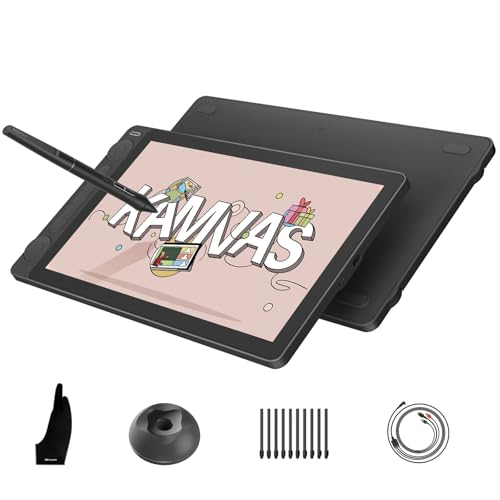
HUION Kamvas 13 (Gen 3) Drawing Tablet with Screen 16K Pressure PenTech 4.0 | 13.3-inch Full-Laminated Art Tablet with Anti-Sparkle Canvas Glass, 99% sRGB, Dual Dials for Digital Art, Designing, Black
Picked as a relevant option in this category.
View on Amazon
HUION Kamvas Pro 16 Drawing Tablet with Screen,120% sRGB, Touch Bar,15.6" | Fully Laminated Anti-Glare Glass, 6 Shortcut Keys, Adjustable Stand, Works with Windows, Mac and Linux
Chosen because it specifies 120% sRGB and Touch Bar.
View on AmazonBest overall pen experience: Wacom Cintiq Pro 17
The Wacom Cintiq Pro 17 is the strongest choice when pen control is more important than getting the largest possible screen. Its 4K resolution and 120 Hz refresh rate make cursor movement and quick strokes look unusually smooth, while the compact active area keeps the distance between hand and important canvas details manageable.
Wacom’s Pro Pen 3 supports 8,192 pressure levels and 60-degree tilt recognition. That is sufficient for pressure-sensitive painting, sculpting, and line art. The practical advantage is not the number itself but predictable transitions between light and heavy strokes. Artists who frequently switch between a fine ink brush and a broad, pressure-controlled paintbrush benefit from that consistency.
The limitation is desk space. A 17-inch pen display still occupies considerably more room than a regular monitor because it needs a stand, cables, and clearance for the stylus hand. It is also an expensive option, particularly once a suitable stand is included.
Best large-screen value: Huion Kamvas Pro 19
The Huion Kamvas Pro 19 offers one of the most useful size-to-price combinations. Its active area is close to the size of a 17-inch professional display, but the 4K panel gives text, interface controls, and fine line work a dense, clean appearance. It supports 16,384 pressure levels and 60-degree tilt, although those figures should be treated as capacity rather than a guarantee of twice the real-world sensitivity of an 8,192-level pen.
This model suits illustrators who want a substantial canvas without paying professional Wacom pricing. Its color coverage is also appropriate for serious work, but color management still depends on calibration and the software profile. A wide-gamut display can make saturated colors look different from a standard sRGB monitor if the application is not color-managed.
Choose the Kamvas Pro 19 over a 16-inch tablet when you regularly work with large documents, multiple reference windows, or detailed comic and concept-art files. Choose the smaller XP-Pen instead if portability and a shallower desk footprint matter more.
Best for a full-size studio canvas: Huion Kamvas Pro 27
The Huion Kamvas Pro 27 is aimed at artists who want a screen large enough to display the artwork and a generous set of tools without constantly zooming or hiding panels. Its 27-inch 4K display runs at up to 120 Hz, and its approximately 23.5-by-13.2-inch active area provides a noticeably more monitor-like drawing experience than a 16-inch device.
The tradeoff is ergonomics. A screen this large is heavy and deep, so it needs a stable stand or a properly rated monitor arm. It is also easier to develop shoulder fatigue if the tablet is placed too flat or too far from the body. For long sessions, position the top edge near eye level, keep the drawing surface at a shallow angle, and use the display’s shortcut controls or a separate keyboard so the drawing hand does not repeatedly cross the whole panel.
Best compact 4K option: XP-Pen Artist Pro 16 Gen 2
The XP-Pen Artist Pro 16 Gen 2 is a good fit for students, traveling artists, and anyone working at a small desk. Its 16-inch active area is large enough for detailed work while remaining easier to store and transport than 19-inch and 27-inch displays. The 4K panel gives it a high pixel density, which is particularly useful for line art and interface text.
The pen supports 16,384 pressure levels and 60-degree tilt. In practice, the most important setup step is adjusting the pressure curve. If light strokes do not appear until you press hard, move the curve toward a softer response. If the smallest accidental touch creates a dark mark, use a firmer curve and check that the application is not applying an additional pressure multiplier.
Its connection options are flexible, but USB-C is not automatically enough. The computer’s USB-C port must support DisplayPort Alt Mode for one-cable video and data. A USB-C port that only carries charging or USB data will require a 3-in-1 cable and a separate HDMI connection.
How the important specifications affect your choice
Active-area size
Active area is the part of the display that responds to the pen, not the total bezel-to-bezel size. A larger active area gives your arm more room for long curves and broad painting gestures. A smaller one makes menus and edge-to-edge movement easier to reach and is usually more comfortable on a shallow desk.
For most people, 16 to 19 inches is the balanced range. Choose 22 to 27 inches when you work at a fixed desk, use large canvases, or keep reference material visible beside the artwork.
Pen accuracy and calibration
Look for low cursor offset, reliable tracking near the edges, and a driver that supports calibration. Accuracy becomes especially noticeable when inking, tracing, selecting small UI controls, or drawing with the pen held at an angle. Tilt recognition is useful for shading and calligraphic brushes, but it cannot correct a poorly calibrated display.
Color coverage
For digital painting, a panel covering close to 100% of sRGB is a sensible baseline. Wider coverage such as DCI-P3 or Adobe RGB is valuable for print and video work, provided your software and export workflow are color-managed. Do not assume that a wider gamut automatically means more accurate color; factory calibration, uniformity, and the correct ICC profile matter too.
Refresh rate and resolution
4K is useful on a 19-inch or larger tablet because it keeps fine details sharp. A 120 Hz panel makes pen motion look smoother than 60 Hz, especially during fast sketching, but the computer must be able to output that signal.
For example, uncompressed 4K at 120 Hz requires:
- 3,840 × 2,160 × 120 = approximately 995 million pixels per second.
- At 24 bits per pixel, that is about 23.9 gigabits per second before blanking and protocol overhead.
- DisplayPort 1.4 with Display Stream Compression or an appropriate HDMI 2.1 connection is commonly needed for 4K at 120 Hz.
If the source computer or cable cannot provide that bandwidth, the tablet may fall back to 4K at 60 Hz, lower resolution, or limited color settings. The pen will still work, but the advertised high-refresh experience will not.
Compatibility and buying decision matrix
| Your situation | Best direction | Why |
|---|---|---|
| Small desk or frequent travel | XP-Pen Artist Pro 16 Gen 2 | Compact 4K workspace and flexible cabling |
| Pen feel is the top priority | Wacom Cintiq Pro 17 | Strong calibration, driver maturity, and natural Pro Pen response |
| Large canvas at controlled cost | Huion Kamvas Pro 19 | Large 4K active area and high pressure specification |
| Studio desk with maximum drawing room | Huion Kamvas Pro 27 | Full-size active area and 120 Hz drawing surface |
| Single-cable setup desired | Any USB-C video-capable model | Requires a computer port with DisplayPort Alt Mode, USB data, and enough power |
Connection checklist before buying
- Confirm that the computer has HDMI or DisplayPort if you plan to use a 3-in-1 cable.
- For USB-C, verify DisplayPort Alt Mode rather than assuming every USB-C port supports video.
- Check whether the chosen resolution and refresh rate are supported by the graphics hardware.
- Allow a USB data connection for pen input and tablet drivers; video alone will not provide full tablet functionality.
- Plan for external power. Large pen displays generally cannot draw all required display power from one ordinary USB-C port.
Which one should you buy?
Buy the Wacom Cintiq Pro 17 if reliable pen behavior and professional driver support justify the premium. Choose the Huion Kamvas Pro 19 for the best balance of active-area size, 4K sharpness, and general value. Select the Huion Kamvas Pro 27 for a permanent studio setup where a large canvas is more important than portability. The XP-Pen Artist Pro 16 Gen 2 is the sensible compact choice, especially when your desk, budget, or travel schedule rules out a larger display.