Key takeaways
- Test the outlet with a lamp or phone charger.
- Flip the PSU switch off and on, then hold the case power button for a few seconds.
- Try a different, known-good power cable.
Few things spike your heart rate like pressing the power button on your gaming PC and getting nothing, no fans, no lights, no beeps. The good news is that a dead-on-arrival PC is usually caused by a short list of common culprits, most of which you can diagnose at home in under an hour without special tools.
This 2026 troubleshooting guide walks through the fixes in the order a technician would try them, from the obvious power checks to the trickier component reseats. Work through them methodically and you will either revive your rig or pinpoint exactly which part needs attention.
Our top picks


 Pre-Built PC
- Equipped with i5 Power for Gaming & Work…
- Speed and Stability in One - Boot up…
- RGB Lighting and Advanced Cooling - Stay cool…



As an Amazon Associate we earn from qualifying purchases at no extra cost to you.
⚡ Save on Your Next PC — Amazon Prime
Prime members get fast free shipping on the systems above, plus early access to Prime Day & Black Friday PC deals. New members get a 30-day free trial.
Watch: Why Won’t My Gaming PC Turn On? (2026 Fixes) — Video Review
Start With Power Basics
Before opening the case, rule out the simplest failures. Confirm the wall outlet works by testing another device, check that the PSU’s rear rocker switch is set to on, and make sure the power cable is fully seated at both ends. A surprising number of “dead” PCs are simply plugged into a switched-off surge protector or a flipped PSU switch.
- Test the outlet with a lamp or phone charger.
- Flip the PSU switch off and on, then hold the case power button for a few seconds.
- Try a different, known-good power cable.
Check the Front-Panel and Power Button Wiring
If the outlet is fine but nothing happens, the case power button or its motherboard header connection may be the issue. The tiny front-panel connectors are easy to knock loose. Locate the power switch header on the motherboard and reseat the two-pin connector, making sure it sits on the correct pins.
To test whether the button itself is faulty, you can briefly bridge the two power pins with a screwdriver. If the system springs to life that way, the case button or its cable is the culprit.
Reseat the Core Components
Loose parts, especially after moving the PC, are a frequent cause of no power or no display. Power down fully, then reseat the RAM (listen for the clips clicking), the graphics card, and the main 24-pin and CPU power connectors. A single not-quite-seated stick of RAM can prevent the whole system from posting.
- Remove and firmly reinsert each RAM stick until the clips lock.
- Reseat the GPU and confirm its supplementary power cables are plugged in.
- Double-check the 24-pin motherboard and 8-pin CPU power connectors.
Clear the CMOS and Test Minimal Hardware
A corrupted BIOS setting can stop a boot. Clearing the CMOS resets the motherboard to defaults: unplug the PC, remove the coin-cell battery for a minute (or use the clear-CMOS jumper), then reassemble and try again. If it still will not post, strip the build to the essentials, motherboard, CPU, one RAM stick, and power, to isolate the faulty part.
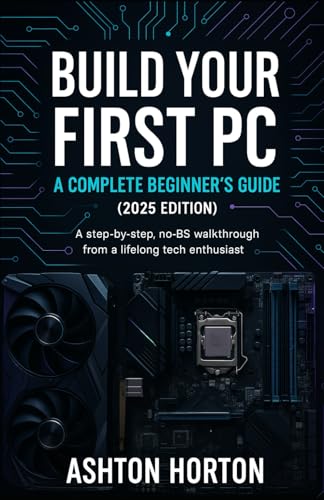
Beginner-friendly references like a step-by-step PC building guide or a troubleshooting handbook can be invaluable here, walking you through minimal-hardware testing and safe reassembly if you are new to working inside a case.
Suspect the PSU or Motherboard
If nothing above works, the power supply or motherboard is the likely villain. A PSU can be tested with the paperclip jumper method to see if its fan spins, though a proper tester is more reliable. If you have access to a spare known-good PSU, swapping it in is the fastest way to confirm. When the board shows no signs of life with good power, it may need replacement.
Tips
- Change only one variable at a time so you know which fix worked.
- Photograph cable connections before unplugging anything.
- Keep a small flashlight and an anti-static habit (touch bare metal) while working.
- Listen and watch for motherboard debug LEDs or beep codes; they often name the failing component.
Frequently Asked Questions
My fans spin but there’s no display, what now?
That points to a POST issue rather than no power. Reseat the RAM and GPU, clear CMOS, and check the debug LEDs. Fans spinning means the PSU is at least partly working.
Could a dead CMOS battery stop my PC from turning on?
It can cause boot and BIOS problems and failed posts. Replacing the inexpensive coin-cell battery is a cheap, worthwhile step in troubleshooting.
How do I know if my PSU is dead?
Use the paperclip jumper test to see if the fan spins, or swap in a known-good PSU. A dedicated tester gives the most reliable reading.
Is it safe to bridge the power pins with a screwdriver?
Briefly touching the two power switch pins is a standard technician test. Just be careful to touch only those two pins and nothing else on the board.
Conclusion
A PC that will not turn on is intimidating but rarely fatal. Work from the outside in, power, button, connections, reseated components, CMOS, then PSU and board, and you will usually find the fix without a repair bill. Take your time, change one thing at a time, and let the debug LEDs guide you to the culprit.