Our Top Picks
 ECKDZMY AM5 AM4 CPU Cooler Mounting Bracket Backplate3.94 x 2.64 x 0.12 Inches0.2 poundsCheck on Amazon
To reset a CPU cooler mounting, shut the PC down, unplug it, loosen the cooler screws in a diagonal pattern, lift the cooler off, clean off the old paste, apply fresh paste, and remount the cooler with even, gradual pressure. There is no BIOS setting for this: “resetting” the mounting means physically reseating the cooler, and it is the standard first fix when CPU temperatures are suddenly high.
When reseating the cooler makes sense
Reseating is worth doing when:
ECKDZMY AM5 AM4 CPU Cooler Mounting Bracket Backplate Standoffs Screws | AM5 AM4 bracket kit backplate standoffs screws secure CPU cooler install durable steel anti-static PC builds upgrades
Picked as a relevant option in this category.
View on Amazon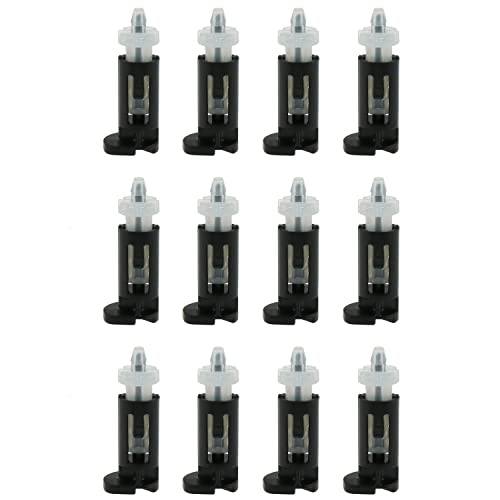
ZZHXSM 12PCS Heatsink CPU Pin Mounting Plastic Pins Push Screw for Intel LGA Socket 775 CPU Cooler Heat Sink Fans
Picked as a relevant option in this category.
View on Amazon
Universal 120mm CPU Fan Mounting Clips Kit - Stainless Steel Wire Buckle for Tower,Tool-Free Snap-On Installation,Black,2 Sizes (8 Clips Total)
Chosen because it specifies Stainless Steel Wire Buckle for Tower and Tool-Free Snap-On Installation.
View on Amazon- CPU temperatures spike to very high values within seconds of starting a game, while the fans are still at low speed.
- Temperatures are far higher than reviews of the same CPU and cooler report.
- You moved or shipped the PC and the cooler may have shifted.
- You changed the CPU, moved the cooler, or removed it for cleaning.
- You see a gap, tilt or uneven contact between the cooler base and the processor.
It is not worth doing if temperatures are normal for the workload. Reseating risks bending pins or damaging components if done carelessly. Do not do it while the PC is still under warranty if the maker’s terms restrict opening the system; check the system’s warranty paperwork first. If you are not comfortable working inside the case, contact the maker or a technician.
What you need
| Item | Purpose |
|---|---|
| Screwdriver that fits the cooler screws | Removing and refitting the cooler |
| High-purity isopropyl alcohol (90 percent or higher) | Cleaning old paste |
| Lint-free cloths or coffee filters | Wiping surfaces without leaving fibers |
| New thermal paste | Replacing the old layer |
| Cooler mounting kit for your socket | Using the correct bracket for AM5 or LGA1851 |
| Anti-static precautions | Touch bare metal on the case or use a wrist strap |
Step-by-step: remove and remount the cooler
Before you start
- Save your work, shut down Windows, and turn off the power supply switch.
- Unplug the power cable from the wall and press the case power button once to drain residual power.
- Lay the case on its side or work on a stable surface with good light.
- If the CPU has been running, wait for the cooler to cool down.
Remove the cooler
- Unplug the cooler’s fan header cable from the motherboard. For an AIO also unplug the pump cable, and do not hang the radiator by the tubes.
- Loosen the mounting screws a little at a time in a diagonal (cross) pattern, so the pressure releases evenly.
- Twist the cooler gently by a few degrees to break the paste seal, then lift it straight up. Pulling hard can lift the CPU out of the socket on some platforms, so keep a hand ready and watch the CPU lock lever or retention frame.
- Sockets for AM5 and LGA1851 use land-grid designs, so the pins are on the motherboard. Do not touch the socket contacts.
Clean both surfaces
- Wipe off the bulk of the paste with a dry cloth, using one direction of travel.
- Dampen a clean cloth with isopropyl alcohol and wipe the CPU heat spreader and the cooler base until no residue shows.
- Let the alcohol evaporate fully before applying new paste.
- Keep alcohol away from the socket, memory slots and other components.
Apply new paste
- Place a pea-sized dot in the center of the heat spreader. Guides report that a line works for long rectangular heat spreaders such as those used by some Intel chips, and a single dot is common for the square AM5 spreader. Some cooler makers suggest their own pattern, so follow the cooler manual.
- Do not spread it with a finger. The pressure of the cooler spreads it, and manual spreading can add air bubbles.
- If the cooler comes with pre-applied paste, follow the maker’s guidance on whether to clean and reapply.
Remount with even pressure
- Check that the correct backplate and brackets for your socket are installed.
- Lower the cooler straight down onto the CPU. Do not slide it, since sliding smears the paste unevenly.
- Start all screws by hand, then tighten them a little at a time in a diagonal star pattern until each is snug according to the cooler manual. Do not fully tighten one screw before starting the others.
- Remove any protective plastic film from the cooler base. This is a common mistake.
- Reconnect the fan or pump cable to the correct header, such as the CPU_FAN header.
What to expect afterward
After you reconnect power and start the PC, go into the BIOS or a monitoring tool and read the CPU temperature at idle. It should settle into a normal range for your CPU, ambient room temperature and cooler. Then run a game or a stress tool for a few minutes and watch for a steady temperature rather than an instant spike. Temperatures may improve slightly over the first days as the paste settles.
If the idle temperature is very high or the system shuts down under load, power off immediately and recheck the mounting.
Quick reference: symptom, cause, fix
| Symptom | Likely cause | Fix |
|---|---|---|
| Temperature jumps to the limit in seconds | Cooler not making contact, film left on, or pump not running | Reseat the cooler, remove film, check the pump cable |
| One core hotter than the rest | Uneven pressure | Loosen and retighten in a diagonal pattern |
| Temperatures same or worse after repaste | Mounting problem | Check brackets and screw tension |
| Fan spins but CPU stays hot | Poor contact or too little or too much paste | Clean and reapply |
| PC will not boot after remounting | CPU, memory or cable disturbed | Recheck connections; consult the motherboard manual |
Common mistakes
- Fully tightening one screw before the others, which tilts the cooler.
- Using too much paste, which can squeeze out and spill toward the socket.
- Reusing old paste, which traps air under the cooler.
- Forgetting to unplug the fan or pump header and straining the cable.
- Using the wrong socket bracket.
- Over-tightening past the cooler’s designed stop.
When not to do it
- Your temperatures are normal for the workload.
- The system is under warranty and the maker asks that service be done by them.
- The cooler is an AIO with a damaged tube or leak. Stop using it and contact the maker.
- You see bent socket pins or a cracked CPU. Stop and contact a technician.
Frequently Asked Questions
Do I have to replace the thermal paste every time I remove the cooler?
Yes, in almost every case. Once the cooler has been lifted, the original layer is broken and remounting on it traps air. Clean both surfaces and apply new paste.
Is there a BIOS option to reset cooler mounting?
No. The BIOS can only reset fan curves or CPU settings. Mounting is mechanical. If you are troubleshooting fan speeds, the fan control menu name varies by motherboard maker, so check the board manual.
How tight should the cooler screws be?
Tighten until snug and even, following the cooler manual. Some coolers use spring-loaded screws that stop at the correct pressure. Do not apply extra force past the stop.
Can I remount the cooler without removing the motherboard?
Often yes, if your case has a cutout and the cooler uses a bracket that holds from the front. Some backplates require taking the board out of the case, so check the cooler manual.
Why are my temperatures still high after remounting?
Possible causes include poor case airflow, a high-power CPU, a fan or pump issue, a remaining protective film, or a cooler too small for the chip. Check the cooler specifications for your processor’s heat output.
Should I use the thermal paste that came with the cooler?
The included paste is fine for most users, and the maker often tuned the application instructions around it. Follow the cooler manual for the recommended pattern.