Key takeaways
- Enable any “low latency,” “reflex,” or “anti-lag” mode your game and GPU driver offer, as these keep the render queue short.
- Cap your frame rate a few frames below your monitor’s refresh ceiling to prevent the GPU from building a backlog of unrendered frames.
- Prefer exclusive fullscreen over borderless windowed mode when a game allows it, since the desktop compositor adds a frame of delay.
- Lower or disable heavy post-processing effects like motion blur and expensive shadows so frames render and reach the screen faster.
Input lag is the invisible tax on your reflexes. It is the tiny delay between the moment you flick your mouse or press a key and the moment the game actually reacts on screen. In fast games like shooters, fighting games, and rhythm titles, even a handful of milliseconds decides whether your shot lands or your combo drops. The frustrating part is that lag hides inside a chain of components, so blaming a single culprit rarely fixes it.
In this guide you will learn where input lag actually comes from, how to measure it honestly, and the practical changes that shave off the most delay for the least money. We will walk through your display, your peripherals, your in-game settings, and your PC configuration, then finish with a hands-on checklist and answers to the questions people ask most. A responsive mouse is one of the biggest wins, so below are the gaming mice we reach for when latency matters.
Our top picks
 Logitech G305 Lightspeed Wireless Gaming Mouse
- Formats: DVD-ROM
- Product Group: Personal Computer
- Binding: Personal Computers
 Logitech G502 Hero Wired Gaming Mouse
- Product Group: Personal Computer
- Binding: Personal Computers
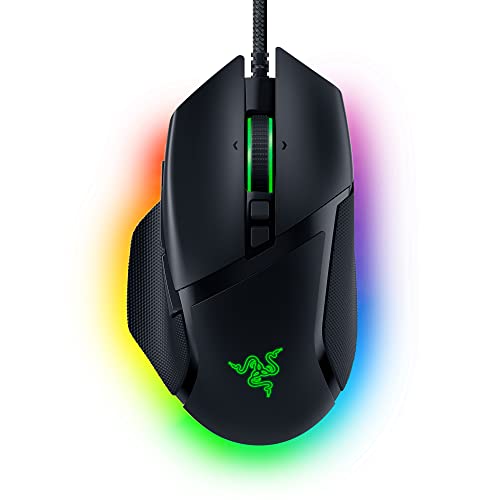


 Razer Basilisk V3 X HyperSpeed Customizable Wireless
- Product Group: Personal Computer
- Binding: Personal Computers

As an Amazon Associate we earn from qualifying purchases at no extra cost to you. Ratings are shown as listed on Amazon.
⚡ Save on Your Next PC — Amazon Prime
Prime members get fast free shipping on the systems above, plus early access to Prime Day & Black Friday PC deals. New members get a 30-day free trial.
Watch: How to Reduce Input Lag in Games — Video Review
Understand Where Input Lag Comes From
Input lag is not one number, it is a stack of small delays added together. The signal starts at your peripheral, travels over USB or wireless, gets processed by the game engine and GPU, then waits for the monitor to draw the next frame. Each stage contributes: a slow polling mouse adds a millisecond or two, a heavy render queue adds several, and a 60Hz panel adds up to 16ms just waiting for its next refresh. Because the delays are cumulative, the smart approach is to trim every stage a little rather than chase one magic fix. Once you picture the whole chain, the settings later in this guide stop feeling random and start making sense.
Optimize Your Display and Refresh Rate
Your monitor is usually the single largest source of delay, and it is often the cheapest to improve. Moving from a 60Hz panel to a 144Hz or 240Hz display roughly halves or quarters the time each frame spends waiting to appear. Beyond raw refresh rate, look for a low native input-lag rating and switch the monitor into its “Game” or lowest-latency picture mode, which disables heavy image processing. Turn off any motion-smoothing, dynamic contrast, or overscan features, and if your panel offers an overdrive setting, use the balanced level rather than the most aggressive one to avoid ghosting. Confirm in your OS display settings that the monitor is actually running at its highest refresh rate, since Windows sometimes defaults new setups to 60Hz.
Choose Fast, Responsive Peripherals
A responsive mouse and keyboard remove delay right at the source. Modern gaming mice poll at 1000Hz or higher, meaning they report their position up to a thousand times per second, and the better ones use optical sensors with no acceleration or smoothing. Wireless is no longer a compromise: current low-latency wireless is effectively as fast as a cable when the receiver sits close to the desk. For keyboards, low-actuation switches register presses sooner, and features like N-key rollover ensure simultaneous inputs all register. The recommended gear above, from the lightweight Logitech G305 Lightspeed to the sensor-heavy Razer Basilisk V3 and the value-focused Redragon M612, all deliver the fast, consistent reporting that keeps the input chain tight.
Tune Your In-Game and Driver Settings
- Enable any “low latency,” “reflex,” or “anti-lag” mode your game and GPU driver offer, as these keep the render queue short.
- Cap your frame rate a few frames below your monitor’s refresh ceiling to prevent the GPU from building a backlog of unrendered frames.
- Prefer exclusive fullscreen over borderless windowed mode when a game allows it, since the desktop compositor adds a frame of delay.
- Lower or disable heavy post-processing effects like motion blur and expensive shadows so frames render and reach the screen faster.
Reduce System-Level Delay
Even with great gear and tuned settings, a bogged-down PC reintroduces lag. Close background apps that hammer the CPU or network, keep your graphics drivers current, and make sure your power plan is set to high performance so the CPU does not down-clock mid-match. Plug your mouse and keyboard directly into rear USB ports on the motherboard rather than a hub, and if you game online, a wired Ethernet connection removes the jitter that wireless networks introduce. These changes cost nothing and stabilize the delays you cannot see, which is often what separates a consistent aim from a streaky one.
Tips
- Measure before and after with a high-speed phone camera or an online lag test, so you know which change actually helped instead of guessing.
- Set your mouse polling rate to 1000Hz in its software and disable any built-in smoothing or angle-snapping options.
- Match your in-game DPI and sensitivity to something you can hold steady, since erratic aim often gets blamed on lag it did not cause.
- Update firmware on your mouse, keyboard, and monitor occasionally, as manufacturers ship latency fixes that most people never install.
Frequently Asked Questions
Does a wired mouse always beat wireless for input lag?
Not anymore. A decade ago wireless added noticeable delay, but modern low-latency wireless technology performs within a fraction of a millisecond of a cable. As long as the receiver is close and the battery is charged, a quality wireless gaming mouse feels indistinguishable from wired in real play.
How much does refresh rate really matter for input lag?
A lot. At 60Hz a frame can wait up to about 16ms before it appears, while at 144Hz that ceiling drops to around 7ms and at 240Hz to roughly 4ms. Upgrading your monitor is frequently the biggest single latency reduction available.
Will capping my frame rate make input lag worse?
No, a sensible cap usually helps. Capping a few frames under your refresh rate stops the GPU from queuing extra frames, which keeps the render pipeline short and responsive. Only an overly low cap that starves your display of frames would hurt.
Is expensive gear necessary to feel a difference?
The largest gains come from free settings and a good monitor, not from the priciest peripherals. A mid-range gaming mouse polling at 1000Hz and a properly configured 144Hz screen will feel dramatically snappier than default hardware, without spending flagship money.
Conclusion
Reducing input lag is about trimming a chain of small delays rather than hunting for one villain. Set your monitor to its full refresh rate and a low-latency mode, pair it with a fast-polling mouse and keyboard, enable your game’s reflex settings with a smart frame cap, and keep your system lean and up to date. Work through the checklist once, measure the result, and you will feel a game that finally reacts as quickly as you do.