Key takeaways
- Match the memory generation. DDR4 and DDR5 are physically keyed differently and cannot be substituted for one another. Check the motherboard or laptop specification first.
- Check the form factor. Desktops generally use full-size UDIMMs; laptops and compact systems commonly use SO-DIMMs. Some thin laptops use soldered memory and cannot be upgraded.
- Confirm the maximum capacity. A board may support 128GB in theory, but its current BIOS version, DIMM density, and processor can affect the practical limit.
- Prefer matched kits. Buy a two-module kit for dual-channel operation, such as 2 × 16GB or 2 × 32GB. Mixing separate kits can work, but it is not guaranteed at the printed speed.
- Consider upgrade slots. With four desktop slots, 2 × 32GB leaves two slots open. On a two-slot board, 2 × 32GB may mean replacing both modules later.
- Check profiles and stability. DDR5 kits may use AMD EXPO or Intel XMP profiles. The profile must be enabled in firmware, and the platform must support the selected settings.
- Do not confuse RAM with storage. A 2TB SSD helps media files and cache performance, but it does not provide the same low-latency workspace as system memory.
What's inside
- Quick recommendation by workload
- How much RAM do video editing and drawing actually need?
- RAM speed: what matters and what does not
- Compatibility checklist before buying
- Decision matrix for common creator setups
- Worked example: why 64GB can be the practical middle ground
- How to choose between capacity and speed
- Bottom line
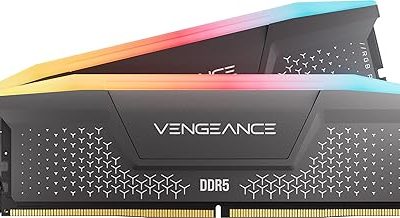
The RAM best for video editing and drawing is usually 64GB of compatible dual-channel memory at DDR5-6000 for a new desktop, while 32GB is the sensible minimum and 96GB–128GB is worthwhile for 4K/8K timelines, huge canvases, or heavy multitasking.
- Quick recommendation by workload
- How much RAM do video editing and drawing actually need?
- RAM speed: what matters and what does not
- Compatibility checklist before buying
- Decision matrix for common creator setups
- Worked example: why 64GB can be the practical middle ground
- How to choose between capacity and speed
- Bottom line
Quick recommendation by workload
| Workload | Recommended capacity | Practical speed | Why |
|---|---|---|---|
| 1080p editing and ordinary digital art | 32GB | DDR4-3200 or DDR5-5600 | Enough for one editor, several browser tabs, and medium-size projects |
| 4K editing, Photoshop, Krita, or Clip Studio Paint | 64GB | DDR5-5600 to DDR5-6000 | Leaves room for cache data, large canvases, and background applications |
| 4K multicam, After Effects compositions, or 8K stills | 96GB–128GB | DDR5-5600 to DDR5-6000 | Reduces paging when several memory-heavy applications are open |
| Professional 8K, RAW workflows, or 3D plus video | 128GB or more | Platform-dependent | Prioritizes capacity over small gains from extreme memory speeds |
How much RAM do video editing and drawing actually need?
32GB is a good entry point for editing 1080p footage, occasional 4K work, and drawing documents with moderate layer counts. It is also the minimum I would choose for a new creative desktop unless the budget is unusually tight. With 16GB, an operating system, browser, editor, graphics application, and media cache can quickly force data onto the SSD. That process, called paging or swapping, is much slower than keeping active data in RAM.
64GB is the best balance for most serious creators. It gives an editor space for a timeline, preview cache, audio tools, a browser, and an image editor without constantly closing applications. It is especially useful when editing 4K H.264, H.265, or RAW footage, because compressed footage can require substantial decoding and preview resources even when the final output is not enormous.
96GB or 128GB makes sense when you edit 4K multicam projects, work with 8K media, use After Effects alongside Premiere Pro or DaVinci Resolve, keep many high-resolution canvases open, or use 3D software at the same time. It will not automatically make exports faster, but it can prevent slowdowns caused by memory exhaustion.
Drawing-specific capacity considerations
Canvas dimensions matter more than the application name. A 10,000 × 10,000-pixel RGB document contains 100 million pixels. At four bytes per pixel, one flattened 8-bit layer needs roughly 400MB before application overhead. Twenty layers could therefore represent about 8GB of raw layer data, and history states, masks, previews, and duplicate documents can multiply that figure. Larger bit depth increases the requirement further.
For drawing, 32GB works for ordinary illustration. Choose 64GB if you use large canvases, dozens of layers, many history states, or several documents simultaneously. RAM cannot replace VRAM: GPU memory still affects brush performance, canvas rotation, filters, and viewport work.
RAM speed: what matters and what does not
Capacity should come first. Moving from 32GB to 64GB usually has a greater practical effect on a creative workload than moving from an adequate DDR5 speed to a premium overclocked kit. Once the system has enough memory, faster RAM can improve responsiveness, integrated-graphics performance, some encoding tasks, and CPU-limited effects, but the gain varies by software and project.
For a modern DDR5 desktop, DDR5-6000 is a practical target when the processor and motherboard support it reliably. DDR5-5600 is also a sound choice, particularly on systems with four modules or high-capacity DIMMs. For DDR4 platforms, DDR4-3200 is a sensible baseline; DDR4-3600 can be useful when the CPU and board support it without unstable manual tuning.
Do not buy based on the advertised transfer rate alone. Timings, motherboard support, module layout, and the processor’s memory controller affect the result. A stable 64GB kit at DDR5-5600 is more useful than an unstable 64GB kit that requires aggressive settings to reach a higher number.
Compatibility checklist before buying
- Match the memory generation. DDR4 and DDR5 are physically keyed differently and cannot be substituted for one another. Check the motherboard or laptop specification first.
- Check the form factor. Desktops generally use full-size UDIMMs; laptops and compact systems commonly use SO-DIMMs. Some thin laptops use soldered memory and cannot be upgraded.
- Confirm the maximum capacity. A board may support 128GB in theory, but its current BIOS version, DIMM density, and processor can affect the practical limit.
- Prefer matched kits. Buy a two-module kit for dual-channel operation, such as 2 × 16GB or 2 × 32GB. Mixing separate kits can work, but it is not guaranteed at the printed speed.
- Consider upgrade slots. With four desktop slots, 2 × 32GB leaves two slots open. On a two-slot board, 2 × 32GB may mean replacing both modules later.
- Check profiles and stability. DDR5 kits may use AMD EXPO or Intel XMP profiles. The profile must be enabled in firmware, and the platform must support the selected settings.
- Do not confuse RAM with storage. A 2TB SSD helps media files and cache performance, but it does not provide the same low-latency workspace as system memory.
Decision matrix for common creator setups
| Your situation | Best choice | Upgrade reasoning |
|---|---|---|
| Existing DDR4 computer with 16GB | Upgrade to 32GB or 64GB DDR4-3200 | Reuse the platform; prioritize matched modules and capacity |
| New desktop with a current DDR5 processor | 2 × 32GB DDR5-6000 | Balanced capacity, bandwidth, and future usefulness |
| New desktop for After Effects and 4K multicam | 2 × 48GB or 4 × 32GB, subject to the board’s support list | 96GB or 128GB prevents cache and multitasking limits |
| Laptop with replaceable memory and two slots | 2 × 16GB or 2 × 32GB SO-DIMM kit | Dual-channel operation is preferable to a single module |
| Integrated graphics system | At least 32GB, preferably 64GB | Integrated graphics shares system RAM, reducing available capacity |
Worked example: why 64GB can be the practical middle ground
Imagine a 4K editing session using 20GB for the operating system, editor, playback buffers, and project assets. Add a browser and communication tools at 8GB, an image editor with a large canvas at 12GB, and background utilities at 4GB. The workload is already using approximately 44GB.
A 32GB computer must page some of that data to the SSD, even if the timeline itself plays acceptably. A 64GB computer retains roughly 20GB of headroom for cache growth and temporary operations. A 128GB system provides substantially more room, but it only becomes cost-effective when the applications and projects regularly exceed 64GB.
Use your operating system’s memory monitor to confirm this. If committed memory repeatedly approaches the installed amount and disk activity rises while switching applications, add capacity. If memory usage stays below roughly 70% and the software is still slow, investigate the CPU, GPU, codec, storage, or thermal limits instead.
How to choose between capacity and speed
- Set the capacity target. Choose 32GB for light work, 64GB for mainstream 4K and serious drawing, and 128GB for demanding multitasking or 8K.
- Choose the platform’s sensible speed. Use DDR4-3200 on a DDR4 system or DDR5-5600/6000 on a compatible DDR5 system.
- Buy the largest matched kit you can install now. This avoids compatibility problems caused by combining different kits later.
- Enable the correct memory profile. After installation, check firmware for XMP or EXPO and verify the reported speed in the operating system.
- Stress-test stability. Run a memory diagnostic or a reputable memory test for several hours. Creative applications can expose errors that ordinary desktop use misses.
- Monitor real usage. Upgrade capacity when projects cause paging; upgrade other components when RAM remains available but playback, effects, or brush response are still limited.
Bottom line
For most people seeking the ram best for video editing and drawing, 64GB of dual-channel memory is the safest recommendation. Choose 2 × 32GB DDR5-5600 or DDR5-6000 for a new desktop, or 64GB of supported DDR4-3200 for an older platform. Select 32GB when the workload is lighter and the budget is limited, and move to 96GB or 128GB when large canvases, 4K multicam, 8K footage, After Effects, or 3D applications regularly compete for memory. Capacity, compatibility, and stability should come before chasing the highest advertised speed.