Key takeaways
- 6K or 8K footage, especially RAW or high-bitrate intraframe formats.
- Long multicamera timelines with many active video and audio tracks.
- After Effects compositions with high-resolution layers, 3D elements, or many pre-compositions.
- DaVinci Resolve Fusion effects, heavy temporal processing, or large node trees.
- Editing while running Photoshop, After Effects, a web browser with many tabs, and an encoder.
- Virtual machines, game streaming, 3D software, or local AI tools running alongside the editor.
What's inside
- Quick RAM recommendations
- How much RAM do you need for 1080p editing?
- How much RAM do you need for 4K editing?
- When 128GB or more is justified
- Capacity versus speed: which upgrade helps more?
- How to check whether RAM is your bottleneck
- RAM speed, DDR4, and DDR5 considerations
- A practical buying guide for 2026
- Bottom line
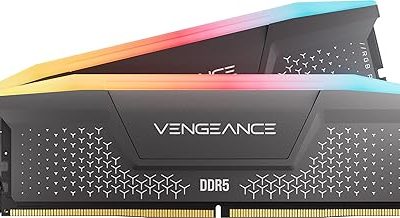
The best RAM count for video editing in 2026 is 32GB for 1080p, 64GB for most 4K projects, and 128GB or more for 6K/8K footage, large After Effects compositions, or heavy multitasking.
- Quick RAM recommendations
- How much RAM do you need for 1080p editing?
- How much RAM do you need for 4K editing?
- When 128GB or more is justified
- Capacity versus speed: which upgrade helps more?
- How to check whether RAM is your bottleneck
- RAM speed, DDR4, and DDR5 considerations
- A practical buying guide for 2026
- Bottom line
Quick RAM recommendations
| Editing workload | Recommended RAM | Minimum workable amount | Why it matters |
|---|---|---|---|
| 1080p, short projects, one editing application | 32GB | 16GB | Enough room for the editor, media cache, browser tabs, and basic effects |
| 4K footage, multicamera editing, color grading | 64GB | 32GB | Prevents frequent cache purges and slow disk swapping |
| 4K editing plus After Effects, Photoshop, or streaming | 64–96GB | 64GB | Supports several demanding applications at once |
| 6K/8K, RAW, complex effects, or professional multitasking | 128GB | 64GB | Large frames, high-resolution caches, and multiple compositions consume memory quickly |
| Large 8K timelines, virtual machines, or serious 3D and compositing work | 192–256GB | 128GB | Provides headroom for unusually large projects and simultaneous workloads |
How much RAM do you need for 1080p editing?
Choose 32GB if you edit 1080p video regularly. It is the best balance for applications such as Adobe Premiere Pro, DaVinci Resolve, and VEGAS Pro when your projects use standard H.264 or H.265 footage, moderate transitions, titles, and occasional color correction.
Sixteen gigabytes can still work for basic 1080p editing, but it leaves little spare capacity. Windows, background services, a browser, and the editor itself can consume much of that memory before footage is added. Once the system starts using the SSD as virtual memory, scrubbing and switching between applications become noticeably less responsive.
For a 1080p hobby workflow, 16GB is acceptable when the budget is tight. For a new desktop or laptop intended to last several years, 32GB is the more sensible starting point. You are buying room for larger projects, newer software, and more demanding codecs rather than only meeting today’s minimum.
How much RAM do you need for 4K editing?
Use 64GB as the target for 4K editing. A 4K timeline may be manageable with 32GB, particularly when using proxies, but 64GB gives an editor useful headroom for multicamera sequences, noise reduction, high-quality previews, motion graphics, and a large media cache.
The exact footage format matters. A short 4K H.264 project is relatively light on storage but can be demanding to decode. 4K ProRes, DNxHR, or camera RAW creates larger data streams and often encourages higher-quality previews and more cached frames. DaVinci Resolve projects with Fusion compositions and temporal noise reduction can also exceed what a 32GB system handles comfortably.
A practical example shows why capacity matters. Suppose the operating system and background programs use 7GB, the editing application uses 10GB, and a browser, audio tools, and plugins use another 5GB. That consumes 22GB before the editor has room for decoded frames, effects, and caching. On a 32GB machine, only about 10GB remains. On a 64GB machine, approximately 42GB remains, so the application can keep more working data in memory instead of repeatedly reading it from the SSD.
When 128GB or more is justified
Choose 128GB when your workflow includes several of the following:
- 6K or 8K footage, especially RAW or high-bitrate intraframe formats.
- Long multicamera timelines with many active video and audio tracks.
- After Effects compositions with high-resolution layers, 3D elements, or many pre-compositions.
- DaVinci Resolve Fusion effects, heavy temporal processing, or large node trees.
- Editing while running Photoshop, After Effects, a web browser with many tabs, and an encoder.
- Virtual machines, game streaming, 3D software, or local AI tools running alongside the editor.
For example, an editor might allocate 12GB to the operating system and background tasks, 24GB to Premiere Pro, 32GB to After Effects, 8GB to Photoshop, and 12GB to a browser, audio application, and utilities. That total is already 88GB, before allowing comfortable cache headroom. A 128GB system handles this scenario far better than a 64GB system, even if both use equally fast memory.
Capacity versus speed: which upgrade helps more?
For video editing, RAM capacity usually matters more than a modest increase in memory speed. Moving from an overloaded 32GB system to a comfortable 64GB system can eliminate paging to the SSD, while moving from one supported DDR5 speed grade to a slightly faster one generally produces a much smaller improvement in editing responsiveness.
Speed still matters after capacity is sufficient. Dual-channel or multi-channel operation, correct memory timings, and a supported DDR4 or DDR5 kit can improve playback and export performance, particularly when the CPU relies on integrated graphics. However, faster RAM cannot compensate for insufficient capacity.
| Situation | Best decision | Reason |
|---|---|---|
| 32GB system constantly reaches 90–100% usage | Add capacity first | Paging and cache eviction are the main problems |
| 64GB system uses less than 50% during normal projects | Consider faster supported RAM only after other upgrades | Extra capacity will not improve a workload that does not need it |
| Integrated graphics are used for editing | Use matched dual-channel memory and adequate capacity | Integrated GPUs share system RAM and depend on memory bandwidth |
| 4K playback is poor despite plenty of free RAM | Check the codec, GPU, CPU, storage, and proxies | RAM may not be the bottleneck |
How to check whether RAM is your bottleneck
Step 1: Watch memory usage during a real edit
Open Task Manager in Windows or Activity Monitor on macOS while scrubbing the most demanding timeline you regularly use. Monitor memory while playing the timeline, applying effects, switching applications, and exporting. If usage repeatedly approaches the installed capacity and disk activity rises sharply, insufficient RAM is likely contributing to the slowdown.
Step 2: Check whether the system is paging
Windows calls this committed or virtual memory activity, while macOS reports memory pressure and swap usage. Occasional swap use is normal. Constant swap activity, stuttering when changing applications, and long pauses while the system retrieves cached data indicate that more RAM would help.
Step 3: Separate RAM problems from codec problems
If the timeline stutters while memory usage remains moderate, the issue may be a heavily compressed codec, an underpowered CPU, insufficient GPU acceleration, or a slow storage drive. Generate proxies or optimized media as a test. If playback becomes smooth, the codec or decoding workload was the primary issue, not RAM capacity.
Step 4: Upgrade in a compatible configuration
Check the motherboard or laptop specification before buying. Confirm the memory type, maximum supported capacity, number of slots, and whether the platform supports the desired module sizes. Install matched modules where possible. Two identical modules usually provide better channel operation than mixing unrelated sticks, and laptop memory may be soldered or unavailable for upgrade.
RAM speed, DDR4, and DDR5 considerations
Use the memory generation supported by the platform; DDR4 and DDR5 are not interchangeable. Newer desktop and laptop platforms commonly support DDR5, while many older systems use DDR4. A compatible, stable kit at its rated profile is preferable to an extreme speed setting that causes crashes or requires extensive tuning.
Do not reduce capacity to afford a faster kit. For example, 64GB of supported midrange DDR5 is generally a better editing choice than 32GB of much faster DDR5 if your projects already push 32GB. Once you have enough RAM, prioritize a stronger CPU, a capable GPU with sufficient VRAM, fast NVMe storage for media and cache, or a proxy workflow depending on the observed bottleneck.
A practical buying guide for 2026
- Mostly 1080p: Buy 32GB. Choose 16GB only for occasional, simple projects.
- Regular 4K: Buy 64GB, especially for multicamera work, color grading, or long-form projects.
- 4K plus motion graphics: Start at 64GB and choose 96GB or 128GB if After Effects is used heavily.
- 6K or 8K professional work: Choose 128GB, then increase capacity if your specific software routinely exceeds it.
- Gaming and editing on one PC: Choose at least 32GB; 64GB is preferable when recording, streaming, and editing on the same machine.
- Laptop purchase: Favor a model with upgradeable or configurable memory, because many modern thin laptops cannot be expanded later.
Bottom line
The best RAM count for video editing depends on resolution and the number of applications active at once, but 32GB is the practical baseline, 64GB is the sweet spot for 4K, and 128GB is the professional choice for high-resolution or heavily multitasked work. Buy enough capacity to prevent paging first; only then should memory speed become a major purchasing priority.