Key takeaways
- The best drawing apps for android tablets turn a stylus into finished art. Compare free and paid apps for sketching and painting, and find your fit today.
An Android tablet with a stylus can replace a sketchbook, a paintbox and a comic studio, but only if the app respects the way you draw. Some apps suit quick sketches on the train, others finished illustrations with hundreds of layers, and a few comics and manga with panels, tones and speech bubbles. The wrong app wastes your time with laggy strokes and cramped menus, while the right one feels like part of your hand. This guide compares the strongest drawing apps for Android tablets and matches one to your style.
This guide is for beginners sketching for fun, hobbyists moving from paper to a screen, comic artists who need panel and tone tools, and illustrators who want professional brushes and layers on a tablet. It explains how to judge brush engines, layer limits, stylus support and file handling, so you can pick an app that grows with you instead of one you outgrow. As an Amazon Associate we earn from qualifying purchases.
How to Choose
Test the brush engine before anything else
A drawing app lives or dies by how its brushes feel under a stylus, so test the brush engine first and worry about the feature list later. A good engine draws a smooth line at speed, with no jagged steps on curves and no lag between the stylus tip and the stroke on screen. Check whether the app supports pressure sensitivity, so a light touch makes a thin line and a firm press makes a thick one, and whether tilt changes the brush angle for shading. The best apps ship with dozens of brushes — pencils, inks, watercolours, airbrushes — and let you adjust size, opacity, spacing and stabilisation for each one. If an app offers only a handful of brushes with no settings, it will feel limiting within a week, no matter how pretty its menus look. Download the free version first, draw a few long curves and quick hatches, and keep only the apps whose strokes feel natural to your hand. Also check the app’s stabilisation settings, which smooth shaky lines for beginners, and whether you can save custom brushes for later, because a personal brush set is what turns a good app into your app. A second test worth doing is drawing the same quick sketch in two apps back to back: the one that feels invisible after five minutes is the one to keep, even if the other has the longer feature list.
Check layers, canvas size and file formats
Layers are where a drawing app shows its real limits, because a sketch needs only a few but a finished illustration can need fifty or more. Check how many layers the app allows at your tablet’s screen size, since some apps cap layers hard on larger canvases, and confirm that you can group, merge, lock and change the blending mode of each layer. Canvas size matters too: an app that tops out at small resolutions will blur your work when you print it or zoom in to add detail. Look for apps that export PSD, PNG and JPEG, and that import PSD files without flattening your layers, because that compatibility decides whether your tablet work can move to a desktop later. An app that locks your drawings into its own format is a dead end, so favour open, standard formats from the start. Also confirm that the app autosaves your work, so a dead battery never costs you an evening of drawing, and that it keeps a backup copy in the cloud or on your tablet. Check the undo history too: a deep undo stack forgives bold experiments, while a shallow one punishes them, and a good app lets you step back through dozens of strokes without losing your place.
Make sure your stylus and palm rejection work
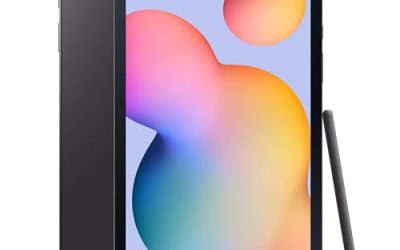
Android tablets use several different stylus systems, and an app that works beautifully with one pen can stutter with another. Check whether the app supports the pen your tablet ships with — the S Pen on Samsung tablets, the USI stylus on ChromeOS tablets, or a third-party active pen — and whether it reads pressure levels correctly rather than treating every stroke the same. Palm rejection is just as important: the app should ignore your resting hand while drawing, so you can lean on the screen naturally instead of hovering awkwardly. Some apps let you set a palm-rejection zone or a shortcut button on the pen, which makes long sessions far more comfortable. If the app has no stylus settings at all, test it with your own pen before committing to it, because a mismatch here ruins everything else the app does well. Also look for shortcut gestures, such as two-finger tap to undo, which speed up drawing more than any menu, and check whether the app lets you remap the pen button to eraser or eyedropper. A quick test is to rest your palm on the screen and draw a line: if the line stays clean, the palm rejection works, and if it wobbles or jumps, try another app before you invest time in learning it.
Weigh free against paid, and watch the subscription
Drawing apps on Android range from completely free to monthly subscriptions, and the right choice depends on how seriously you draw. Free apps such as ibis Paint and MediBang Paint offer huge brush libraries and cloud features without charging, though some show ads or lock a few brushes behind a small payment. Paid apps such as Clip Studio Paint charge a subscription but deliver professional manga tools, vector layers and animation timelines that free apps cannot match. One-time purchases, like Infinite Painter, sit in between: you pay once and keep the full brush set forever. Watch out for apps that are free to download but lock saving, exporting or layers behind a subscription, because those costs add up quietly. Pick the payment model that matches how often you draw, and avoid an app whose best tools sit behind a paywall you will never open. Also check whether the app charges extra for cloud storage or for exporting at full resolution, since those hidden costs matter as much as the headline price. A free app that exports only small images is no bargain for anyone who prints, while a one-time purchase that includes every brush is often the cheapest choice over a year of drawing.
Which One Fits Your Situation
You are just starting out
Start with ibis Paint or MediBang Paint, both free and packed with brushes, layers and community tutorials. ibis Paint suits sketching and social sharing, with a huge brush library and a recording feature that saves your drawing process as a video. MediBang Paint suits comic work, with panel tools, tones and cloud saving that moves your work between tablet and phone. Neither costs anything to try, so download both, draw for a week in each, and keep the one whose menus make sense to you. Both apps include active communities where you can watch other artists draw, which is the fastest way to learn new techniques without paying for a course. Their built-in tutorials walk you through your first finished piece, so you learn the tools by using them rather than reading a manual.
You draw comics and manga
Choose Clip Studio Paint, the standard for professional comic and manga work on tablets. It offers panel rulers, screentones, speech-bubble tools, vector layers that stay sharp when resized, and a timeline for simple animation. The subscription costs money, but it replaces several separate tools at once, and files open cleanly on desktop versions of the same app. If the subscription puts you off, MediBang Paint covers the basics of comic layout for free, with fewer professional extras. The app also handles lettering and sound effects well, so a full comic page can be finished without leaving the tablet. Its animation timeline lets a comic panel grow into a short moving scene, which is useful if you ever want to try motion comics.
You want a desktop-class painting app for free
Try Krita, the free open-source painting app that runs on Android tablets with a full brush engine, layer groups, blending modes and animation support. It is the closest thing to a desktop painting studio on Android, and it costs nothing. The interface is dense and takes a few days to learn, and it works best on a tablet with plenty of memory, but for serious painters it is hard to beat. Sketchbook is a simpler free alternative if Krita feels overwhelming, with a clean canvas and a smaller, friendlier toolset. Krita also supports animation timelines, so a still illustration can grow into a short animated loop when you are ready to try motion. Its brush engine is the same one desktop painters use, so skills you build on the tablet transfer directly to a computer later.
You sketch ideas and wireframes all day
Pick Concepts, a vector-based sketching app built around an infinite canvas and a flexible brush system. It suits designers, architects and note-takers who sketch, annotate and rearrange ideas rather than paint finished art. The free version covers basic sketching, while the paid version adds custom brushes, object libraries and PDF export. Infinite Painter is a good alternative if you prefer raster brushes and natural media, with watercolours and oils that blend like real paint and a one-time purchase instead of a subscription. Concepts also exports to common formats, so a sketch started on the tablet can be finished in a desktop design tool without redrawing it. Its infinite canvas means you never run out of room mid-idea, which suits brainstorming sessions that sprawl across the screen.
Common Mistakes
- Picking an app for its icon and screenshots instead of testing its brush engine with your own stylus.
- Ignoring layer limits until a finished illustration hits the cap and forces a merge.
- Choosing an app that cannot export PSD or PNG, locking your work into one format.
- Paying for a subscription before trying the free version for at least a week.
- Forgetting palm rejection: an app that reads your resting hand as a stroke will ruin every drawing.
Frequently Asked Questions
What is the best free drawing app for Android tablets?
ibis Paint is the strongest free choice for most people, with a large brush library, layers, stabilisation and a recording feature, all without paying. MediBang Paint is a close second, especially for comics, with panel tools and cloud saving. Krita is the most powerful free option of all, but its dense interface suits experienced painters better than beginners, so start with ibis Paint and move up when you need more. If you want the most powerful free app and do not mind learning, Krita beats both, but expect a steeper learning curve before it feels natural.
Do I need a stylus to draw on an Android tablet?
A stylus makes a large difference, because it gives you pressure sensitivity, precision and palm rejection that a finger cannot match. Samsung tablets ship with the S Pen, and many other Android tablets support USI styluses. You can sketch with a finger in most apps, but fine lines, shading and long sessions are all harder without a pen, so a basic active stylus is worth buying before a paid app. A basic active stylus costs little and transforms the experience, so buy the pen before you buy any app. Even a cheap pen beats a finger for shading, because it reads pressure instead of treating every touch the same.
Can Android drawing apps open files from a computer?
Yes, if you pick an app with standard format support. Clip Studio Paint and Krita both open and save PSD files with layers intact, so work moves between tablet and desktop without flattening. MediBang Paint uses its own cloud format but exports PSD and PNG. Before committing to an app, export a test file and open it on your computer to confirm the layers survive the trip. Test the round trip once with a small file before committing to an app, because a broken export is easier to discover early than after a finished piece. Keep the test file small so the export takes seconds, then open it on your computer and check every layer by name.
Which drawing app is best for comics on Android?
Clip Studio Paint is the professional standard for comics and manga, with panel rulers, tones, speech bubbles and vector layers. MediBang Paint is the best free alternative, with solid comic tools and cloud saving. ibis Paint works well for comic-style illustration but lacks proper panel and tone tools. If you draw comics seriously, the Clip Studio subscription pays for itself in time saved. Clip Studio also offers a free trial, so test the full toolset on a real comic page before paying for the subscription. Draw one complete page in the trial and you will know whether the panel and tone tools are worth the monthly cost.
FAQ
What is the best free drawing app for Android tablets?
Do I need a stylus to draw on an Android tablet?
Can Android drawing apps open files from a computer?
Which drawing app is best for comics on Android?
More from Amazon
Programs that pair well with the guide above. Offers and eligibility are set by Amazon and may change.
Free shipping on eligible items, Prime Video and more. Eligible new members can start with a free trial.
Start a Prime free trialAd-free music streaming. Eligible new subscribers can start with a free trial.
Try Music Unlimited freeA Prime membership for ages 18-24 with a trial period. Eligibility is set by Amazon.
See Prime for Young AdultsAudiobooks and podcasts to listen to on the go. Eligible new members can start with a free trial.
Try Audible freeAs an Amazon Associate we earn from qualifying purchases.