Key takeaways
- Find the best email app for android tablets, with Gmail, Outlook, Spark, BlueMail and more compared for large screens and work.
As an Amazon Associate we earn from qualifying purchases.
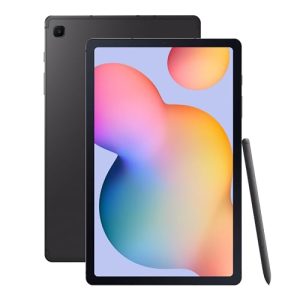
An Android tablet is a good place to read and answer email: the large screen shows more of each message, a keyboard attachment makes long replies easy, and split-screen view lets you check a calendar or a document alongside the inbox. The best email app for Android tablets is the one that uses that large screen well, handles your accounts cleanly, and stays fast with a full inbox.
This guide compares the leading email apps for Android tablets by layout, account support, search, offline use, and the small features that matter on a big screen, such as multi-window support and a proper tablet layout rather than a stretched phone view.
Because email apps are software, not hardware, there is no single set of products to link to here. The apps below are all available from the usual Android app store, and most offer a free version that covers everyday email.
How to Choose
Use the seven points below to compare every option on the same basis before you settle on one. Each point matters on its own, and together they separate a good match from a poor one.
Tablet layout, not a stretched phone view
A good tablet email app uses two panes: a message list on one side and the open message on the other, so you can scan and read without going back and forth. Apps that simply stretch a phone layout waste the large screen and make triage slower. Check screenshots for a two-pane layout before installing.
Account support
Most people use more than one email account, often mixing Gmail, Outlook, Yahoo, and a work account. A good app handles several accounts in one unified inbox while keeping each account’s folders, labels, and sending identity separate. Check that your account types are supported, especially work accounts that need specific server settings.
Search that actually finds messages
Search is where a good email app earns its place. Look for search that covers the whole mailbox, including attachments and older messages, and that offers filters by sender, date, and whether a message has an attachment. A slow or shallow search turns a big inbox into a burden.
Offline reading and sending
A tablet is often used on the move, where the connection drops. A good app downloads messages for offline reading and queues replies to send when the connection returns. Check the offline settings and how much mail the app keeps on the device.
Notifications and quiet hours
Email notifications should be useful, not constant. Look for per-account notification settings, quiet hours, and a way to silence threads you are only copied on. A tablet used in the evening benefits from a schedule that stops work mail from buzzing after hours.
Calendar and contacts integration
Email and calendar belong together. An app that shows meeting invites inline, lets you accept them, and links to your contacts saves switching between apps. Check whether the app opens calendar invites properly and whether it can add events from a message in one step.
Privacy and data handling
Some email apps route your mail through their own servers to offer smart features, while others connect directly to your provider. Read the app’s privacy notes before signing in, especially for work mail, and check whether you can turn off features that read message content.
Top Picks
The picks below cover the main ways people use this kind of product. Read the short notes under each one and match them to your own routine rather than picking the first name on the list.
Gmail
Gmail is the default email app on most Android tablets, and it is also the most integrated: it handles Gmail and Google Workspace accounts natively, shows a two-pane layout on large screens, and links directly to Calendar and Meet. Its search covers the whole mailbox, and its categories sort promotions and updates away from the main inbox. For Gmail users, it is the simplest choice and needs no setup at all.
Key specifications:
- Google account support built in
- Two-pane tablet layout
- Smart inbox categories and labels
- Offline reading and search
- Calendar and Meet integration
Who it suits: Android tablet owners who use Gmail or Google Workspace and want the most integrated option.
Watch out for: Its smart features rely on Google services, which may not suit work accounts hosted elsewhere.
Microsoft Outlook
Outlook for Android handles Outlook, Gmail, Yahoo, and other accounts in one place, with a Focused Inbox that separates priority mail from the rest. Its built-in calendar is a real advantage on a tablet, since invites and schedules sit alongside the inbox. The tablet layout is clean and fast, and it is the best choice for people whose work mail runs on Microsoft services.
Key specifications:
- Outlook, Gmail, and Yahoo accounts
- Focused Inbox for priority mail
- Calendar built into the app
- Two-pane tablet layout
- Offline reading and sending
Who it suits: Tablet owners who mix Outlook with Gmail and want mail and calendar in one app.
Watch out for: Its Focused Inbox hides some mail by default, so check the Other tab regularly until you trust its sorting.
Spark
Spark sorts mail into personal, notification, and newsletter groups, so the important messages sit at the top and the rest waits below. Its snooze and send-later features are genuinely useful on a tablet used for both work and personal mail, and its calendar integration keeps invites visible. It is a strong choice for people who like their inbox organised for them.
Key specifications:
- Smart inbox with priority sorting
- Snooze and scheduled sending
- Team sharing and private comments
- Calendar integration
- Tablet layout with two panes
Who it suits: Tablet owners who want smart sorting, snooze, and scheduled sending in a polished app.
Watch out for: Some advanced features need a paid plan, so check which features are free before relying on them.
BlueMail
BlueMail supports a wide range of account types, including Gmail, Outlook, Yahoo, and standard IMAP accounts, and brings them together in one unified inbox. Its clustering groups similar messages, and its gestures and layout options let you shape the app to your habits. It suits people with several accounts who want everything in one place.
Key specifications:
- Many account types supported
- Unified inbox across accounts
- Clusters for grouping mail
- Offline reading
- Customisable gestures and layout
Who it suits: Tablet owners with several different accounts who want one unified inbox and deep customisation.
Watch out for: Its many options can feel busy at first, so allow time to set it up the way you like.
Edison Mail
Edison Mail keeps the inbox tidy with a smart assistant that pulls out travel details, parcel tracking, and bill reminders from messages. Its unsubscribe and block tools help clear a cluttered inbox quickly, and its layout works well on a large screen. It is a good pick for personal mail, especially for people who shop and travel often.
Key specifications:
- Gmail, Outlook, Yahoo, and IMAP
- Smart assistant for travel and parcels
- Block sender and unsubscribe tools
- Offline reading
- Clean tablet layout
Who it suits: Tablet owners who want a clean inbox with strong unsubscribe and parcel-tracking helpers.
Watch out for: Its smart assistant features need access to message content, so read the privacy notes first.
Comparison Table
| Product | Capacity / Output | Standout feature | Best for |
|---|---|---|---|
| Gmail | Google accounts | Most integrated | Gmail users |
| Microsoft Outlook | Outlook and Gmail | Mail plus calendar | Work mail users |
| Spark | Many accounts | Smart sorting, snooze | Organised inbox fans |
| BlueMail | Many account types | Unified inbox | Multi-account owners |
| Edison Mail | Gmail, Outlook, IMAP | Travel and parcel helpers | Personal mail |
Which One Is Right for You?
If you use Gmail, start with Gmail: it is already installed, it fits the tablet screen, and it links to Calendar without any setup. If your work mail runs on Microsoft services, Outlook is the better home, since it keeps mail and calendar together and handles Gmail alongside. Spark suits people who want the inbox sorted for them, BlueMail suits people with many different accounts, and Edison Mail suits personal mail with its travel and parcel helpers. Install two, use each for a week, and keep the one whose layout and search you reach for first.
A final habit makes any email app work better on a tablet: set aside a short routine for keeping the inbox under control. Unsubscribe from newsletters you never read, since a smaller inbox is faster to search and easier to scan, and use the app’s archive function for messages you have dealt with rather than leaving them in the inbox. Turn on the app’s conversation view if it offers one, so long threads stay together instead of scattering across the list, and learn the swipe gestures for archive and delete so triage takes seconds rather than minutes. If you use the tablet with a keyboard, learn the keyboard shortcuts for composing, archiving, and moving between messages, since they make long replies far quicker than tapping. Also check the app’s widget options, since a home-screen widget that shows unread mail can save opening the app for a quick check. Finally, keep the app updated, since email apps receive regular fixes for security and for the way they display messages, and an old version can misrender a message or miss a new account feature.
Frequently Asked Questions
Can I use Gmail on an Android tablet without the Gmail app?
Yes. Other email apps, including Outlook, Spark, BlueMail, and Edison Mail, can connect to a Gmail account. You can also read Gmail in a browser, though an app is faster and works offline.
Which email app is best for work mail on a tablet?
It depends on your work provider. Outlook is the natural choice for Microsoft work accounts, while Gmail suits Google Workspace. Check with your workplace whether a specific app is required for security or device management.
Do email apps work offline on a tablet?
Most good email apps download recent messages for offline reading and queue outgoing mail to send when the connection returns. Check the offline settings and how much mail the app stores on the device.
Is it safe to give an email app access to my accounts?
A reputable email app needs access to read and send mail, which is normal. Read the app’s privacy notes, especially for work mail, and avoid apps that ask for access beyond what email requires.
FAQ
Which One Is Right for You?
Can I use Gmail on an Android tablet without the Gmail app?
Which email app is best for work mail on a tablet?
Do email apps work offline on a tablet?
Is it safe to give an email app access to my accounts?
More from Amazon
Programs that pair well with the guide above. Offers and eligibility are set by Amazon and may change.
Free shipping on eligible items, Prime Video and more. Eligible new members can start with a free trial.
Start a Prime free trialAd-free music streaming. Eligible new subscribers can start with a free trial.
Try Music Unlimited freeA Prime membership for ages 18-24 with a trial period. Eligibility is set by Amazon.
See Prime for Young AdultsAudiobooks and podcasts to listen to on the go. Eligible new members can start with a free trial.
Try Audible freeAs an Amazon Associate we earn from qualifying purchases.