Key takeaways
- Compare the best note taking apps for android tablets, from Samsung Notes and Goodnotes to Nebo and OneNote, with handwriting, sync and export advice.
Choosing a note taking app for an Android tablet is really a decision about how you think on paper, because the best app matches the way your notes actually look. Some people write longhand with a stylus and want ink that flows like a real pen, while others type structured outlines or sketch diagrams beside lecture notes. A free app that cannot export your pages is a trap, and a powerful app with a confusing interface will sit unused while you go back to loose paper.
This guide is for students who take lecture notes by hand, professionals who annotate documents in meetings, and anyone who sketches ideas and wants those pages searchable later. The apps below were compared on handwriting, organisation, syncing and export, using the features each developer publishes for its Android version, so you can pick the one that fits your workflow.
As an Amazon Associate we earn from qualifying purchases
How to Choose
Handwriting feel and stylus support
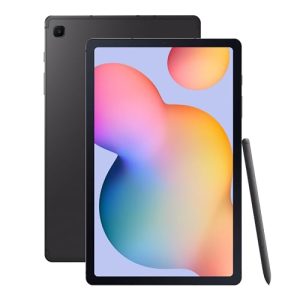
Handwriting is where Android note apps differ most, because a good ink engine makes a stylus feel like a pen while a poor one turns every stroke into a lagging line. Look for low-latency ink, palm rejection that keeps your resting hand from drawing stray marks, and pressure sensitivity that makes thick and thin strokes feel natural. Samsung Notes pairs closely with the S Pen on Galaxy tablets, while Goodnotes for Android and Nebo are built around handwriting first and add conversion that turns your script into searchable text. If you write more than you type, test the ink with a long paragraph before you commit, and check whether the app lets you change pen colour, thickness and eraser behaviour without digging through menus. Also check whether the app offers different paper backgrounds, such as lined, dotted or blank pages, because the right background makes longhand writing easier to keep straight. Zoom writing, where you write large in a magnified box while the page stays small, helps on smaller tablets and keeps your script legible. Finally, look at how the app handles mistakes: a good eraser removes only the stroke you touch, while a clumsy one wipes out half a paragraph and breaks your flow.
Organisation that matches your thinking
A note app earns its place when you can find a page from three months ago in seconds, so organisation deserves as much attention as the pen. Some apps use notebooks and sections, which suit students who keep one notebook per subject, while others use tags, folders and a global search that suits people whose notes jump between projects. Check whether search covers your handwriting as well as typed text, because handwriting search turns a pile of lecture pages into a usable archive. Also check whether you can pin important pages, bookmark a section, or link one note to another, since those small features decide whether the app stays useful once your library grows past a hundred pages. Folders alone rarely scale, so look for a second layer such as tags or favourites that cuts across your notebooks. A student might tag every page about one exam across several subjects, while a professional might tag action items across many meetings. Check whether the app shows a thumbnail grid of recent pages, because a visual overview finds a sketched diagram faster than a text search ever will. And confirm that deleted pages go to a recycle bin first, so one wrong tap does not erase a semester of notes.
Syncing across your devices
Notes lose much of their value if they live only on one tablet, so syncing is a real decision criterion rather than a bonus feature. Samsung Notes syncs through a Samsung account and works best inside the Galaxy family, while Microsoft OneNote syncs through a Microsoft account and reaches Windows, phones and the web. Google Keep syncs through a Google account and is the simplest option when your notes are short and you live inside Google services. Before you settle on an app, check whether its sync needs a paid subscription, whether it works offline and catches up later, and whether your notes stay readable if you stop paying, because a subscription that locks your archive behind a paywall is a poor trade. Speed matters too: a sync that takes minutes to appear on your laptop is little better than no sync when you need a note in a meeting. Check whether the app syncs in the background or only when you open it, and whether it handles conflicts gracefully when you edit the same page on two devices. Some apps keep a version history, which rescues a page you overwrote by accident. If your notes include sensitive work material, check whether the sync connection is encrypted and whether the app offers a passcode lock on top of the sync.
Export and what happens to your notes later
Export is the feature you only miss when it is too late, so check it before you build a library of hundreds of pages. A good app exports pages as PDF files, images or text, which means your notes survive even if you switch tablets or the app disappears. Some apps also export handwriting as converted text, which is useful when you need to paste lecture notes into an essay or a report. Watch for apps that store notes only in a private format with no export path, because those pages belong to the app rather than to you. If you annotate imported PDF files, check that your annotations export with the document instead of vanishing when you share it. If you share notes with classmates or colleagues, check whether the exported PDF keeps your handwriting, highlights and annotations exactly as they appeared on screen. Some apps flatten everything into a clean document, while others lose colours or leave annotations behind. Also check whether you can export a whole notebook at once or only one page at a time, because exporting a hundred pages one by one is a chore nobody finishes. A bulk export option turns a semester of notes into a single file you can store anywhere.
Which One Fits Your Situation
Lecture notes by hand
Choose Samsung Notes if you own a Galaxy tablet with an S Pen, because the ink, palm rejection and handwriting search are built for that hardware and the app costs nothing extra. Its notebook layout keeps one subject per book, and audio recording can sit beside your written pages. If you use a different brand of tablet, Goodnotes for Android is the closest handwriting-first alternative, with clean ink and page templates that suit a lecture hall. Both let you search your handwriting later, which turns a term of lectures into a revision archive.
Meeting notes and typed outlines
Choose Microsoft OneNote when your notes are mostly typed and shared with colleagues, because its notebooks sync everywhere and its section structure handles long projects well. OneNote also handles pasted images, web clippings and checklists in the same page, which suits meeting notes that mix action items with reference material. Google Keep fits shorter notes and quick reminders, but it is too simple for a long structured document. OneNote also keeps a version history, which rescues a page someone overwrote during a busy meeting.
Sketching diagrams and ideas
Choose Nebo when your pages mix handwriting with diagrams, maths and sketches, because it converts handwriting to text and handles drawn shapes cleanly. Noteshelf is another strong option for visual note takers, with a wide choice of paper templates and a simple layout that keeps the focus on the page. Both apps export to PDF, so a sketched idea can leave the tablet and reach a colleague without losing its layout. Nebo also recognises simple maths written by hand, which suits science and engineering students.
A free app for everyday notes
Choose Google Keep if you want a free app that syncs instantly and never gets in the way, because its sticky-note style suits shopping lists, quick reminders and short ideas. Samsung Notes is also free on Galaxy tablets and covers far more ground, with handwriting, PDF annotation and audio notes included. Paid apps earn their price only when you use their handwriting conversion or advanced organisation every week, so start free and upgrade once you know which features you actually miss. A free app that you open daily beats a paid app that you never learn.
Common Mistakes
- Picking an app for its feature list instead of testing its handwriting with your own stylus and your own hand for a full page.
- Building a library of hundreds of pages in an app that cannot export them as PDF files or text.
- Ignoring sync until you lose a tablet, then discovering your notes lived only on that one device.
- Paying for a subscription before checking whether the free version already covers everything you need.
- Choosing an app that only works well on one brand of tablet, then switching hardware and losing your workflow.
Frequently Asked Questions
Which note taking app is best for handwriting on Android tablets?
Samsung Notes is the strongest choice for handwriting if you own a Galaxy tablet, because its ink engine is tuned for the S Pen and its handwriting search works well. Goodnotes for Android is the best handwriting-first option on other brands, with smooth ink and page templates built for note taking. Nebo adds handwriting-to-text conversion that turns your script into editable words. The right pick depends on your tablet, so test the ink with a long paragraph before you commit to one app. Also check palm rejection and pen pressure, since those two details decide whether longhand feels natural or tiring over a full lecture.
Are there good free note taking apps for Android tablets?
Yes, several strong options cost nothing. Samsung Notes is free on Galaxy tablets and covers handwriting, PDF annotation, audio notes and syncing through a Samsung account. Google Keep is free everywhere and suits short notes and reminders, though it is too simple for long documents. Microsoft OneNote is free with a Microsoft account and syncs across Windows, phones and the web. Start with a free app and pay only when you know which extra features you actually use every week. OneNote also works across Windows and phones, which suits anyone whose notes travel between a tablet and a desk.
Can I sync my notes between my tablet and my computer?
Most major note apps sync across devices, but each one uses its own account. Samsung Notes syncs through a Samsung account, Microsoft OneNote through a Microsoft account, and Google Keep through a Google account. Goodnotes and Nebo offer syncing through their own cloud services, sometimes behind a subscription. Check that the app works offline and catches up when you reconnect, and confirm your notes stay readable if you ever stop paying for the sync service. A version history is worth having too, because it rescues a page you overwrote on one device before the other one caught up.
How do I keep my notes if I switch to a different app?
Export your pages regularly as PDF files, which preserve handwriting, drawings and layout on any device. Some apps also export handwriting as converted text or as image files, which is useful when you need to paste notes into a document. Avoid apps that store notes only in a private format with no export path, because those pages belong to the app rather than to you. Export a whole notebook at once when the app allows it, since exporting a hundred pages one by one is a chore nobody finishes. A monthly export habit protects years of notes against a dead tablet or a discontinued app.
FAQ
Which note taking app is best for handwriting on Android tablets?
Are there good free note taking apps for Android tablets?
Can I sync my notes between my tablet and my computer?
How do I keep my notes if I switch to a different app?
More from Amazon
Programs that pair well with the guide above. Offers and eligibility are set by Amazon and may change.
Free shipping on eligible items, Prime Video and more. Eligible new members can start with a free trial.
Start a Prime free trialAd-free music streaming. Eligible new subscribers can start with a free trial.
Try Music Unlimited freeA Prime membership for ages 18-24 with a trial period. Eligibility is set by Amazon.
See Prime for Young AdultsAudiobooks and podcasts to listen to on the go. Eligible new members can start with a free trial.
Try Audible freeAs an Amazon Associate we earn from qualifying purchases.