Our Top Picks
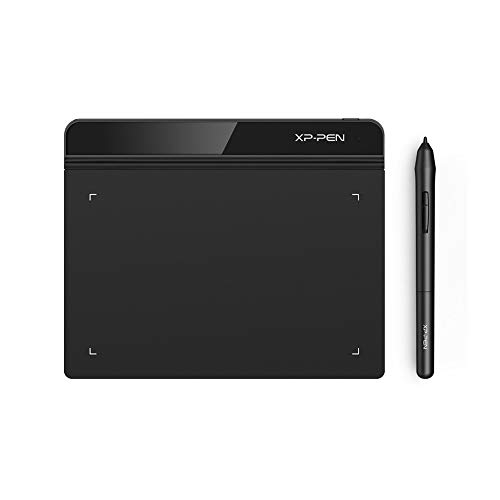 Drawing Tablet XPPen StarG640 Digital Graphic Tablet 6x47.5 x 6.5 x 0.1 inches0.4 poundsCheck on Amazon

As an Amazon Associate, we earn from qualifying purchases made through links on this page.
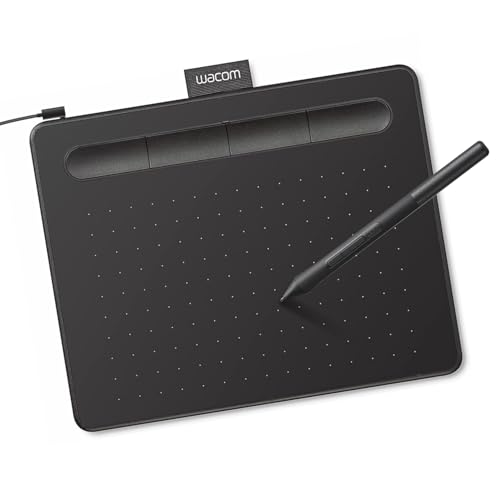

If you are shopping for your first art tablet, the word “tablet” hides three very different products, and picking the wrong family wastes money faster than picking the wrong model. The first family is the pen tablet: a flat, screenless pad that plugs into a computer or phone. You draw on the pad with a stylus while watching your separate monitor, the same way a mouse moves a cursor you are not looking at directly. The second family is the pen display, which puts a screen under the pen so you draw directly on the image; these cost considerably more and are covered in separate guides. The third family is the standalone touchscreen tablet, such as an Android tablet or an iPad, which is a full computer in its own right and a different purchase entirely.
This guide covers only the first family: screenless pen tablets for beginners. They are the standard starting point for learning digital drawing, painting, and photo retouching because the hardware is simple, the pens never need charging on the models below, and every major art program on Windows and macOS accepts them. The hand-eye coordination of drawing on a pad while looking at a screen feels odd for the first few sessions, then quickly becomes automatic for most people. All five picks below are current models from Wacom, XPPen, Huion, and Gaomon, checked against manufacturer specifications for drawing area, pen pressure, pen power source, connection type, and operating system support.
What to look for in a first pen tablet
Drawing area. The active area is the part of the surface that maps to your screen. Small tablets around 6 x 4 inches suit laptops, small desks, note-taking, and signature or markup work. A 10 x 6.25 inch surface gives your arm room for longer strokes and is the better match for a large desktop monitor. Bigger is not automatically better: an oversized pad paired with a small laptop screen means tiny hand movements jump the cursor a long way, which takes practice to control.
Pen pressure levels. Pressure sensitivity is what makes a line grow thicker or darker as you press harder. Entry-level pens start at 4,096 levels and most current models provide 8,192 or 16,384. In daily drawing, the jump from 4,096 to 8,192 is noticeable in soft brush work; beyond that, driver quality and pen feel matter more than the headline number. Tilt support, where the tablet reads the angle of the pen for shading with the side of a virtual brush, is a genuine extra worth having if you plan to paint.
Pen power source. Every pen in this guide is battery-free, powered by the tablet surface itself through electromagnetic resonance. That means no charging cable, no pairing, and no pen that dies mid-drawing. If you shop outside this list, treat a rechargeable pen as a small but real inconvenience for a beginner.
Connection. Most beginner pen tablets connect by USB cable. A wired link has no latency concerns and never needs the tablet itself charged. Bluetooth models exist, including a wireless version of the Wacom below, and they reduce desk clutter, but the cable versions are simpler and are what most first-time buyers should start with. Check the port on the tablet, because several models still use micro USB while newer ones use USB-C.
Operating system and software support. All five tablets work with Windows and macOS. Chromebook and Android support varies by model and matters if you plan to draw on a phone or a school laptop, so it is called out per product below. The tablet is only the input half of the setup: you also need an art program. Free programs such as Krita and MediBang Paint work with every tablet here, and paid programs such as Clip Studio Paint and Photoshop read the same pressure and tilt data through the manufacturer driver, which you install once from the maker’s website.
Shortcut keys. Buttons on the tablet surface can be assigned to undo, brush size, zoom, and similar commands so your pen hand never leaves the pad. More keys help once you build the habit, but they are not a reason to reject a simple first tablet, since keyboard shortcuts do the same job.
Wacom Intuos Small (CTL4100)
Wacom is the company that defined this product category, and the Intuos Small is its entry model. The active area measures 6.0 x 3.7 inches, the smallest in this roundup, inside a slim pad that disappears into a laptop sleeve. The battery-free pen registers 4,096 pressure levels, the lowest figure here, and four customizable ExpressKeys sit above the drawing surface alongside a pen holder built into the top edge of the tablet.
The Intuos Small runs on Windows, macOS, Chromebook, and Android, which makes it the most flexible pick for a household where the tablet will move between a school Chromebook and a family PC. Wacom’s driver software is the most mature in this group, and the tablet includes access to bundled creative software downloads, which vary by region and over time.
Who it suits: beginners who value painless setup, students on Chromebooks, and anyone short on desk space. The limitations follow directly from the spec sheet. The 6.0 x 3.7 inch area feels cramped on a large monitor, 4,096 pressure levels give less fine control at the lightest end of a stroke than the 8,192 and 16,384 level pens below, and the pen has no tilt reading. This wired model also has no Bluetooth; the wireless version is a separate listing.
XPPen Deco 01 V3
The Deco 01 V3 is the large-surface option in this group. Its active area is 10 x 6.25 inches, and its battery-free X3 stylus registers 16,384 pressure levels with tilt support up to 60 degrees, the strongest pen specification in this roundup. Eight customizable shortcut keys run down the side and can be flipped for left-handed use by rotating the tablet. The body is 8 mm thick, and the box includes a pen stand, spare nibs, a protective film, a drawing glove, and a USB-C adapter.
XPPen lists support for Windows, macOS, Chrome OS, Linux, and Android phones and tablets, with Android drawing handled through the XPPen Tools app so the drawing area maps correctly to different screen shapes. That breadth makes it a good match for a beginner who draws on a desktop today and wants the option of sketching with a phone later.
Who it suits: beginners with a desktop monitor who want maximum drawing room and the most pen control available at this level. The limitations are physical rather than technical. At 10 x 6.25 inches of active area plus the key column, it needs a real desk, and it is the heaviest tablet here at about 2.2 pounds, so it is the least bag-friendly pick. Android support also starts at a higher Android version than some rivals require, so check your phone’s version before counting on mobile use.
Huion Inspiroy H640P
The Inspiroy H640P is the compact all-rounder of the group. The active area is 6.3 x 3.9 inches, and the battery-free PW100 pen registers 8,192 pressure levels with tilt support of plus or minus 60 degrees, a feature the same-sized Wacom above does not include. Six hot keys line the left edge, and the pen holder doubles as a nib container with spare nibs inside.
Huion lists compatibility with Windows, macOS, Linux, and Android, and the tablet connects by micro USB. In practice it covers the middle ground of this roundup: small enough for a laptop bag, with a pen specification that stays useful after the beginner stage, for drawing, painting, photo editing, and document markup alike.
Who it suits: beginners who want one small tablet that handles both drawing and general pen input, and painters who want tilt shading without moving up to a large pad. The limitations are the micro USB port, an older connector than the USB-C found on newer models, and the same small-surface trade-off as the Intuos: on a big monitor, strokes map to long cursor movements, which is fine for sketching and less comfortable for precise retouching until you adjust the mapping in the driver.
XPPen StarG640
The StarG640 strips the pen tablet down to the essentials. It is 2 mm thick, among the thinnest pads in its class, with a 6 x 4 inch active area and a battery-free pen registering 8,192 pressure levels. There are no shortcut keys on the surface at all. It connects by USB and works with Windows, macOS, and Chromebook, and XPPen positions it for drawing, online teaching, remote work, document annotation, and rhythm games as well as first steps in art.
That simplicity is the point. A beginner who is unsure whether digital art will stick, or who mainly wants a pen for marking up documents, class notes, and occasional sketches, gets a full pressure-sensitive pen with nothing extra to configure. The driver still lets you set pen button functions and adjust the active area mapping.
Who it suits: first-time buyers on the smallest sensible outlay, students, teachers, and anyone who wants a pad that lives flat in a drawer or laptop bag. The limitations are clear from the specification: no tablet shortcut keys, so undo and zoom stay on the keyboard; no tilt support; and no Android support is listed, so phone drawing is off the table. The 6 x 4 inch area is also a learning-sized surface rather than a large-monitor surface.
Gaomon S620
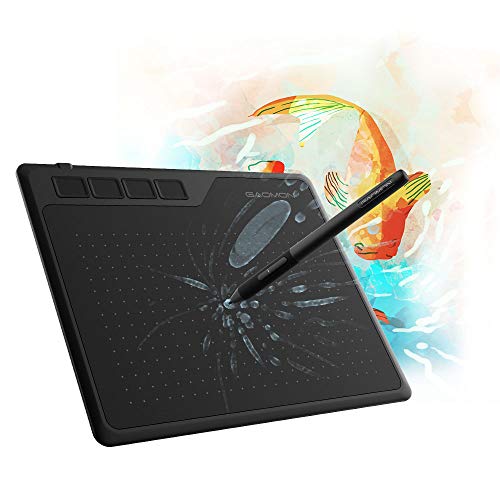
The S620 is Gaomon’s compact beginner model. Its active area is 6.5 x 4 inches, slightly wider than the other small pads here, and the battery-free AP32 pen registers 8,192 pressure levels. Four customizable express keys sit on the surface, and the tablet connects by micro USB. Gaomon lists compatibility with Windows and macOS, plus Android devices through the included OTG adapters, which also makes it a common pick for the rhythm game osu! as well as drawing.
For a beginner, the S620 covers the core checklist at the compact size: pressure-sensitive battery-free pen, a few shortcut keys, and phone support that the StarG640 lacks. The included adapters matter more than they sound, because they let the same pad move between a PC and an Android phone without extra purchases.
Who it suits: beginners who want a small pad with keys and Android support, and students splitting time between a laptop and a phone. The limitations are the micro USB connection rather than USB-C, no tilt reading from the pen, and a driver and documentation experience that is less polished than Wacom’s. The 6.5 x 4 inch area also shares the usual small-tablet mapping compromise on large screens.
Comparison table
| Model | Active area | Pen pressure | Tilt | Pen power | Shortcut keys | Connection | Works with |
|---|---|---|---|---|---|---|---|
| Wacom Intuos Small (CTL4100) | 6.0 x 3.7 in | 4,096 levels | No | Battery-free | 4 | USB | Windows, macOS, Chromebook, Android |
| XPPen Deco 01 V3 | 10 x 6.25 in | 16,384 levels | Yes, up to 60 degrees | Battery-free | 8 | USB (USB-C port) | Windows, macOS, Chrome OS, Linux, Android |
| Huion Inspiroy H640P | 6.3 x 3.9 in | 8,192 levels | Yes, plus or minus 60 degrees | Battery-free | 6 | Micro USB | Windows, macOS, Linux, Android |
| XPPen StarG640 | 6 x 4 in | 8,192 levels | No | Battery-free | None | USB | Windows, macOS, Chromebook |
| Gaomon S620 | 6.5 x 4 in | 8,192 levels | No | Battery-free | 4 | Micro USB | Windows, macOS, Android |
Frequently asked questions
Do I need a computer to use these tablets?
Yes, with one partial exception. A screenless pen tablet is an input device, not a computer: it needs a Windows PC, Mac, Chromebook, or a supported Android phone or tablet to draw on. It has no screen and no storage of its own. If you want to draw without any host device, you are looking for a standalone touchscreen tablet instead, which is a different product family from everything in this guide.
How long does it take to get used to drawing on a pad while looking at a screen?
Most beginners report that basic sketching feels natural within the first week of regular practice, because the mapping is absolute: each point on the pad always corresponds to the same point on the screen, unlike a mouse. Starting with a tablet sized to your screen, and keeping the driver mapping set to the full display, shortens the adjustment period.
Is 4,096 pressure levels enough, or should a beginner insist on 8,192 or more?
Four thousand ninety-six levels are enough to learn line control, inking, and basic painting, and generations of artists learned on less. The higher counts give smoother control at very light pressure, which matters more as your brush work gets subtler. Treat pressure as a secondary factor behind drawing area, pen feel, and driver quality when choosing a first tablet.
Can these tablets be used for things besides drawing?
Yes. The same pressure-sensitive pen works for photo retouching, handwritten notes, document signatures, annotation in video calls and online classes, and rhythm games that support pen input. Several models above are sold for teaching and remote work as much as for art, and the tablet keeps working as a general pen input device even if drawing turns out not to be your hobby.
What else do I need to buy to start drawing?
Nothing essential beyond a computer or supported phone and an art program, and capable art programs such as Krita and MediBang Paint are free. Every tablet here includes its cable, pen, and spare nibs in the box. A drawing glove and a tablet stand are comfort accessories that some bundles include and others sell separately; neither is required to begin.
Conclusion
For a first art tablet, the decision is mostly about size and pen specification. Choose the XPPen Deco 01 V3 if you draw at a desk with a full-size monitor and want the largest area and the strongest pen specification in this group. Choose the Wacom Intuos Small if painless drivers and Chromebook support matter most and your screen is laptop-sized. The Huion Inspiroy H640P is the balanced compact pick, adding tilt to a small surface. The XPPen StarG640 and Gaomon S620 serve the smallest setups, with the Gaomon adding shortcut keys and Android support that the XPPen leaves out. Any of the five will teach you the core skill of pen tablet drawing; the right one is simply the one whose size matches your desk and screen.
More from Amazon
Programs that pair well with the guide above. Offers and eligibility are set by Amazon and may change.
Free shipping on eligible items, Prime Video and more. Eligible new members can start with a free trial.
Start a Prime free trialAd-free music streaming. Eligible new subscribers can start with a free trial.
Try Music Unlimited freeA Prime membership for ages 18-24 with a trial period. Eligibility is set by Amazon.
See Prime for Young AdultsAudiobooks and podcasts to listen to on the go. Eligible new members can start with a free trial.
Try Audible freeAs an Amazon Associate we earn from qualifying purchases.