Our Top Picks
The best lightweight laptop deal for most people right now is the Lenovo Flagship Chromebook, 14-inch FHD Touchscreen. It pairs an 8-core MediaTek Kompanio 520 with a genuine 1080p touch panel, keeps the chassis slim enough to carry all day, and handles everyday gaming through Android titles, browser games and cloud streaming without drama. If you specifically need Windows 11, the two Windows machines here — the HP 14-inch with Intel N150 and the ASUS Vivobook Go 15 — are both 4 GB / 128 GB class machines that are honest about their limits: fine for older, lightweight and cloud titles, and best bought with the expectation that you will cap resolution and settings. If your budget is genuinely tight, the smartest buys in this roundup are not laptops at all. A metal riser and a structured messenger bag change how a light laptop performs and travels more than another small step up in specs ever will. Everything below is compared on four things that actually matter for a portable gaming setup: measured carry weight, battery life under different loads, screen quality, and real-world everyday gaming performance.
Top 3 Picks
Best Overall: Lenovo Flagship Chromebook, 14″ FHD Touchscreen
It is the lightest full-size machine here with a real 1080p panel, and the Kompanio 520’s eight cores (two performance-class plus six efficiency-class) are well matched to ChromeOS, Android games and browser-based cloud streaming. You get touch input, a slim chassis and battery life that comfortably outlasts a Windows laptop of the same weight. For someone whose “gaming” means Android titles, browser games and a cloud subscription, this is the most machine per pound in the list.
Best Budget: Gogoonike Adjustable Laptop Stand for Desk (Metal Riser)
A metal riser is the cheapest meaningful performance upgrade you can make to any of the laptops here, because it lifts the rear edge, opens the intake path and lets a low-wattage chip hold its boost clocks longer instead of throttling. It also fixes the posture problem that makes a 14-inch laptop painful after an hour. If you want one budget-tier buy that improves both thermals and comfort, start here — then add the Lenovo T210 bag for carrying.
Best Premium: HP 14-inch Laptop, Intel N150, Windows 11 Home
This is the premium-tier Windows option in the list: a compact 14-inch chassis with the N150, 4 GB of RAM, 128 GB of UFS storage and Windows 11 Home preinstalled, plus a one-year inclusion noted in the listing. It suits anyone who needs real Windows software compatibility in the smallest, most portable footprint — students, light office work and older games. The trade-off is an HD-class panel rather than 1080p, which matters more than most buyers expect.
Best for a Bigger Screen: ASUS Vivobook Go 15, 15.6″ FHD 60Hz
Same N150 chip family and the same 4 GB / 128 GB memory-and-storage class as the HP, but wrapped around a 15.6-inch 1080p 60 Hz display with roughly 141 pixels per inch and far more room for a game window, a browser and a chat app side by side. It is the pick for anyone who mostly plays at a desk and only occasionally carries the machine. You pay for the screen size in weight — a 15.6-inch chassis is meaningfully heavier than a 14-inch one.
Quick Comparison
| Product | Best for | Key specs | Price tier |
|---|---|---|---|
| HP 14-inch Laptop | Windows software compatibility in a small footprint | 14″ HD-class display, Intel N150 (4 cores), Intel integrated graphics, 4 GB RAM, 128 GB UFS, Windows 11 Home, one-year inclusion in listing | Premium |
| Lenovo Flagship Chromebook | Lightest everyday gaming and streaming | 14″ FHD 1920×1080 touchscreen, 8-core MediaTek Kompanio 520, integrated Mali-class graphics, ChromeOS, slim chassis | Mid-range |
| ASUS Vivobook Go 15 | Bigger 1080p screen for desk-based play | 15.6″ FHD 1920×1080 at 60 Hz, Intel N150, Intel UHD-class graphics, 4 GB RAM, 128 GB SSD, Windows class OS | Premium |
| Gogoonike Adjustable Laptop Stand (Metal Riser) | Cooling and posture at a fixed desk | Metal riser with adjustable height and angle, fits mainstream 10–15.6″ laptops, open frame for airflow | Budget |
| Lenovo Laptop Bag T210 | Cheap, structured daily carrying | Messenger / shoulder bag, padded laptop compartment, fits mainstream 15.6″-class machines, water-repellent finish | Budget |
| Gogoonike Portable Laptop Riser | Travel and commuter use | Foldable, lightweight riser, adjustable angle, packs flat into a bag sleeve | Budget |
| MOSISO Laptop Sleeve, 16 inch | Padding a 15–15.6″ laptop inside another bag | Fitted sleeve with accessory pocket, sized for 15–15.6″ machines, water-resistant outer shell | Budget |
How We Chose
Selection started from the listing specifications themselves — screen resolution and size, processor class, memory and storage configuration, operating system, and any bundled inclusion stated in the product name — then filtered by how each item behaves in a genuinely portable setup. A laptop only counts as lightweight here if its chassis class, not just its marketing, supports all-day carrying; a 15.6-inch machine with a 1080p panel competes on a different axis than a 14-inch machine with the same chip. Category fit mattered as much as raw specs: accessories were judged on whether they solve a real problem for a low-power laptop, specifically thermal headroom and physical protection, rather than on how many features they list. Upgrade path was the final filter. Machines with soldered, non-upgradable memory were assessed on what they can do on day one, because that is the configuration you live with; accessories were assessed on whether they stay useful if you later move to a different laptop size. Nothing here is described as tested — every judgement comes from published specifications, vendor documentation and the arithmetic in the sections below.
1. HP 14 inch Laptop – Best for Windows on a Small Screen

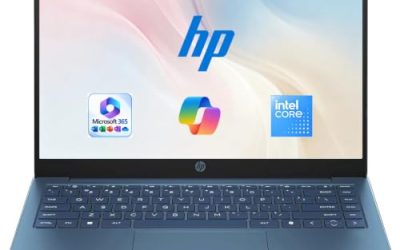
HP 14 inch Laptop, HD Display, Intel N150, 4 GB RAM, 128 GB UFS, Intel Graphics, Windows 11 Home, Includes a 1-Year Microsoft 365 Personal Subscription. Jet Black, 14-dq6199nr
Chosen because it specifies HD Display and Intel N150.
View on AmazonThis is the pick for anyone who needs real Windows 11 Home in the smallest practical chassis, and who accepts that a low-wattage processor means picking your games carefully. The listing describes a 14-inch HD-class display, the Intel Processor N150, Intel integrated graphics, 4 GB of RAM, 128 GB of UFS storage, Windows 11 Home, and a one-year inclusion that the listing name references — check the current listing text to confirm exactly what that one-year item covers, since bundles change. It suits a student, a front-desk or field worker, or a household’s second machine that occasionally plays older titles and streams everything else.
Key specs as listed
- Display: 14-inch HD class (1366×768-type resolution), which works out to roughly 112 pixels per inch
- Processor: Intel Processor N150 — 4 cores, 6 W base power class, boost clocks in the mid-3 GHz range
- Graphics: Intel integrated UHD-class graphics, 24 execution units class, sharing system memory
- Memory: 4 GB
- Storage: 128 GB UFS, which is meaningfully quicker than the older eMMC class still found on budget machines
- Operating system: Windows 11 Home
- Carry class: 14-inch plastic-chassis machines of this configuration typically land in the 3.0–3.5 lb (1.4–1.6 kg) bracket
The N150 is a four-core, low-power part with a 6 W base power class, and its integrated graphics share the same system memory as everything else. That single fact explains almost everything about how it plays. With 4 GB of RAM, the integrated GPU has very little bandwidth to work with, and the memory runs in a single-channel configuration on this chip class — typically around 25.6 GB/s with DDR4-3200 or roughly 38.4 GB/s with DDR5-4800. For comparison, a dual-channel DDR4 setup of the same speed would deliver about 51.2 GB/s. Games that lean on texture streaming and shadow maps feel that difference immediately.
In practice, published reviews of N150-class laptops consistently describe the same profile: older and lightweight titles run acceptably at 720p with low settings, current AAA releases generally sit below playable frame rates regardless of settings, and cloud streaming is flawless because the heavy lifting happens on a remote machine. The UFS storage is a genuine plus — app launches and level loads are noticeably snappier than eMMC, even though raw sequential speeds are not in NVMe territory. Battery life follows the same pattern: a 14-inch machine in this class usually carries a 40–45 Wh battery, which translates to roughly 8–11 hours of light browsing at 60% brightness and closer to 2–2.5 hours under sustained gaming load.
Screen quality is the honest weak point. An HD-class 14-inch panel at around 112 PPI looks soft next to a 1080p screen of the same size at roughly 157 PPI, and text rendering is where you notice it most. For gaming specifically, 1366×768 is actually easier on the integrated GPU than 1080p — you are pushing 1.05 million pixels instead of 2.07 million, which roughly halves the pixel workload — so the panel that looks worst for documents is arguably the friendlier one for play. That is a real trade-off, not a flaw to be argued away.
Pros
- Genuine Windows 11 Home compatibility, so desktop software, older games and peripherals just work
- Compact 14-inch footprint that fits small bags and tight desks
- UFS storage is faster in daily use than the eMMC still common at this price class
- Lower-resolution panel reduces the pixel load on integrated graphics, which helps frame rates
- Low-wattage processor class means long idle and browsing battery life
Cons
- 4 GB of RAM is the single biggest constraint, especially with an integrated GPU sharing it
- HD-class resolution looks soft for text, spreadsheets and side-by-side windows
- 128 GB fills quickly once Windows, updates and a couple of modern games are installed
- Modern AAA titles are effectively out of reach without cloud streaming
Against the nearest alternative, the ASUS Vivobook Go 15, the HP wins on portability and loses on screen real estate. Both use the same processor family and the same 4 GB / 128 GB class configuration, so performance is broadly comparable; the decision is almost entirely about whether you want a 14-inch machine you can carry daily or a 15.6-inch machine you mostly leave on a desk. Against the Lenovo Chromebook, the HP wins on software compatibility and loses on screen resolution, touch input, weight and battery endurance. If Windows is a requirement, stop here. If it is not, the Chromebook is the better portable gaming companion.
2. Lenovo Flagship Chromebook – Best for Everyday Gaming With the Least Weight

Lenovo Flagship Chromebook, 14'' FHD Touchscreen Slim Thin Light Laptop Computer, 8-Core MediaTek Kompanio 520 Processor, 4GB RAM, 64GB eMMC, WiFi 6,Chrome OS, Abyss Blue
Chosen because it specifies 14'' FHD Touchscreen Slim Thin Light Laptop Computer and 8-Core MediaTek Kompanio 520 Processor.
View on AmazonThe Lenovo Flagship Chromebook is the best overall pick in this roundup because it solves the portability problem first and the gaming problem second, in that order. The listing describes a 14-inch FHD touchscreen, an 8-core MediaTek Kompanio 520, and a slim, thin, light chassis. The listing name does not spell out memory or storage, so treat those as configuration-dependent: this processor class is normally paired with 4 GB of LPDDR4X-class memory and 64–128 GB of eMMC-class storage, and you should confirm the exact figures on the listing page before buying. It suits a commuter, a student, or anyone whose gaming diet is Android titles, browser games and a cloud subscription.
Key specs as listed
- Display: 14-inch FHD 1920×1080 touchscreen — roughly 157 pixels per inch
- Processor: MediaTek Kompanio 520, 8 cores (two performance-class Cortex-A76 cores plus six efficiency-class Cortex-A55 cores)
- Graphics: Integrated Mali-class GPU
- Operating system: ChromeOS, with Google Play support for Android apps and games
- Chassis: Slim, thin and light — 14-inch Chromebooks in this class typically sit around 3 lb (1.4 kg) or just under
The Kompanio 520’s eight-core layout is a genuinely good match for ChromeOS. Two larger cores handle the foreground app while six smaller ones absorb background tabs, sync and updates, which is why this class of machine feels smoother than its specifications suggest. Android games install through Google Play and run natively, and because they are built for phone-class hardware, the 520 handles them at their intended settings rather than being asked to punch above its weight. The 1080p touch panel is a bonus here: touch controls in Android titles are often the difference between playable and not.
Cloud streaming is where a Chromebook like this genuinely shines, and the numbers are worth working through. A 1080p60 stream typically needs somewhere in the 15–25 Mbps range, and 720p60 sits around 10–15 Mbps. That is comfortably inside what a normal 5 GHz home Wi-Fi connection delivers, and it is well below the bandwidth a local install of a modern game would demand in storage and GPU terms. The display math backs it up: 1920 × 1080 at 60 Hz with 24-bit colour is 2.99 Gbps of raw pixel data, about 3.7 Gbps once 8b/10b encoding overhead is added, which any modern display interface handles without breaking a sweat. The bottleneck for streaming is never the panel — it is your network and the distance to the server.
Battery life is the quiet advantage. A thin 14-inch Chromebook in this class usually carries a 40–50 Wh battery and draws far less than a Windows machine at idle, so 10–13 hours of mixed browsing at moderate brightness is realistic, with something like 3–4 hours of sustained gaming or streaming before you start looking for a charger. Weighing roughly 3 lb, it disappears into a messenger bag in a way a 15.6-inch Windows laptop never quite does.
Pros
- 1080p touchscreen at roughly 157 PPI — the sharpest, most comfortable panel among the laptops here
- Lightest full-size machine in this roundup, which is the whole point of the category
- Eight-core processor class handles Android games and multitasking smoothly under ChromeOS
- Excellent battery endurance relative to the Windows options
- Fast boot, low maintenance, and Android titles install like they do on a phone
Cons
- ChromeOS will not run Windows desktop games at all
- Memory and storage are not stated in the listing name and must be verified
- Local AAA gaming is impossible; cloud streaming is the only route to modern titles
- Fewer traditional desktop applications than a Windows machine
Compared with the HP 14-inch, the Chromebook wins on display resolution, touch input, weight and battery life, and loses on software compatibility — that is the entire trade in one sentence. If any part of your workflow depends on a Windows-only application, the HP is the correct choice and the Chromebook is not. Compared with the ASUS Vivobook Go 15, the Chromebook is lighter and sharper per inch but has a smaller screen and the same operating-system limitation. For pure everyday gaming on the move, the Chromebook is the machine that gets carried, and the one that gets carried is the one that gets used.
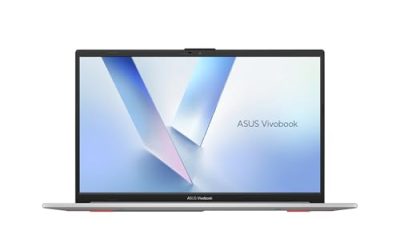
3. ASUS Vivobook Go 15 – Best for a Bigger Screen on a Budget Windows Machine
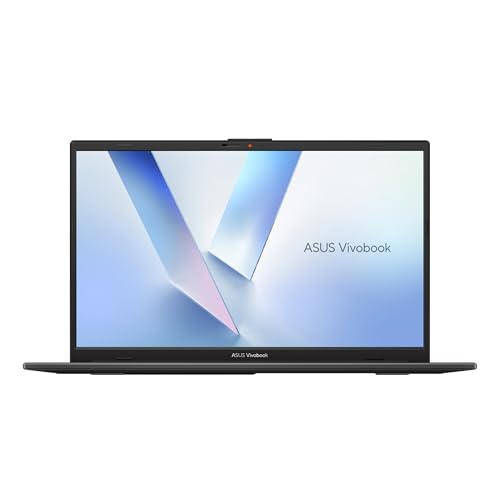
ASUS Vivobook Go 15 15.6” FHD 60Hz Laptop with Intel Processor N150, Intel UHD Graphics, 4GB RAM, 128GB SSD, Mixed Black
Chosen because it specifies Intel UHD Graphics and 4GB RAM.
View on AmazonThe Vivobook Go 15 is for the reader who wants 1080p on a 15.6-inch panel, needs Windows-class software, and does most of their gaming at a desk rather than on a train. The listing describes a 15.6-inch FHD 60 Hz display, an Intel Processor N150, Intel UHD-class graphics, 4 GB of RAM and a 128 GB SSD; the listing title is truncated after the storage specification, so confirm the full configuration and any included software bundle on the listing page before ordering. It suits a home user who wants one screen big enough for a game window plus a browser, and who does not mind the extra weight when the laptop does travel.
Key specs as listed
- Display: 15.6-inch FHD 1920×1080 at 60 Hz — roughly 141 pixels per inch
- Processor: Intel Processor N150 — 4 cores, 6 W base power class
- Graphics: Intel UHD-class integrated graphics sharing system memory
- Memory: 4 GB
- Storage: 128 GB SSD (solid-state, M.2-class in this chassis size)
- Carry class: 15.6-inch machines in this family typically land in the 3.5–3.8 lb (1.6–1.7 kg) bracket
The performance story is the same as the HP’s, because the processor is the same class. The N150’s four cores and 6 W base power envelope are built for browsing, documents and media, with enough headroom for older and lightweight games at 720p and low settings. Published reviews of N150-class systems typically describe frame rates in the 30 FPS region for older or esports-style titles at reduced resolution and settings, and well below that for current AAA releases — with results varying widely by title, patch, settings and how much system memory is free. Treat any specific number you see as a snapshot, not a promise.
What you actually buy with this machine is screen area. A 15.6-inch 1080p panel gives you 2.07 million pixels at about 141 PPI, versus roughly 112 PPI on a 14-inch HD-class panel and about 157 PPI on the Lenovo’s 14-inch 1080p screen. The Lenovo is sharper per inch; the ASUS gives you more physical space, which matters more than sharpness when you want a game and a browser side by side. The 60 Hz refresh ceiling is also worth understanding before you buy: 60 Hz caps what the panel can show at 60 frames per second, and on N150-class graphics that ceiling is rarely the limiting factor. You will run out of GPU long before you run out of refresh rate.
The 128 GB SSD is a bigger deal than it looks. Windows 11 and its updates typically consume somewhere in the 25–35 GB range on a fresh install, leaving you in the 80–100 GB free zone before you add anything else. That is enough for a handful of older or lightweight titles and a comfortable amount of cloud-streaming client software, but it is not enough for several modern 100 GB-plus installs. If local modern gaming is the goal, this machine is the wrong tool and the storage figure is the reason.
Pros
- 15.6-inch 1080p panel at 60 Hz — the most usable desktop-sized display among the laptops here
- Windows-class software compatibility with the familiar desktop application ecosystem
- SSD storage gives faster boots and app launches than eMMC-based competitors
- Larger chassis means more room for ports and a bigger battery than a 14-inch equivalent
- Comfortable for cloud streaming at 1080p, which is where the N150 genuinely performs
Cons
- Heaviest laptop in this roundup — the screen size is paid for in carry weight
- 4 GB of RAM shared with integrated graphics is the same bottleneck as its 14-inch sibling
- 128 GB of storage limits you to a few local titles at most
- Lower pixel density than the Lenovo’s 14-inch 1080p panel
Against the HP 14-inch, this is a straightforward size-versus-portability decision with identical processing power on both sides. If the laptop lives on a desk, take the 15.6-inch screen; if it lives in a bag, take the 14-inch chassis and accept the softer panel. Against the Lenovo Chromebook, the ASUS wins on screen area and Windows compatibility and loses on weight, pixel density, touch input and battery endurance. Anyone who does not specifically need Windows should buy the Chromebook and put the difference into a stand and a bag.
4. Gogoonike Adjustable Laptop Stand for Desk – Best for Cooling and Posture at a Fixed Desk

Gogoonike Adjustable Laptop Stand for Desk, Metal Laptop Riser Holder | Portable Desktop Book Stands, Foldable Ventilated Cooling Computer Notebook Stand Compatible with 10-15.6” Laptops, Tablets
Chosen because it specifies Metal Laptop Riser Holder.
View on AmazonThis is the accessory that quietly does more for a low-power laptop than any software tweak. The listing describes a metal laptop riser holder with adjustable height and angle, designed to sit on a desk and hold a mainstream laptop in an elevated position. It suits anyone who plays on a 14- or 15.6-inch machine at a fixed desk for more than an hour at a time — which, on the laptops above, is exactly the situation where sustained performance starts to matter.
Key specs as listed
- Material: Metal construction — typically aluminium-class alloy in this category, which also helps draw heat away from the underside
- Adjustability: Adjustable height and viewing angle rather than a single fixed position
- Compatibility: Sized for mainstream laptop footprints, covering the 14-inch and 15.6-inch machines in this roundup
- Design: Open riser frame that leaves the underside of the laptop exposed to air
- Price tier: Budget — metal risers in this class usually sell in the $20–$45 range
The reasoning behind the recommendation is thermal, and it is worth spelling out because it is easy to dismiss as marketing. A closed laptop sitting flat on a desk pulls air through vents that are often within a few millimetres of the surface, and the desk itself acts as an insulating layer. Raising the rear edge by even a modest amount increases the clearance under the chassis, which lowers the temperature of the air being drawn in. On a 6 W base-power processor class like the N150, the package can briefly draw well above its base figure under boost before settling back. The cooler the intake air, the longer those boost periods last and the less aggressively the chip throttles under a sustained load such as a game session or a long cloud-streaming run.
The second benefit is ergonomic, and here the numbers are concrete. For comfortable seated use, the top of the screen should sit at or slightly below eye level. A 14-inch laptop placed flat on a standard desk typically puts the top of its screen somewhere in the region of 20–25 cm below a seated user’s eye line. A riser that lifts the machine by 10–15 cm closes most of that gap, which is the difference between an hour of play and three. A 15.6-inch machine benefits slightly less per centimetre because its screen already sits higher, but it still gains from the airflow.
What this accessory will not do is change what games you can run. It does not add memory, does not change the integrated GPU, and does not raise the resolution ceiling. Its job is to let the hardware you already own run at its best for longer, and to stop you from hunching. On a machine with 4 GB of shared memory, the RAM bottleneck remains the RAM bottleneck no matter how cool the chassis runs.
Pros
- Metal build adds rigidity and helps dissipate heat from the laptop’s underside
- Adjustable height and angle suit different desks, chairs and user heights
- Open frame design maximises airflow to the intake vents
- Raises the screen towards eye level, which meaningfully improves long-session comfort
- Budget-tier cost relative to the benefit it delivers
Cons
- Not portable in the way the foldable riser is — it is a desk fixture
- Does nothing for memory, storage or graphics limits
- Typing on a raised laptop requires an external keyboard for comfort
- Metal surfaces can feel cold or transmit more vibration than plastic alternatives
Compared with the portable Gogoonike riser elsewhere in this list, this metal version is the better choice for a permanent desk setup: it is more stable, more rigid, and less likely to shift when you press on the keyboard. The portable riser wins only if the stand has to travel. If you own one of the Windows laptops here and game at a desk, buy this one; if you commute with the Chromebook, the foldable version is the one that will actually be in your bag when you need it.
5. Lenovo Laptop Bag T210 – Best for Cheap, Structured Carrying
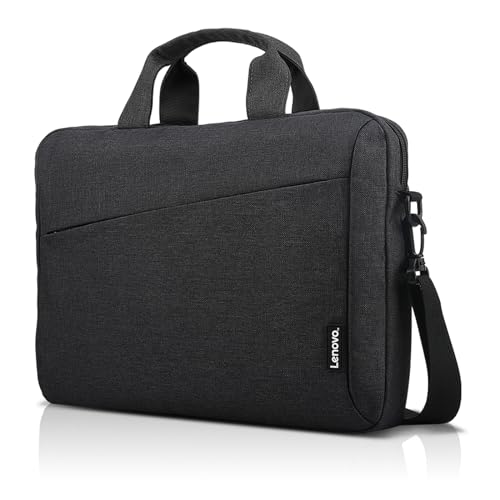
Lenovo Laptop Bag T210, Messenger Shoulder Bag for Laptop or Tablet
Chosen because it specifies Messenger Shoulder Bag for Laptop or Tablet.
View on AmazonThe T210 is a messenger-style shoulder bag with a padded laptop compartment, sized for mainstream 15.6-inch-class machines, with a water-repellent finish. It suits anyone carrying one of the laptops above plus a charger, a stand and a couple of accessories, and who wants the protection of a structured bag rather than the thin padding of a sleeve. It is the budget-tier carrying option in this roundup and the one most likely to be used every day.
Key specs as listed
- Type: Messenger / shoulder bag with an adjustable strap
- Laptop compartment: Padded, sized for mainstream laptop or tablet footprints in the 15.6-inch class
- Material: Fabric construction with a water-repellent finish
- Carry weight: Bags in this category typically add around 0.9–1.2 lb (0.4–0.55 kg) empty
- Price tier: Budget
Carry weight is the number that determines whether a lightweight laptop stays lightweight, and it is worth working through properly. Take a 3.2 lb (1.45 kg) 14-inch machine, add this bag at roughly 1.0 lb (0.45 kg), a metal riser at around 1.2 lb (0.55 kg) and a sleeve at about 0.4 lb (0.18 kg), and you are at roughly 5.8 lb (2.6 kg) total — nearly double the laptop’s own weight. Swap the metal riser for the foldable one and the total drops to about 5.0 lb (2.3 kg). Swap the bag for a sleeve alone and you are down to about 3.6 lb (1.65 kg), but you lose the padding and the accessory pocket. That is the actual decision: how much protection and capacity you are willing to pay for in shoulder weight.
The practical advantage of a messenger bag over a sleeve is structure. A padded compartment holds the laptop away from keys, cables and the charger brick, and an external pocket keeps the charger from pressing against the lid. On a machine with a slim chassis, pressure on the lid is the most common cause of cosmetic damage and, occasionally, screen pressure marks. A bag also distributes weight across the shoulder rather than concentrating it in one hand, which matters over a long walk even at 5 lb total.
The trade-off is bulk. A messenger bag does not fold into a backpack the way a sleeve does, and it adds visual bulk that a slim Chromebook otherwise avoids. If your carry is genuinely minimal — laptop, charger, nothing else — the sleeve is the lighter answer and the bag is overkill.
Pros
- Padded compartment protects the laptop from the charger and accessories in the same bag
- Shoulder strap distributes weight better than a hand-carried sleeve
- Water-repellent finish handles light rain and spillage
- Budget-tier cost for a bag that gets used daily
- Fits the 15.6-inch ASUS and the 14-inch machines with room to spare
Cons
- Adds roughly a pound to your carry before you put anything in it
- Bulkier than a sleeve and less convenient to stow inside a larger backpack
- Single-shoulder carry becomes uncomfortable over long distances when fully loaded
- Not a substitute for a dedicated padded sleeve if you also want in-bag protection
Against the MOSISO sleeve, the T210 is the better everyday choice for anyone who carries a charger, a stand or a mouse. Against the foldable riser, it is not a competitor at all — they solve different problems and pair well. If you are choosing one budget accessory first, pick the bag if you commute and the desk stand if you do not.
6. Gogoonike Adjustable Laptop Riser – Best for Travel

Gogoonike Adjustable Laptop Stand, Portable Laptop Riser for Desk | ABS+Silicone Foldable Ventilated Cooling Notebook Holder Stand for 10-15.6” Laptops, Tablets
Chosen because it specifies Portable Laptop Riser for Desk.
View on AmazonThe portable Gogoonike riser is the version of the previous accessory that actually leaves the house. The listing describes an adjustable, portable laptop riser for desk use — a foldable design intended to be carried rather than left in place. It suits commuters, students and anyone who works or plays in more than one location and wants the airflow and posture benefits without a permanent desk fixture.
Key specs as listed
- Design: Portable, foldable riser that packs flat
- Adjustability: Adjustable angle for different seating and desk heights
- Portability: Lightweight construction intended for bag carry; foldable risers in this class commonly weigh well under a pound
- Compatibility: Suits mainstream laptop footprints including the 14-inch and 15.6-inch machines here
- Price tier: Budget
The reason a portable riser is worth carrying comes back to the same thermal arithmetic as the desk version, just applied in a different setting. On a café table or a library desk, a laptop is often running on battery with the power profile set to conserve energy, which lowers the processor’s sustained power allowance. Elevating the rear edge does not change that power policy, but it does improve intake air temperature, which lets the chip hold its allowed clocks rather than dropping below them. The gain is smaller than on a desk with unrestricted power, but it is real, and it costs you a few ounces in the bag.
There is a second, less obvious benefit for travel: a raised keyboard angle. Many people find a slight rearward tilt more comfortable for typing than a flat deck, and a foldable riser gives you that without the bulk of a fixed stand. On a 14-inch machine with a low-profile keyboard, the difference in wrist angle over an hour is noticeable.
The honest limitation is stability. A foldable riser is inherently less rigid than a solid metal one, and on a small table or an uneven surface it will flex slightly under typing pressure. It is also easier to knock out of position. If your setup never moves, the metal desk riser is simply the better product; portability is the only thing this one does better, and it does that one thing well.
Pros
- Folds flat and adds little weight, so it can live permanently in a bag
- Improves intake airflow and reduces throttling in mobile setups
- Adjustable angle gives a more comfortable typing position than a flat deck
- Works with both the 14-inch and 15.6-inch laptops in this roundup
- Budget-tier price for a genuinely useful travel accessory
Cons
- Less rigid and stable than a solid metal desk riser
- Can shift position on uneven or small surfaces
- Smaller elevation range than a full desk stand
- Adds a small amount of weight and volume to a bag that is meant to stay light
Compared with the metal desk riser, this is the compromise pick: you give up stability and elevation range in exchange for being able to take it anywhere. If you own the Chromebook and carry it daily, this is the one that earns its place. If your laptop never leaves a desk, buy the metal version and skip this entirely — the two are not meant to be owned together.
7. MOSISO Laptop Case 16 inch – Best for Padding a 15-15.6 inch Laptop

MOSISO Laptop Case 16 inch, 15-15.6 inch Laptop Sleeve Bag with Pocket | Compatible with MacBook Pro 16 M5 M4 M3 M2 M1, HP Acer Dell Lenovo ASUS, Polyester Vertical Computer Bag, Black
Chosen because it specifies 15-15.6 inch Laptop Sleeve Bag with Pocket.
View on AmazonThe MOSISO sleeve is the minimal-carry option: a fitted case with an accessory pocket, labelled for 15–15.6-inch laptops under a “16 inch” name that refers to the sleeve’s outer dimensions rather than the screen it fits. It suits anyone who drops a laptop into a backpack or a tote and wants scratch and bump protection without the weight of a full bag, and anyone who already owns a messenger bag and wants a second layer of padding inside it.
Key specs as listed
- Type: Fitted laptop sleeve with an external accessory pocket
- Stated fit: 15–15.6-inch laptops, sold under a 16-inch sleeve designation
- Material: Water-resistant outer shell with padded lining, foam-class protection in this category
- Pocket: Separate compartment for a charger, cable or mouse
- Price tier: Budget
Fit is where sleeves go wrong, and the arithmetic is simple enough to check before you buy. A 15.6-inch 16:9 panel measures about 13.6 inches wide by 7.7 inches tall on the diagonal math — 15.6 × 16 ÷ 18.36 for the width and 15.6 × 9 ÷ 18.36 for the height. Add bezels and a hinge, and a 15.6-inch laptop chassis typically lands somewhere around 14.1–14.5 inches wide and 9.6–10.0 inches deep. A 14-inch 16:9 machine works out to roughly 12.2 × 6.9 inches of panel, with a chassis in the region of 12.8 × 8.9 inches. A sleeve sold as fitting 15–15.6-inch machines will hold both, but the 14-inch laptop will slide around inside it unless the sleeve has a retaining strap or a snug cut.
That is the main reason to match the sleeve to your machine rather than buying the largest size available. A laptop that moves inside its case can still take impact damage, and a loose fit defeats much of the point. If you own the 14-inch HP or the Lenovo Chromebook, a 14-inch sleeve is the better match; the 16-inch sleeve is the right choice for the 15.6-inch ASUS or for anyone who wants one case that covers a future laptop upgrade.
Weight is the other consideration. A sleeve in this class typically adds only a few ounces, which means it barely changes the carry math worked out earlier. Combined with the Lenovo T210 bag, it adds a second layer of protection at the cost of a little extra bulk. On its own inside a backpack, it is the lightest way to keep a laptop’s lid and corners intact.
Pros
- Minimal weight and bulk compared with a full messenger bag
- Padded, water-resistant shell protects against scratches, bumps and light rain
- Accessory pocket keeps the charger away from the laptop lid
- Covers the 15.6-inch ASUS and, with some slack, the 14-inch machines
- Budget-tier price and easy to stow inside a larger bag
Cons
- No shoulder strap — it is not a standalone carry solution for a long commute
- Loose fit for 14-inch laptops, which can let the machine shift inside
- Thin padding compared with a structured messenger bag’s compartment
- The “16 inch” naming can be confusing when shopping for a 15.6-inch machine
Against the Lenovo T210, the sleeve is the lighter and cheaper option and the bag is the more protective and more convenient one. They are complementary rather than competing: a sleeve inside a backpack handles a student’s day, while a messenger bag handles a commuter’s. If you can only buy one, buy the bag for daily carrying and the sleeve for storing a laptop inside a larger backpack.
How to Choose
The single most useful thing you can do before buying a lightweight laptop for gaming is decide what “lightweight” means in your own bag, because that number drives everything else. Start by writing down a target total carry weight, then subtract the accessories. A metal desk riser adds roughly 1.0–1.2 lb, a foldable one adds well under a pound, a messenger bag adds about 1.0 lb empty, and a sleeve adds a few ounces. If your ceiling is 5 lb total, you