Key takeaways
- Understand gaming TV input lag, response time, refresh rate, and latency measurements, then configure Game Mode and isolate delay safely.
Gaming TV input lag is the delay between a console or PC producing a frame and the television displaying it. It is not the same as pixel response time, network ping, controller latency, or frame time, although all of those can affect how a game feels. The useful approach is to identify each stage, enable the correct low-latency mode, and compare one signal configuration at a time. Randomly disabling features rarely reveals the cause.
Four measurements that people call lag
Input lag is display processing and scanout delay from signal arrival to visible output. Response time describes how quickly pixels transition between shades. Frame time is how long the game takes to create a frame. Network latency is communication delay between the player and a remote server. They can coexist, but a television setting only addresses part of the chain.
Our top picks
 Elgato 4K X Capture Card
- Seamless Broadcasting and Versatile Streaming: Connect effortlessly to…
- Next-gen capture: Unleash the full potential of your…
- HDMI 2.1 in/out: Elevate your recording capabilities with…
 4K HDMI Capture Card for Streaming
- 【4K@60Hz Input & 2K@30Hz Capture】This 4K video capture…
- 【Real-Time 4K HDMI Loop-Out】avedio links USB3.0 capture card…
- 【Plug and Play & Ultra-Low Latency】 No drivers…
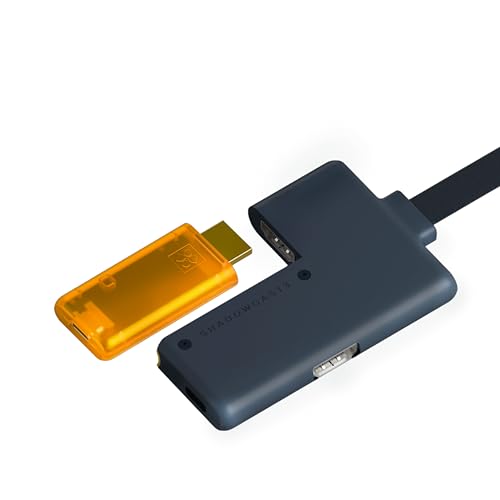 GENKI ShadowCast 3 Pro 4K60 Capture Card
- Pro Edition Zero-Latency HDMI Passthrough - Unlike the…
- Cinematic 4K60 Capture & High Frame Rates -…
- Ultra-Low Latency & High-Speed USB-C - Engineered with…
| Product | Key specs | |
|---|---|---|
| Elgato 4K X Capture Card | Seamless Broadcasting and Versatile Streaming: Connect effortlessly to… Next-gen capture: Unleash the full potential of your… HDMI 2.1 in/out: Elevate your recording capabilities with… | Check price |
| 4K HDMI Capture Card for Streaming | 【4K@60Hz Input & 2K@30Hz Capture】This 4K video capture… 【Real-Time 4K HDMI Loop-Out】avedio links USB3.0 capture card… 【Plug and Play & Ultra-Low Latency】 No drivers… | Check price |
| GENKI ShadowCast 3 Pro 4K60 Capture Card | Pro Edition Zero-Latency HDMI Passthrough - Unlike the… Cinematic 4K60 Capture & High Frame Rates -… Ultra-Low Latency & High-Speed USB-C - Engineered with… | Check price |
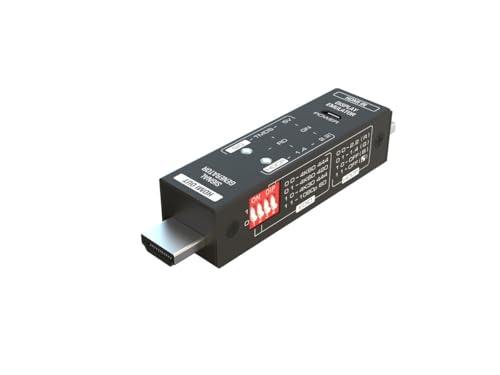 Monoprice HDMI Signal Generator and Display Analyzer Monoprice HDMI Signal Generator and Display Analyzer | Used as HDMI signal generator or display emulator… Provides 4‑pin DIP switch for setting video resolution… Supports 4K @60Hz 4:4:4, 4K@60Hz 4:2:0, 4K@30Hz 4:4:4,… | Check price |
 HDMI Scanline Generator Portable Audio Video Output HDMI Scanline Generator Portable Audio Video Output | Arcade game video image produces the scan line… B:HDMI In(HDMI Video-Signal In Interface). A:HDMI OUT(HDMI Video-Signal/Audio-Signal Out Interface) | Check price |
 Calibrite Display Plus HL Monitor Calibration Colorimeter Calibrite Display Plus HL Monitor Calibration Colorimeter | Check price | |
 ZowieBox ZowieBox | Compact but Powerful Design: ZowieBox is smaller than… Standalone Game Streaming: Just plug and play—ZowieBox enables… NDI|HX3 Converter Technology: ZowieBox converts HDMI signals to… | Check price |
 Marseille mClassic OG Marseille mClassic OG | The mClassic's graphics processor enhances every pixel with… Enhancement On (Mode 2) provides sharper images and… Retro Mode (Mode 3) improves graphics in real-time… | Check price |
As an Amazon Associate we earn from qualifying purchases at no extra cost to you.
At 60 frames per second, a new frame is produced every 16.67 milliseconds when pacing is perfect. At 120 fps, the interval is about 8.33 milliseconds. This does not mean every 120 Hz television has 8.33 ms of total input lag; processing, scan position, game rendering, and controller polling remain involved.
A slow pixel transition can create blur or dark smearing even when signal processing is quick. Conversely, a fast OLED transition does not guarantee low input lag if motion interpolation is active. Read measurements by signal mode and do not substitute one metric for another.
Why Game Mode matters
Televisions are designed to improve films and broadcast video through scaling, de-noising, motion interpolation, frame analysis, and tone mapping. Several operations need future or neighboring frames, which adds delay. Game Mode normally removes or simplifies these steps.
Enable Game Mode for the exact HDMI input. Some sets save picture modes separately for SDR, HDR, Dolby Vision, refresh rate, or source type. Confirm the mode again after launching an HDR game. Auto Low Latency Mode can request the switch automatically, but implementation is product-specific.
HDMI.org describes ALLM as a source-to-display low-latency request. It does not define the television’s actual delay and does not make a slow panel fast. Treat it as automation, then verify the result.
Refresh rate changes the result
A higher refresh mode can reduce the wait until the next scanout. That is why measurements at 120 Hz are often lower than at 60 Hz. However, a game must supply the frames, and the display must accept the mode without falling into a slower picture preset.
Do not force 120 Hz if it creates unstable resolution, color, or VRR behavior. For a stable 30 fps title, good frame pacing and correct cadence matter more than a headline refresh number. A 120 Hz panel can display each 30 fps frame four times evenly, but it cannot create new native animation information.
Manufacturers sometimes advertise “motion rate” values that exceed native panel refresh. Confirm the physical panel and accepted signal modes in the manual. Our HDMI 2.1, VRR, and ALLM guide separates these features.
Response time and overshoot
LCD overdrive accelerates pixel transitions by applying a stronger voltage. Too little overdrive leaves trails; too much creates inverse ghosting, a bright or dark halo following objects. The fastest labeled setting is often not the cleanest.
OLED changes pixels quickly but can make low-frame-rate stutter more visible because each frame is held sharply. Motion blur caused by sample-and-hold presentation differs from slow pixel response. Black frame insertion can improve motion clarity on some displays, but it reduces brightness and may introduce flicker; it can also conflict with VRR.
Choose an overdrive setting that works across the refresh range. A setting tuned for 120 Hz may overshoot badly near the bottom of a VRR range. Independent measurements that publish transition charts and overshoot are more useful than one average number.
A safe home diagnosis
Human reaction is too variable for precise measurement, but a controlled comparison can identify large configuration mistakes. Use a familiar offline game with an immediate action and stable frame rate. Connect the controller by its normal supported method, disable cloud streaming, and avoid comparing two different games.
Photograph current settings. Test the television in its normal picture mode, then enable Game Mode without changing anything else. If control response improves clearly, processing was significant. Next compare 60 Hz and 120 Hz in a game known to support both. Finally add VRR.
A high-frame-rate camera showing an input indicator and screen response can compare relative delay, but it does not automatically measure the entire chain accurately. Professional devices inject a known signal and detect display output at defined screen positions. Trust published results only when methodology and signal mode are stated.
Isolate console, receiver, and soundbar effects
An AV receiver, HDMI switch, capture card, or soundbar can change the detected video mode or add processing. Begin with console directly connected to the television. Verify resolution, refresh, HDR, and VRR. Then add one device.
Audio delay can look like input lag when a gunshot or menu sound arrives after the picture. Test the TV speakers to separate audio routing from video. eARC and passthrough settings affect sound, while Game Mode primarily affects video processing. Do not compensate for late video by blindly delaying audio.
Use a certified, appropriate cable and the television’s full-capability input. Cable faults usually cause dropouts, sparkles, or a missing mode rather than a stable extra 50 ms of delay, so replacing cables repeatedly is not a substitute for checking processing modes.
Console settings
On PS5, use Screen and Video settings to confirm resolution, 120 Hz Output, VRR, and HDR. Sony’s PS5 4K resolution guide documents current display options. Test with a title that explicitly offers a 120 Hz performance mode.
On Xbox Series X, open TV & display options and “4K TV details.” Microsoft’s 4K 120 Hz support page describes compatibility checks. Xbox also exposes ALLM and VRR options.
On PC, set refresh rate in the operating system and GPU control panel, confirm the game uses the intended display mode, and cap frames appropriately for the VRR strategy. Overlays, background capture, CPU bottlenecks, and shader compilation can create stutter unrelated to television input processing.
VRR helps tearing, not every latency problem
VRR lets refresh timing follow delivered frames within a supported range. It can reduce tearing without the queueing behavior associated with traditional V-Sync in some situations. It does not fix slow game simulation, network delay, or a frame rate below the useful range.
Some televisions show near-black flicker during unstable VRR frame rates. Others change local-dimming behavior in Game Mode. These are display characteristics, not proof that VRR itself is universally harmful. Test the specific firmware and game.
When competitive latency matters, keep the game inside a stable performance range and avoid saturating the GPU continuously. Exact cap strategy depends on platform and synchronization method. Do not copy a PC tuning rule to a console without confirming that the option exists.
HDR and latency
HDR should not automatically add major delay when a competent HDR Game Mode is active, but televisions differ. Some sets use a separate HDR picture preset; others reduce local dimming or brightness to preserve speed. Check independent measurements in the exact HDR signal mode.
Calibrate HDR after Game Mode is selected. If calibration occurred in a cinema preset, switching modes can change tone mapping. The visual difference may be mistaken for input-response change even though it is brightness behavior.
Dolby Vision gaming can have different refresh and latency limitations from HDR10 on some products. Verify the mode combination rather than treating all HDR formats as equivalent.
Controller and game latency
A wireless controller with a weak connection, an overloaded USB hub, or a low polling configuration can add delay before the display receives anything. Test a supported wired mode where appropriate, but note that plugging in a cable does not force every controller to transmit over USB.
Games add latency through render queues, frame-rate limits, simulation, and engine design. A 30 fps quality mode generally feels less immediate than a 60 or 120 fps performance mode. Frame generation can increase displayed smoothness while adding a processing stage; it should not be equated with the response of the same native frame rate.
Cloud gaming adds network transport and server rendering. Diagnose it separately with a local title. Improving TV Game Mode cannot eliminate round-trip internet latency.
Buying guidance
For a new TV, look for measured input lag at 4K 60 Hz and 4K 120 Hz, VRR behavior, pixel-response charts, and HDR Game Mode quality. Confirm input capability on the exact size. One “fastest” number is insufficient.
Aim for consistency rather than a universal threshold. Casual turn-based play tolerates more delay than rhythm games or competitive shooters. A player may notice a large mode error but not a tiny difference between two competent gaming televisions.
Checklist
- Connect directly to the correct HDMI input.
- Enable enhanced input format and Game Mode.
- Confirm the active resolution and refresh rate.
- Disable motion interpolation and unnecessary processing.
- Test a local game with stable frame pacing.
- Add VRR, HDR, receivers, and audio devices one at a time.
- Record results before changing another setting.
Final recommendation
Reduce gaming TV input lag by enabling the correct Game Mode, verifying refresh and VRR modes, and simplifying the signal chain. Separate input lag from pixel response, frame time, network ping, and audio synchronization. Buy from measurements that state signal mode and method, then configure the exact HDMI input. A disciplined baseline solves more problems than an extreme preset.
Sources
- HDMI.org: Auto Low Latency Mode
- HDMI.org: Gaming features
- PlayStation: PS5 4K resolution guide
- Xbox Support: 4K gaming at 120 Hz