Key takeaways
- A listing says “wireless” but does not identify Bluetooth, 2.4GHz, or wired modes.
- The product promises universal compatibility without mentioning SteamOS, PC, XInput, or Steam Input.
- The charging dock has no weight, rubber feet, alignment details, or replacement cable information.
- Battery life is advertised only as a large number of hours with no test conditions.
- The controller is unusually cheap but has no warranty, firmware method, or return policy.
- A dock lists many ports but does not specify video output resolution, USB speed, Ethernet speed, or power delivery.
- The Deck slot is visibly narrower than your case, or the connector sits at an angle that could stress the USB-C port.
Choosing a Bluetooth controller for a Steam Deck dock sounds simple until the first couch session. Many buyers focus on the controller’s color or the number of buttons, then discover that it will not pair reliably, does not wake the Deck, blocks another dock port, or has nowhere sensible to live when it is not in use. Others buy a dock with a narrow slot that fits the handheld but leaves no room for a case, or assume every “wireless” controller works equally well with SteamOS.
This guide explains how to choose Bluetooth controller for Steam Deck dock setups in 2026. The goal is not to find the most expensive gamepad. It is to match the controller, dock, charging arrangement, and room layout so the whole system works without constant cable swapping.
Our top picks
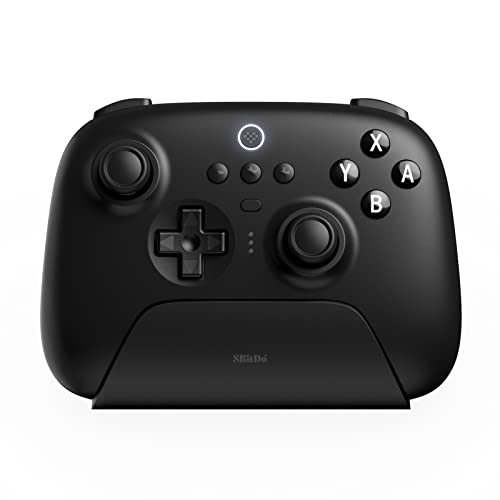 8BitDo Ultimate Bluetooth Controller with Charging Dock
- Compatible with Switch and Steam Deck via Bluetooth/2.4g…
- Multifunctional Charging Dock - Stable connection and controller…
- Hall Effect Sensing Joystick
 8BitDo Ultimate Bluetooth Controller with Charging Dock
- Compatible with Switch and Steam Deck via Bluetooth/2.4g…
- Ultimate Bluetooth Controller is compatible with Steam Deck…
- Multifunctional Charging Dock - Stable connection and controller…
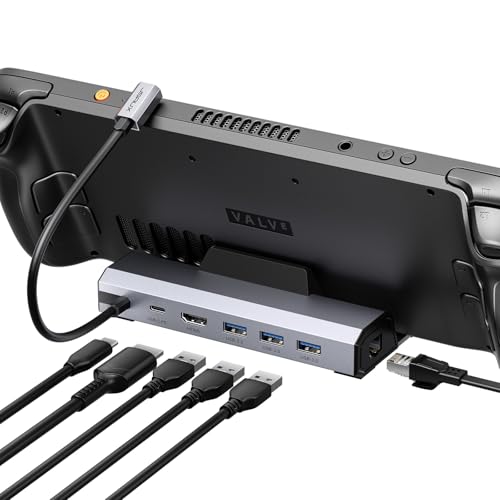 JSAUX 6-in-1 Docking Station for Steam Deck/ROG
- Upgraded 6-in-1 Docking Station: Features HDMI 2.1 4K@120Hz…
- 4K@120Hz HDMI Output (Upgraded): Experience double the refresh…
- Full-Speed 100W Charging: Supports up to 100W PD…
| Product | Key specs | |
|---|---|---|
| 8BitDo Ultimate Bluetooth Controller with Charging Dock | Compatible with Switch and Steam Deck via Bluetooth/2.4g… Multifunctional Charging Dock - Stable connection and controller… Hall Effect Sensing Joystick | Check price |
| 8BitDo Ultimate Bluetooth Controller with Charging Dock | Compatible with Switch and Steam Deck via Bluetooth/2.4g… Ultimate Bluetooth Controller is compatible with Steam Deck… Multifunctional Charging Dock - Stable connection and controller… | Check price |
| JSAUX 6-in-1 Docking Station for Steam Deck/ROG | Upgraded 6-in-1 Docking Station: Features HDMI 2.1 4K@120Hz… 4K@120Hz HDMI Output (Upgraded): Experience double the refresh… Full-Speed 100W Charging: Supports up to 100W PD… | Check price |
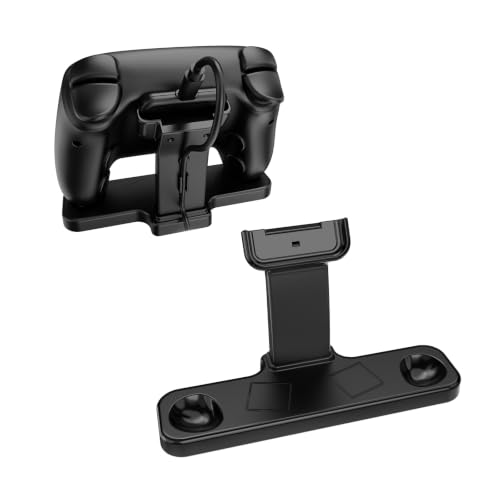 JOYTORN Charging Dock for Steam Controller 2026 JOYTORN Charging Dock for Steam Controller 2026 | Compatibility Fit: Specifically engineered to fit your Steam… Dedicated Puck Holder:Features a secure, custom‑fitted slot that… Magnetic Snap‑On Charging:Simply place your Steam Controller 2026… | Check price |
As an Amazon Associate we earn from qualifying purchases at no extra cost to you.
Decide These 3 Things First
- Where will you play? A controller used 6 feet from the TV has different needs from one used 15 to 20 feet away. Measure the distance, including obstacles such as cabinets and walls.
- How will you charge? Decide whether the controller will use USB-C, a charging dock, or a proprietary charging puck. A dock is convenient, but it adds 3 to 8 inches of desk or media-console footprint.
- What else must the Steam Deck dock support? Count your connections: HDMI, Ethernet, USB storage, keyboard, mouse, and power. A compact 4-in-1 dock may be enough for TV play, while a 6-in-1 model is more useful at a desk.
Also check compatibility before buying. “Bluetooth compatible” does not automatically mean effortless Steam Deck support. Look for SteamOS, PC, XInput, or Steam Input support, and confirm whether the controller needs a supplied 2.4GHz receiver for its best mode.
Size and Room Layout
Controller size matters less in a product photo than it does beside a dock. A typical full-size gamepad is roughly 6 to 7 inches wide, 4 to 5 inches deep, and 2.5 to 3 inches tall. A charging stand can add another 1 to 2 inches of height, plus space behind it for a USB cable.
For a media console, allow at least 10 inches of clear width for one controller and its dock. Leave 2 inches on each side if you want to lift the controller without bumping the Steam Deck or TV accessories. If the dock sits on a narrow shelf, measure its footprint before buying: many multiport docks occupy approximately 4 to 6 inches in width and 2.5 to 4 inches in depth.
A case changes the calculation. A thick protective case may require a dock slot around 0.6 to 1 inch wide, whereas a slim or caseless Deck can fit in a slot closer to 0.4 to 0.6 inch. Never assume a universal dock accommodates every case. Compare the slot width, depth, and cable position.
Material and Surface Protection
For the controller, textured ABS plastic is normal and practical. It keeps weight reasonable, usually between 8 and 11 ounces, and is easy to wipe clean. Rubberized grips can improve comfort, but soft-touch coatings may become tacky after years of heat, sweat, and cleaning products.
For a charging stand, prioritize a weighted base and non-slip feet over decorative metal. A base weighing about 8 to 16 ounces is generally more stable than a very light plastic platform. Look for silicone or rubber contact points where the controller rests. Bare plastic can scratch glossy surfaces and may become noisy when the controller is dropped into place.
Metal construction is useful for a dock stand that will be moved frequently, but it is not essential for the controller itself. Avoid exposed metal edges around a charging contact, USB plug, or Deck support channel.
Construction and Charging Design
Hall effect joysticks are a worthwhile feature because they use magnetic sensing rather than the traditional rubbing contact design. They are intended to reduce the risk of stick drift, but they do not make a controller indestructible. Triggers, buttons, springs, and wireless components can still wear out.
Inspect the charging method closely. USB-C is the most flexible choice: a replacement cable is inexpensive, and you can charge from a wall adapter, dock, or battery pack. A contact-based charging stand is tidier, but alignment must be reliable. Puck-style systems can work well when the controller has a matching recessed contact area; otherwise, the controller may appear seated without charging.
For a Steam Deck dock, use a power adapter rated for at least 45 watts if you want the Deck to charge while connected to a TV and accessories. A controller typically consumes far less power, but the dock, display, USB devices, and Deck can share the available budget. Avoid treating a low-power phone charger as a full replacement for the Deck’s proper adapter.
Comfort and Wireless Performance
For most adults, a symmetrical or offset full-size controller weighing 8 to 10 ounces is a good starting point. Smaller controllers can suit children or users with small hands, while heavier models above 11 ounces may feel reassuring but become tiring during long sessions.
Pay attention to the grip angle, trigger resistance, and button spacing. You should be able to move from the face buttons to the right stick without stretching your thumb. If possible, choose a model with adjustable vibration and trigger settings; these features can affect comfort and battery life.
Bluetooth range claims are often optimistic. A practical target is stable play from 15 to 30 feet in the same room, but walls, televisions, routers, and USB 3 devices can introduce interference. For competitive games, a controller with both Bluetooth and 2.4GHz wireless gives you a fallback option. Bluetooth is convenient for a living-room setup; a wired USB connection or dedicated receiver can reduce latency and pairing friction at a desk.
Check whether the controller reconnects automatically after sleep. This is more important than a small difference in advertised battery capacity. A battery rated at 500 to 1,000 mAh may provide many hours of play, but actual runtime varies with vibration, lighting, wireless mode, and battery age.
Price Tiers That Make Sense
Budget: $18 to $35. Controllers in this range can be perfectly usable for occasional play, but expect fewer customization options, simpler vibration, and more plastic in the charging stand. A separate stand such as a weighted controller dock priced around $18 can improve storage without committing to a premium gamepad.
Midrange: $40 to $70. This is the most sensible tier for many Steam Deck owners. The 8BitDo Ultimate Bluetooth Controller with Charging Dock, for example, is listed around $51.99 in black and $54.99 in white in the provided examples. Hall effect joysticks, a charging cradle, remappable controls, and support for Switch, Windows, and Steam Deck make this type of package more versatile than a basic Bluetooth pad.
Premium: $80 to $150 or more. Premium models may add replaceable sticks, extra rear buttons, adjustable triggers, better grips, or multiple wireless modes. Buy at this level only if you will use those controls. Paying more does not guarantee better SteamOS pairing or a more stable charging dock.
Remember to budget for accessories. A replacement USB-C cable may cost $8 to $15, a compatible power adapter $20 to $40, and a separate stand $18 to $30.
Warranty and Long-Term Support
A one-year warranty is a reasonable minimum for a controller. Two years is preferable when the product includes a charging cradle or proprietary charging contacts. Read the coverage terms for stick drift, battery degradation, charging failure, and cosmetic damage; these are not always treated equally.
Also consider firmware support. A controller that receives updates through Windows or a companion app may remain compatible longer as SteamOS changes. Look for a manufacturer that clearly identifies firmware versions, reset steps, and supported connection modes. Keep the receipt and packaging until you have completed at least one Bluetooth pairing, one wired connection, and one charging cycle.
Delivery and Assembly
Most controller-and-dock packages require little assembly, but “ready to use” should mean more than opening the box. Allow 10 to 15 minutes to connect the charging cable, update firmware if needed, pair the controller, and test every button in Steam Input.
For delivery, inspect the package immediately. A charging stand should arrive with an undamaged USB port, level base, intact non-slip feet, and no loose internal parts. If you are ordering a dock for a specific case, confirm the return window before opening or modifying anything. A JSAUX 6-in-1 dock example is listed around $35.99 and is aimed at multi-device setups, but the important questions are whether its slot fits your case and whether its ports match your display and accessory needs.
Spec Checklist
| Spec | Budget | Mid | Premium |
|---|---|---|---|
| Typical price | $18–$35 | $40–$70 | $80–$150+ |
| Controller width | 5.5–6.5 in. | 6–7 in. | 6–7.2 in. |
| Controller weight | 7–10 oz. | 8–11 oz. | 9–13 oz. |
| Wireless modes | Bluetooth | Bluetooth; sometimes 2.4GHz | Bluetooth, 2.4GHz, and wired |
| Joystick type | Traditional potentiometer | Hall effect preferred | Hall effect or replaceable modules |
| Charging | USB-C or basic cradle | USB-C plus charging dock | Dock, USB-C, or interchangeable battery |
| Stand footprint | About 3–5 in. wide | About 4–6 in. wide | About 5–8 in. wide |
| Warranty target | 6–12 months | At least 1 year | 1–2 years |
Red Flags
- A listing says “wireless” but does not identify Bluetooth, 2.4GHz, or wired modes.
- The product promises universal compatibility without mentioning SteamOS, PC, XInput, or Steam Input.
- The charging dock has no weight, rubber feet, alignment details, or replacement cable information.
- Battery life is advertised only as a large number of hours with no test conditions.
- The controller is unusually cheap but has no warranty, firmware method, or return policy.
- A dock lists many ports but does not specify video output resolution, USB speed, Ethernet speed, or power delivery.
- The Deck slot is visibly narrower than your case, or the connector sits at an angle that could stress the USB-C port.
FAQ
Can any Bluetooth controller work with a Steam Deck dock?
No. Many Bluetooth controllers can pair, but button mapping, wake behavior, rumble, and reconnecting may vary. Choose a controller that explicitly supports PC or Steam Input, then test it in the Steam Deck’s controller settings before relying on it for TV play.
Is Bluetooth or 2.4GHz better for a Steam Deck?
Bluetooth is simpler because it does not require a USB receiver and works well for typical living-room distances. A 2.4GHz receiver can be preferable for lower-latency play, but it occupies a USB port and may require an adapter when your dock is already full. A controller offering both is the most flexible choice.
Do I need a charging dock for the controller?
No, but it is useful if the controller lives beside the TV. A charging dock keeps the gamepad visible, reduces cable clutter, and encourages regular charging. USB-C alone is cheaper and easier to replace. Choose a cradle only if it has stable alignment and does not consume an inconvenient dock or outlet position.
What is the best overall price range?
For most buyers, $40 to $70 offers the best balance of comfort, Hall effect sticks, reliable wireless modes, and a charging solution. Spend more for replaceable components or advanced controls, not simply for a premium finish. A compatible controller and a properly sized Steam Deck dock matter more than decorative materials.