Key takeaways
- Enable VRR on PS5, configure the correct HDMI port, verify video output, troubleshoot unsupported messages, flicker, blank screens, and 120 Hz conflicts.
To enable Variable Refresh Rate on PlayStation 5, connect the console to a VRR-compatible HDMI input, enable the television’s enhanced HDMI and gaming features, then open Settings > Screen and Video > Video Output > VRR on PS5 and choose Automatic. Use Information for the Connected HDMI Device to inspect the connection. A menu setting alone does not prove that a particular game is operating inside the display’s VRR range, so verification should include the TV’s signal information and a supported game.
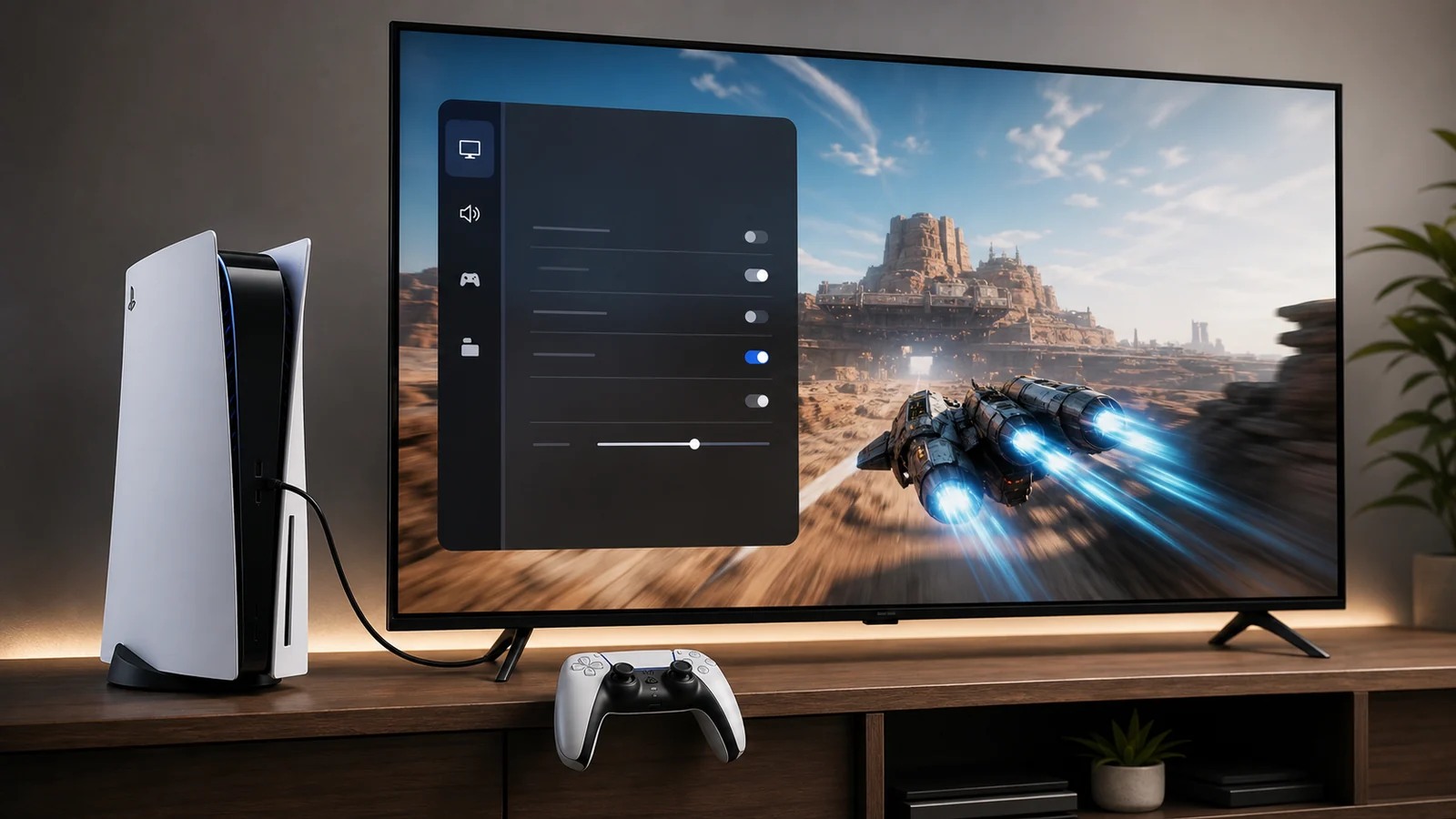
Menu wording can change with system and television firmware. Sony’s current support pages and the exact TV manual are authoritative. This guide describes a controlled setup process and does not claim laboratory testing of individual televisions.
Our top picks
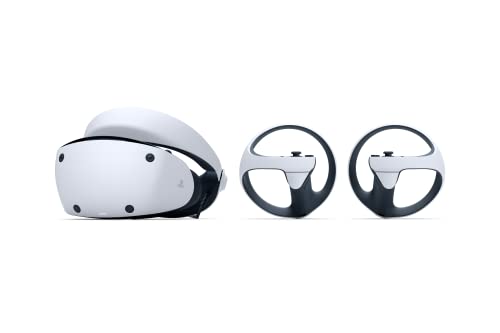 PlayStation VR2
- PlayStation VR2 Sense technology: Eye tracking
- Cutting-edge performance
- 4K HDR visuals
 PlayStation VR2 Horizon Call of The Mountain™
- PlayStation VR2 Sense technology: Eye tracking
- Cutting-edge performance
- 4K HDR visuals
| Product | Key specs | |
|---|---|---|
 PlayStation VR2 Horizon Call of The Mountain PlayStation VR2 Horizon Call of The Mountain | 711719563303 | Check price |
| PlayStation VR2 | PlayStation VR2 Sense technology: Eye tracking Cutting-edge performance 4K HDR visuals | Check price |
| PlayStation VR2 Horizon Call of The Mountain™ | PlayStation VR2 Sense technology: Eye tracking Cutting-edge performance 4K HDR visuals | Check price |
| PlayStation VR2 Horizon Call of The Mountain™ | Cutting-edge performance 110º field of view Single cable setup | Check price |
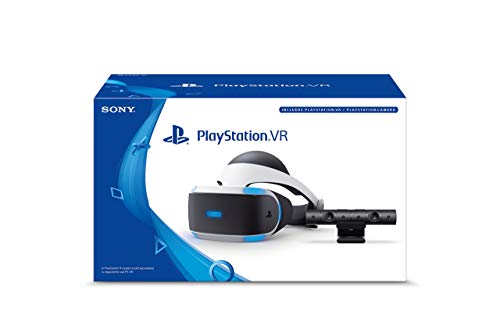 PlayStation VR Headset + Camera Bundle PlayStation VR Headset + Camera Bundle | Ever Expanding Library of Games - PlayStation is… Plug and Play - Getting into PlayStationVR couldn't… Just plug the PSVR headset and your PlayStation… | Check price |
 KIWI design D2 3-in-1 Controller Charging Station KIWI design D2 3-in-1 Controller Charging Station | All-in-One Charging Solution: Charge both your PSVR2 and… Space-Efficient Vertical Design: Save valuable space in your… Stable and Secure Construction: Designed for maximum stability,… | Check price |
 Sony Playstation VR Marvel's Iron Man Bundle Sony Playstation VR Marvel's Iron Man Bundle | Become Iron Man with the Sony PlayStation VR… Pop in the included Marvel's Iron Man VR… Don the PlayStation VR headset to suit up… | Check price |
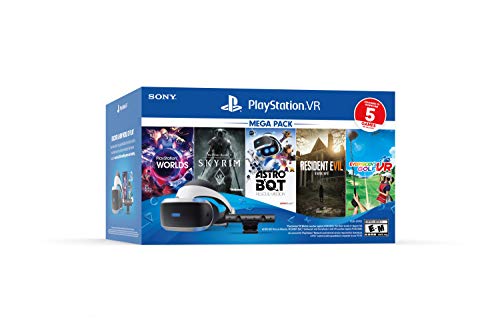 Playstation VR Bundle Five Game Pack Playstation VR Bundle Five Game Pack | Bundle includes Playstation VR headset, Playstation camera, Demo… Playstation VR aim controller is compatible with the… Playstation dual shock wireless controller, Playstation move motion… | Check price |
As an Amazon Associate we earn from qualifying purchases at no extra cost to you.
What PS5 VRR does
Games do not always deliver frames at perfectly even intervals. A fixed-refresh display updates on a schedule, while the console may finish a frame earlier or later. That mismatch can produce visible tearing or uneven motion. VRR lets a compatible display adjust refresh timing dynamically within a supported range so updates more closely follow frame delivery.
VRR does not increase graphics quality, guarantee a higher frame rate, or correct every stutter. Shader compilation, asset streaming, CPU spikes, network issues, camera judder, and frame rates outside the useful VRR range can remain visible. It also cannot make a 30 frames-per-second mode behave like native 60 fps.
Sony specifies HDMI VRR support for compatible PS5 games and televisions. Some unsupported games may also be given the option to apply VRR, but results can vary. Treat this as a compatibility option rather than a universal improvement.
Requirements before opening the menu
You need the following:
- A PlayStation 5 with current system software.
- A television or monitor that supports VRR through the relevant HDMI input.
- A suitable direct HDMI connection.
- The TV input configured for its enhanced, gaming, or high-bandwidth mode.
- A game and output mode that can benefit from VRR.
Do not infer support from “120 Hz,” “gaming,” or “HDMI 2.1” alone. HDMI features are implemented individually. A display may accept 4K 120 Hz yet expose a restricted VRR range, support VRR only on certain ports, or require a firmware update.
Our guide to HDMI 2.1, VRR, and ALLM explains why the version label does not replace the model’s supported-signal table.
Step 1: use the correct HDMI port
Inspect the labels and manual for the exact TV model and size. Some televisions support their highest-bandwidth gaming features on only two ports. One may also serve as eARC for a soundbar. If the PS5 passes through a receiver, switch, capture device, or soundbar, every device in the video path must support the chosen signal.
For initial setup, connect the PS5 directly to a compatible TV port using the supplied cable or another suitable certified cable. Remove intermediate devices until VRR is working. This separates console-TV negotiation from passthrough limitations.
Fully seat both HDMI ends and avoid sharp bends. A cable can appear to work at 4K 60 Hz but become unstable with the greater demands of 4K 120 Hz, HDR, and VRR combinations.
Step 2: configure the television input
Most televisions require an input-specific setting before advanced HDMI modes are exposed. Depending on the manufacturer, it may be called Enhanced Format, Input Signal Plus, HDMI Deep Color, 4K Enhanced, Game Optimizer, or another proprietary name.
Select the physical HDMI port used by the PS5, then:
- Enable the enhanced or high-bandwidth input format.
- Select Game Mode or the low-latency gaming preset.
- Enable VRR, Adaptive Sync, or the television’s game optimizer if it is not automatic.
- Disable motion interpolation for the gaming input.
- Save the configuration and restart the TV if its manual requires it.
Do not enable FreeSync-specific modes blindly. Some TVs expose several VRR systems or picture presets, and their supported combinations can differ. Follow the manufacturer’s PS5 instructions when available.
Step 3: update the console and display
On PS5, open Settings > System > System Software > System Software Update and Settings and install an available official update. Do not interrupt power during an update.
Check the television’s firmware through its supported update method. Review the model’s release notes where possible, because firmware can add or alter HDMI behavior. If the TV is already stable, record important picture settings before updating in case the manufacturer resets input configuration.
A receiver or soundbar in the video path may also require firmware. Keep it out of the route until the direct console-TV link has been confirmed.
Step 4: enable VRR on PS5
On the PS5 home screen:
- Open Settings using the gear icon.
- Choose Screen and Video.
- Select Video Output.
- Find VRR.
- Choose Automatic.
Sony also provides Apply to Unsupported Games. Leave this off during the baseline setup. Once supported games work correctly, you can test the option per unsupported title. If a game shows visual problems, turn it off and restart the game before drawing conclusions.
Keep 120 Hz Output on Automatic when using compatible high-frame-rate modes. VRR and 120 Hz are related gaming capabilities but are not the same setting. A game can use VRR below 120 fps, and a fixed 120 Hz output does not prove VRR is active.
Step 5: inspect the HDMI connection
Within Settings > Screen and Video > Video Output, open Information for the Connected HDMI Device. Sony uses this screen to show capabilities recognized through the current connection. Look for the reported resolutions, frequencies, HDR information, and VRR range where displayed.
If expected capabilities are absent, the issue exists before the game starts. Recheck the TV port, input enhancement, cable, firmware, and intermediate devices. Do not repeatedly change game settings when the console has not negotiated VRR with the display.
The information screen reflects the current HDMI chain. Connecting through a receiver can produce different capabilities from connecting directly to the TV.
Step 6: verify VRR in a compatible game
Choose a game officially documented as supporting PS5 VRR or a title whose current in-game menu explicitly offers a related mode. Close and restart the game after changing system video settings.
Select a compatible performance or high-frame-rate mode where appropriate. Then open the television’s game information panel. Many gaming TVs display the active refresh rate or a VRR status indicator. Wording varies, and rapidly changing counters may be approximate rather than calibrated performance measurements.
Compare a repeatable scene with VRR on and off while keeping the game’s graphics mode unchanged. Look for reduced tearing and smoother presentation during moderate frame-rate variation. Do not compare different picture presets or volume levels at the same time.
Recommended PS5 video baseline
For troubleshooting, use a conservative configuration:
| Setting | Starting choice |
|---|---|
| Resolution | Automatic |
| VRR | Automatic |
| Apply to Unsupported Games | Off |
| 120 Hz Output | Automatic |
| ALLM | Automatic where available |
| HDR | On When Supported |
| Deep Color Output | Automatic |
| RGB Range | Automatic |
| Video Transfer Rate | Automatic |
Automatic is not a command to ignore results. It lets the console negotiate with the display. If a blank screen or sparkles appear, Sony provides transfer-rate options that can reduce the signal demand for diagnosis, but investigate the cable and HDMI chain rather than treating a reduced setting as proof that everything is healthy.
“Your TV doesn’t support VRR” troubleshooting
If PS5 reports that the connected display does not support VRR, work through this sequence:
- Confirm the exact TV model and size support VRR, not merely 120 Hz.
- Confirm the PS5 uses a supported HDMI port.
- Enable the enhanced input format for that specific port.
- Turn on the TV’s Game Mode or VRR control.
- Update PS5 and TV firmware.
- Connect PS5 directly to the television.
- Reseat or replace the HDMI cable with a known suitable cable.
- Power down both devices normally, then restart the TV before the console.
- Reopen Information for the Connected HDMI Device.
If the direct path works, add the sound system or switch back one component at a time. The first component that removes VRR identifies the compatibility boundary.
VRR works at 1080p but not 4K 120 Hz
This pattern points toward port bandwidth, cable integrity, input mode, or passthrough capability. Verify the TV’s supported combinations rather than assuming every advertised feature works simultaneously on every port.
Connect directly, use the appropriate enhanced mode, and leave resolution, transfer rate, and HDR on their normal automatic settings initially. If the TV supports only a limited number of high-bandwidth ports, move other devices rather than passing the PS5 through older hardware.
If shopping for a replacement display, the best TV for PS5 guide covers port layout, 4K 120 Hz, VRR, HDR, and room considerations together.
Flicker or brightness shifts with VRR
Some displays can show flicker or luminance variation when frame rate changes sharply, particularly in dark scenes or loading transitions. This behavior is model-, panel-, game-, and firmware-dependent. First verify that the frame rate is reasonably stable and that no unsupported-game override is active.
Test another supported game. Disable Apply to Unsupported Games, restart the title, and compare. If the problem appears only in one game’s unstable mode, a fixed frame-rate mode may be preferable. Check the TV manufacturer’s firmware notes and independent measurements for the exact model.
Do not attempt service-menu adjustments. They can create additional faults and may affect warranty or calibration.
Blank screens or signal drops
A brief blank screen can occur when the console switches between SDR and HDR or between refresh-rate modes. Repeated dropouts during play are not normal. Suspect cable, HDMI port, passthrough hardware, or firmware before changing unrelated picture controls.
Disable one advanced feature at a time: first test without an intermediate receiver, then without 120 Hz, then without HDR, while leaving VRR as the variable under investigation. Record the combination that fails. This is more useful than toggling several settings simultaneously.
VRR and input lag
VRR can reduce tearing without the fixed synchronization behavior that may add delay in some pipelines, but total latency remains a system property. Game Mode, frame queues, controller path, game engine, frame-rate cap, and display processing matter.
Do not enable motion smoothing to make a low-frame-rate title look smoother. Interpolation analyzes frames and generally adds latency and artifacts. Review our gaming TV input lag guide if controls feel disconnected even though VRR is recognized.
VRR and capture or streaming equipment
Capture devices and HDMI splitters can complicate the capability exchange between PS5 and TV. A capture card may accept 4K 60 Hz but not pass 4K 120 Hz or VRR. Some workflows record a fixed output while passing a variable signal, but support is product-specific.
Establish direct PS5-to-TV VRR first. Then check the capture device’s official input and passthrough table for resolution, refresh, HDR, and VRR combinations. Do not assume a high HDMI version number guarantees the complete route.
FAQ
Does every PS5 game support VRR?
No. Sony describes VRR support for compatible games and provides an optional setting to apply it to unsupported games. Results in unsupported titles can vary, so test per game and turn the override off if problems occur.
Do I need a 120 Hz TV for PS5 VRR?
You need a display whose specifications explicitly support the PS5’s HDMI VRR implementation and intended signal modes. Many suitable modern gaming TVs are 120 Hz models, but “120 Hz” alone does not establish VRR compatibility.
Should VRR always stay on Automatic?
Automatic is a sensible default on a compatible display. Disable it temporarily for comparison or troubleshooting, and leave the unsupported-game override off unless a particular title behaves well with it.
How can I tell VRR is working?
Check Information for the Connected HDMI Device, use a supported game and compatible graphics mode, and inspect the television’s gaming signal panel for an active VRR indication. A system toggle by itself is incomplete evidence.
Bottom line
Enable VRR only after the HDMI path is correct: supported port, enhanced input mode, current firmware, suitable cable, and preferably a direct console-to-TV connection. Set PS5 VRR to Automatic, leave the unsupported-game override off for the baseline, inspect the connected-device information, and verify with a supported game plus the TV’s signal panel. If problems appear, simplify the chain and change one variable at a time.
Primary Sony sources
- PlayStation Support: How to change video settings on PS5
- PlayStation Blog: Variable Refresh Rate support for PS5
- PlayStation Support: Update PS5 system software