Our Top Picks
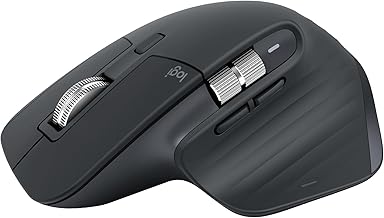
 Logitech MX Master 3S Bluetooth Wireless Mouse NoMouse without USB Receiver4.92 x 3.32 x 0.1 Inches0.3 poundsCheck on Amazon
Is the MX Master 3S good for gaming? No, not for competitive or fast-paced gaming, but it is perfectly usable for casual, turn-based, and productivity-adjacent games if you already own it and don’t want a second mouse.
The Logitech MX Master 3S is a productivity flagship first and a gaming mouse never. Its sensor is accurate, its ergonomics are excellent for long work sessions, and its extra features are unmatched for workflow, but its polling rate, weight, latency, and button design put it at a clear disadvantage against even budget gaming mice in 2026. Here is how that trade-off breaks down in practice.
Logitech MX Master 3S Bluetooth Wireless Mouse No Receiver - Graphite | MagSpeed Scrolling, 8K DPI tracking, Quiet clicks, Programmable buttons, Bluetooth, Windows PC, Mac, Linux, Chrome
One of the consumer electronics options compared in this guide.
View on Amazon
Logitech MX Master 3S - Performance Wireless Mouse with Ultra-Fast Scrolling, Ergo, 8K DPI, Track on Glass, Quiet Clicks, Bluetooth, Windows, Linux, Chrome, Black
One of the consumer electronics options compared in this guide.
View on Amazon
Logitech MX Master 3S for Business, Wireless Mouse with Quiet Clicks, 8K DPI, Secured Logi Bolt USB Receiver, Bluetooth, USB-C Charging, MagSpeed Scrolling, Windows/Mac/Chrome/Linux - Graphite
One of the consumer electronics options compared in this guide.
View on AmazonWhy the MX Master 3S Falls Short for Gaming
On paper, the MX Master 3S has an 8,000 DPI Darkfield sensor that tracks on almost any surface including glass, and that sounds like overkill for gaming. In reality, the specs that matter most for gaming are not DPI, but how often and how quickly the mouse talks to your PC.
Sensor, Polling Rate, and Latency
The MX Master 3S uses Logitech’s Darkfield sensor rated at 200 to 8,000 DPI with acceleration up to >30G. It is accurate and has no noticeable smoothing or jitter for everyday use. The problem is its connection.
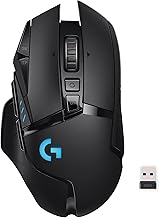
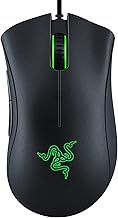
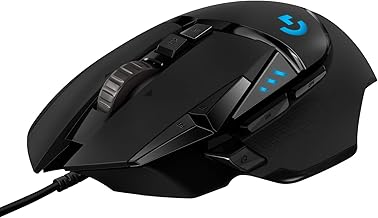
It connects via Bluetooth 5.0 or the Logi Bolt receiver (2.4GHz), but in both modes it is capped at a 125Hz polling rate. Most modern gaming mice like the Logitech G502 X, Logitech G Pro X Superlight 2, Razer DeathAdder V3, or SteelSeries Aerox 5 run at 1,000Hz natively, with 4,000Hz and 8,000Hz models now common in the usually $80-$150 range.
That difference is not just a number. Polling rate directly adds input latency, and you can calculate it:
- Polling interval = 1,000ms / polling rate
- MX Master 3S at 125Hz = 1,000 / 125 = 8ms per report
- Gaming mouse at 1,000Hz = 1,000 / 1,000 = 1ms per report
- Average added latency from polling alone = ~4ms for 125Hz vs ~0.5ms for 1,000Hz
In practice, total click-to-photon latency compounds. With the system chain (switch debounce + wireless transmission + polling interval + game engine), a 125Hz mouse adds 7 to 8ms more latency than a 1,000Hz mouse before your PC even processes the input. At 144Hz, one frame is 6.94ms, so the MX Master 3S is already costing you more than one full frame of delay compared to a standard gaming mouse. At 240Hz (4.16ms per frame), that is almost two frames. For competitive shooters like Valorant, Counter-Strike 2, Apex Legends, or Fortnite, that is a tangible disadvantage in peeking and flicks.
Bluetooth adds further variance. While Logi Bolt is more stable than Bluetooth, both modes on the MX Master 3S show higher jitter and slightly higher latency than Logitech’s Lightspeed wireless used in the G series. You also cannot use it wired for data; the USB-C cable charges only, so you cannot bypass wireless to reduce latency.
Weight, Shape, and Glide
The MX Master 3S weighs 141 grams. By comparison, most gaming mice in 2026 sit between 55 and 90 grams, with lightweight esports models often under 65 grams. That extra 50 to 85 grams matters for low-sensitivity aiming, fast 180-degree turns, and long sessions where wrist fatigue builds up.
The shape is also purely ergonomic for right-handed productivity. It has a pronounced thumb rest, a sculpted right-handed chassis, and a secondary horizontal scroll wheel where a gaming mouse would place forward/back thumb buttons. It is extremely comfortable for 8-hour workdays and claw or palm grips for productivity, but it is not built for fingertip grip, aggressive claw grip for aim control, or rapid repositioning on a large mousepad.
The underside uses a single large PTFE-optimized area rather than pure PTFE skates found on gaming mice, and the feet create more friction on cloth pads. It glides, but it does not glide fast.
| Spec | Logitech MX Master 3S | Logitech G502 X | Logitech G Pro X Superlight 2 |
|---|---|---|---|
| Sensor | Darkfield, 8,000 DPI, >30G accel | HERO 2, 25,600 DPI, >40G accel | HERO 2, 32,000 DPI, >40G accel |
| Polling Rate | 125Hz (8ms interval) | 1,000Hz (1ms interval) | 1,000Hz / up to 4,000Hz with polling dongle |
| Wireless Tech | Bluetooth 5.0 / Logi Bolt (125Hz) | Lightspeed + Bluetooth / USB-C wired data | Lightspeed / USB-C wired data |
| Weight | 141g | 102g | 60g |
| Primary Switches | Quiet Click (soft, muted) | Lightforce Hybrid Optical-Mechanical | Lightforce Hybrid Optical-Mechanical |
| Buttons | 7 (including gesture button, horizontal wheel) | 13 programmable with dual-mode wheel | 5 programmable |
| Battery Life | Up to 70 days on full charge | Up to 140 hours | Up to 95 hours |
| Price Range (new) | Usually $90–$110 | Usually $70–$90 | Usually $150–$170 |
What Gaming Is Actually Like on the MX Master 3S
For slow-paced games, the MX Master 3S feels fine. In titles like Civilization VI, Baldur’s Gate 3, Cities: Skylines 2, Stardew Valley, Hearthstone, or turn-based strategy games, polling rate and weight do not affect your performance. The high-precision sensor, SmartShift electromagnetic scroll wheel, and comfortable shape are arguably better here than a light gaming mouse, especially for scrolling through long inventories or maps.
For fast-paced games, the weaknesses compound quickly:
- FPS and competitive shooters: The 125Hz cap makes micro-corrections feel slightly floaty, and the quiet-click switches have longer travel and a softer, less tactile reset than gaming clicks. You lose crisp spam-clicking for semi-auto weapons and precise burst control.
- MOBA and RTS at higher ranks: League of Legends or StarCraft II demand rapid clicks per minute, low latency, and light weight for constant map panning. The 141g weight slows repetitive movements.
- Battle royale and action RPGs: You will notice the heavier glide when looting, flicking, or tracking moving targets in games like Warzone or Elden Ring.
Button Layout Limitations
The MX Master 3S has two main buttons, a middle click on the MagSpeed wheel, a manual shift button, a horizontal thumb wheel, and two thumb buttons plus a gesture button in the thumb rest. Logi Options+ lets you remap almost everything per-app, which is incredible for productivity.
For gaming, the layout is awkward. The thumb gesture button requires pressing the thumb rest down while moving the mouse, which conflicts with aiming. The horizontal wheel is hard to hit reliably under pressure. There is no DPI clutch button on the fly unless you sacrifice another button via software, and Logi Options+ does not support on-board memory profiles, polling rate adjustments, or lift-off distance tuning like Logitech G Hub does for gaming mice. You cannot bind DPI steps or create game-specific profiles that switch automatically at the hardware level.
Where the MX Master 3S Actually Wins
If you use one mouse for both work and play on the same PC, the MX Master 3S has strengths no gaming mouse matches:
- MagSpeed electromagnetic scrolling with SmartShift: Scroll 1,000 lines per second or switch to ratcheted precision automatically. In games with long tech trees or inventory lists, and in browsers and spreadsheets outside games, it saves significant time.
- Quiet Click switches: Up to 90% quieter than the MX Master 3, ideal for shared rooms, offices, or late-night gaming without disturbing others.
- Multi-device flow: Pair to up to 3 devices via Bolt/Bluetooth and switch instantly, or use Logitech Flow to move the cursor and copy files between two computers on the same network. Gaming mice typically pair to one dongle.
- Battery life: Up to 70 days on a full charge, with a quick 1-minute charge giving about 3 hours of use. Most gaming mice need weekly charging.
These are genuine reasons to keep the MX Master 3S as your daily driver if gaming is secondary.
Settings to Make It More Playable (If You Must Game on It)
If the MX Master 3S is your only mouse, you can minimize its disadvantages with these concrete changes. Do them in Logi Options+ and Windows before launching a game:
- Use the Logi Bolt receiver, not Bluetooth. Keep the receiver on a front USB port or extender within 20cm of the mouse. Bluetooth adds 4 to 12ms of extra jitter depending on your motherboard’s Bluetooth stack.
- Set pointer speed to 800 DPI for shooters, 1,000 to 1,600 DPI for MOBA/strategy. Higher DPI does not fix polling rate, but 800 DPI is the standard for consistent aim training and avoids sensor interpolation.
- In Logi Options+, turn off SmartShift for games and set the scroll wheel to ratcheted mode only. Free-spin will cause accidental weapon swaps.
- Disable gesture button and reassign it to DPI Up/Down or to a keyboard binding like V or X that you use for melee or push-to-talk. The default gesture is too easy to misfire.
- In Windows Settings > Bluetooth & devices > Mouse > Additional mouse settings > Pointer Options, disable Enhance pointer precision (mouse acceleration). Keep it off so aim is 1:1.
- Set in-game mouse smoothing and acceleration to Off and raw input to On where available. Cap FPS to your monitor’s refresh rate to keep frametime consistent, which helps mask the 8ms polling interval.
Verdict: Should You Game on the MX Master 3S?
Use this decision matrix to map your situation to the right choice. It reflects how much polling rate and weight actually affect different player types.
| Your Situation | Is MX Master 3S Good Enough? | Recommended Move |
|---|---|---|
| Casual / cozy / turn-based gaming only | Yes | Keep the MX Master 3S, use Bolt receiver and 800-1600 DPI |
| Mainly work, 3-5 hours/week of FPS/MOBA for fun | Acceptable | Keep MX Master 3S, but lower in-game sensitivity to compensate for weight |
| Ranked competitive shooters or esports practice | No | Get a dedicated 1,000Hz+ gaming mouse (e.g., G502 X, G Pro X Superlight 2, DeathAdder V3) |
| One mouse for work and gaming on same desk | Compromise | Own both: MX Master 3S for day, gaming mouse for night. Use a mousepad that suits both. |
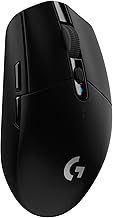
| Laptop / small desk / travel | No for fast games | Consider a midweight hybrid like Logitech G305 or Razer Basilisk X if you must have one mouse |
The MX Master 3S is one of the best productivity mice you can buy in 2026, usually $90–$110, and it will not hold you back in slow games. For any game where reaction time, flick accuracy, or low latency matters, a gaming mouse with 1,000Hz or higher polling, lighter weight, and mechanical switches will feel immediately more responsive and will make you more consistent. If you already own the MX Master 3S, do not expect it to replace a gaming mouse — pair it with one instead.
FAQ
Can you increase the MX Master 3S polling rate to 1,000Hz?
No. Both Bluetooth and Logi Bolt are firmware-limited to 125Hz on the MX Master 3S. Logi Options+ has no polling rate slider, and no official or reliable unofficial tool unlocks higher rates. You need a gaming mouse for 500Hz or higher.
Does the MX Master 3S have input lag in games?
It has higher baseline latency than gaming mice due to 125Hz polling, quiet-click switch debounce, and its wireless protocol. Most players will not notice it in Civilization or Baldur’s Gate 3, but it is measurable and noticeable in fast shooters compared to a 1,000Hz mouse.
Is the MX Master 3S better than a cheap gaming mouse for gaming?
For competitive gaming, no. Even a usually $30–$50 budget gaming mouse with a 1,000Hz polling rate and 70–85g weight will give you lower latency and faster movement than the MX Master 3S, despite the MX Master 3S having a better build quality for office work.