Key takeaways
- Test the Monitor on Another Device: Plug your portable monitor into a modern laptop, a Nintendo Switch, or a compatible smartphone using the same USB-C cable. If it works perfectly on those devices, your monitor and cable are fine; the issue lies specifically with your handheld’s software configuration or its physical USB-C port.
- Inspect the Ports for Physical Damage: Shine a flashlight into the USB-C ports on both your handheld and the portable monitor. Check for bent gold pins, accumulated pocket lint, or dirt. If you spot debris, use a wooden toothpick or a plastic dental pick to gently clean the port, then blow it out with canned air.
- Update Your Handheld’s BIOS: Manufacturers regularly release BIOS updates that address USB-C compatibility and power delivery bugs. Open your handheld’s companion app (such as MyASUS for the ROG Ally or Lenovo Space for the Legion Go) and install any pending BIOS or firmware updates.
- Use a Powered Dock: If direct USB-C connection fails, try connecting your handheld to a powered USB-C dock, and run an HDMI-to-Mini-HDMI cable from the dock to the portable monitor. This bypasses the DP Alt Mode negotiation on the handheld’s primary port.
It is the ultimate buzzkill for on-the-go gamers: you sit down at a hotel desk or a coffee shop, pull out your high-end gaming handheld—be it a Steam Deck, ROG Ally, Lenovo Legion Go, or MSI Claw—unfurl your sleek portable monitor, plug it in, and… nothing. Instead of a glorious 14-inch or 16-inch gaming canvas, you are greeted with a soul-crushing “No Signal” prompt, a stubborn black screen, or an endless loop of display flickering. Because portable screens rely on a single USB-C cable for both video transmission and power delivery, a minor handshake failure can break the entire connection instantly.
With the rapid evolution of mobile PC gaming hardware in 2026, these handshaking errors have become more complex due to varying USB4, Thunderbolt, and USB-C 3.2 Gen 2 standards. When your setup refuses to play nice, you need a systematic, step-by-step diagnostic workflow rather than random cable-tugging. This comprehensive portable monitor won’t connect to handheld pc fix guide walks you through the exact technical remedies to restore your dual-screen gaming setup, ranging from simple cable audits to advanced display driver resets.
Likely Causes
Before diving into the step-by-step solutions, it helps to understand why this issue occurs. Use this quick-reference diagnostic matrix to identify the most likely culprit behind your blank screen:
| Cause | How to Confirm | Fix Difficulty |
|---|---|---|
| Insufficient Power Delivery (PD) | Monitor flashes its logo, then instantly turns off or displays “No Signal.” | Very Easy |
| Incompatible USB-C Cable | The monitor remains completely black, but charges your handheld. | Very Easy |
| Incorrect Display Mode Configuration | The handheld screen is on, but the external monitor remains in standby mode. | Easy |
| Outdated or Corrupted APU Drivers | The monitor works on other devices (like a phone) but not on your gaming handheld. | Medium |
| Resolution/Refresh Rate Mismatch | The monitor displays an “Out of Range” or “Unsupported” error box. | Medium |
| Glitched USB-C Controller State | No accessories work when plugged into the handheld’s primary USB-C port. | Hard |
Fix 1: Perform a Hard Restart and Power Cycle
What causes it
Modern gaming handhelds utilize complex power states (Modern Standby, Hibernate, and Sleep) to let you resume games quickly. Often, when a handheld wakes from sleep, the onboard USB-C controller fails to re-initialize the DisplayPort Alternate Mode (DP Alt Mode) protocol, leaving the video output pipeline completely frozen.
How to check
If you plug your portable monitor into your handheld and the monitor’s power indicator light remains amber (standby) or completely dark, and the handheld’s screen does not flicker to acknowledge a new hardware connection, the controller is likely stuck in a dormant state.
What to do
- Disconnect the USB-C cable linking the portable monitor to your handheld PC.
- Press and hold the physical power button on your handheld PC for 15 full seconds. This forces a complete hardware shutdown, clearing the controller cache.
- Unplug any power cables connected to your portable monitor and let it sit unpowered for 30 seconds.
- Turn your handheld PC back on and wait until you are fully logged into Windows or SteamOS.
- Plug the USB-C cable back into your handheld’s primary video-out port (usually the top port on the ROG Ally or Legion Go), then connect it to the monitor’s main Type-C port.
How to undo it
This is a standard physical power cycle. There are no settings changed, so there is nothing to undo.
Fix 2: Toggle the Display Output Mode Manually
What causes it
Sometimes the operating system detects the monitor but defaults to an inactive projection mode, such as “PC screen only.” This tells the graphics processor to ignore the external panel entirely, keeping it in a perpetual sleep state.
How to check
If your portable monitor’s backlight turns on briefly but the screen remains blank, or if you hear the Windows “hardware connected” chime but see no image, the OS is likely ignoring the secondary screen.
What to do
If you are running Windows (ROG Ally, Legion Go, MSI Claw):
- Press the Windows Key + P on your physical keyboard. If you do not have a keyboard attached, press your handheld’s dedicated Command Center button to bring up the on-screen keyboard, or swipe in from the right edge of the screen.
- A menu will slide out from the right side of the screen. Select Duplicate or Extend.
- If the screen remains black, open Settings > System > Display. Scroll down to “Multiple displays” and click the Detect button.
If you are running SteamOS (Steam Deck):
- Press the physical Steam button and navigate to Settings > Display.
- Under the “External Display” section, toggle Automatically scale user interface to the Off position, then turn it back On.
- Ensure the output resolution is set to a standard format, like 1920×1080 at 60Hz.
How to undo it
To revert to your original layout, press Windows Key + P again and select PC screen only to cut the signal to the portable monitor.
Fix 3: Swap to a Dedicated DP Alt Mode USB-C Cable
What causes it
Not all USB-C cables are created equal. The charging cable that came with your phone, or even the power cable that came with your handheld, is often wired only for USB 2.0 data transfer speeds (480 Mbps) and power delivery. It lacks the internal physical wiring required to carry high-bandwidth DisplayPort video signals (DP Alt Mode).
How to check
Examine the cable you are using. If it is thin, highly flexible, or has no markings on the connector heads, it is likely a charge-only cable. If you connect the monitor with this cable and it charges your handheld but displays no video, the cable is the bottleneck.
What to do
- Locate the USB-C cable that was packaged in the box with your portable monitor. These are specifically designed to carry both power and video.
- If you lost that cable, purchase a replacement cable that is explicitly certified for USB4, Thunderbolt 4, or USB-C 3.2 Gen 2 (10Gbps or 20Gbps) with DP Alt Mode support.
- Look for a cable that supports at least 100W Power Delivery (PD) to ensure it can handle the power requirements of both devices.
- Connect this certified cable directly between the handheld’s primary USB-C port and the monitor’s video-in port. Avoid using any cheap right-angle adapters or magnetic breakaway tips, as these frequently break the handshake protocol.
How to undo it
Simply disconnect the high-bandwidth cable. There are no software changes to reverse.
Fix 4: Connect Dedicated Power to the Monitor (Double-Cabling)
What causes it
Most portable monitors require between 10W and 15W of power to operate. While your handheld PC can theoretically output this power via its USB-C port, doing so drains your handheld’s battery extremely fast. Often, the handheld’s power management firmware will throttle the port’s power output to protect its battery, causing the portable monitor to brown out and disconnect.
How to check
If your portable monitor turns on, displays its manufacturer logo, and then immediately turns off or shows a “No Signal” message before repeating this loop, it is not getting enough power from the handheld.
What to do
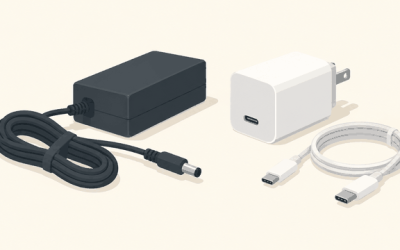
- Locate the wall charger that came with your gaming handheld (typically 45W, 65W, or 100W).
- Plug this wall charger directly into the wall outlet.
- Connect the wall charger’s USB-C cable to the secondary USB-C port on your portable monitor (usually marked with a power plug icon, not the video transmission icon).
- Now, connect your high-bandwidth DP Alt Mode USB-C cable from the monitor’s primary USB-C port to your gaming handheld.
- The monitor will now draw its operating power directly from the wall, and many portable monitors will actually pass the remaining power through to charge your handheld PC simultaneously.
How to undo it
Unplug the wall charger from the monitor. Note that your monitor will revert to drawing power directly from your handheld’s battery, which may cause the brownouts to return if the battery is low.
Fix 5: Reinstall APU Graphics Drivers and Clear Display Cache
What causes it
Corrupted or outdated AMD Radeon or Intel Arc graphics drivers can lose track of external display profiles. When this happens, the operating system fails to recognize the EDID (Extended Display Identification Data) sent by the portable monitor, resulting in a black screen.
How to check
On Windows, right-click the Start button and select Device Manager. Expand the Display adapters section. If you see a yellow warning triangle next to your APU (e.g., AMD Radeon 780M Graphics) or if it is listed as “Microsoft Basic Display Adapter,” your graphics drivers are corrupted.
What to do
- While on Windows, press the keyboard shortcut Windows Key + Ctrl + Shift + B. Your screen will flicker and emit a beep sound. This instantly restarts your graphics driver subsystem.
- If that fails, download the latest official graphics driver package for your specific handheld from the manufacturer’s support site (ASUS, Lenovo, or Valve).
- In Device Manager, right-click your graphics adapter under “Display adapters” and select Uninstall device. Check the box that says “Attempt to remove the driver for this device” and click Uninstall.
- Your screen resolution will drop. Restart your handheld.
- Run the driver installer package you downloaded in Step 2, complete the installation, and restart your handheld once more.
How to undo it
If the new drivers cause performance issues, open Device Manager, right-click your display adapter, select Properties, navigate to the Driver tab, and click Roll Back Driver.
Fix 6: Force a Compatible Resolution and Refresh Rate
What causes it
Many modern gaming handhelds run at high refresh rates, such as 120Hz or 144Hz. Portable monitors, especially budget-friendly models, are often capped at a standard 60Hz. If your handheld tries to clone its display and force a 120Hz signal to a 60Hz portable monitor, the monitor will reject the signal.
How to check
Your portable monitor displays a message like “Out of Range,” “Signal Error,” or “Input Not Supported” instead of a black screen.
What to do
- Disconnect the portable monitor.
- On your handheld, open Settings > System > Display.
- Select your main handheld screen and change its refresh rate to 60Hz (you can change this back later).
- Connect the portable monitor. If the screen displays an image, go back to the Display settings menu.
- Click on the secondary display icon representing your portable monitor. Scroll down and click on Advanced display.
- Click Display adapter properties for Display 2. Go to the Monitor tab.
- Under “Screen refresh rate,” select 60 Hertz from the drop-down menu and click Apply.
How to undo it
Once the connection is stable, you can return to your handheld’s display settings and bump your internal screen back up to 120Hz or 144Hz, keeping the external display locked at 60Hz by using the “Extend these displays” mode instead of “Duplicate.”
Fix 7: Reset the USB-C Controller in Device Manager
What causes it
The hardware-level USB-C controller can crash or get locked into an error state when handling multiple high-bandwidth devices. Force-resetting the controller forces the motherboard to rediscover the physical port.
How to check
No USB devices (flash drives, mice, keyboards) are recognized by the port, even when plugged in without the monitor.
What to do
- Right-click the Start menu and open Device Manager.
- Scroll down to the bottom and expand the Universal Serial Bus controllers section.
- Look for items named USB Root Hub (USB 3.0), UCM-UCSI ACPI Device, or USB4 Host Controller.
- Right-click the controller and select Uninstall device. Do not delete the driver software if prompted; simply click Uninstall.
- Restart your handheld PC. Upon booting, Windows will automatically detect the missing hardware and install a clean copy of the controller driver.
How to undo it
Because Windows automatically reinstalls these core system drivers during the boot sequence, no manual action is required to undo this process.
If Nothing Works
If you have tried all the steps above and your portable monitor still refuses to connect, it is time to isolate the hardware components to determine what is broken:
- Test the Monitor on Another Device: Plug your portable monitor into a modern laptop, a Nintendo Switch, or a compatible smartphone using the same USB-C cable. If it works perfectly on those devices, your monitor and cable are fine; the issue lies specifically with your handheld’s software configuration or its physical USB-C port.
- Inspect the Ports for Physical Damage: Shine a flashlight into the USB-C ports on both your handheld and the portable monitor. Check for bent gold pins, accumulated pocket lint, or dirt. If you spot debris, use a wooden toothpick or a plastic dental pick to gently clean the port, then blow it out with canned air.
- Update Your Handheld’s BIOS: Manufacturers regularly release BIOS updates that address USB-C compatibility and power delivery bugs. Open your handheld’s companion app (such as MyASUS for the ROG Ally or Lenovo Space for the Legion Go) and install any pending BIOS or firmware updates.
- Use a Powered Dock: If direct USB-C connection fails, try connecting your handheld to a powered USB-C dock, and run an HDMI-to-Mini-HDMI cable from the dock to the portable monitor. This bypasses the DP Alt Mode negotiation on the handheld’s primary port.
FAQ
Why does my portable monitor turn on for a second then say “No Signal”?
This is almost always a power delivery issue. When the monitor first boots, it draws a small amount of power to display its startup logo. Once it tries to initialize its LCD panel backlight and establish a video handshake with your handheld, its power draw spikes. If your handheld cannot supply enough wattage, the monitor brownouts, loses the connection, and displays a “No Signal” message before restarting.
Can I use a standard phone charger cable to connect my handheld to a portable monitor?
No. Standard phone charging cables only contain the internal wiring for power delivery and slow USB 2.0 data speeds. They lack the high-speed lane wiring required to transmit video signals via DisplayPort Alternate Mode. You must use a cable rated for USB4, Thunderbolt, or USB-C 3.2 Gen 2 video output.
Do I need to keep my handheld plugged into the wall to use an external screen?
No, you can run a portable monitor off your handheld’s battery power, but it will drain the battery extremely fast (often in under an hour). For the best performance and stability, it is highly recommended to plug your wall charger into the portable monitor’s power pass-through port, which will power the monitor and charge your handheld simultaneously.
Why does the audio play from my handheld instead of the portable monitor?
When you connect an external display, Windows or SteamOS does not always switch the default audio output device automatically. On Windows, click the speaker icon in the bottom right corner of your taskbar, click the sound output selection icon next to the volume slider, and select your portable monitor’s name from the list. On SteamOS, press the Steam button, go to Settings > Audio, and change the “Output Device” to External Display.