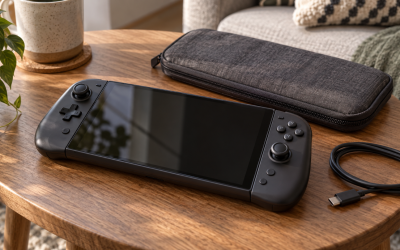
You press the power button on your Steam Deck OLED, the haptics buzz, the fan spins up, and maybe the status LED blinks, but the gorgeous HDR OLED display remains pitch black. It is a terrifying experience known among handheld enthusiasts as the “Black Screen of Death” (BSOD). Unlike a typical software crash, this issue leaves you completely blind, unable to access SteamOS menus, change settings, or even shut down the device normally. You are left with a premium paperweight that clearly has signs of life under the hood but refuses to output an image.
While a dead screen might feel like a catastrophic hardware failure requiring an immediate Return Merchandise Authorization (RMA), it is surprisingly often a handshake issue between the custom 6nm AMD Sephiroth APU, the display controller, or a corrupted BIOS state. In 2026, as SteamOS continues to evolve with frequent firmware updates, these display handshake mismatches remain a common pain point for OLED owners. Before you package your deck for a lengthy return process, you can resolve the vast majority of these black screen hangs at home using specific hardware button combinations and recovery tools.
Likely Causes
| Cause | How to confirm | Fix difficulty |
|---|---|---|
| Display Controller Sleep State Hang | Status LED is on, trackpad haptics buzz, but the screen is completely unpowered. | Very Easy |
| MicroSD Card Boot Conflict | Screen stays black only when a specific high-capacity card is inserted. | Very Easy |
| BIOS/Firmware State Corruption | Deck powers on, fan spins, but normal restart does not initialize the display. | Easy |
| Corrupted SteamOS Boot Partition | The Steam Deck logo flashes briefly, then the screen turns pitch black. | Medium |
| Deep Power Delivery Controller Latch | The charging LED does not light up when plugged in, and screen refuses to wake. | Medium |
| Loose Internal Display Ribbon Cable | Screen flickers when moving the Deck, or stays black after a physical drop. | Hard |
Fix 1: Force Restart and Hard Reboot
What causes it
Minor software hangs, background service crashes, or display driver freezes can prevent SteamOS from sending a wake signal to the OLED panel, even though the system is technically running in the background.
How to check
Press the volume up or down buttons. If you hear the familiar SteamOS system click sounds or feel trackpad haptics but the screen remains dark, the operating system is awake but the display pipeline is frozen.
What to do
Press and hold the Power button down for a full 12 to 15 seconds. Do not release it when you hear the initial chirp; keep holding it until all status LEDs turn off and the haptics stop buzzing. Release the button, wait 5 seconds, and press the Power button once to boot the device normally.
How to undo it
There is nothing to undo. This is a standard hard power cycle that clears volatile RAM and forces a clean boot sequence.
Fix 2: Remove the MicroSD Card
What causes it
A corrupted boot sector, a failing memory controller, or slow read speeds on a high-capacity MicroSD card can cause the SteamOS bootloader to hang indefinitely while scanning external storage during the boot sequence.
How to check
Eject the MicroSD card. If the Steam Deck boots up instantly to the home screen without the card inserted, the card is causing a boot conflict.
What to do
Locate the MicroSD slot on the bottom-right edge of the Steam Deck. Push the card in slightly until it clicks, then release it to eject. Perform a hard reboot by holding the Power button for 12 seconds. Once the system boots, insert the card. If it freezes again, go to Settings > System > Format SD Card to wipe and reformat the storage.
How to undo it
Reinserting a healthy, formatted MicroSD card restores the storage path. If formatting does not resolve the freeze, you will need to replace the card.
Fix 3: Force Display Handshake Reset (DPD Reset)
What causes it
The display driver or the custom AMD Sephiroth APU occasionally fails to initialize the DisplayPort-to-MIPI bridge that links the processor to the Samsung or BOE OLED panel.
How to check
The status LED turns solid white or green, trackpad haptics respond to touch, and the fan spins, but the screen remains entirely unpowered with no backlight emission.
What to do
With the Steam Deck powered on, press and hold the Volume Down (-) button and the Quick Access Menu button (the button with three dots) simultaneously for 10 seconds. While continuing to hold both buttons, press the Power button once. Release all buttons. The system will force-reset the display pipeline, flash the status LED, and re-initialize the screen handshake.
How to undo it
This button combination only forces a hardware handshake reset. No settings are changed, so no undoing is required.
Fix 4: CMOS and BIOS Reset
What causes it
Corrupted BIOS variables, improper power state transitions, or unstable custom RAM/APU voltages saved in the CMOS memory can block the Power On Self Test (POST) from completing successfully.
How to check
The fan spins at maximum speed immediately upon booting, the trackpads do not vibrate, and the display remains black, indicating the hardware is failing to complete its basic boot-up checks.
What to do
Turn off the Steam Deck completely. Press and hold the Volume Down (-) button and the Quick Access Menu button (three dots) at the same time. While holding them, press the Power button once. Keep holding Volume Down and the three-dot button until the status LED blinks rapidly (this can take up to 15 seconds). Release the buttons. The system will boot with a blank screen for up to two minutes while it rebuilds the CMOS cache before finally displaying the Steam logo.
How to undo it
This resets all BIOS settings to factory defaults. If you previously adjusted settings like the UMA Frame Buffer Size or applied an undervolt, you must re-enter the BIOS (Volume Up + Power) and configure them again.
Fix 5: Boot Manager Recovery
What causes it
A failed SteamOS update or a corrupted active boot partition can prevent the bootloader from locating the correct startup files, causing the system to hang right after initializing the hardware.
How to check
The Steam logo flashes briefly on the screen for a second, but then the display goes completely black and the system stops responding.
What to do
Power down the Steam Deck. Hold the Volume Up (+) button and press the Power button once. Release the Volume Up button when you hear the system chime. This loads the BIOS utility. Navigate to Boot Manager. Look for previous boot options or select “Boot From File,” navigate to esp/efi/steamos/steamcl.efi, and select it. Alternatively, hold the Quick Access Menu button (three dots) while powering on to access the SteamOS boot division menu and select the previous working system image.
How to undo it
Booting into a previous system partition is temporary. Once you are back in SteamOS, go to Settings > System > Software Updates and apply the latest update to overwrite the corrupted partition with a clean, working version.
Fix 6: Battery Storage Mode Cycle
What causes it
The power delivery controller chip can enter a latched fault state where it refuses to distribute power to the display rail, even if the battery is fully charged.
How to check
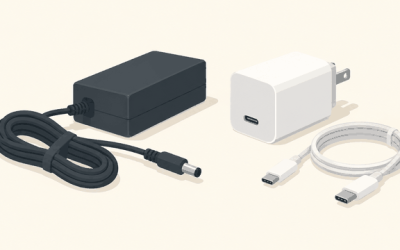
The Steam Deck refuses to turn on, and plugging in the official 45W charger does not light up the charging status LED, or the LED blinks in a repeating pattern without booting.
What to do
Power off the Steam Deck. Hold the Volume Up (+) button and press the Power button to enter the BIOS menu. Navigate to Setup Utility > Power > Battery Storage Mode and select it. Confirm the selection. The Steam Deck will shut down and physically disconnect the battery from the system board. Wait 2 minutes. Plug the official 45W USB-C charger into the Deck; this physical power connection is required to wake the device from storage mode and will force a deep hardware reset.
How to undo it
Plugging in the charger automatically exits Battery Storage Mode and boots the device back into normal operation.
Fix 7: Re-image SteamOS
What causes it
Severe operating system corruption, damaged system files, or a full SSD that prevents the Gamescope graphical compositor from loading successfully.
How to check
The Steam Deck boots past the BIOS screen and plays the startup sound, but the display remains completely black or stuck on a mouse cursor in a blank virtual workspace.
What to do
Download the official SteamOS recovery image on a separate PC. Flash the image onto a USB-C flash drive (minimum 8GB) using software like Rufus or BalenaEtcher. Shut down your Steam Deck and connect the flash drive. Hold the Volume Down (-) button and press the Power button once. Select the USB drive from the Boot Manager list. Once the recovery desktop loads, double-click “Reinstall SteamOS” to replace the operating system files while preserving your game data, or select “Re-image SteamOS” for a complete factory reset.
How to undo it
Re-imaging the SteamOS is a permanent process. If you choose “Re-image SteamOS,” all local game files, settings, and non-Steam applications will be permanently deleted from the internal SSD.
If Nothing Works
If you have gone through every software reset, CMOS flush, and recovery image installation and your Steam Deck OLED screen remains completely black, you are likely dealing with a physical hardware failure. The most common physical culprit is a loose or disconnected display ribbon cable. The Steam Deck OLED uses a delicate flat-print cable that runs from the motherboard, through the midframe, to the display panel. A sudden drop or thermal expansion can sometimes wiggle this connection loose.
If your device is still under Valve’s warranty, do not open the chassis. Doing so could complicate your warranty claim. Instead, navigate to the Steam Help website, log into your account, and open a support ticket detailing the troubleshooting steps you have already performed (specifically mention the CMOS reset and recovery drive attempts). If you are out of warranty, you can purchase replacement OLED panels and display cables directly from authorized parts distributors like iFixit, who provide detailed step-by-step repair guides and specialized adhesive tools to safely swap out the display.
FAQ
Why does my Steam Deck OLED play sounds but show no picture?
This is a classic display handshake failure. The operating system and game engine are running perfectly, but the processor’s display controller has failed to negotiate a connection with the OLED panel. Performing a display handshake reset (Volume Down + Three Dots + Power) or a hard reboot usually forces the video signal to reconnect.
Can a bad system update cause the Black Screen of Death?
Yes. If a firmware update is interrupted or contains corrupted blocks, the BIOS or the bootloader can become unstable. This prevents the system from loading the graphical display driver during the boot sequence. You can resolve this by using the Boot Manager to roll back to your previous working SteamOS partition.
Will resetting the CMOS delete my installed games?
No. Resetting the CMOS only clears the volatile memory chip that stores low-level hardware configurations, system clock settings, and BIOS variables. Your operating system, games, configurations, and save files stored on the internal SSD or MicroSD card will remain completely untouched.
How can I tell if my OLED screen is physically broken?
If you shine a bright flashlight directly onto the dark screen and can see faint outlines of the SteamOS interface, the OLED panel’s power delivery or driver circuitry has failed. If the screen is completely black, does not show the boot logo, and does not display any visible cracks or colored lines under external light, it is more likely a firmware or software handshake issue.