Key takeaways
- In-BIOS utility: Tools like ASUS EZ Flash or ASRock Instant Flash read the file from a USB stick inside BIOS. This is the standard method for a working system.
- USB BIOS Flashback: Boards like the ASUS TUF B550-PLUS WiFi II and ASRock B860 Pro A can flash with only power and the USB stick, no CPU or RAM needed, perfect for new-CPU support.
- Windows tools: Vendor apps exist but carry more risk from OS interference; prefer BIOS-level flashing when possible.
Updating your motherboard BIOS sounds intimidating, but in 2026 it is largely a safe, guided process, and sometimes a necessary one. A BIOS update can add support for a new CPU, fix memory compatibility, patch security holes, and unlock better overclocking. If you just dropped a fresh Ryzen or Intel Core Ultra chip into an older board and it will not post, an update is often the entire fix.
This guide covers the modern update methods, from in-BIOS flashing to USB BIOS Flashback that works without a CPU installed, plus the precautions that keep a routine update from turning into a brick. We will use examples like the ASUS TUF Gaming B550-PLUS and ASRock B860 boards to keep things concrete, and explain when you should update and when you should leave a stable BIOS alone.
Our top picks




As an Amazon Associate we earn from qualifying purchases at no extra cost to you. Ratings are shown as listed on Amazon.
⚡ Save on Your Next PC — Amazon Prime
Prime members get fast free shipping on the systems above, plus early access to Prime Day & Black Friday PC deals. New members get a 30-day free trial.
Watch: How to Update Your Motherboard BIOS — Video Review
Decide Whether You Need To Update
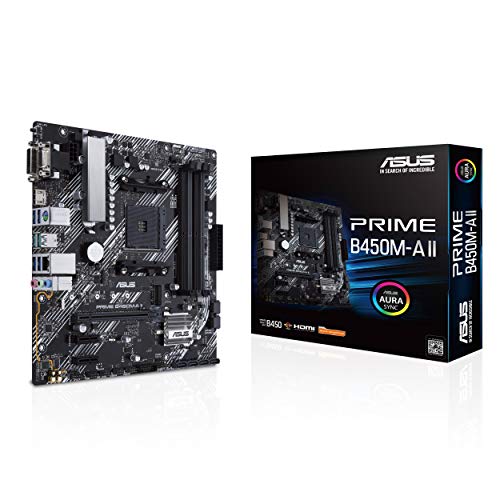
The old rule holds: if the system is stable and you have no reason to change, do not update just for the sake of it. Update when you need new CPU support (say, running a newer chip on an ASUS Prime B450M-A II), when release notes fix a bug you are hitting, or when a security patch is issued. Read the changelog before flashing.
Identify Your Exact Board and Version
Download BIOS only from your motherboard maker’s page for your precise model and revision. Check your current version in BIOS or via system info first, so you know whether the update is newer. Flashing the wrong model’s file is the most common way people damage a board, so double-check.
Choose Your Flashing Method
- In-BIOS utility: Tools like ASUS EZ Flash or ASRock Instant Flash read the file from a USB stick inside BIOS. This is the standard method for a working system.
- USB BIOS Flashback: Boards like the ASUS TUF B550-PLUS WiFi II and ASRock B860 Pro A can flash with only power and the USB stick, no CPU or RAM needed, perfect for new-CPU support.
- Windows tools: Vendor apps exist but carry more risk from OS interference; prefer BIOS-level flashing when possible.
Prepare the USB Drive Correctly
Format a USB stick to FAT32, copy the extracted BIOS file to the root, and rename it if the Flashback method requires a specific filename (the manual will say). Use a reliable drive and, for Flashback, the exact port marked on the rear I/O. A clean, correctly named file is half the battle.
Flash and Do Not Interrupt
Start the update and leave it completely alone. Do not touch the power, do not restart, and ideally run from a UPS or stable outlet since a power cut mid-flash is what actually bricks boards. The process takes a few minutes and the system will reboot itself when finished. Afterward, load optimized defaults and reapply your settings.
Tips
- Back up your settings: Note your XMP/EXPO, fan curves, and boot order, because an update usually resets BIOS to defaults.
- Use a UPS if you can: Power protection during the flash removes the single biggest risk of a failed update.
- Keep a diagnostic aid handy: A POST code card like a BAFOVY diagnostic card helps identify no-boot causes if something goes wrong.
- Update one version at a time when advised: Some boards require stepping through intermediate versions; follow the vendor’s stated path.
Frequently Asked Questions
Can I update BIOS without a CPU installed?
On boards with USB BIOS Flashback, yes. You only need the PSU connected and the correctly named file on a USB stick, which is ideal for enabling support for a new processor.
Will updating BIOS delete my files?
No. A BIOS update does not touch your storage drives or Windows install. It only resets BIOS settings to defaults, which you then reconfigure.
What happens if a BIOS update fails?
If interrupted, the board may fail to post. Many modern boards have dual-BIOS or BIOS Flashback recovery to restore a working version, which is why power stability matters so much.
How often should I update my BIOS?
Only when there is a clear reason: new CPU support, a relevant bug fix, or a security patch. There is no benefit to chasing every release on a stable system.
Conclusion
A BIOS update is routine when you approach it methodically: confirm you need it, download the exact file for your board, pick the right flashing method, and never interrupt the process. Use Flashback for CPU-support updates and a UPS for peace of mind. Follow those steps and you will unlock new hardware support and fixes without the horror stories.