Key takeaways
- Clear CMOS to recover: If a bad setting stops your PC booting, clear CMOS via the motherboard jumper or button to reset BIOS safely.
- Change one variable at a time: Adjust frequency, then voltage, then timings separately so you always know what caused an error.
- Watch temperatures: Keep DDR4 under about 50C and DDR5 cooler still; add a heatsink or fan if you exceed that under load.
- Prioritize stability over records: A rock-solid 3600 CL16 beats an unstable 3800 that crashes mid-raid. Daily reliability is the goal.
RAM overclocking is one of the highest-value tweaks in PC gaming, especially on Ryzen systems where memory speed and timings feed directly into the Infinity Fabric. Pushing a DDR4 kit from its default 2133 JEDEC speed up to a stable 3600 CL16, or dialing a DDR5 kit to 6000 with tight timings, can add real frames in CPU-bound games. Done carefully, it is safe; done recklessly, you get crashes and corrupted boots, so this guide keeps you on the safe side.
We will walk through the whole process: enabling your kit’s rated profile, manually raising frequency and voltage in small steps, tightening primary timings, and stress-testing for stability. You will also learn why RAM heatsinks and small cooling fans matter once voltage climbs, and how to recover if a bad setting leaves your PC unable to boot.
Our top picks
 CORSAIR Vengeance LPX DDR4 RAM 32GB
- Disclaimer: Maximum Speed requires overclocking/PC BIOS adjustments
- Hand-sorted memory chips ensure high performance with generous…
- VENGEANCE LPX is optimized for wide compatibility with…
 JEYI RAM Heatsink Cooler with Thermal Pads
- ram heatsink
- 【Efficient Heat Dissipation】: Equipped with a thermal conductive…
- 【High-quality Materials】: The product utilizes an anodized aluminum…
 Desktop Memory RAM Cooler Heat Sink Pure
- 【Upgraded Model】, we have upgraded the product and…
- And retains the thermal double-sided adhesive on the…
- Product material: pure copper
| Product | Key specs | |
|---|---|---|
| CORSAIR Vengeance LPX DDR4 RAM 32GB | Disclaimer: Maximum Speed requires overclocking/PC BIOS adjustments Hand-sorted memory chips ensure high performance with generous… VENGEANCE LPX is optimized for wide compatibility with… | Check price |
| JEYI RAM Heatsink Cooler with Thermal Pads | ram heatsink 【Efficient Heat Dissipation】: Equipped with a thermal conductive… 【High-quality Materials】: The product utilizes an anodized aluminum… | Check price |
| Desktop Memory RAM Cooler Heat Sink Pure | 【Upgraded Model】, we have upgraded the product and… And retains the thermal double-sided adhesive on the… Product material: pure copper | Check price |
 Thermals DDR4 RAMs Coolers PWMs Fan Control Thermals DDR4 RAMs Coolers PWMs Fan Control | Upgrades your gaming with ARGB DDR4 rams Heatsink… installs this cooling on DDR4 / DDR5 rams… Engineered with temperature sensings pwms fan (0-2500RPM) and… | Check price |
 Acclamator DDR4 RAM 32GB Acclamator DDR4 RAM 32GB | Specifications: Suitable for desktops, dual-channel combination can maximize… Overview: Each module of Acclamator OUNCE is designed… The white aluminum heatsink provides maximum heat dissipation… | Check price |
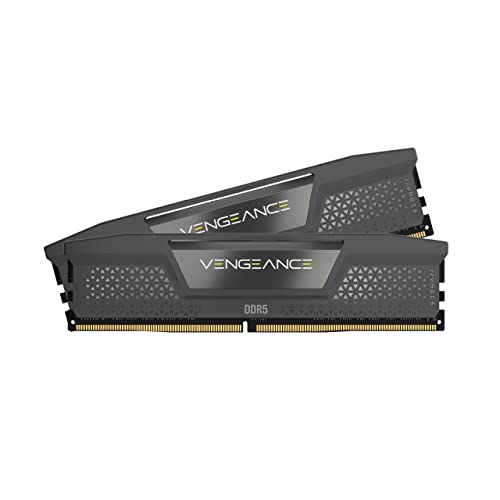 CORSAIR Vengeance DDR5 32GB CORSAIR Vengeance DDR5 32GB | Disclaimer: Maximum Speed requires overclocking/PC BIOS adjustments AMD EXPO & Intel XMP 3.0 Compatible Only:… Onboard Voltage Regulation: Enables easier, more finely-tuned, and… | Check price |
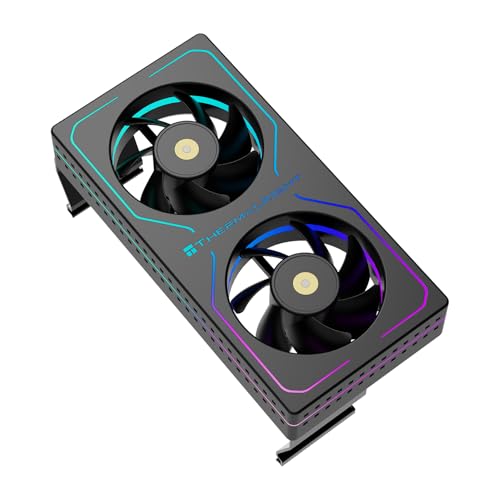 Thermalright MC-2 ARGB Black RAM Cooler Thermalright MC-2 ARGB Black RAM Cooler | [Efficient Heat Dissipation] Equipped with a high-performance dual-fan… [Low-Noise Operation] Despite a speed of up to… [Vibrant ARGB Lighting Effects] The front and sides… | Check price |
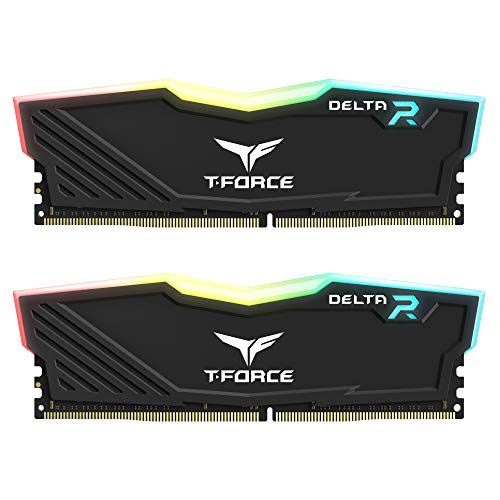 TEAMGROUP T-Force Delta RGB DDR4 16GB TEAMGROUP T-Force Delta RGB DDR4 16GB | TeamGroup Delta RGB 16GB (2 x 8GB) 3200… Full-frame 120 ultra wide-angle illumination with built-in force… Aluminum alloy heat sink with asymmetrical minimalist design. | Check price |
As an Amazon Associate we earn from qualifying purchases at no extra cost to you.
⚡ Save on Your Next PC — Amazon Prime
Prime members get fast free shipping on the systems above, plus early access to Prime Day & Black Friday PC deals. New members get a 30-day free trial.
Watch: How to Overclock Your RAM Safely — Video Review
Start With Your Rated Profile
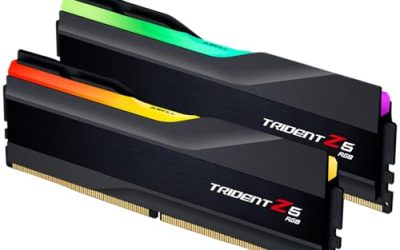
Before touching anything manual, enter BIOS and enable XMP (Intel) or EXPO (AMD). This loads the speed and timings your kit was validated for, like a Corsair Vengeance DDR5 kit’s rated 6000MHz. For many users this alone captures most of the available gains with zero risk. Only go manual if you want to push past the rated profile.
Raise Frequency in Small Steps
To go beyond the profile, increase the memory frequency one step at a time, for example from 3200 to 3400 to 3600 on DDR4. After each step, boot into Windows and run a short memory test. If it fails, you either need slightly more voltage or you have found your ceiling. Small increments make it easy to identify exactly where stability breaks.
Manage Voltage Carefully
Higher clocks usually need a little more DRAM voltage. On DDR4, staying at or below 1.4V is comfortable for daily use; DDR5 profiles often sit around 1.35-1.4V. Nudge voltage in 0.01-0.02V steps, never jumping straight to the maximum. More voltage means more heat, which is where cooling comes in.
Cool the Modules
Overclocked RAM runs hotter, and heat causes instability. Low-profile aluminum heatsinks like the JEYI RAM heatsink kit help passively, while an active cooler such as the Thermalright MC-2 ARGB with dual silent fans keeps temperatures in check during long stress runs. Cooling matters most in cramped cases or when modules sit under a large air CPU cooler.
Tighten Timings and Stress Test
Once your frequency is stable, you can tighten primary timings (CL, tRCD, tRP, tRAS) one at a time for extra performance. After every change, run a proper memory stress test such as TestMem5 or Karhu for at least an hour, and an overnight pass before you call it daily-stable. Any single error means back off.
Tips
- Clear CMOS to recover: If a bad setting stops your PC booting, clear CMOS via the motherboard jumper or button to reset BIOS safely.
- Change one variable at a time: Adjust frequency, then voltage, then timings separately so you always know what caused an error.
- Watch temperatures: Keep DDR4 under about 50C and DDR5 cooler still; add a heatsink or fan if you exceed that under load.
- Prioritize stability over records: A rock-solid 3600 CL16 beats an unstable 3800 that crashes mid-raid. Daily reliability is the goal.
Frequently Asked Questions
Is overclocking RAM safe?
Yes, within sensible voltage limits. RAM overclocking rarely damages hardware; the usual failure mode is a crash or failed boot, which you fix by resetting BIOS. Stay near recommended voltages and you are fine.
Does faster RAM actually help gaming?
In CPU-bound scenarios, absolutely, especially on Ryzen where memory speed ties to Infinity Fabric. Gains are smaller when the GPU is the bottleneck at high resolutions.
What voltage is too high for DDR4?
For 24/7 use, keep DDR4 at or below 1.4V. Higher is possible for benchmarking but adds heat and long-term wear, so it is not worth it for daily gaming.
Why won’t my PC boot after overclocking RAM?
You pushed a setting too far. Clear CMOS to reset BIOS, then reapply a more conservative frequency or add a touch more voltage before trying again.
Conclusion
RAM overclocking rewards patience. Start with your XMP or EXPO profile, then climb frequency and tighten timings in small, tested steps while keeping voltage and temperatures in check. Add a heatsink or active cooler once you push hard, and always finish with a long stress test. Do that and you will squeeze free frames out of memory your kit already had in it.