Key takeaways
- On AMD Ryzen: Choose the EXPO profile if your kit has one, like the G.SKILL Flare X5 or Trident Z5 Neo, for timings tuned to Ryzen.
- On Intel: Select XMP. If a DDR5 kit lists XMP and EXPO, pick XMP on Intel boards.
- Profile 1 vs 2: Some kits offer multiple profiles; Profile 1 is usually the rated, fully validated one, so start there.
Here is a fact that catches out a huge number of new builders: install a fast 6000MT/s memory kit, boot up, and it will run at a sluggish default like 4800 until you flip one setting. That setting is XMP on Intel systems or EXPO on AMD, and enabling it is the single easiest free performance win in PC building. It tells the motherboard to run your RAM at the speed and timings it was actually sold to deliver.
This guide explains exactly what XMP and EXPO are, how to enable each in BIOS, and how to confirm the profile actually applied. We will reference kits like the G.SKILL Trident Z5 Neo (an AMD EXPO kit) and Corsair Vengeance DDR5 to keep it concrete, and cover what to do if your system will not boot after enabling a profile.
Our top picks
 Corsair Vengeance RGB RS DDR5 16GB
- Disclaimer: Maximum Speed requires overclocking/PC BIOS adjustments
- AMD EXPO & Intel XMP 3.0 Compatible Only:…
- Dynamic RGB Lighting: Individually addressable RGB lighting delivers…
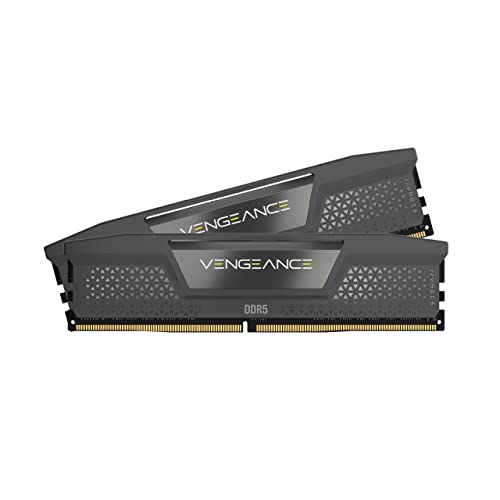 CORSAIR Vengeance DDR5 32GB
- Disclaimer: Maximum Speed requires overclocking/PC BIOS adjustments
- AMD EXPO & Intel XMP 3.0 Compatible Only:…
- Onboard Voltage Regulation: Enables easier, more finely-tuned, and…
| Product | Key specs | |
|---|---|---|
 G.SKILL Trident Z5 Neo RGB Series DDR5 G.SKILL Trident Z5 Neo RGB Series DDR5 | Check price | |
| Corsair Vengeance RGB RS DDR5 16GB | Disclaimer: Maximum Speed requires overclocking/PC BIOS adjustments AMD EXPO & Intel XMP 3.0 Compatible Only:… Dynamic RGB Lighting: Individually addressable RGB lighting delivers… | Check price |
| CORSAIR Vengeance DDR5 32GB | Disclaimer: Maximum Speed requires overclocking/PC BIOS adjustments AMD EXPO & Intel XMP 3.0 Compatible Only:… Onboard Voltage Regulation: Enables easier, more finely-tuned, and… | Check price |
 CORSAIR Vengeance DDR5 32GB CORSAIR Vengeance DDR5 32GB | Disclaimer: Maximum Speed requires overclocking/PC BIOS adjustments AMD EXPO & Intel XMP 3.0 Compatible Only:… Onboard Voltage Regulation: Enables easier, more finely-tuned, and… | Check price |
 CORSAIR Vengeance RGB DDR5 32GB CORSAIR Vengeance RGB DDR5 32GB | Disclaimer: Maximum Speed requires overclocking/PC BIOS adjustments AMD EXPO & Intel XMP 3.0 Compatible Only:… Dynamic Ten-Zone RGB Lighting: Illuminate your system with… | Check price |
| Corsair Vengeance DDR5 16GB | Disclaimer: Maximum Speed requires overclocking/PC BIOS adjustments AMD EXPO & Intel XMP 3.0 Compatible Only:… Onboard Voltage Regulation: Enables easier, more finely-tuned, and… | Check price |
| Corsair Vengeance RGB RS DDR5 64GB | Disclaimer: Maximum Speed requires overclocking/PC BIOS adjustments AMD EXPO & Intel XMP 3.0 Compatible Only:… Dynamic RGB Lighting: Individually addressable RGB lighting delivers… | Check price |
 G.SKILL Flare X5 Series DDR5 RAM G.SKILL Flare X5 Series DDR5 RAM | * Requires overclocking/BIOS adjustments G.SKILL Flare X5 Series DDR5 U-DIMM Memory Kit,… Non-ECC, DDR5 U-DIMM, 288-pin, for Desktop PC &… | Check price |
As an Amazon Associate we earn from qualifying purchases at no extra cost to you.
⚡ Save on Your Next PC — Amazon Prime
Prime members get fast free shipping on the systems above, plus early access to Prime Day & Black Friday PC deals. New members get a 30-day free trial.
Watch: How to Enable XMP / EXPO for Faster RAM — Video Review
What XMP and EXPO Actually Are
Both are pre-configured overclocking profiles stored on the memory module itself. XMP (Extreme Memory Profile) is Intel’s standard; EXPO (Extended Profiles for Overclocking) is AMD’s equivalent, tuned for Ryzen’s Infinity Fabric. Many DDR5 kits, like some Corsair Vengeance modules, carry both profiles, so the same kit works optimally on either platform once you enable the right one.
Enter BIOS and Find the Profile
Restart and tap Delete or F2 during boot to enter BIOS. Most boards open in an easy mode with a clearly labeled XMP or EXPO toggle right on the main screen. If not, look under an AI Tweaker, Extreme Tweaker, or OC menu. Select the profile, and the board will populate the correct frequency, timings, and voltage automatically.
Enable the Correct Profile for Your Platform
- On AMD Ryzen: Choose the EXPO profile if your kit has one, like the G.SKILL Flare X5 or Trident Z5 Neo, for timings tuned to Ryzen.
- On Intel: Select XMP. If a DDR5 kit lists XMP and EXPO, pick XMP on Intel boards.
- Profile 1 vs 2: Some kits offer multiple profiles; Profile 1 is usually the rated, fully validated one, so start there.
Save, Reboot, and Verify
Press F10 to save and exit. Once in Windows, open CPU-Z and check the Memory tab: the DRAM frequency shown, doubled for the effective rate, should match your kit’s rating (a 6000MT/s kit reads around 3000MHz in CPU-Z). If it matches, the profile is active and you are getting full speed.
If It Won’t Boot
Occasionally a high-speed profile is too aggressive for your specific CPU memory controller. If the system fails to post, it will usually reset BIOS automatically after a few attempts, or you can clear CMOS. Then try a slightly lower speed profile, or enable the profile but manually relax the frequency by one step until stable.
Tips
- Update BIOS first: A current BIOS improves memory compatibility, making high-speed EXPO/XMP profiles far more likely to boot cleanly.
- Two sticks are easier than four: Populating all four DIMM slots strains the memory controller; two matched sticks hit rated speeds more reliably.
- Match the platform sweet spot: On AM5, 6000MT/s is the efficiency sweet spot; chasing much higher can force a slower fabric ratio.
- Verify, do not assume: Always confirm the applied speed in CPU-Z; a set-and-forget mindset is how people run slow RAM for years.
Frequently Asked Questions
Is enabling XMP or EXPO safe?
Yes. These are manufacturer-validated profiles designed to run at the rated voltage and timings. They are as safe as running the memory at stock, just at the speed you paid for.
What is the difference between XMP and EXPO?
XMP is Intel’s memory profile standard and EXPO is AMD’s, with EXPO timings optimized for Ryzen. Many DDR5 kits include both so they work well on either platform.
Why is my new RAM running slow by default?
Motherboards boot memory at a safe JEDEC baseline for compatibility. The rated speed only activates once you manually enable the XMP or EXPO profile in BIOS.
Can I enable XMP on any motherboard?
Most modern gaming and enthusiast boards support it, but some entry-level boards limit memory speeds. Check your board’s specifications for its maximum supported RAM frequency.
Conclusion
Enabling XMP or EXPO takes under a minute and is the difference between paying for fast memory and actually using it. Enter BIOS, select the profile matching your platform, save, and verify the speed in CPU-Z. If a top-end profile will not boot, relax it a step. It is the easiest free upgrade in your entire build, so never skip it.