Key takeaways
- Reseat all 6-pin, 8-pin, or 12-pin power connectors on the GPU.
- Use separate PSU cables rather than one split cable for high-draw cards.
- Confirm the PSU has enough wattage for the card.
Your PC boots, but the graphics card is nowhere to be found, no output on the monitor, or the GPU missing from Device Manager. It is a common and fixable problem in 2026, usually tied to seating, power, drivers, or a BIOS setting rather than a truly dead card. Diagnosing it in the right order saves you from replacing hardware that was never broken.
This guide covers the most effective fixes step by step, from the physical checks to the software side, along with a note on diagnostic tools like PCIe post-test cards that can help confirm whether the slot or the card is at fault.
Our top picks
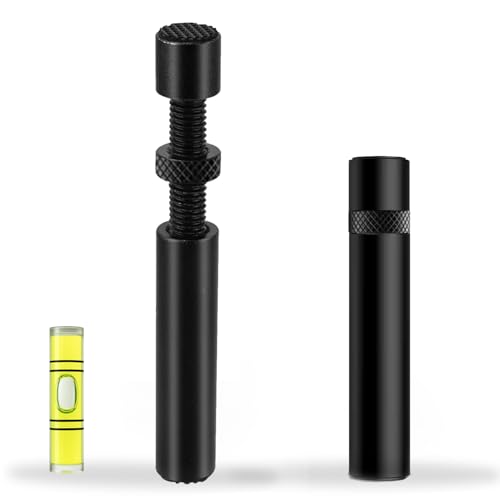 California JOS California JOS GPU Support Bracket
- ✅ Package Includes: 1 PCS Large Black GPU…
- ✅Prevents GPU Sag and Damage
- ✅Durable All-Aluminum Build
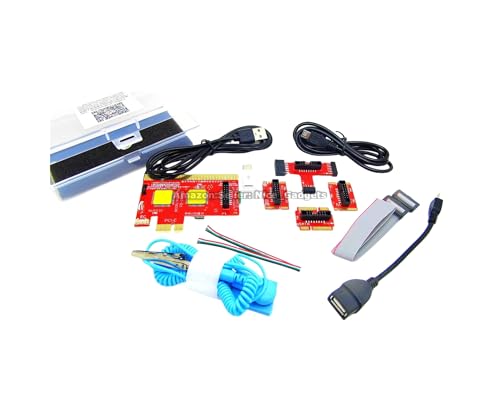 New USB PCIe Motherboard Diagnostic Tester Kit
- Please DO study the listing page the "Product…
- Easy To Use Unique USB Diagnosis with Videos…
- USB Diagnosis Unique Feature - Save hassles of…
 greenDracaena Dracaena.io 2-Pack PCIe Riser Adapter Card
- PCIe 16X to 1X riser card links GPUs…
- Powered by 6-pin, MOLEX or SATA input for…
- Built for multi-GPU mining rigs and expansion builds
| Product | Key specs | |
|---|---|---|
| California JOS California JOS GPU Support Bracket | ✅ Package Includes: 1 PCS Large Black GPU… ✅Prevents GPU Sag and Damage ✅Durable All-Aluminum Build | Check price |
| New USB PCIe Motherboard Diagnostic Tester Kit | Please DO study the listing page the "Product… Easy To Use Unique USB Diagnosis with Videos… USB Diagnosis Unique Feature - Save hassles of… | Check price |
| greenDracaena Dracaena.io 2-Pack PCIe Riser Adapter Card | PCIe 16X to 1X riser card links GPUs… Powered by 6-pin, MOLEX or SATA input for… Built for multi-GPU mining rigs and expansion builds | Check price |
 Pilipane Pilipane Graphics Card Virtual Display Emulator Pilipane Pilipane Graphics Card Virtual Display Emulator | [MINING STABILITY SOLUTION] : Tackle mining interruptions effortlessly [COMPACT DESIGN , LOW POWER] : With a… [HIGH RESOLUTION SPOOFING] : Simulate 4K resolutions like… | Check price |
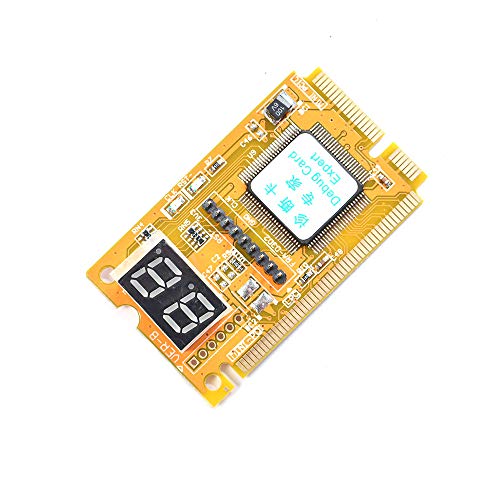 Comimark Comimark 1Pcs Mini 3 in1 PC Comimark Comimark 1Pcs Mini 3 in1 PC | 3 in 1 tester. For PCI, PCI-E, and LPC. Diagnostic post-test card. | Check price |
 Wisoqu Computer Accessory Graphics Card Tester with Wisoqu Computer Accessory Graphics Card Tester with | High Efficiency: The computer graphics card tester can… Versatile Testing Capabilities: The graphics card tester diagnostic… Comprehensive Fault Diagnosis: When troubleshooting computer graphics card… | Check price |
 Hilitand Computer Graphics Card Tester Hilitand Computer Graphics Card Tester | [Quick Fault Detection] The graphics card tester quickly… [ Design] The graphics card tester with indicator… [Comprehensive Testing] Specifically designed to test data bus… | Check price |
| Masyrt Purpose AGP PCI E Graphics Card | High Efficiency: The computer graphics card tester can… Versatile Testing Capabilities: The graphics card tester diagnostic… Comprehensive Fault Diagnosis: When troubleshooting computer graphics card… | Check price |
As an Amazon Associate we earn from qualifying purchases at no extra cost to you.
⚡ Save on Your Next PC — Amazon Prime
Prime members get fast free shipping on the systems above, plus early access to Prime Day & Black Friday PC deals. New members get a 30-day free trial.
Watch: Why Is My GPU Not Being Detected? (2026 Fixes) — Video Review
Reseat the Card and Check the Slot
Start with the physical connection. Power down, unplug, and remove the graphics card, then firmly reinsert it until the PCIe latch clicks. Dust or a partially seated card is the single most common cause of a GPU not being detected. While you are in there, inspect the PCIe slot for debris and try a different slot if your board has one.
A heavy card can sag over time and lose contact; an anti-sag support bracket keeps it level in the slot and prevents this from recurring after you fix it.
Confirm GPU Power Connections
Modern cards need dedicated power, and a missing or loose connector will leave the GPU unpowered and undetected. Verify that every supplementary PCIe power cable is fully seated at both the card and the PSU. Avoid daisy-chaining a single cable when the card calls for separate connectors, as that can cause instability or non-detection under load.
- Reseat all 6-pin, 8-pin, or 12-pin power connectors on the GPU.
- Use separate PSU cables rather than one split cable for high-draw cards.
- Confirm the PSU has enough wattage for the card.
Update, Reinstall, or Roll Back Drivers
If the card is physically fine but Windows does not see it properly, the driver is the usual suspect. Use a clean-install approach: remove the existing GPU driver completely, then install the latest version from the manufacturer. A corrupted or half-updated driver frequently makes a healthy card appear missing or stuck at basic display output.
If the problem started right after a driver update, rolling back to the previous version can restore detection while you wait for a fixed release.
Check BIOS and Integrated Graphics Settings
Some motherboards default video output to integrated graphics or have the primary display setting pointed at the wrong source. Enter the BIOS and set the primary display to the PCIe slot, and ensure the PCIe slot is enabled and running at the expected lane width. Updating the motherboard BIOS can also add compatibility for newer cards that an older BIOS fails to initialize.
Use Diagnostic Tools to Isolate the Fault
When you have exhausted the basics, diagnostic hardware helps you decide whether the card or the system is to blame. A PCIe post-test or motherboard diagnostic card reports POST codes that can flag a video initialization failure, and a dedicated graphics card tester can confirm whether the GPU itself powers and responds. Testing the card in a second known-good PC is the simplest definitive check if you have one available.
Tips
- Reseat before you replace, most detection issues are contact or power related.
- Do a clean driver install rather than installing over the old one.
- Support heavy cards with an anti-sag bracket to maintain slot contact.
- Note when the problem began; a recent update points to drivers, a recent move points to seating.
Frequently Asked Questions
Why does my monitor show no signal from the GPU?
Check that the cable is in the graphics card’s ports, not the motherboard’s, and that the card is seated and powered. Wrong-port connection is a classic mistake.
Could a weak PSU cause my GPU to not be detected?
Yes. Insufficient wattage or a loose power connector can leave the card underpowered and undetected, especially under load. Confirm your PSU meets the card’s requirements.
Do I need a BIOS update?
Sometimes. Newer GPUs may require an updated motherboard BIOS to initialize on older boards. Check the board maker’s support page for compatibility notes.
How do I know if the card itself is dead?
Test it in a second known-good PC, or use a graphics card tester or PCIe diagnostic card. If it fails everywhere, the card is likely the problem.
Conclusion
A GPU that is not detected is almost always a seating, power, driver, or BIOS issue rather than a dead card. Work through the physical checks first, then the software and BIOS settings, and lean on diagnostic tools to isolate stubborn cases. Methodical troubleshooting will get your graphics back on screen without an unnecessary purchase.