
Key takeaways
- Unclear power language: “100W charging” without explaining input, output, or charger requirements is incomplete.
- Resolution without refresh rate: “8K HDMI” does not tell you whether the dock supports 4K/60Hz, 4K/120Hz, HDR, or your monitor’s preferred mode.
- No dimensions or weight: A product marketed for travel should disclose both.
- Overcrowded ports: Connectors packed together can make adjacent ports unusable with normal cables.
- Narrow, unpadded cradle: It may scratch the Deck or put pressure on the USB-C port.
- No warranty information: Avoid a dock with no identifiable support or return process.
- Charger confusion: Confirm whether the box includes a USB-C power adapter before budgeting for the complete setup.
What's inside
Choosing a travel dock for a Steam Deck seems simple until a compact accessory blocks the console’s vents, drops the video signal, or leaves you with too few ports at a hotel desk. The most common mistake is shopping by HDMI resolution alone. A dock advertised as “8K” may still be limited by the Deck’s output capabilities, while a cheaper model with sensible port placement may be more useful on the road.
Other frequent errors include assuming every USB-C charger works at the same speed, overlooking Ethernet when traveling for work or tournaments, and buying a stand that only fits the original Steam Deck but not the OLED model or a protective case. The right choice depends on how you travel, what you connect, and how much bulk you are willing to carry. Here’s what to look for in a Steam Deck travel dock in 2026.
As an Amazon Associate we earn from qualifying purchases at no extra cost to you. Product prices and availability are accurate as of the date shown and are subject to change.


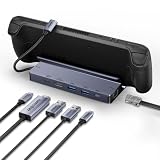

Decide These 3 Things First
- What will you connect? A basic setup may need only HDMI and power. A more complete travel workstation could require Ethernet, a keyboard, a mouse, storage, and a controller.
- Where will you use it? A dock for a hotel nightstand should be smaller than one that stays on a desk. Measure the space around your TV or monitor, especially if cables point sideways.
- Do you need a charger included? Many travel docks include the dock but not a power adapter. The Steam Deck generally benefits from a USB-C Power Delivery charger rated at 45W or more; a dock’s higher “100W” input rating does not mean it supplies 100W to the console.
Once those decisions are clear, compare the details below rather than choosing solely by brand or maximum resolution.
Size and Portability
A travel dock should add useful connectivity without becoming another full-size desktop accessory. Look for a footprint of roughly 4 to 6 inches wide and 2.5 to 4 inches deep. Compact hub-style docks can weigh around 3 to 6 ounces, while heavier stand designs may weigh 6 to 12 ounces. Either is reasonable for a backpack, but the lighter option may slide around when you plug in several stiff cables.
Height matters if you plan to store the dock in a small tech pouch. A low-profile hub may be less than 1 inch tall, whereas a cradle-style model can stand 1.5 to 3 inches high. The taller design is usually easier to use with the Deck’s screen facing you, but it may not fit inside a slim case.
Check the cable length, too. A permanently attached USB-C host cable of 5 to 8 inches is usually long enough to place the Deck beside the dock. Cables shorter than about 4 inches can put strain on the port, while very long cables create more clutter. If you carry the dock separately, confirm that the host cable folds or stores neatly rather than sticking out at an awkward angle.
Material and Heat Management
Aluminum housings are common because they are light, rigid, and better at spreading heat than thin plastic. Plastic can still be perfectly suitable, particularly for a budget dock, but look for a sturdy shell and rubber feet rather than a hollow case that flexes under pressure.
Heat is relevant when the dock is used for hours while charging and driving an external display. Choose a design with exposed metal, ventilation gaps, or enough open space around the USB-C and HDMI components. Do not place the dock on a blanket or inside a closed pouch while it is operating.
The stand surface should use rubber or silicone padding. A channel around 1.1 to 1.3 inches wide will accommodate the bare Deck in many designs, but a protective case can require more. If you use a thick case, look for a removable insert or a slot closer to 1.4 inches wide. Never force the console into a narrow cradle; pressure on the bottom USB-C connector is an avoidable risk.
Construction and Port Layout
Build quality shows up in the small details. The dock should sit flat, have non-slip feet, and remain stable when an HDMI or Ethernet cable is connected. A 6-in-1 model commonly includes HDMI, Gigabit Ethernet, two USB-A ports, USB-C data, and USB-C Power Delivery input. That arrangement covers most hotel, office, and living-room setups.
Port placement is just as important as the count. HDMI and Ethernet ports on the rear keep permanent cables tidy. USB-A ports on the side are easier to reach for a mouse or flash drive. Avoid a layout that places all connectors on one narrow edge, since thick cables can overlap and make the dock unstable.
Inspect the attached host cable carefully. A reinforced strain-relief boot at the dock end and a flexible connector at the Deck end are preferable. If you frequently connect and disconnect the console, a detachable host cable can be easier to replace, although it adds another connection to pack and maintain.
Comfort and Performance
For most users, HDMI 2.0 with 4K output at up to 60Hz is the practical baseline. It is suitable for a television, office monitor, streaming, and general desktop use. Some newer docks advertise HDMI 2.1 and 4K at 120Hz, but the actual result depends on the Steam Deck, the game, the display, the cable, and the selected refresh rate. Treat those claims as headroom rather than a guarantee of 4K gaming at 120 frames per second.
For portable monitors, 1080p at 60Hz is usually straightforward. If you want higher refresh rates at 1080p or 1440p, verify that the dock supports the specific combination of resolution and refresh rate you need. Also check whether the dock supports HDR, variable refresh rate, or adaptive sync if those features matter to your monitor.
Gigabit Ethernet is worthwhile when hotel Wi-Fi is crowded or you download large games. A “1Gbps” port describes the interface’s theoretical link speed, not necessarily your internet connection or actual file-transfer speed. For storage, USB 3 ports rated at 5Gbps are more useful than USB 2.0 ports, particularly when moving screenshots or game files to an external drive.
Power Delivery input ratings often range from 65W to 100W. That rating describes how much power the dock can accept and pass through under supported conditions. It does not replace the charger. If you use a 45W Deck charger, the console will not receive 100W simply because the dock says “100W PD.”
Price Tiers
Budget travel docks generally cost about $20 to $35. They often provide HDMI, two USB-A ports, USB-C charging input, and sometimes Ethernet. The NewQ Portable Steam Deck Dock, listed around $24.99, represents this compact stand-and-hub category. At this price, inspect the return policy and confirm whether a charger is excluded.
Midrange models usually fall between $35 and $60. They may offer a sturdier aluminum body, better port spacing, Gigabit Ethernet, USB-C data, and higher display specifications. The JSAUX 6-in-1 HB0603, listed around $35.99, is an example of the feature mix to compare in this range. A midrange dock is often the best value for travelers who use several accessories.
Premium or specialized options can cost $60 to $100 or more. They may add multiple display outputs, faster USB ports, detachable cables, a more substantial stand, or broader compatibility with devices such as the ROG Ally and Legion Go. Do not pay for features you cannot use. A 4K/120Hz claim has little value if your travel monitor is 1080p/60Hz.
Lower-priced examples such as the BENFEI model around $27.99 and the UGREEN model around $31.97 show why specifications should be compared directly. Price alone does not establish compatibility, durability, or signal stability.
Warranty and Support
Look for at least a 12-month warranty and a clearly stated return period of roughly 30 days or more. A dock is a connectivity device, so support matters if HDMI works but Ethernet does not, or if the Deck charges inconsistently.
Before buying, check whether the manufacturer lists compatibility with the original Steam Deck, Steam Deck OLED, and the case you use. Compatibility with ROG Ally or Legion Go can be a useful bonus, but it should not distract from the fit and power requirements of your Deck. Keep the order confirmation and packaging until you have tested every port.
Delivery and Assembly
Most travel docks require no assembly, but setup can still expose problems. Allow time to connect power, HDMI, Ethernet, and USB accessories in the exact order you expect to use them. Test sleep and wake behavior, external audio, charging, and display detection before taking the dock on a trip.
For delivery, verify the package includes the dock, host cable if detachable, and any stated accessories. A charger is frequently not included. If you need the dock for a departure date, allow several days for testing and returns rather than relying on same-day delivery.
Spec Checklist
| Spec | Budget | Mid | Premium |
|---|---|---|---|
| Typical price | $20–$35 | $35–$60 | $60–$100+ |
| Size and weight | 4–6 in. wide; 3–8 oz. | 4–7 in. wide; 5–12 oz. | 5–9 in. wide; 8–20 oz. |
| Video output | HDMI 4K/30Hz or 4K/60Hz | HDMI 4K/60Hz | HDMI 2.1; up to 4K/120Hz on supported equipment |
| USB ports | Two USB-A; often 5Gbps | Two USB-A plus USB-C data | Three or more ports; faster data options |
| Network | None or Gigabit Ethernet | Gigabit Ethernet | Gigabit Ethernet or faster, depending on model |
| Power input | 65W–100W PD input | 100W PD input | 100W or higher advertised input |
| Stand fit | Bare Deck; limited case clearance | Deck and some cases | Adjustable or wide case-compatible slot |
Red Flags
- Unclear power language: “100W charging” without explaining input, output, or charger requirements is incomplete.
- Resolution without refresh rate: “8K HDMI” does not tell you whether the dock supports 4K/60Hz, 4K/120Hz, HDR, or your monitor’s preferred mode.
- No dimensions or weight: A product marketed for travel should disclose both.
- Overcrowded ports: Connectors packed together can make adjacent ports unusable with normal cables.
- Narrow, unpadded cradle: It may scratch the Deck or put pressure on the USB-C port.
- No warranty information: Avoid a dock with no identifiable support or return process.
- Charger confusion: Confirm whether the box includes a USB-C power adapter before budgeting for the complete setup.
FAQ
Do I need a Steam Deck dock with HDMI 2.1?
Not necessarily. HDMI 2.0 with 4K/60Hz is enough for many televisions and monitors. Choose HDMI 2.1 if you specifically need a compatible 4K/120Hz display or want additional future-proofing.
Can a travel dock charge the Steam Deck at 45W?
Yes, when paired with a suitable USB-C Power Delivery charger and a dock that passes through the required power. Check the dock’s power specifications and remember that a 100W input rating does not mean the Deck itself receives 100W.
Will a dock fit the Steam Deck OLED?
Many docks work with both versions because they connect through USB-C, but the stand slot and cable position still matter. Confirm the product specifically lists Steam Deck OLED compatibility, especially if you use a case.
Is Ethernet worth having on a travel dock?
Gigabit Ethernet is useful for reliable downloads, remote play, office work, and crowded hotel networks. If you only connect to a television and use Wi-Fi, you can save money and space with a dock that omits it.





