Key takeaways
- The thumb buttons are useful for push-to-talk, grenades, melee, or browser-style navigation, but their position may not suit every hand size.
- The thumb wheel is excellent for horizontal scrolling and can be assigned to game actions, but it is not a replacement for a large bank of MMO side buttons.
- The gesture button is awkward for actions that must be pressed instantly during combat.
- The scroll wheel’s free-spin and ratchet modes are convenient for documents but less specialized than gaming wheels designed for weapon switching.
- The quiet-click design reduces noise, but a softer, quieter button feel can provide less immediate feedback than many gaming switches.
What's inside
- MX Master 3S gaming specifications at a glance
- Sensor accuracy is not the main problem
- Polling rate and latency: acceptable, not competitive
- Shape and weight: comfortable for work, cumbersome for aim
- Buttons and controls: useful outside shooters
- Where the MX Master 3S makes sense for gaming
- Where a gaming mouse is the better choice
- Decision guide: should you buy it for gaming?
- How to configure the MX Master 3S for better gaming
- Final verdict
Is the Logitech MX Master 3S good for gaming? Yes, but only for casual gaming, strategy, simulation, and productivity-heavy setups—not for serious competitive FPS play where a lighter mouse, higher polling rate, and lower click latency matter more.
- MX Master 3S gaming specifications at a glance
- Sensor accuracy is not the main problem
- Polling rate and latency: acceptable, not competitive
- Shape and weight: comfortable for work, cumbersome for aim
- Buttons and controls: useful outside shooters
- Where the MX Master 3S makes sense for gaming
- Where a gaming mouse is the better choice
- Decision guide: should you buy it for gaming?
- How to configure the MX Master 3S for better gaming
- Final verdict
The MX Master 3S is an excellent work mouse that can handle games competently. Its Darkfield sensor is accurate, its shape is comfortable for long sessions, and its extra controls are useful in strategy and creative software. However, its roughly 141-gram weight, office-oriented shape, 125 Hz polling rate, and relatively modest gaming performance make it a poor substitute for a dedicated gaming mouse in Counter-Strike 2, Valorant, Apex Legends, or other aim-focused games.
MX Master 3S gaming specifications at a glance
| Feature | Logitech MX Master 3S | Typical modern gaming mouse | What it means in games |
|---|---|---|---|
| Sensor resolution | 200–8,000 DPI | 800–32,000 DPI or higher | More than enough for normal desktop and gaming sensitivity |
| Polling rate | 125 Hz | 1,000–8,000 Hz, depending on model | Cursor updates every 8 ms instead of every 1 ms at 1,000 Hz |
| Weight | About 141 g | Roughly 50–80 g for many FPS mice | More tiring during repeated flicks and large arm movements |
| Connection | Bluetooth Low Energy or Logi Bolt 2.4 GHz | Usually a dedicated gaming 2.4 GHz receiver or wired USB | Reliable for general use, but not optimized for minimum competitive latency |
| Battery claim | Up to 70 days | Often about 50–150 hours per charge | Excellent convenience, especially for work and travel |
| Maximum connected devices | Up to three | Usually one active gaming device | Useful for switching between a gaming PC, laptop, and tablet |
Sensor accuracy is not the main problem
The MX Master 3S uses Logitech’s Darkfield high-precision sensor and can operate from 200 to 8,000 DPI. It is designed to track across difficult surfaces, including glass, and it feels precise for normal desktop work. At a sensible gaming setting such as 800, 1,000, or 1,600 DPI, the sensor has ample resolution for most players.
The important distinction is between sensor resolution and gaming responsiveness. DPI tells you how much movement the sensor reports; it does not guarantee low click latency, a high update rate, or a lightweight chassis. Increasing the MX Master 3S to 8,000 DPI will not make it perform like a competitive gaming mouse.
At 800 DPI and a common 40 cm/360° sensitivity, for example, a full turn requires approximately 40 cm of physical mouse movement. The same effective sensitivity can be achieved at 1,600 DPI by halving the in-game sensitivity. This shows why the MX Master 3S’s 8,000-DPI ceiling is largely irrelevant: ordinary gaming sensitivities use only a fraction of its maximum.
Polling rate and latency: acceptable, not competitive
The MX Master 3S reports movement at 125 Hz, meaning a new position update is sent about every 8 milliseconds. A 1,000 Hz gaming mouse reports every 1 millisecond. The theoretical difference is up to 7 milliseconds between updates, and the actual feel also depends on the game engine, display refresh rate, wireless connection, and click processing.
That difference is not automatically visible in a turn-based game or a relaxed single-player title. It can become noticeable in fast target tracking, rapid micro-corrections, and competitive flick shots. The MX Master 3S is therefore functional for gaming, but it does not provide the timing margin expected from a current esports mouse.
Its Logi Bolt receiver is generally the better choice for gaming than Bluetooth because it avoids some Bluetooth power-saving and connection-management behavior. Even so, the mouse remains limited by its 125 Hz design. Use the receiver close to the mouse, preferably through a short extension cable rather than behind a metal PC case, to reduce unnecessary wireless interference.
Shape and weight: comfortable for work, cumbersome for aim
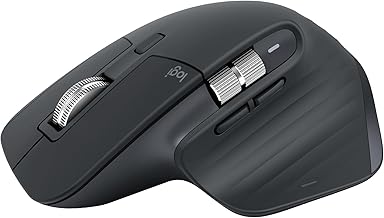
The MX Master 3S has a tall, right-handed ergonomic shell with a pronounced thumb rest. It supports the palm and is comfortable for long documents, spreadsheets, browsing, and editing sessions. The thumb wheel and horizontal scroll function are particularly useful for wide timelines and large spreadsheets.
Those strengths work against it in FPS games. At about 141 grams, it requires more effort to lift, stop, and redirect than a lightweight gaming mouse. Its bulky shape also encourages a palm grip and limits the low, fast movements that many players use with a fingertip or claw grip.
For games in which the pointer mostly selects units, menus, or map locations, the weight is not a serious disadvantage. For games requiring constant aim correction, it is the most obvious physical compromise.
Buttons and controls: useful outside shooters
The MX Master 3S provides the standard left and right buttons, a clickable scroll wheel, a thumb wheel, back and forward buttons, and a gesture control. Logitech Options+ lets you customize actions by application, which is a major productivity advantage. You can assign different commands to the same button in a browser, editor, spreadsheet, or supported game.
For gaming, the controls are less ideal than they first appear:
- The thumb buttons are useful for push-to-talk, grenades, melee, or browser-style navigation, but their position may not suit every hand size.
- The thumb wheel is excellent for horizontal scrolling and can be assigned to game actions, but it is not a replacement for a large bank of MMO side buttons.
- The gesture button is awkward for actions that must be pressed instantly during combat.
- The scroll wheel’s free-spin and ratchet modes are convenient for documents but less specialized than gaming wheels designed for weapon switching.
- The quiet-click design reduces noise, but a softer, quieter button feel can provide less immediate feedback than many gaming switches.
There is also no onboard memory in the same sense as many gaming mice that retain DPI and game profiles without running desktop software. That matters if you move between computers or play on a system where Logitech software cannot be installed.
Where the MX Master 3S makes sense for gaming
- Strategy and 4X games: Extra scrolling, comfortable palm support, and application customization are valuable when moving around large maps.
- Simulation and management games: The horizontal wheel and programmable buttons can reduce keyboard trips.
- MMORPGs with moderate ability bars: It can handle a few additional commands, although an MMO mouse with a side keypad is better for many abilities.
- Single-player and adventure games: Its limitations are usually less important when reaction time is not the deciding factor.
- Work-and-gaming setups: One comfortable mouse can serve a laptop, desktop, and tablet, then switch between them with the device button.
Where a gaming mouse is the better choice
Choose a dedicated gaming mouse if you regularly play competitive FPS titles, aim trainers, battle royale games, rhythm games, or any game where rapid repeated clicks and precise tracking determine the result. A lighter model with a 1,000 Hz or faster polling rate, a gaming-focused wireless receiver, and lower click latency will make quick movements easier and reduce fatigue.
You should also choose a gaming mouse if you use a claw or fingertip grip, have limited desk space, or frequently lift the mouse during play. The MX Master 3S’s wide ergonomic body is built for stability rather than aggressive repositioning.
Decision guide: should you buy it for gaming?
| Your situation | Best choice | Reason |
|---|---|---|
| You mainly play strategy, simulation, or management games | MX Master 3S | Comfort, scrolling, and extra controls outweigh its slower polling rate |
| You play competitive FPS games casually | MX Master 3S is usable; gaming mouse is preferable | You can play, but weight and update rate may limit consistency |
| You compete in ranked FPS or esports | Dedicated gaming mouse | Lower weight, higher polling, and reduced latency are more important |
| You need one mouse for office work and occasional games | MX Master 3S | Its productivity features and multi-device switching are unusually strong |
| You need many MMO abilities on the mouse | MMO-style gaming mouse | A side keypad provides faster access than the MX Master’s limited buttons |
How to configure the MX Master 3S for better gaming
- Use the Logi Bolt receiver instead of Bluetooth. This removes one layer of wireless power management and is the more consistent connection for a desktop gaming setup.
- Start at 800 or 1,600 DPI. These values are easy to pair with common in-game sensitivities and avoid unnecessarily large cursor jumps in menus.
- Disable pointer acceleration in the operating system and game where possible. Consistent input makes it easier to build repeatable muscle memory.
- Keep the polling limitation in mind. Do not compensate by using an extremely high sensitivity; that usually makes precise aiming harder rather than recovering missing responsiveness.
- Assign only non-critical actions to the thumb wheel and gesture button. Put push-to-talk, map, reload, or inventory actions on controls you can reach reliably, and avoid assigning a reaction-critical ability to an awkward gesture press.
- Charge before long sessions. The rated battery life is up to 70 days, but actual runtime changes with usage and connection conditions. A short USB-C charge is preferable to switching to Bluetooth power-saving behavior when the battery is nearly empty.
Final verdict
The Logitech MX Master 3S is good for gaming when gaming is one of several jobs the mouse must perform. It offers accurate tracking, excellent comfort, strong battery life, multi-device switching, and productivity controls that most gaming mice lack. For strategy, simulation, casual games, and a combined work setup, it is a sensible choice.
It is not a good competitive gaming mouse. The 141-gram body, 125 Hz polling rate, office-shaped shell, and less specialized buttons place it behind modern gaming models for fast FPS aiming and high-level play. In short: buy the MX Master 3S for work first and gaming second; choose a dedicated gaming mouse if gaming performance is the priority.