Our Top Picks


As an Amazon Associate we earn from qualifying purchases.
Choosing among the best drawing tablets for artists starts with one question: do you want to draw on a plain surface while looking at your monitor, or draw directly on a screen? A pen tablet keeps your hand on a flat pad and your eyes on a separate display. A pen display puts the image under the nib, which feels closer to paper. Neither format is automatically better; the right choice depends on desk space, software and how you work.
This guide compares five real drawing tablets for artists: one Wacom pen tablet and four pen displays from Wacom, Huion and XP-Pen. Every pick is a dedicated drawing device with a pressure-sensitive pen, not a general-purpose consumer tablet. The comparison focuses on pressure levels, tilt support, active area or screen size, lamination, color coverage, shortcut controls, connection type and system support.
Disclosure: This article contains affiliate links. If you buy through a link on this page, the site may earn a commission at no extra cost to you.
Quick Picks
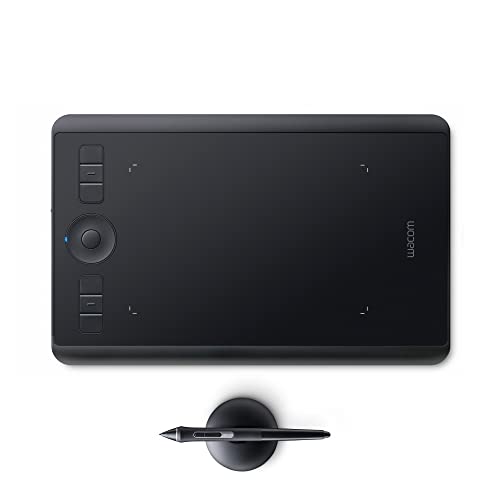
- Best pen tablet for a tidy desk: Wacom Intuos Pro Small (PTH460K0A) — a compact pen tablet with the Wacom Pro Pen 2, multi-touch, a Touch Ring and Bluetooth or USB connection for Mac and Windows.
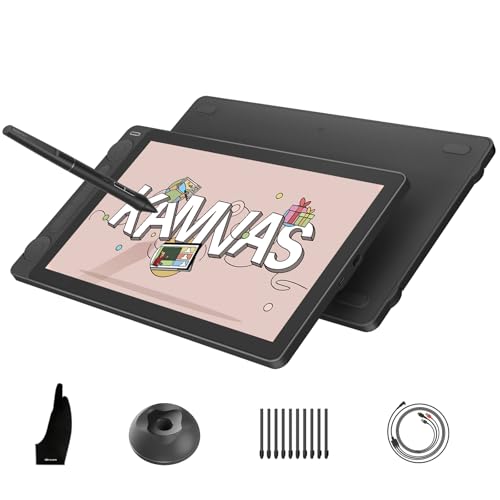
- Best compact pen display for color work: HUION Kamvas 13 (Gen 3) — a 13.3-inch fully laminated display with Canvas Glass 2.0, PenTech 4.0 at 16,384 pressure levels, dual dials and five press keys.
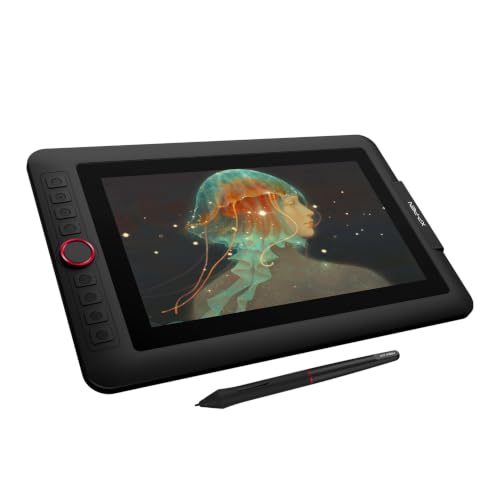
- Best small display for a first screen: XP-Pen Artist12 — an 11.6-inch Full HD pen display with a battery-free P06 pen at 8,192 pressure levels, a pen holder and a drawing glove in the listing.
- Best small display with a dial: XP-Pen Artist12 Pro — an 11.6-inch fully laminated display with tilt support, a red dial, eight shortcut keys and the battery-free PA2 pen.
- Best familiar starting display: Wacom One 13.3-inch (DTC133W0A) — a 13.3-inch Full HD pen display with 4,096 pressure levels that works with Mac, Windows PC, Chromebook and compatible Android devices.
1. Wacom Intuos Pro Small — Best Pen Tablet for Focused Desk Work
The Wacom Intuos Pro Small is the only screenless model in this guide, and that is exactly its strength. Without a display to power or protect, it is thin, light and easy to slide into a laptop bag or a drawer. The listing describes a tablet measuring 10.6 by 6.7 inches, with an active area of roughly seven inches across, which suits sketching, inking, photo retouching and design work on a single monitor. If you already like your monitor’s color and size, a pen tablet lets you keep that screen and simply add a precise pen surface beside your keyboard.
At the center is the Wacom Pro Pen 2, a battery-free pen with 8,192 levels of pressure sensitivity and tilt support. High pressure resolution helps a light touch stay light, which matters for pencil-style shading, soft edges and careful masking. The tablet adds multi-touch, six customizable ExpressKeys and a Touch Ring for brush size, canvas rotation or layer changes, reducing trips to the keyboard.
Connection is flexible: USB or Bluetooth with a Mac or Windows PC. The build uses materials described by Wacom as anodized aluminum and fiberglass composite resin, and the listing includes the pen, a pen stand, a USB cable and ten replacement nibs.
Key specifications
- Type: Pen tablet, no built-in screen
- Model: PTH460K0A, Intuos Pro Small
- Overall size: 10.6 x 6.7 inches
- Pen: Wacom Pro Pen 2, battery-free
- Pressure: 8,192 levels, with tilt support
- Controls: 6 ExpressKeys, Touch Ring, multi-touch
- Connection: USB and Bluetooth
- Compatibility: Mac and Windows PC
Pros
- Compact and portable, with no screen to protect
- Highly customizable keys, ring and touch gestures
- Wired or wireless connection for different desks
Cons
- You draw on the pad while looking at a separate monitor, which takes practice for complete beginners
- Small active area can feel tight for broad, whole-arm strokes or very large monitors
View the Wacom Intuos Pro Small on Amazon
2. HUION Kamvas 13 (Gen 3) — Best Compact Pen Display for Color Work
The HUION Kamvas 13 (Gen 3) is a pen display built for artists who want to draw on the image itself without giving up a large part of the desk. Its 13.3-inch screen is fully laminated and finished with Canvas Glass 2.0, an anti-glare etched glass that Huion describes as reducing glare, sparkle and image noise while adding a paper-like resistance under the pen. Full lamination brings the drawing surface and the display layers closer together, so the cursor sits nearer to the nib than on older, non-laminated displays. For inking and detail work, that smaller visual gap makes placement feel more direct.
PenTech 4.0 is listed with 16,384 levels of pressure sensitivity and a low initial activation force of 2 grams, so a very light touch can start a mark. That suits comic inkers, calligraphers and painters building tone in thin layers. The listing describes color coverage of 99 percent sRGB and Rec.709, plus 90 percent Adobe RGB — a wider stated range than the smaller models here.
Controls include two dial controllers and five silent press keys for brush size, zoom and opacity. The body is listed at 11.7 mm thin and 865 grams, with a symmetrical design for left- and right-handed use. It supports Windows 10 or later, macOS 10.12 or later, compatible Android devices and Linux. It is not a standalone computer: it must be connected to a host device to work.
Key specifications
- Type: Pen display, 13.3-inch fully laminated screen
- Model: Kamvas 13 (Gen 3), GS1333
- Pen: PenTech 4.0 digital pen, battery-free design in the Huion pen line
- Pressure: 16,384 levels, 2 gram initial activation force
- Color: 99 percent sRGB and Rec.709, 90 percent Adobe RGB as listed
- Controls: 2 dial controllers and 5 press keys
- Connection: 3-in-1 cable and USB, including USB-C options in the listing
- Compatibility: Windows, macOS, compatible Android and Linux
Pros
- Highest pressure figure in this guide, with a very light starting force
- Fully laminated anti-glare glass for direct nib-to-cursor feel
- Dual dials speed up brush and canvas adjustments
Cons
- Requires a connected computer or compatible device; it does not run art apps on its own
- A 13.3-inch canvas can feel small for split-screen work with reference images beside the art
View the HUION Kamvas 13 (Gen 3) on Amazon
3. XP-Pen Artist12 — Best Small Display for a First Screen
The XP-Pen Artist12 is a straightforward way to move from a pen tablet to drawing on screen. The 11.6-inch IPS display has a 1920 x 1080 Full HD resolution, and the listing describes a color gamut of 72 percent NTSC, presented as 100 percent sRGB coverage in the product text. That is enough screen for sketching, inking, coloring comics, editing photographs and learning animation, while the small footprint fits a student desk, a shared family computer or a travel setup where a larger display would be awkward.
The included P06 pen is battery-free and offers 8,192 levels of pressure sensitivity, with a digital eraser at the end. There is no pen to charge before a session. The hexagonal shape echoes a traditional pencil and resists rolling. The listing includes the display, pen, pen holder, eight replacement nibs, cables, a glove and an adapter.
The Artist12 is listed as compatible with Windows, Mac and Linux and with applications including Photoshop, Illustrator, SAI, Painter, MediBang and Clip Studio. Six shortcut keys help with common commands. It must be connected to a computer to work, so check your HDMI and USB ports before ordering.
Key specifications
- Type: Pen display, 11.6-inch IPS screen
- Resolution: 1920 x 1080 Full HD
- Pen: XP-Pen P06, battery-free, with end eraser
- Pressure: 8,192 levels
- Color: 72 percent NTSC as listed
- Controls: 6 shortcut keys
- Connection: HDMI and USB through the supplied cable arrangement
- Compatibility: Windows, Mac and Linux, with major art applications
Pros
- Smallest and most desk-friendly display in this guide
- Battery-free pen with an eraser end and a holder included
- Full HD resolution keeps lines and interface text clear at this size
Cons
- Smaller drawing area than the 13.3-inch displays, so frequent zooming is normal
- No tilt support is highlighted in this listing, unlike the Pro model below
View the XP-Pen Artist12 on Amazon
4. XP-Pen Artist12 Pro — Best Small Display With a Dial
The XP-Pen Artist12 Pro keeps the same practical 11.6-inch Full HD format as the Artist12 and adds the controls and surface treatment that frequent drawers tend to ask for next. Its display is fully laminated, which XP-Pen describes as combining the glass and screen to reduce parallax, so the cursor appears closer to where the nib touches. The anti-glare surface and 178-degree viewing angle help when the display is tilted on a stand or shared with a teacher or client sitting beside you.
The battery-free PA2 pen provides 8,192 levels of pressure sensitivity and supports tilt up to 60 degrees. Tilt makes natural brushes behave more like real tools: a tilted pen can lay down a broader, softer mark with charcoal, pastel or watercolor brushes. Painters who shade with the side of a virtual pencil will value it most.
A red dial wheel sits alongside eight customizable shortcut keys for brush size, zoom, rotation and undo. The listing notes a slim profile of about 11 mm and includes the AC42 stand. Compatibility is listed for Windows and Mac. Like the other displays here, it is not standalone and needs a connected computer.
Key specifications
- Type: Pen display, 11.6-inch fully laminated IPS screen
- Resolution: 1920 x 1080 Full HD
- Pen: XP-Pen PA2, battery-free
- Pressure: 8,192 levels, with tilt support up to 60 degrees
- Color: 72 percent NTSC as listed
- Controls: Red dial and 8 customizable shortcut keys
- Connection: 3-in-1 cable arrangement as listed
- Compatibility: Windows and Mac, with major art applications
Pros
- Tilt support for more natural shading brushes
- Dial plus eight keys keeps common actions on the display
- Fully laminated surface reduces the nib-to-cursor gap
Cons
- Same compact screen size as the standard Artist12, so painters wanting more room should look at 13.3 inches or larger
- Dial and keys add setup time while you assign and learn your shortcuts
View the XP-Pen Artist12 Pro on Amazon
5. Wacom One 13.3-inch — Best Familiar Starting Display
The Wacom One, model DTC133W0A in this listing, is a 13.3-inch pen display aimed at creative beginners, students and anyone who wants a simple first screen from the best-known name in pen technology. The Full HD 1920 x 1080 display gives more working room than the 11.6-inch models, which helps when you keep tool panels open beside a canvas or work with a reference photo on the same screen. The listing describes the surface as ready for drawing, sketching, painting and photo or video editing, with creative software included to help a new owner get started.
Its pen offers 4,096 levels of pressure sensitivity, the lowest figure in this guide. That deserves context: technique, brush settings and nib feel often matter more than the headline count, and many line-art and coloring workflows sit comfortably within this range. Artists who rely on extremely subtle pressure ramps may prefer the models above. For a first display, its appeal is simplicity and broad compatibility.
The listing states that it works with Mac, Windows PC, Chromebook and Android smartphones, which suits households and classrooms where the display moves between computers. Confirm your device’s ports before buying, because a display needs video as well as pen data and power.
Key specifications
- Type: Pen display, 13.3-inch screen
- Model: DTC133W0A, Wacom One
- Resolution: 1920 x 1080 Full HD
- Pen: Wacom One pen, battery-free EMR technology
- Pressure: 4,096 levels
- Controls: Pen buttons; shortcut use depends on software and host device
- Connection: HDMI and USB arrangement as listed for this generation
- Compatibility: Mac, Windows PC, Chromebook and compatible Android devices
Pros
- Larger 13.3-inch canvas than the 11.6-inch displays
- Broad host compatibility, including Chromebook in the listing
- Simple starting point for beginners and shared family or classroom desks
Cons
- Lower pressure figure than the other picks, which subtle-pressure painters may notice
- This is an earlier-generation model, so check port types carefully against a newer computer
View the Wacom One 13.3-inch on Amazon
How to Choose the Right Drawing Tablet
Start with format, not brand. If you already have a good monitor and limited desk space, a pen tablet such as the Intuos Pro Small is efficient and durable. If hand-eye coordination on a separate pad frustrates you, or you teach, ink or paint for long sessions, a pen display usually feels more immediate. There is no wrong format, only a mismatch with your habits.
Match size to your strokes and your screen layout. An 11.6-inch display is portable and affordable in desk space, but panels and reference images compete for room. A 13.3-inch display is a balanced step up. For a pen tablet, think about mapping: a small active area mapped to a very large monitor makes tiny hand movements travel far, which can feel twitchy until you limit the mapping in the driver.
Read pressure together with activation force and tilt. A higher pressure count can support finer gradations, but a pen that starts a line with a feather touch and tracks smoothly is just as important. Choose tilt support if your brushes shade like real pencils or pastels. If you mainly draw clean vector-style lines, tilt is optional.
Check lamination and surface feel. Fully laminated displays reduce the visible gap between nib and cursor. Etched or anti-glare surfaces add slight friction and cut reflections, which many artists prefer to glossy glass. Remember that surface texture wears nibs faster, so spare nibs and a light hand help.
Confirm ports and software before anything else. Pen displays need video, data and power, delivered through a 3-in-1 cable, HDMI plus USB, or a single USB-C connection only when the computer supports the right video mode. Open your art application’s system requirements, confirm the driver supports your operating system version, and check whether your laptop has the ports or adapter the specific model needs.
Plan the whole desk. A stand, glove and cable routing shape comfort, so leave room to angle a display and rest your forearm.
FAQs
Is a pen display better than a pen tablet for beginners?
Many beginners find a pen display easier at first because the line appears under the pen. A pen tablet is still a sound starting point, especially if desk space or portability matters, and the coordination usually becomes natural with practice. Choose the format you will use daily.
Do more pressure levels always make better art?
No. Higher pressure levels can make gradual shading and delicate line changes smoother, but brush settings, pen tracking, activation force and your own control have a larger effect on most finished pieces. Use pressure figures to compare similar models, not as a promise of quality.
Can any of these tablets work without a computer?
The pen displays and the pen tablet in this guide need a host computer or a compatible device listed by the maker. They are drawing input devices with screens, not standalone tablet computers that run art applications by themselves.
Which size should a comic or manga artist choose?
For panel work with frequent zooming, an 11.6-inch display can work well. If you keep reference, scripts and tool panels visible beside the page, a 13.3-inch display gives welcome breathing room. Artists who draw with long strokes often prefer the larger surface.
What software do these tablets work with?
The listings name widely used creative applications including Photoshop, Illustrator, Clip Studio, SAI, Painter and MediBang, depending on the model. A drawing tablet acts as a pen input device, so most desktop art software that supports pen pressure should recognize it once the maker’s driver is installed.
Conclusion
For a professional desk upgrade, the Wacom Intuos Pro Small delivers a refined pen and strong customization without taking over your workspace. For drawing on screen, the HUION Kamvas 13 (Gen 3) stands out for its high pressure figure and fully laminated display. The XP-Pen Artist12 is the compact first-screen choice, while the Artist12 Pro adds tilt and a dial. The Wacom One remains a friendly starting display. Compare ports, brushes and desk size, then pick the tablet that matches the art you make every week.
More from Amazon
Programs that pair well with the guide above. Offers and eligibility are set by Amazon and may change.
Free shipping on eligible items, Prime Video and more. Eligible new members can start with a free trial.
Start a Prime free trialAd-free music streaming. Eligible new subscribers can start with a free trial.
Try Music Unlimited freeA Prime membership for ages 18-24 with a trial period. Eligibility is set by Amazon.
See Prime for Young AdultsAudiobooks and podcasts to listen to on the go. Eligible new members can start with a free trial.
Try Audible freeAs an Amazon Associate we earn from qualifying purchases.