Our Top Picks
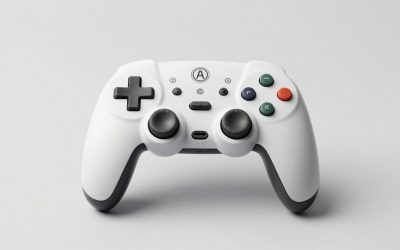
 Razer Wolverine V2 Wired Gaming Controller for XboxController Only2.57 x 6.26 x 4.17 inches0.6 poundsCheck on Amazon
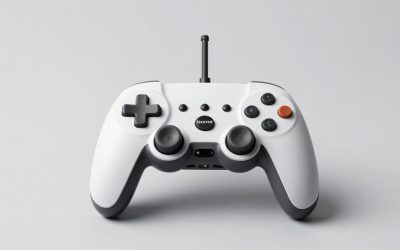
 QUMOX Wired USB Gamepad Game Gaming Controller Joypad5.9 x 3.5 x 2.2 inches0.22 poundsCheck on Amazon
The best controller for Destiny 2 on PC is Valve’s 2026 Steam Controller if you want gyro aiming, and the 8BitDo Ultimate 2 if you want simple setup with four extra buttons for under $100. Both have drift-free TMR sticks. PlayStation players who want native prompts should pick a DualSense Edge, and anyone who lives in raids and wants the longest battery life can stay with an Xbox Elite Series 2.
What separates these picks is not speed. It is how many abilities you can fire without lifting a thumb off the aim stick, and whether you want to add gyro on top of Destiny’s controller aim assist.
Razer Wolverine V2 Wired Gaming Controller for Xbox Series X|S, Xbox One, PC: Remappable Front-Facing Buttons - Mecha-Tactile Action Buttons and D-Pad - Trigger Stop-Switches - White
Chosen because it specifies Xbox One and PC: Remappable Front-Facing Buttons.
View on Amazon![ZD-V+ USB Wired Gaming Controller Gamepad For PC/Laptop Computer(Windows XP/7/8/10/11) & PS3 & Android & Steam - [Black]](https://m.media-amazon.com/images/I/41Ddk2Xp33L._SL500_.jpg)
ZD-V+ USB Wired Gaming Controller Gamepad For PC/Laptop Computer(Windows XP/7/8/10/11) & PS3 & Android & Steam - [Black]
Chosen because it specifies [Black].
View on Amazon
GameSir Tegenaria Lite Wired Game Controller For Switch, Android, iOS, PC, Steam With Retro 90s Design, Hall Effect Sticks, 1000Hz Polling Rate, Dual Rumble Motors, Mappable Back Buttons, Ultra-Low Latency, Ergonomic Design -Serene White
Chosen because it specifies Android and iOS.
View on AmazonQUMOX Wired USB Gamepad Game Gaming Controller Joypad Joystick for PC Computer Laptop
Picked as a relevant option in this category.
View on AmazonHow Destiny 2 handles controllers on PC
- Native support. Xbox-style controllers work out of the box, and the DualSense has had native support on PC since an August 2021 update, with PlayStation button prompts.
- Aim assist stays on. Controller input on PC gets aim assist and there is no switch to turn it off. Its strength depends heavily on each weapon’s Aim Assistance stat, so on a controller it pays to favor weapons with a high value.
- No native gyro. Destiny 2 has no gyro setting of its own. Gyro aiming only works through Steam Input or through a controller that handles motion internally.
- Mouse-style input changes the rules. Community players report that when controller motion reaches the game as mouse input, it is treated as mouse aiming and the controller’s reticle friction no longer applies. The fix is to send gyro as joystick output, covered below.
- Avoid input adapters. Devices that disguise a mouse and keyboard as a controller to borrow aim assist put your account at risk and are not worth it.
Why rear buttons matter more in Destiny than in most shooters
Destiny packs grenade, melee, super and class ability onto the bumpers and face buttons, while jump also triggers glides, blinks and lifts in the air. On a standard pad, every jump, slide, reload or weapon swap pulls your right thumb off the stick. Four rear buttons fix that:
| Rear button | Map it to | Why |
|---|---|---|
| Left paddle | Jump | Glide, blink or lift while the reticle stays on target |
| Right paddle | Crouch / Slide | Slide into cover or close distance with a shotgun without breaking aim |
| Left upper rear button | Reload / Interact | Reload between damage phases and revive teammates quickly |
| Right upper rear button | Weapon swap | Swap during boss damage phases; hold to pull your heavy weapon |
Rear buttons copy existing buttons, so the game needs no special support. If you only have two, prioritize Jump and Crouch/Slide.
Setting up gyro without losing aim assist
Gyro lets you make small corrections by tilting the controller while the right stick handles big turns. It suits Destiny’s precision weapons, such as hand cannons and scouts, especially in PvP. Here is the setup through Steam Input:
- In Steam, open Destiny 2’s Properties, go to Controller and enable Steam Input.
- In the controller layout, set the gyro to output as a joystick rather than as a mouse. Community configs for Destiny 2 do exactly this, because joystick output keeps the game in controller mode with its aim assist.
- Make gyro active only while your thumb touches the right stick. The Steam Controller’s sticks are touch-sensitive, and its Grip Sense handles can also switch gyro on when you grip them.
- Start with low gyro sensitivity and raise it in small steps until a short wrist movement crosses the width of a target.
- If the reticle creeps when you hold still, recalibrate the gyro in Steam’s controller settings.
One trade-off for PlayStation owners: with Steam Input enabled, a DualSense reaches the game as an Xbox-style controller, so you swap PlayStation prompts for gyro. Some early owners of the 2026 Steam Controller also reported Destiny 2 ignoring inputs at the title screen until they moved to a newer Steam client build, so keep Steam updated if a new controller is not detected.
Battery math for raid nights
A raid or a long dungeon night often runs about three hours. Rated battery life tells you how many of those you get per charge:
| Controller | Rated battery | 3-hour sessions per charge | Battery used per session |
|---|---|---|---|
| Xbox Elite Series 2 | Up to 40 hours | About 13 | About 8% |
| Steam Controller (2026) | About 35 hours (8.39 Wh) | About 11 | About 9% |
| Razer Wolverine V3 Pro 8K PC at 1000Hz | 20 hours | About 6 | About 15% |
The Steam Controller’s figures imply an average draw of roughly 0.24 W (8.39 Wh divided by 35 hours), or about 0.72 Wh per three-hour session. The Steam Controller charges magnetically on its Puck receiver and the 8BitDo Ultimate 2 ships with a charging dock, so both are easy to keep topped up. Sony does not publish an hour rating for the DualSense Edge, so keep a USB-C cable at the desk for long sessions.
Polling rate matters less here than in faster arena shooters. A 1000Hz pad adds about 0.5 ms of average delay versus about 4 ms on a 125Hz pad, and beyond 1000Hz the gain drops below half a millisecond. Destiny’s gunplay rewards steady tracking more than that.
The shortlist
| Controller | Sticks | Gyro on PC | Rear or extra buttons | Connection | Typical price |
|---|---|---|---|---|---|
| Steam Controller (2026) | TMR, touch-sensitive | Yes, via Steam Input, plus 2 trackpads | 4 grip buttons | 2.4 GHz Puck, Bluetooth, USB-C | About $100 |
| 8BitDo Ultimate 2 | TMR | Yes, onboard in 2.4 GHz mode | 4 (2 paddles + L4/R4) | 2.4 GHz and wired at 1000Hz, Bluetooth | $55–$75 |
| GameSir G7 Pro | TMR | Yes, PC mode | 4 (2 back + 2 mini bumpers) | 2.4 GHz and wired at 1000Hz | $70–$90 |
| Sony DualSense Edge | Swappable stick modules | Yes, via Steam Input | 2 back buttons | USB-C, Bluetooth | $180–$220 |
| Xbox Elite Series 2 | Potentiometer, 3 tension settings | No | 4 paddles | USB-C, Bluetooth, Xbox Wireless adapter | $160–$200 |
Which one fits how you play
| You mostly play… | Pick | Why |
|---|---|---|
| Crucible and Trials, and want gyro | Steam Controller (2026) | Gyro with touch activation, four grip buttons, TMR sticks |
| A mix of PvE and PvP, no fuss | 8BitDo Ultimate 2 | Four extras, dock, onboard motion control |
| Competitive PvP on a stick | GameSir G7 Pro | TMR sticks, trigger stops, four extras at 1000Hz |
| Raids and dungeons, long sessions | Xbox Elite Series 2 | Four paddles, longest rated battery here |
| With PlayStation prompts | DualSense Edge | Native support plus two back buttons; gyro if you accept Steam Input |
| On a tight budget | 8BitDo Ultimate 2C | Hall effect sticks and two extra bumpers for $25–$40 |
Start with the rear buttons, then decide whether gyro is worth the Steam Input setup. For most Guardians, four paddles and drift-free sticks will make a bigger difference than anything else on the spec sheet.