Our Top Picks
 Logitech MX Keys S Combo Performance Wireless KeyboardKeyboard + Mouse Combo17.91 x 5.75 x 3.15 inchesCheck on Amazon
 Logitech MK850 Performance Wireless Keyboard and Mouse ComboOne Size21 x 9 x 3 inches0.1 PoundsCheck on Amazon
Steam Deck accepts a keyboard and mouse over three physical paths (USB-C, Bluetooth, dock), and the connection method matters less than what you do in Steam Input afterward, since most games on the device were coded expecting a controller and will ignore a mouse until you remap it. Here’s every route ranked by lag and battery cost, plus the exact settings to make mouse aim actually work.
Three ways to connect, and what each one costs you
Every wired or wireless keyboard/mouse setup on Steam Deck falls into one of these categories. The numbers below are typical for USB HID peripherals and Bluetooth 5.0-class connections; exact figures vary by device firmware, but the relative gap between methods holds consistently.
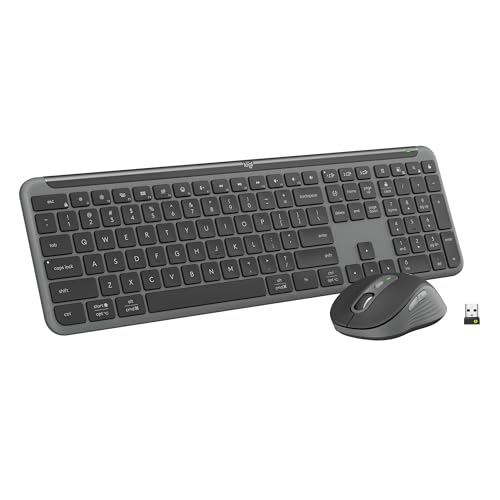
Logitech MK955 Signature Slim Wireless Keyboard Mouse Combo | For larger hands, quiet typing and clicking, switch across three devices, Bluetooth, Multi-OS, for Windows and Mac
Picked as a relevant option in this category.
View on AmazonLogitech MX Keys S Combo Performance Wireless Keyboard and Mouse - Graphite | Bluetooth or Logi Bolt USB receiver included, Connects up to 3 devices, Smart backlit keys, 8K DPI, fast scrolling
Chosen because it specifies Graphite.
View on Amazon
Logitech Wave Keys MK670 Wireless Ergonomic Keyboard Mouse Combo - Graphite | Wave-shaped keys for natural typing, ambidextrous full size Signature M550 L mouse, Bluetooth, Bolt USB receiver, multi-OS
Chosen because it specifies Graphite.
View on AmazonLogitech MK850 Performance Wireless Keyboard and Mouse Combo - Graphite | Connect via Bluetooth or included USB-A receiver, oversized wave-shaped keyboard, full size mouse with 8 customizable buttons
Chosen because it specifies Graphite.
View on Amazon| Connection method | Typical input lag | Battery drain (idle mouse + keyboard) | Best for |
|---|---|---|---|
| Direct USB-C hub (wired mouse + keyboard into a passive hub) | 1-4 ms | ~1-2% extra battery per hour | Competitive shooters, RTS, anything needing precise aim timing |
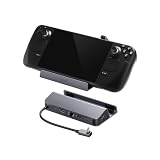
| USB-C dock (powered, with pass-through charging) | 1-4 ms | 0% device battery (dock powers the Deck while docked) | Desk setups, docked desktop mode, long sessions |
| Bluetooth mouse + keyboard (paired directly) | 8-20 ms | ~3-5% extra battery per hour (Bluetooth radio + polling) | Couch or travel use where cables are impractical |
| Bluetooth via USB dongle (2.4 GHz receiver plugged into hub) | 4-8 ms | ~1-2% extra battery per hour | Wireless feel without Bluetooth’s polling overhead |
The lag gap matters most in twitch-aim games. 8-20 ms of added Bluetooth latency sits on top of whatever the game engine and display already contribute, so in a fast shooter you can feel the difference between wired and Bluetooth even if neither number looks large on paper. For turn-based games, strategy titles, or anything in desktop mode where you’re just browsing and typing, the difference is not perceptible and Bluetooth’s convenience wins.
Step 1: Pick your connection and set it up
Wired via USB-C hub or dock
- Plug a USB-A-to-USB-C hub (or a full dock) into the Deck’s USB-C port.
- Connect mouse and keyboard to the hub’s USB-A ports. Both should register instantly, no driver needed, since Steam OS treats them as standard HID devices.
- If using a dock, confirm it supports pass-through power delivery of at least 45W so the Deck charges while docked rather than draining during play.
Bluetooth pairing
- From Game Mode, hold the Steam button and go to Settings > Bluetooth.
- Put your mouse and keyboard into pairing mode (check the device for a pairing button or key combo).
- Select each device from the list as it appears and confirm pairing. Repeat for the second device.
- If you get intermittent drops, move any USB-C hub or dongle away from the Bluetooth antenna area near the top of the Deck, since USB 3.0 devices can interfere with 2.4 GHz signals.
Step 2: Fix the real problem — games that only expect a controller
Plugging in a mouse doesn’t make aim work in most Deck library titles, because the game’s input layer is listening for controller axes, not mouse deltas. Steam Input has to translate mouse movement into something the game recognizes. Here’s the exact path:
- While the game is running (or from its Steam library entry), open the Quick Access Menu (the “…” button) and go to Controller Settings.
- Set the layout to “Keyboard (WASD) and Mouse” instead of the default gamepad template. This is the single most important switch, since it tells Steam Input to expose raw mouse look rather than emulating a right analog stick.
- Under Mouse settings, set Mouse Input Mode to “As Mouse” rather than “As Joystick.” Joystick emulation adds acceleration curves meant for stick drift and will make aim feel sluggish and imprecise.
- Adjust sensitivity multiplier: start around 1.0 and tune from there. Unlike joystick emulation, this maps 1:1 to physical mouse movement, so the right starting value depends on your mouse’s native DPI.
- If the game still won’t recognize keyboard input for menus, check Settings > Controller and make sure “Enable Steam Input for [controller name]” doesn’t have a conflicting profile forcing gamepad-only mode.
For games with native mouse and keyboard support that are just being oversensitive or undersensitive, skip Steam Input remapping entirely and adjust sensitivity in the game’s own options menu, since that’s a more direct control path with less translation overhead.
Step 3: Desktop mode for anything Steam Input can’t fix
Some games, especially older ports, ignore Steam Input’s translation layer entirely and need true desktop-level mouse and keyboard support. Switch to Desktop Mode (Power menu > Switch to Desktop) and:
- Launch the game directly from its installed folder or via a desktop shortcut rather than through Game Mode’s library tile, since some titles behave differently when launched outside the Big Picture-style overlay.
- Set display scaling to 100% in KDE’s display settings if UI elements feel too large or small for mouse-driven menus; the Deck’s default scaling is tuned for touch and controller, not desktop-style precision clicking.
- If the mouse cursor feels laggy specifically in desktop mode, check that the compositor isn’t running with vsync forced off, which can cause tearing that reads as input lag even though the pointer position itself is accurate.
Which setup actually makes sense
| Your situation | Recommended setup |
|---|---|
| Playing competitive shooters or strategy games seriously | Wired mouse + keyboard through a powered USB-C dock |
| Casual desk use, mixing docked and handheld sessions | 2.4 GHz dongle mouse/keyboard through a USB-C hub |
| Couch gaming, no desk, want to avoid cable clutter | Bluetooth mouse and keyboard, accept the added latency |
| Handheld-only, occasional typing (chat, browser) | Bluetooth keyboard alone; skip the mouse and use the trackpads |
If you’re unsure which category you fall into, default to wired through a hub. The battery and latency cost is lowest across the board, and you can always add Bluetooth peripherals later for the situations where a cable genuinely gets in the way.