
Key takeaways
- HDMI: HDMI 2.1 with 4K/120Hz listed explicitly.
- Charging: USB-C Power Delivery input rated at 65W minimum; 100W is preferable for compatible handheld PCs.
- Network: Gigabit Ethernet if you download large games or want a wired connection.
- USB: At least two USB-A ports for common accessories, plus USB-C data if you use newer storage or peripherals.
What's inside
Buying a dock for a Steam Deck can look simple: match the USB-C plug, find an HDMI port, and choose the lowest price. That approach causes most of the disappointment. A dock may advertise 4K at 120Hz but use an HDMI 2.0 connection, reserve bandwidth for slow USB ports, or require a charger that cannot deliver enough power for demanding handheld PCs. Some docks also fit a Steam Deck neatly but block the case, fail to support a thicker model, or leave too little room for a right-angle cable.
This steam deck dock with 4k 120hz buying guide focuses on the details that matter in 2026: video bandwidth, power delivery, port speed, fit, heat, and the practical limits of playing at 4K. The goal is not simply to find the most ports. It is to choose a dock that works reliably with your display, charger, accessories, and handheld.
As an Amazon Associate we earn from qualifying purchases at no extra cost to you. Product prices and availability are accurate as of the date shown and are subject to change.


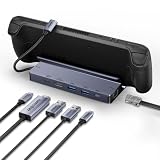
Decide These 3 Things First
- What display are you connecting? If you have a 4K television or monitor capable of 120Hz, look for HDMI 2.1 and an explicit 4K-at-120Hz specification. A dock labeled “8K” may still output only 4K at 60Hz. Check the display’s HDMI input requirements, too; many televisions support 4K/120 only on one or two ports.
- Which handhelds need to fit? A Steam Deck, Steam Deck OLED, ROG Ally, ROG Ally X, and Legion Go have different dimensions and power needs. If the dock will be shared, select a wide, open cradle or a model that lists those devices specifically. A narrow molded slot can be convenient but less flexible.
- Do you need desktop-class accessories? Decide whether you will connect Ethernet, an external SSD, a keyboard and mouse, a capture card, or several USB devices. A basic living-room setup may need HDMI, charging, and one USB port. A desk setup usually benefits from Gigabit Ethernet, at least two USB-A ports, and a fast USB-C data port.
Size and Fit
A useful dock should hold the handheld securely without forcing it into a tight slot. For a general-purpose stand, look for a cradle opening roughly 20 to 30 mm wide, or an adjustable design that can accommodate a case. The exact opening matters less than the manufacturer’s compatibility list and whether the USB-C plug can move slightly to meet the device’s port.
For a travel dock, a footprint around 100 to 130 mm wide and 60 to 90 mm deep is easy to pack. Weight commonly falls between 150 and 300 grams. Heavier models can be steadier when several cables are attached, while lightweight hubs are easier to carry. Leave at least 50 mm of clearance behind the dock for HDMI, Ethernet, and power cables; otherwise, a short desk may force the dock forward.
Do not assume a dock designed for a bare Steam Deck will fit a case. A thin protective case may add 2 to 4 mm on each side, enough to prevent insertion. If you use a thick shell, grip, or kickstand, choose a stand with an open front rather than a precisely cut slot.
Material and Heat Management
Aluminum is common in better docks because it adds weight and spreads heat from the hub controller. Plastic can work well, especially for a travel model, but a very light enclosure is more likely to slide when you connect a stiff HDMI cable. A practical target is a dock weighing at least 180 grams if it will remain on a desk with multiple cables attached.
Look for rubber feet measuring roughly 2 to 4 mm thick and covering the main contact points. They prevent scratches and reduce movement. An aluminum shell should not become painfully hot during normal use, but warmth is expected when HDMI output, Ethernet, USB storage, and charging are active together. Avoid covering ventilation openings or placing the dock on fabric.
Material is not a substitute for good electronics. A metal dock can still have unstable video output if its controller, firmware, or power design is poor. Treat the enclosure as a durability and stability feature, not proof of performance.
Construction and Port Layout
Inspect the port arrangement before buying. HDMI should face away from the handheld so the cable does not press against the screen or controls. Ethernet is best on the rear, while USB ports belong on the side or front for easy access. A permanently attached host cable should be approximately 150 to 250 mm long—long enough to reach the USB-C port without creating a large loop.
For 4K/120Hz, prioritize an HDMI 2.1 output with a stated 4K@120Hz capability. HDMI 2.1 branding alone is not enough; the listing should identify the supported resolution and refresh rate. Use an Ultra High Speed HDMI cable rated for the connection, preferably no longer than 2 meters unless your equipment specifically supports a longer run.
A USB-C power input rated for 100W is common, but the handheld will not receive the full 100W. The dock consumes some power, and the device negotiates its own limit. Also check whether the dock’s USB-C port is power input only or supports data. USB 3.0 or USB 3.2 Gen 1 ports typically reach up to 5Gbps in ideal conditions; they are useful for storage and peripherals but are not equivalent to USB 3.2 Gen 2 at 10Gbps.
Performance: 4K/120Hz, Power, and Ethernet
4K at 120Hz is a display-output capability, not a guarantee that every Steam Deck game will render at 4K and 120 frames per second. Many games will use a lower internal resolution, upscaling, or a 60Hz limit. The dock’s job is to pass the signal cleanly; the handheld, game settings, display, and cable determine the final experience.
Look for these minimums:
- HDMI: HDMI 2.1 with 4K/120Hz listed explicitly.
- Charging: USB-C Power Delivery input rated at 65W minimum; 100W is preferable for compatible handheld PCs.
- Network: Gigabit Ethernet if you download large games or want a wired connection.
- USB: At least two USB-A ports for common accessories, plus USB-C data if you use newer storage or peripherals.
A 45W or 65W charger may be adequate for a Steam Deck, but high-performance handhelds can benefit from a 100W-capable charger and dock. Remember that the dock’s “100W PD” label describes input support, not necessarily 100W delivered to the device. Confirm that your charger supports USB-C PD and that its cable is rated for the intended wattage.
Price Tiers
Budget docks: $25 to $35. These usually provide six basic functions: HDMI, charging input, Ethernet, and three USB ports. The BENFEI 4K@144Hz dock is listed around $27.99, while examples from UGREEN and JSAUX sit near $31.97 to $35.99. At this level, compare the exact HDMI specification rather than assuming a high refresh-rate number applies to every resolution.
Midrange docks: $36 to $60. Expect a sturdier base, better port spacing, a longer host cable, and more consistent compatibility information. Some include a fast USB-C data port, a replaceable cable, or a more accommodating cradle. This tier is often the best value for a desk where the dock remains connected most of the time.
Premium docks: $61 to $120 or more. Premium pricing should buy a meaningful benefit: multiple display outputs, stronger thermal design, a larger selection of fast ports, a detachable host cable, or a longer warranty. Do not pay extra merely for “8K” on the box if your priority is 4K/120Hz from one screen.
Warranty and Support
Choose a dock with at least a 12-month warranty and clear contact information. A 24-month warranty is preferable for a permanently installed desktop dock. Keep the order confirmation and test every port during the return window. Run a game or video at your intended resolution, connect Ethernet, copy files through USB, and confirm that charging remains active while accessories are attached.
Support documentation should state whether the dock works with Steam Deck OLED and other handhelds, whether firmware updates are available, and what charger is recommended. A vague listing that says “universal” without power or video details is less useful than a shorter compatibility list with precise specifications.
Delivery and Assembly
Most docks require no assembly, but allow 10 to 15 minutes to route cables and test settings. A good permanent layout places the charger and Ethernet cable behind the dock, USB accessories to the side, and HDMI with enough slack to avoid tension. Cable bends should have a radius of at least 25 mm rather than folding sharply at the connector.
Before ordering, check the seller’s stated delivery window and return policy. A low price is not a bargain if a replacement takes weeks to arrive or return shipping is expensive. For a gift or a time-sensitive setup, choose a listing with a specific delivery date and an easy return process.
Spec Checklist
| Spec | Budget | Mid | Premium |
|---|---|---|---|
| HDMI output | HDMI 2.1, 4K/120Hz stated | HDMI 2.1, 4K/120Hz with clear bandwidth details | HDMI 2.1, 4K/120Hz plus advanced display support |
| Power input | 65W to 100W USB-C PD | 100W USB-C PD | 100W or higher input, with documented device output |
| USB ports | Two USB-A, one USB-C or three USB-A | Two USB-A plus USB-C data, up to 5Gbps or better | Multiple 5Gbps or 10Gbps ports |
| Ethernet | Gigabit preferred | Gigabit | Gigabit or faster, if needed |
| Size and weight | 100–130 mm wide; 150–250 g | 100–150 mm wide; 180–350 g | Varies; favor stability over compactness |
| Warranty | At least 12 months | 12–24 months | 24 months or more |
Red Flags
- The listing says “8K” but does not state 4K/120Hz.
- “100W charging” appears without identifying the power-input port or device output.
- HDMI, USB, and Ethernet speeds are described with vague terms such as “high definition” or “fast transfer.”
- The cradle dimensions are missing, especially if you use a case.
- The dock has no rubber feet, a very short host cable, or ports that face directly into the handheld.
- The seller does not specify warranty coverage, return terms, or compatible handhelds.
FAQ
Can a Steam Deck really play at 4K and 120Hz through a dock?
The dock can output a 4K/120Hz signal when the handheld, display, cable, and software settings support it. That does not mean every game will render 4K at 120 frames per second. Performance varies by game and graphics settings, and many players use 1080p or 1440p for a smoother experience.
Is HDMI 2.1 required for 4K at 120Hz?
For a dependable 4K/120Hz setup, HDMI 2.1 is the appropriate specification to seek. A product that advertises 8K or 4K without identifying the refresh rate may be limited to 4K/60Hz. Use a properly rated Ultra High Speed HDMI cable as well.
Do I need a 100W charger?
Not always. A Steam Deck setup may work well with a 45W or 65W USB-C PD charger, while higher-performance handhelds can benefit from 100W capability. The dock does not automatically deliver 100W to the device; charging is limited by the handheld, charger, cable, and dock design.
Which dock should most buyers choose?
For a simple setup, choose a well-reviewed six-in-one model in the $28 to $36 range with HDMI 2.1, explicit 4K/120Hz support, Gigabit Ethernet, two or more USB ports, and 100W PD input. Move to a midrange or premium model only when you need a better cradle for a case, faster USB data, multiple displays, a detachable cable, or a longer warranty.





