Key takeaways
- Find the best micro SD cards for Moto G6 Play with the right capacity, speed class and app performance rating for this older 2018 phone, explained step by step.
As an Amazon Associate we earn from qualifying purchases.
The Moto G6 Play arrived in 2018 with modest built-in storage, so the real decision is not which card looks fastest on the box but which capacity and speed class still make sense for a phone that caps expansion at 256GB and reads cards over a UHS-I bus. A card larger than the phone can use wastes money on space the handset will never touch, while a slow card turns every photo save, video recording and app move into a wait.
This guide is for people still carrying a G6 Play as a daily phone, parents handing one down to a child, and anyone keeping one as a backup handset or offline media player. It explains what to look for in a card for this specific older model — capacity, speed class, application performance rating and long-term reliability — without naming individual products, so you can judge any card you find against the phone’s actual limits instead of marketing claims.
How to Choose
The G6 Play’s card slot has firm limits set by its hardware, so the smartest way to shop is to match the card to those limits first and only then think about brand names, bundled adapters and other extras.
Match the Capacity to the 256GB Ceiling
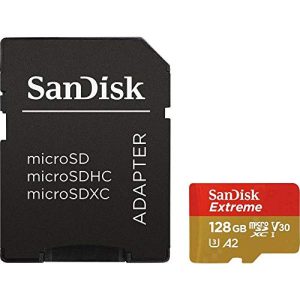
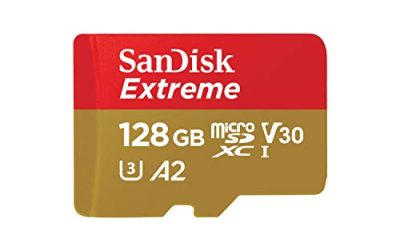
Motorola rated the Moto G6 Play for microSD cards up to 256GB. A 128GB card is the sweet spot for most owners, holding thousands of photos, hours of music and apps, while a 64GB card suits lighter users who stream most of their media. Step up to 256GB if you keep an offline library of films, podcasts and maps for travel, or if the phone belongs to a child and is loaded with games. Going beyond 256GB is pointless, since cards above the rated limit may not be recognised, and one that appears to work can behave unpredictably after a restart or an update. Confirm the phone reports the full size in its storage settings before loading it.
Pick a Speed Class the Phone Can Actually Use
The G6 Play reads cards over a UHS-I bus, which caps how much speed the phone can draw from any card. A Class 10 card with a U3 or V30 marking covers everything this handset asks of storage, from recording HD video to copying files without stuttering. Read speed matters most for opening photos and starting apps stored on the card, while write speed decides how quickly the camera saves bursts and video clips. Paying extra for UHS-II cards or V60 and V90 ratings buys performance the G6 Play cannot reach, because its slot lacks the second row of contacts those cards need. A UHS-I card with steady write speeds will feel as quick here as a flagship card.
Look for the A1 or A2 Rating if You Move Apps
If you plan to move apps onto the card, the application performance rating matters more than the headline sequential speed. An A1 rating guarantees a minimum level of random read and write performance, which keeps apps responsive when they fetch many small files. An A2 rating sets the bar higher, helping heavier apps and games load more smoothly. The G6 Play runs an older Android version, so it will not use every drop of A2 performance the way a newer phone might, yet the rating still separates cards built for app storage from cards built only for cameras. For photos and music alone, an A1 card is plenty.
Choose Endurance and Reliability for How You Use the Phone
A microSD card in a phone faces small writes from messaging apps, cached maps and system files, so reliability deserves as much attention as speed. Cards from known brands with a warranty tend to use better controllers and flash, which shows up over months of daily use rather than in a test. High-endurance cards for always-recording cameras are overkill here, since the G6 Play never writes video like a dash camera. More important is buying from a reputable seller, because counterfeit cards with faked capacities remain common and often fail once you write past their size. Keep a backup of anything irreplaceable, and replace a card that starts showing read errors instead of trusting it with more photos.
Which One Fits Your Situation
Capacity and speed class only mean something in the context of how you actually use the phone, so start from your own habits and let those decide the card.
You Mostly Need Room for Photos and Music
A 64GB or 128GB Class 10 UHS-I card is the right call when the phone’s job is carrying a camera roll and a music collection. Choose the larger size if you shoot much video or keep playlists downloaded for offline listening, and ignore A2 ratings or video speed classes beyond V30. Set the camera app to save to the card and move photos across in one batch, leaving internal storage free for the system and essential apps.
You Keep a Large Offline Media Library
A 256GB card earns its place when the G6 Play doubles as a travel media player loaded with films, audiobooks, podcasts and offline maps. Look for a U3 or V30 marking so large files copy quickly and high-bitrate video plays without buffering pauses, and format the card in the phone before loading it up. Keep a copy of the library on a computer too, since one card holding everything is also a single point of failure.
You Move Apps to the Card
An A2-rated 128GB card fits best when internal storage is full and apps need somewhere to go. The application rating keeps moved apps responsive, while 128GB leaves room for future installs without brushing against the phone’s 256GB ceiling. Format the card through the phone’s storage settings and move apps one at a time so you can spot any that misbehave. A card formatted this way stays tied to the phone and cannot be read in another device.
You Are Setting Up a Hand-Me-Down Phone
A fresh 128GB A1 card suits a G6 Play being passed to a child or a relative. It holds games, photos and school files, and is fast enough for everyday use without paying for speed the phone cannot use. Install the card before setting up accounts and apps, so everything lands in the right place from day one. Show the new owner how to check storage when the phone warns that space is running low.
Common Mistakes
Most card problems on an older phone come from a mismatch between the card and the handset, not from a faulty phone, and every one of these mistakes is easy to avoid once you know what to watch for.
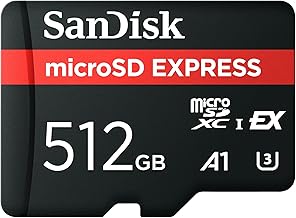
- Buying a card larger than 256GB. The G6 Play is rated for microSD expansion up to 256GB, so anything bigger risks not being recognised or behaving strangely after updates, and the extra capacity you paid for simply goes to waste on this older handset. Retailers still sell 512GB and 1TB cards that look like good value per gigabyte, but none of that space is usable in a phone whose slot was designed years before those sizes existed. Stick to 256GB as the ceiling and spend the difference on a card with a better speed class or a spare for backup.
- Paying extra for UHS-II speeds. The phone’s slot uses a UHS-I bus with a single row of contacts, which means it cannot use the second-row speeds of UHS-II cards at all, and the money is better spent on a larger UHS-I card or a second card as a spare. Listings often headline read speeds far above what the G6 Play can draw, so a card that looks twice as fast on paper feels identical once it is in the phone. Judge cards by their UHS-I Class 10, U3 and V30 markings instead, and treat anything beyond that as speed you are paying for but never using.
- Ignoring the app performance rating. A card can post strong sequential speeds and still feel sluggish with apps, because apps depend on random reads and writes rather than one long stream of data. Check for an A1 or A2 marking before moving anything more demanding than photos onto the card, and expect moved apps to stutter or load slowly if the card lacks that rating. The marking costs nothing to look for and is printed on the card itself, so there is no reason to guess, and a card bought for a camera may be a poor home for apps.
- Treating the card as your only backup. MicroSD cards can fail without warning, and a card formatted as internal storage is tied to the phone, so keep copies of photos and important files on a computer or cloud account instead of trusting a single tiny card with everything. Years of family photos can vanish with one corrupted card, and recovery is slow, uncertain and expensive. Set the camera to back up over Wi-Fi when you are home, and copy the card’s contents to a computer every few months so a failure costs you an afternoon rather than years of memories.
- Skipping a full test of a new card. Counterfeit cards with faked capacities are still common, so fill a new card completely with test files and read them back before trusting it, and buy from sellers with a clear returns policy and a track record you can check. A fake card reports its advertised size to the phone while silently discarding or corrupting anything written past its real capacity, which often only surfaces months later when old photos refuse to open. Testing takes an evening of unattended copying and is the cheapest insurance against losing files you cannot replace.
Frequently Asked Questions
These are the questions G6 Play owners ask most often when choosing a card.
What is the largest microSD card the Moto G6 Play supports?
The Moto G6 Play supports microSD cards up to 256GB according to its specifications. Cards larger than that may not be recognised by the phone, and even if one appears to work at first, it can cause errors after a restart or a software update. A 128GB card suits most owners, while 256GB is the maximum worth considering for a large offline media library.
Can I use a microSD card as internal storage on the Moto G6 Play?
Yes, the phone’s storage settings include the option to format a card as internal storage, which lets the system move apps and their data onto it. This ties the card to that specific phone, so it cannot be read in another device afterwards, and removing it can break the apps stored on it. Use a card with an A1 or A2 rating for this, and keep backups of anything important.
Does a faster card make the Moto G6 Play run faster?
A faster card does not make the phone itself run faster, because the handset reads cards over a UHS-I bus that caps the speed any card can deliver. Where a good card helps is in the tasks that touch storage directly, such as saving photos and video, copying large files and opening apps stored on the card. Beyond UHS-I Class 10 with U3 or V30 speeds, extra performance goes unused.
How do I move photos and apps to the microSD card?
Open the camera settings and set the storage location to the card so new photos and videos save there directly, then use the storage settings to move existing media across. For apps, open each app in the settings menu and use the storage option to shift it to the card, checking that it still opens correctly afterwards. Move apps one at a time rather than in a batch.
FAQ
What is the largest microSD card the Moto G6 Play supports?
Can I use a microSD card as internal storage on the Moto G6 Play?
Does a faster card make the Moto G6 Play run faster?
How do I move photos and apps to the microSD card?
More from Amazon
Programs that pair well with the guide above. Offers and eligibility are set by Amazon and may change.
Free shipping on eligible items, Prime Video and more. Eligible new members can start with a free trial.
Start a Prime free trialAd-free music streaming. Eligible new subscribers can start with a free trial.
Try Music Unlimited freeA Prime membership for ages 18-24 with a trial period. Eligibility is set by Amazon.
See Prime for Young AdultsAudiobooks and podcasts to listen to on the go. Eligible new members can start with a free trial.
Try Audible freeAs an Amazon Associate we earn from qualifying purchases.