Key takeaways
- Using maximum pressure: High-speed air can overspin the fan or compact dust deeper inside.
- Holding the nozzle too close: Keep it several inches away and use short bursts.
- Tilting a canned-air can: This can release cold liquid propellant.
- Cleaning while powered on: Shut down fully and disconnect accessories first.
- Inserting objects through the grille: Avoid damaging blades, fins, or internal wiring.
- Using a vacuum directly on the vents: Suction can create static and may pull loose components or debris in unpredictable directions.
- Expecting a cooling accessory to remove dust: A $20–$25 magnetic fan may improve airflow around the case, but it cannot clean the internal fan.
- Installing a replacement fan without preparation: An approximately $8–$15 replacement requires opening the Deck and should be treated as a repair, not a no-opening cleaning step.
Dust buildup can make a Steam Deck fan louder, reduce cooling performance, and contribute to throttling during demanding games. Cleaning through the vents is a useful first step, but it is easy to make the problem worse: a high-pressure blast can drive dust deeper into the heatsink, overspin the fan, or force moisture onto the electronics. The safest approach is a powered-down Deck, low-pressure airflow, short bursts, and patience. This method works for routine surface dust without removing the back cover, screws, or internal fan.
What You Need
| Item | Why | Optional? |
|---|---|---|
| Steam Deck and its charger | A full shutdown is safer than sleep mode, and the charger can be used afterward to confirm normal operation. | No |
| Electric air duster with adjustable speed, or canned compressed air | Moves loose dust from the intake and exhaust vents. Choose a low setting or use brief bursts. | No |
| Soft, lint-free microfiber cloth | Catches dust around the outside of the vents and controls. | No |
| Bright flashlight | Helps you inspect the vent openings before and after cleaning. | Yes |
| Small household fan | Provides gentle airflow while loosened dust settles away from the work area. | Yes |
| Magnetic cooling fan, about $20–$25 | A clip-on or magnetic accessory can help move warm air during play, but it does not remove internal dust. | Yes |
| Replacement fan, about $8–$15 | A replacement such as the Siakoocty fan is for a later repair that requires opening the Deck; it is not part of this cleaning method. | Yes |
For canned air, use a can intended for electronics and keep it upright. Liquid propellant can escape if the can is tilted or held too close. An electric duster is reusable, but avoid unusually powerful models designed for workshops. You do not need a vacuum cleaner, brush, cleaning spray, or household hair dryer.
Our top picks
 Magnetic Cooling Fan for Steam Deck
- Powerful Dual-Fan Cooling, 6–10°C Temperature Reduction: Features two…
- Three Adjustable Fan Speeds for Different Workloads: Offers…
- Magnetic Attachment
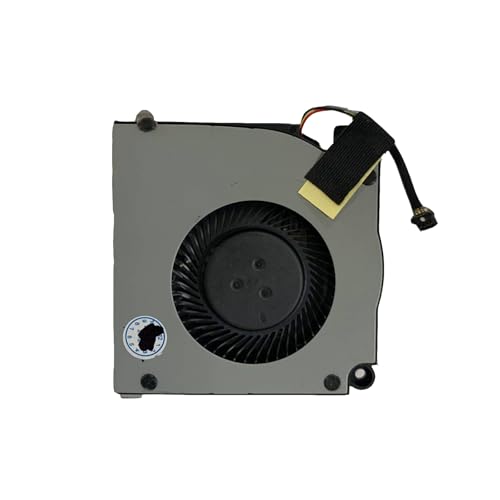 Siakoocty Replacement Laptop CPU Cooling Fan for
- 【Compatible Model】for Steam Deck 2021 & 2022 64…
- 【Compatible Part Numbers】P/N: BN5010S5H-N00P
- 【You Can Get】1*CPU Cooling Fans
As an Amazon Associate we earn from qualifying purchases at no extra cost to you.
Step-by-Step
1. Save your game and shut down completely — 2 to 3 minutes
Save your progress, exit the game, and select the Steam Deck’s full shutdown option rather than Sleep. Wait until the screen is completely black and the fan has stopped. Unplug the charger, dock, headphones, USB devices, and any other accessories. Remove a microSD card if it would interfere with how you hold the device.
Place the Deck on a clean, dry table with the screen facing up. Do not clean it on carpet, a blanket, or a bed, where static and loose fibers can add more debris.
2. Let the Deck cool — 15 to 30 minutes
Cleaning a warm device is less convenient and can make dust stick to surfaces. Let the Steam Deck cool to room temperature. If it was running a demanding game, allow at least 20 minutes before using air. Never spray compressed air into a hot device or while it is charging.
3. Locate the vents and inspect them — 2 minutes
The Steam Deck has intake and exhaust openings on the back and along the top edge. The exact appearance differs slightly between LCD and OLED models, but the goal is the same: identify the grilles, look for visible lint, and note whether dust appears packed into the openings.
Use a flashlight at an angle. Do not push a cotton swab, toothpick, pin, brush, or screwdriver through the grille. A tool can damage the fan blades or dislodge debris into the heatsink.
4. Wipe the exterior first — 2 minutes
Use a dry microfiber cloth to wipe the back cover, top edge, and the area around the vents. Fold the cloth so a clean section contacts the Deck. Use light pressure; the purpose is to remove loose surface dust, not press it into the grille.
Do not use water, alcohol, glass cleaner, disinfectant, or canned cleaning foam around the openings. Even a small amount of liquid can migrate inside.
5. Set the airflow to a safe level — 1 minute
If you are using an electric duster, start at its lowest or second-lowest setting. Hold the nozzle roughly 4 to 6 inches from the vent. If you are using canned air, hold the can upright and keep the nozzle about 6 inches away.
Before aiming at the Deck, test one short burst toward an empty area. The airflow should be forceful enough to move loose dust but not so strong that it makes the device shift on the table.
6. Clear the exhaust vents — 2 to 3 minutes
Direct a short burst across, rather than straight into, the exhaust grille. Use bursts of about 1 second, pausing for 5 to 10 seconds between them. Work from one end of the grille to the other. Angling across the openings helps lift dust outward instead of driving it farther into the fan and heatsink.
Never hold continuous airflow on one spot. You are not trying to make the fan spin. If the fan begins to rotate audibly, stop immediately and allow it to come to rest.
7. Clear the intake vents — 2 to 3 minutes
Repeat the process over the rear intake openings. Use two or three brief passes, with the nozzle still several inches away. Alternate between the intake and exhaust rather than blasting only one side. This can loosen dust near the outer fan path without opening the housing.
A small household fan positioned 2 to 3 feet away can help carry released dust away, but do not use it as a substitute for controlled cleaning. Keep the room free of smoke, pet hair, and airborne lint while you work.
8. Allow dust to settle and inspect again — 5 minutes
Wait about 5 minutes before touching the Deck. Inspect the grilles with the flashlight. If you still see loose dust, repeat one light pass. Stop if dust appears wedged behind the grille, if the fan remains noisy, or if airflow seems blocked. Repeated blasting has diminishing benefits and increases the chance of pushing debris inward.
9. Restart and check the fan — 5 to 10 minutes
Reconnect the charger if needed and power on the Deck. Listen during startup, then launch a familiar game for several minutes. A normal fan may become audible under load, but it should not scrape, click, rattle, or pulse irregularly.
Check that the Deck is not unusually hot, shutting down, or showing performance changes. If the noise is unchanged after cleaning, the issue may be a bearing, a cable, a blocked heatsink, or dust that cannot be reached from outside.
Mistakes to Avoid
- Using maximum pressure: High-speed air can overspin the fan or compact dust deeper inside.
- Holding the nozzle too close: Keep it several inches away and use short bursts.
- Tilting a canned-air can: This can release cold liquid propellant.
- Cleaning while powered on: Shut down fully and disconnect accessories first.
- Inserting objects through the grille: Avoid damaging blades, fins, or internal wiring.
- Using a vacuum directly on the vents: Suction can create static and may pull loose components or debris in unpredictable directions.
- Expecting a cooling accessory to remove dust: A $20–$25 magnetic fan may improve airflow around the case, but it cannot clean the internal fan.
- Installing a replacement fan without preparation: An approximately $8–$15 replacement requires opening the Deck and should be treated as a repair, not a no-opening cleaning step.
How Often
For an average home, inspect the vents every 1 to 2 months and clean them when you see visible dust or hear a change in fan noise. Homes with pets, carpets, smoking, woodworking, or frequent travel may need a light cleaning every 2 to 4 weeks.
Do not clean on a rigid calendar if the Deck is already clean. Excessive compressed-air use can be counterproductive. Keep the device on a hard surface during play, and leave several inches of open space around the vents.
When to Call a Pro or Replace
Stop troubleshooting and seek qualified repair help if the fan scrapes, grinds, clicks, fails to start, or produces a burning smell. Professional service is also sensible if the Deck overheats, shuts down, or shows a consistently blocked-airflow warning after exterior cleaning.
Replacement may be appropriate when the fan bearing is failing or the motor has stopped working. A compatible replacement fan can cost roughly $8–$15, but labor, shipping, and possible damage make the total repair more expensive. Opening the Deck requires the correct screwdriver, careful cable handling, and attention to the battery and back-cover clips. If the unit is under warranty or you are not comfortable disconnecting internal parts, use an authorized service option instead.
FAQ
Can I clean Steam Deck fan dust without opening the back?
Yes, you can remove loose dust from the external intake and exhaust areas without opening the housing. This will not remove compacted debris from the heatsink or repair a failing fan, but it is a reasonable first maintenance step.
Should I use compressed air or an electric air duster?
Either can work when used gently. An adjustable electric duster avoids disposable cans, while canned air is often easier to control for short bursts. In both cases, keep the nozzle several inches away, avoid moisture, and stop if the fan starts spinning.
Why is my Steam Deck still loud after cleaning?
The noise may come from a worn fan bearing, a cable touching the blades, a blocked internal heatsink, high game settings, or warm room conditions. If the sound is a new rattle or scrape rather than ordinary airflow, exterior dusting is unlikely to solve it.
Will a magnetic cooling fan replace cleaning?
No. A magnetic cooling fan can move air around the outside of the Deck and may help during long gaming sessions, but it does not remove dust from the internal fan or heatsink. Use it only after confirming that it does not obstruct the Steam Deck’s own vents.