Key takeaways
- Connecting the Deck before powering the dock. Give the dock stable USB-C PD power first, then connect HDMI, then connect the handheld.
- Assuming every USB-C charger is suitable. USB-C describes the connector, not the wattage or Power Delivery capability.
- Using an HDMI splitter during diagnosis. Connect the dock directly to the TV until the signal is restored.
- Forcing 4K or high refresh rates immediately. Start at 1080p and 60 Hz, then adjust upward if needed.
- Ignoring a tight Steam Deck case. Remove it temporarily to ensure the dock cable reaches full depth.
- Buying a replacement before testing another cable and screen. HDMI cables and TV ports fail more often than many owners expect.
A Steam Deck dock that shows “No Signal” on the TV is usually suffering from a power, cable, input, or display-handshake problem—not necessarily a failed dock. The order in which you connect devices matters: plugging in HDMI before the dock has stable power, using a marginal cable, or forcing an unsupported resolution can leave the TV searching for a source. Work through the checks below in sequence to restore a reliable picture without risking a loose USB-C port, drained battery, or unnecessary replacement purchase.
What You Need
| Item | Why | Optional? |
|---|---|---|
| Steam Deck and dock | Needed to isolate whether the issue is with the handheld, dock, or TV connection. | No |
| 45W or higher USB-C PD charger | Provides stable dock power. Use the Steam Deck charger first when possible. | No |
| Known-good HDMI cable, 3 to 6 feet long | Shorter, undamaged cables reduce signal-handshake and bandwidth problems. | No |
| TV remote | Lets you select the correct HDMI input and restart the television. | No |
| Second HDMI port or second TV/monitor | Helps identify whether the original TV input is the problem. | Yes |
| USB-C extension-free dock replacement | Useful if the existing dock has a damaged cable or inconsistent HDMI output. | Yes |
Step-by-Step
1. Confirm the TV is on the correct input (2 minutes)
Use the TV remote rather than relying on automatic input switching. Press Input, Source, or a similar button, then choose the HDMI port physically connected to the dock—for example, HDMI 1, HDMI 2, or Game Console.
Our top picks
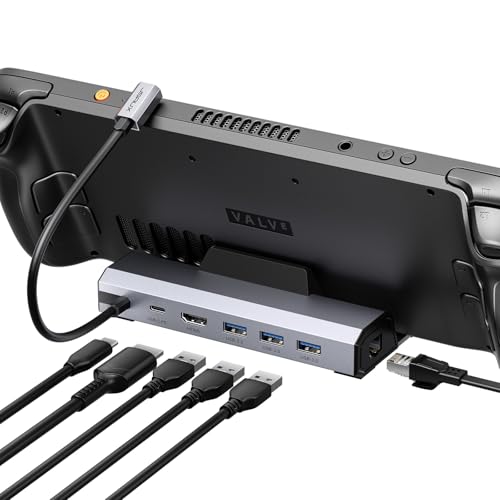 JSAUX 6-in-1 Docking Station for Steam Deck/ROG
- Upgraded 6-in-1 Docking Station: Features HDMI 2.1 4K@120Hz…
- 4K@120Hz HDMI Output (Upgraded): Experience double the refresh…
- Full-Speed 100W Charging: Supports up to 100W PD…
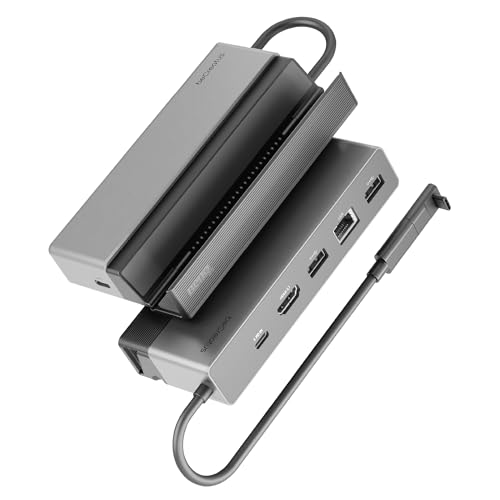 BenQ GR10 HDMI 2.1 Steam Deck Dock
- Enjoy Lag-Free 4K 120Hz Gameplay on Steam Deck…
- Multi-Device Compatibility : Support Comprehensive Ports and 2.5…
- 2-in-1 Steam Deck Stand Design : Flip it…
As an Amazon Associate we earn from qualifying purchases at no extra cost to you.
Check the label beside the TV port and follow the cable from the dock to the set. It is easy to select HDMI 2 when the cable is in HDMI 3, especially with wall-mounted TVs or entertainment consoles. If the TV has a dedicated HDMI port labeled ARC or eARC, it can still work for video, but try a standard HDMI input first while troubleshooting.
2. Fully power-cycle the Steam Deck, dock, and TV (5 minutes)
A full reset clears a stuck HDMI handshake. Disconnect the USB-C cable from the Steam Deck. Then unplug the dock’s charger and HDMI cable. Turn the TV off and unplug it from the wall for 60 seconds.
While the Steam Deck is disconnected, restart it: hold the power button, choose Restart, and wait for Gaming Mode to load. Reconnect the TV to power and turn it on. Next, connect the dock’s power supply to the dock, connect HDMI from dock to TV, and finally connect the dock’s USB-C lead to the Steam Deck.
Give the TV up to 30 seconds to detect the signal. Connecting power before the Deck helps the dock negotiate charging and video output correctly.
3. Check charger wattage and dock power (3 minutes)
The Steam Deck’s included USB-C charger is rated at 45W. Start with that adapter or another reputable USB-C Power Delivery charger rated for at least 45W. A 65W or 100W PD charger is also fine when paired with a quality cable and compatible dock.
A low-output phone charger may turn on the dock’s LEDs or charge the Deck slowly but still fail to provide dependable video, particularly when USB accessories are attached. Disconnect external drives, keyboards, Ethernet adapters, and RGB devices for now. Leave only the charger, HDMI cable, and Steam Deck connected.
If a dock displays a charging warning on the Steam Deck or repeatedly connects and disconnects, test with the original 45W charger before blaming the TV.
4. Replace or reseat the HDMI cable (5 minutes)
Remove the HDMI cable from both ends and inspect it for bent connectors, crushed insulation, or a loose fit. Reinsert it firmly into the dock and TV. If the cable has been sharply bent behind a media cabinet, swap it for another cable.
For troubleshooting, use a straightforward 3- to 6-foot HDMI cable rather than a long run, coupler, wall plate, splitter, receiver, or HDMI switch. Each added connection can interrupt the HDCP and resolution handshake. Once the picture is stable, add other equipment back one piece at a time.
Also try another HDMI input on the television. A single worn or failing TV port can produce “No Signal” even though the dock and Steam Deck are working normally.
5. Test the Steam Deck screen and USB-C connection (3 minutes)
Disconnect the dock and confirm the Steam Deck’s built-in display works normally. If it does, inspect the Deck’s USB-C port with a flashlight. Look for lint, debris, or obvious damage. Do not insert metal tools into the port. If needed, use a dry, soft anti-static brush or a brief burst of compressed air held upright.
Reconnect the dock’s USB-C plug gently. It should sit securely without excessive side-to-side movement. Remove any thick protective case that prevents the connector from seating fully. A case with a deep bottom edge can leave the plug partly inserted, allowing charging but interrupting video output.
6. Reset the external display settings in Desktop Mode (10 minutes)
If the TV detects the Steam Deck but displays a black screen, flickering image, or “unsupported format” message, switch to Desktop Mode using the Steam menu. With the dock connected, open the desktop display settings and select the external TV.
Set the TV to a conservative starting point: 1920 × 1080 at 60 Hz. Apply the setting and confirm the picture. Once stable, increase resolution or refresh rate gradually only if your TV, HDMI cable, and dock support it.
For a 4K television, 1080p at 60 Hz is often the most dependable troubleshooting setting. Avoid selecting a refresh rate the TV does not accept. If the external screen remains blank, use the Steam Deck display to undo the last change or disconnect the dock, restart, and try again.
7. Update SteamOS and retest with a second display (10 to 20 minutes)
Install available SteamOS updates, then restart the Deck and repeat the connection sequence. Updates can improve dock compatibility, display detection, and HDMI behavior.
Finally, test the dock on a second TV or computer monitor. If it works elsewhere, focus on the original television’s HDMI port, cable, input settings, or firmware. If no display recognizes the dock after you have tested two HDMI cables and a known-good 45W-plus charger, the dock is the more likely failure point.
Mistakes to Avoid
- Connecting the Deck before powering the dock. Give the dock stable USB-C PD power first, then connect HDMI, then connect the handheld.
- Assuming every USB-C charger is suitable. USB-C describes the connector, not the wattage or Power Delivery capability.
- Using an HDMI splitter during diagnosis. Connect the dock directly to the TV until the signal is restored.
- Forcing 4K or high refresh rates immediately. Start at 1080p and 60 Hz, then adjust upward if needed.
- Ignoring a tight Steam Deck case. Remove it temporarily to ensure the dock cable reaches full depth.
- Buying a replacement before testing another cable and screen. HDMI cables and TV ports fail more often than many owners expect.
How Often
You should not need to reset a properly working dock regularly. Check cables and ports every 3 to 6 months, or sooner if the dock is moved frequently between rooms, packed for travel, or used in a tight media cabinet. Repeat the full power-cycle procedure whenever you change televisions, install a major SteamOS update, replace an HDMI cable, or begin seeing intermittent black screens.
When to Call a Pro or Replace
Call a TV technician if multiple known-good devices fail on the same television HDMI port, the port feels physically loose, or the TV shows distortion on more than one input. For the Steam Deck, seek authorized service if its USB-C port is loose, visibly damaged, overheating, or unable to charge reliably with the original charger.
Replace the dock when it fails on two displays with two working HDMI cables and a verified 45W or higher PD charger, especially if its attached USB-C cable is frayed or its ports are loose. A basic replacement such as the JSAUX 6-in-1 HB0603 is typically around $36. For setups that need higher-bandwidth connectivity and more networking capability, the BenQ GR10 is generally around $109. Choose based on the ports and display features you actually use, not just the highest listed specification.
FAQ
Why does my Steam Deck charge through the dock but show no signal on the TV?
Charging and video use different parts of the USB-C connection. The charger may be supplying power while an HDMI cable, TV input, dock video circuitry, or display setting prevents the image from reaching the screen.
Do I need a 100W charger for a Steam Deck dock?
No. A reliable 45W USB-C PD charger is the practical starting point for a Steam Deck. Higher-wattage chargers can be useful with certain docks and accessories, but they do not automatically fix an HDMI signal problem.
Can a bad HDMI cable cause intermittent Steam Deck dock video?
Yes. A damaged, overly long, or poorly seated HDMI cable can cause “No Signal,” flickering, black screens, or repeated disconnects. Test with a short, known-good cable connected directly from dock to TV.
Why does the dock work on one TV but not another?
The televisions may differ in HDMI port condition, supported refresh rates, firmware, input settings, or handshake behavior. Set the Steam Deck’s external display to 1080p at 60 Hz, try another TV HDMI port, and power-cycle both devices before replacing the dock.