Key takeaways
- Download the ISO for your chosen gaming distro from its official site.
- Flash it to a quality USB stick using a tool such as balenaEtcher or Rufus.
- Consider a prebuilt multiboot drive if you want to trial several distros before committing.
- Verify the checksum so a corrupted download never derails your install midway.
Installing Linux for gaming in 2026 is dramatically easier than the horror stories of a decade ago, but a little preparation still separates a smooth afternoon from a frustrating one. The good news is that modern gaming distributions handle drivers, Proton, and codecs for you, so most of the work is simply getting a reliable installer onto a USB stick and following a friendly wizard.
This guide walks you through the entire journey: preparing your hardware, creating a bootable drive, running the installation, and configuring Steam and Proton so your library is playable within the hour. We keep it beginner-friendly and point you to a few printed handbooks that make each step feel guided rather than guessed.
Our top picks


As an Amazon Associate we earn from qualifying purchases at no extra cost to you.
⚡ Save on Your Next PC — Amazon Prime
Prime members get fast free shipping on the systems above, plus early access to Prime Day & Black Friday PC deals. New members get a 30-day free trial.
Watch: How To Install Linux For Gaming — Video Review
Step 1: Prepare Your Hardware and Back Up
Before touching an installer, back up anything important and note your GPU model so you can confirm driver support. If you are dual-booting, shrink your Windows partition first to leave room for Linux. A clear reference like Linux Mint Cinnamon for Windows Users is worth keeping open, since it frames the whole process in terms a Windows switcher already understands and reduces the fear of the unknown.
Step 2: Create a Reliable Bootable USB
- Download the ISO for your chosen gaming distro from its official site.
- Flash it to a quality USB stick using a tool such as balenaEtcher or Rufus.
- Consider a prebuilt multiboot drive if you want to trial several distros before committing.
- Verify the checksum so a corrupted download never derails your install midway.
A dependable drive matters more than people expect; the Bazzite Linux Guide covers preparing installation media specifically for gaming-focused systems.
Step 3: Boot and Run the Installer
Restart, open your boot menu, and select the USB device. Most distros launch into a live desktop where you can click Install. Follow the prompts to choose your language, keyboard, timezone, and partitioning. For a beginner, the step-by-step approach in Linux Mint Made Simple for Beginners mirrors these screens closely, so you always know what the next click will do.
Step 4: Install Drivers, Steam, and Proton
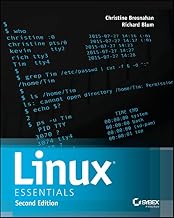
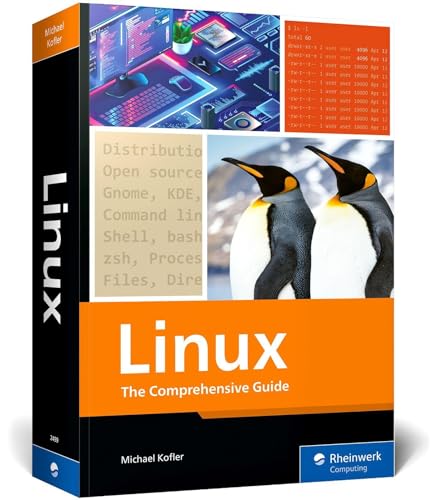
After the first reboot, open your distro’s driver tool to enable proprietary GPU drivers if needed, then install Steam. Inside Steam, enable Steam Play (Proton) for all titles under the compatibility settings. This single toggle unlocks the majority of your Windows library. Understanding what happens beneath the surface, as explained in How Linux Works, 3rd Edition, helps you troubleshoot the rare game that needs a nudge.
Step 5: Optimize and Verify Your Games
Check ProtonDB for per-game tips, install any recommended Proton-GE build, and launch a title to confirm everything runs. Enable the in-game performance overlay to watch frame rates, and adjust settings as you would on any platform. A survival-style command reference keeps you calm if a terminal step ever appears.
Frequently Asked Questions
Do I need to remove Windows to install Linux for gaming?
No. You can dual-boot by shrinking your Windows partition and installing Linux alongside it, choosing which system to load each time you power on.
How long does installing Linux for gaming take?
The core installation usually finishes in fifteen to thirty minutes, with another short session to enable drivers, install Steam, and turn on Proton.
Which USB drive size do I need?
An 8GB stick covers most single distros, but a 32GB or larger drive is better if you want a multiboot installer or plan to carry recovery tools alongside it.
Will anti-cheat games work after installing Linux?
Many now do thanks to Proton and EAC support, but a few competitive titles still block Linux. Check ProtonDB for your specific games before switching fully.
Conclusion
Installing Linux for gaming in 2026 comes down to five calm steps: prepare, flash a drive, run the wizard, enable Proton, and verify your games. With a gaming-focused distro doing the heavy lifting and a good beginner handbook at your side, the whole process is approachable even on your first attempt. Take it one step at a time, and you will be gaming on Linux by the end of the day.