Key takeaways
- NVIDIA: Open the NVIDIA app or Control Panel, go to Set up G-Sync, tick enable, and select your monitor. For a FreeSync display, this activates G-Sync Compatible mode.
- AMD: Open AMD Software, go to the display settings, and toggle AMD FreeSync on for your monitor.
- Use a certified cable: A VESA-certified DisplayPort 1.4 cable ensures the bandwidth for high-refresh VRR to work without dropouts.
Screen tearing, that ugly horizontal split when the image shifts mid-frame, happens because your GPU and monitor are out of sync. Variable refresh rate technology fixes it by making the monitor refresh in lockstep with the GPU’s output. NVIDIA calls its version G-Sync and AMD calls its FreeSync, and in 2026 the two largely interoperate, so a FreeSync monitor often works with an NVIDIA card as G-Sync Compatible. The catch is that it is frequently off by default.
This guide shows how to enable G-Sync or FreeSync in both your monitor’s menu and your GPU control panel, how to confirm it is actually working, and how to pair it with a frame cap for the smoothest, tear-free, low-latency result. Whether you own a fast IPS panel or a QD-OLED, a few minutes of setup unlocks the smooth motion you paid for.
Our top picks
 ASUS TUF Gaming Series 5 24.5” 1080P
- High-Performance Display: 24.5-inch Full HD (1920x1080) Fast IPS…
- Ultra-Fast Response Time: ASUS Fast IPS technology enables…
- Adaptive Sync Technology: FreeSync Premium and G-Sync compatible…
 INNOCN 24.5" 1440P 240Hz Gaming Monitor Fast
- Super Fast IPS 1440p Gaming Monitor 240Hz &…
- High Image Quality QHD 1440P Computer Gaming Monitor:…
- HDMI + DisplayPort Connectivity: This INNOCN PC gaming…
| Product | Key specs | |
|---|---|---|
 Samsung 27” Odyssey OLED G5 Samsung 27” Odyssey OLED G5 | Check price | |
| ASUS TUF Gaming Series 5 24.5” 1080P | High-Performance Display: 24.5-inch Full HD (1920x1080) Fast IPS… Ultra-Fast Response Time: ASUS Fast IPS technology enables… Adaptive Sync Technology: FreeSync Premium and G-Sync compatible… | Check price |
| INNOCN 24.5" 1440P 240Hz Gaming Monitor Fast | Super Fast IPS 1440p Gaming Monitor 240Hz &… High Image Quality QHD 1440P Computer Gaming Monitor:… HDMI + DisplayPort Connectivity: This INNOCN PC gaming… | Check price |
 CUNPU 24 Inch 1080P 200Hz Gaming Monitor CUNPU 24 Inch 1080P 200Hz Gaming Monitor | Compact But Powerful Performance: Cunpu 24-inch gaming monitor… Fast IPS Visual Advantage: A New Generation of… Elite Gaming Performance: It is compatible with FREESYNC… | Check price |
 Capshi 8K 4K DisplayPort Cable 1.4 Capshi 8K 4K DisplayPort Cable 1.4 | 8K DisplayPort Cable 1.4: This VESA Certified DP… Multi-functional Support: The 8K DisplayPort cable supports video… Advanced Technology: The cable delivers enhanced bandwidth via… | Check price |
| Capshi 8K 4K DisplayPort Cable 1.4 | 8K DisplayPort 1.4 Cable: This VESA Certified DP… Multi-functional Support: The 8K DisplayPort cable supports video… Advanced Technology: The cable delivers enhanced bandwidth via… | Check price |
 KTC 32 Inch Curved Gaming Monitor KTC 32 Inch Curved Gaming Monitor | 【Clear Image Quality】32 inch curved monitor adopts VA… 【Excellent Color】Provides 350cd/m² brightness, 3000:1 dynamic contrast ratio… 【165Hz Gaming Monitor】Ultra-fast 165Hz refresh rate displays smooth… | Check price |
 KTC 27 Inch 240Hz Curved Gaming Monitor KTC 27 Inch 240Hz Curved Gaming Monitor | [Ultra-smooth 240Hz Refresh Rate] 240Hz refresh rate delivers… [More Immersive 1000R Curved Screen] The 1000R Curved… [Crysyal Visuals with 1440p Monitor] This 27 inch… | Check price |
As an Amazon Associate we earn from qualifying purchases at no extra cost to you.
⚡ Save on Your Next PC — Amazon Prime
Prime members get fast free shipping on the systems above, plus early access to Prime Day & Black Friday PC deals. New members get a 30-day free trial.
Watch: How to Enable G-Sync or FreeSync — Video Review
Confirm Your Monitor Supports VRR
First check that your display has FreeSync or G-Sync. Most modern gaming monitors, from a fast ASUS TUF 240Hz IPS to a Samsung Odyssey OLED G5, support at least FreeSync over DisplayPort and often HDMI. Note the supported VRR range (for example 48-240Hz), because variable refresh works within that window, and using DisplayPort generally gives the widest, most reliable range.
Enable It in the Monitor Menu
VRR often has to be switched on in the monitor’s on-screen display, not just on the PC. Open the monitor menu with its physical buttons, find a setting called FreeSync, Adaptive Sync, or G-Sync, and enable it. Some panels have Standard and Ultimate modes; Ultimate widens the range but occasionally needs the GPU-side setting to match. Do this before configuring the driver.
Turn It On in the GPU Control Panel
- NVIDIA: Open the NVIDIA app or Control Panel, go to Set up G-Sync, tick enable, and select your monitor. For a FreeSync display, this activates G-Sync Compatible mode.
- AMD: Open AMD Software, go to the display settings, and toggle AMD FreeSync on for your monitor.
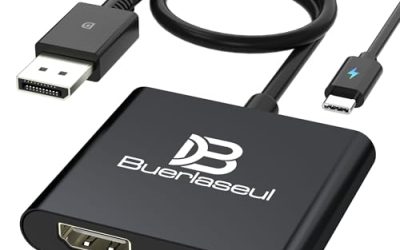
- Use a certified cable: A VESA-certified DisplayPort 1.4 cable ensures the bandwidth for high-refresh VRR to work without dropouts.
Cap Your Frame Rate
VRR works within your monitor’s refresh range, and going above it reintroduces tearing or forces V-Sync latency. The optimal setup is to enable G-Sync/FreeSync plus V-Sync in the driver, then cap your frame rate a few fps below your max refresh (for a 240Hz panel, cap around 236). This keeps frames inside the VRR window for tear-free, low-latency motion, the configuration enthusiasts swear by.
Verify It Is Working
NVIDIA users can enable the G-Sync indicator overlay to confirm it is active; both platforms can use the monitor’s own frame-rate readout or a pendulum demo. Play a game with an uncapped-feeling frame rate and watch for the absence of tearing. If you still see tears, recheck that VRR is enabled both in the monitor menu and the GPU software, and that you are on DisplayPort.
Tips
- Enable it in both places: VRR must be on in the monitor menu and the GPU control panel; missing either is the most common reason it does not work.
- Prefer DisplayPort: It usually offers the widest VRR range and highest refresh support versus HDMI on PC monitors.
- Pair with a frame cap: Cap a few fps below max refresh, with V-Sync on in the driver, for the smoothest tear-free result.
- Use a quality cable: A VESA-certified DisplayPort cable prevents signal dropouts at high refresh rates.
Frequently Asked Questions
Does FreeSync work with an NVIDIA graphics card?
Usually yes. Most FreeSync monitors are recognized as G-Sync Compatible by NVIDIA cards. Enable it in the monitor menu and in the NVIDIA control panel to activate it.
Should I use V-Sync with G-Sync or FreeSync?
Yes, in a specific way: enable VRR plus V-Sync in the driver, then cap your frame rate just below max refresh. This eliminates tearing while keeping latency low.
Why is my G-Sync or FreeSync not working?
The most common causes are VRR being disabled in the monitor’s own menu, using an HDMI port with a narrower range, or a subpar cable. Verify all three and enable VRR on both the monitor and GPU.
Does variable refresh rate reduce input lag?
It reduces the latency penalty of traditional V-Sync while removing tearing. Paired with a frame cap below max refresh, it delivers smooth motion with minimal added lag.
Conclusion
Enabling G-Sync or FreeSync is a quick fix for tearing that too many gamers leave switched off. Turn VRR on in both the monitor menu and your GPU software, connect via a certified DisplayPort cable, and cap your frame rate just below your maximum refresh with V-Sync enabled in the driver. Verify it is active, and you will enjoy the smooth, tear-free gaming your monitor was built to deliver.