
Key takeaways
- Trying to pair directly to the dock: The Steam Deck handles Bluetooth pairing. The dock is mainly a display, power, and USB expansion hub.
- Using a nearly empty controller battery: Low charge can cause the controller to disconnect before setup is complete.
- Leaving the controller paired to another nearby device: Phones, laptops, consoles, and tablets can steal the connection.
- Using the wrong controller mode: Bluetooth, 2.4 GHz, Switch, and XInput modes are not interchangeable.
- Connecting through an underpowered dock setup: A 45-watt or higher USB-C adapter is the safer baseline for a docked Steam Deck setup.
- Ignoring firmware updates: If a controller repeatedly disconnects or has incorrect button mapping, update its firmware using the manufacturer’s supported method.
- Blocking the dock or Deck vents: A controller connection issue may be separate from overheating, but restricted airflow can cause poor overall docked performance.
Connecting a wireless controller to a Steam Deck dock should be quick, but a few small setup mistakes can make it frustrating. The most common problem is assuming the controller connects to the dock itself. In most cases, it actually pairs with the Steam Deck through Bluetooth, while the dock simply supplies the TV connection and extra USB ports. A weak battery, an old pairing saved on another device, or a controller set to the wrong wireless mode can lead to lag, dropped inputs, or no connection at all.
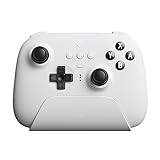
The good news: once you pair a controller correctly, the Steam Deck should remember it for future docked play. The steps below work for most Bluetooth gamepads, including the 8BitDo Ultimate Bluetooth Controller with Charging Dock, a Steam Deck-compatible option generally priced around $52 to $55. In 2026, SteamOS menus may look slightly different depending on updates, but the core pairing process remains the same.
As an Amazon Associate we earn from qualifying purchases at no extra cost to you. Product prices and availability are accurate as of the date shown and are subject to change.

What You Need
| Item | Why | Optional? |
|---|---|---|
| Steam Deck | The handheld computer that pairs with and recognizes the controller. | No |
| Steam Deck-compatible dock | Connects the Deck to a TV or monitor and adds USB ports for wired accessories or a wireless receiver. | No for docked play |
| Wireless controller | Provides game controls through Bluetooth or a 2.4 GHz USB wireless receiver. | No |
| USB-C power adapter, 45 watts or higher | Helps the Deck maintain charge and stable docked performance while powering connected accessories. | Strongly recommended |
| HDMI cable | Connects the dock to a TV or monitor. Most HDMI cables are about 3 to 6 feet long for a typical media console. | No for TV/monitor use |
| USB-C charging cable or controller charging dock | Charges the controller before pairing and can be useful for firmware updates. | Recommended |
| Controller USB wireless receiver | Can provide a more direct connection than Bluetooth when supported by the controller. | Optional |
Step-by-Step
1. Set up the Steam Deck dock and display (5 minutes)
- Place the dock on a stable, open surface near your TV or monitor. Avoid putting it inside a closed cabinet, where heat can build up around the Steam Deck.
- Connect the dock’s HDMI port to an available HDMI input on your TV or monitor.
- Connect a USB-C power adapter rated for at least 45 watts to the dock’s power input.
- Plug the dock’s attached USB-C cable into the top USB-C port on the Steam Deck.
- Turn on the TV or monitor and select the matching HDMI input.
Give the Deck a few seconds to switch to the external display. If the screen stays blank, wake the Deck with its power button, then check that the HDMI cable is firmly seated at both ends.
2. Charge the controller before pairing (10 to 60 minutes, if needed)
Start with a controller that has enough charge to stay powered on through setup. A controller that turns off during pairing can create a saved but unusable connection. If your controller has a battery indicator, aim for at least 25% charge before beginning.
For example, the 8BitDo Ultimate Bluetooth Controller can be stored on its included charging dock between sessions. Its charging dock takes up roughly the footprint of a small phone stand, so leave enough shelf space near the TV or gaming area rather than balancing it on the edge of a media console.
3. Put the controller in the correct wireless mode (1 minute)
Many third-party controllers support more than one connection type, such as Bluetooth, 2.4 GHz wireless, Switch mode, XInput, or DirectInput. Select the mode intended for Steam Deck use before trying to pair.
For Bluetooth pairing, turn on the controller using its Bluetooth or pairing-mode instructions. Usually, you will hold a dedicated pairing button until an LED flashes rapidly. If the controller was previously paired to a phone, console, or computer, it may automatically reconnect to that device instead. Turn off Bluetooth on the old device or move it out of range while pairing with the Deck.
4. Open Bluetooth settings on the Steam Deck (2 minutes)
- Press the Steam button on the Deck.
- Select Settings.
- Choose Bluetooth.
- Turn Bluetooth on if it is not already enabled.
- Wait for the controller name to appear in the available-devices list.
The controller may appear under its brand name, a generic name such as “Wireless Controller,” or a model number. Select it, then wait for the status to change to connected.
5. Confirm that Steam Deck recognizes the controller (2 minutes)
Once paired, press a button or move a joystick. You should see the Steam Deck respond in the menu. To verify the layout, go to Settings, then check controller-related options and test buttons in a game or Steam Input screen.
If button prompts look wrong, the controller may be using an incompatible mode. Disconnect it, change the controller’s mode according to its manual, and pair it again. Most modern Steam games work best when the controller identifies as an XInput-style gamepad.
6. Use the USB receiver instead, if your controller includes one (3 minutes)
A 2.4 GHz USB receiver can be a useful alternative when Bluetooth pairing is unreliable or when you want to keep Bluetooth open for headphones. Insert the receiver into a USB-A port on the Steam Deck dock. If the dock only has USB-A ports, do not try to force a USB-C receiver into them; use the correct adapter.
Then switch the controller to its 2.4 GHz or receiver mode. The controller should connect automatically within a few seconds. If it does not, remove and reinsert the receiver, restart the controller, and check its pairing instructions. Keep the receiver in a clear area; placing a metal TV stand or large power brick directly in front of it can interfere with the signal.
7. Adjust your play area for a reliable signal (2 minutes)
For best results, keep the controller within about 10 to 20 feet of the docked Steam Deck with as few walls or large metal obstacles as possible. Sit closer if you notice missed button presses, delayed movement, or frequent disconnects.
Do not bundle the dock’s HDMI cable, power cable, and wireless receiver together tightly. Separating cables by a few inches can make troubleshooting easier and reduces clutter around the dock.
Mistakes to Avoid
- Trying to pair directly to the dock: The Steam Deck handles Bluetooth pairing. The dock is mainly a display, power, and USB expansion hub.
- Using a nearly empty controller battery: Low charge can cause the controller to disconnect before setup is complete.
- Leaving the controller paired to another nearby device: Phones, laptops, consoles, and tablets can steal the connection.
- Using the wrong controller mode: Bluetooth, 2.4 GHz, Switch, and XInput modes are not interchangeable.
- Connecting through an underpowered dock setup: A 45-watt or higher USB-C adapter is the safer baseline for a docked Steam Deck setup.
- Ignoring firmware updates: If a controller repeatedly disconnects or has incorrect button mapping, update its firmware using the manufacturer’s supported method.
- Blocking the dock or Deck vents: A controller connection issue may be separate from overheating, but restricted airflow can cause poor overall docked performance.
How Often
You only need to pair a wireless controller once per Steam Deck, unless you remove it from Bluetooth settings, reset the controller, or pair it to too many other devices. After the initial setup, turn on the controller after docking the Deck and it should reconnect automatically.
Charge rechargeable controllers after long sessions or whenever the battery indicator drops low. Wipe dust from the dock’s USB ports and controller charging contacts about once every one to two months with a dry, soft brush or microfiber cloth. Check for SteamOS and controller firmware updates every few months, especially if you notice new connection problems after a game or system update.
When to Call a Pro or Replace
Most controller connection problems do not require professional repair. Start by restarting the Steam Deck, fully charging the controller, forgetting and re-pairing the Bluetooth device, and testing a different USB port or HDMI cable.
Consider replacement or manufacturer support if the controller will not power on after charging, its USB receiver becomes unusually hot, the charging port is loose, the joystick drifts severely, or it disconnects from multiple devices at close range. Also inspect the dock if several USB accessories fail at once, the HDMI signal cuts in and out with known-good cables, or the dock’s USB-C connector is bent or damaged.
For a controller replacement, look for Steam Deck compatibility, a comfortable full-size layout, Bluetooth support, and—if you prefer lower-latency wireless play—a dedicated 2.4 GHz receiver. Controllers with Hall Effect joysticks, such as the 8BitDo Ultimate Bluetooth Controller models in black or white, may appeal to buyers who want a design intended to reduce wear-related stick issues over time.
FAQ
Can I connect more than one wireless controller to a Steam Deck dock?
Yes. The Steam Deck can pair with multiple Bluetooth controllers for local multiplayer. Pair them one at a time through Bluetooth settings, then test each controller in the Steam menu before launching a multiplayer game. For the most stable setup, keep all controllers charged and avoid placing the Deck behind a TV or inside a metal cabinet.
Why is my controller connected but not working in a game?
First, test whether it works in the Steam Deck menus. If it does, the issue may be game-specific. Open the game’s controller settings and make sure Steam Input or the preferred controller layout is enabled. If the controller does not work in menus either, disconnect it from Bluetooth, restart the Deck, and pair it again in the correct wireless mode.
Is Bluetooth or a USB wireless receiver better for Steam Deck docked play?
Both can work well. Bluetooth is convenient because it does not occupy a dock USB port. A dedicated 2.4 GHz USB receiver can be preferable when supported because it provides a direct controller-to-receiver connection and may be easier to troubleshoot. Use the option that is stable with your controller and room layout.
Do I need the official Steam Deck dock to use a wireless controller?
No. A compatible third-party USB-C dock can work, provided it supports video output, has adequate USB-C power pass-through, and connects reliably to the Steam Deck. The wireless controller still pairs with the Deck over Bluetooth or through a USB receiver plugged into the dock.





