Key takeaways
- Choosing the best sd cards for galaxy 7: sizes, speed classes and setup advice for the Galaxy S7, so you can add storage for photos, 4K video and apps.
As an Amazon Associate we earn from qualifying purchases.
The Galaxy S7 came out in 2016, and its built-in storage fills up fast once photos, video and offline music pile on. A microSD card is the cheapest way to give the phone room again, but the choice is not as simple as grabbing the biggest card on the shelf. Samsung rated the phone for cards up to 200GB, its card reader tops out at UHS-I speeds, and a card that is too slow will stutter on 4K video even if the capacity looks generous. The real decision is matching capacity, speed class and format to a ten-year-old phone, not chasing the fastest card made this year.
This guide is written for three groups: people still using an S7 every day, owners who kept one as a spare camera or media player, and anyone setting up a second-hand S7 for travel. It compares card sizes, formats and speed ratings in plain terms, and explains how to format a new card and move files onto it.
How to Choose
Four details decide whether a card feels fast and reliable in the S7: how much it holds, how quickly it writes, which format it uses and whether it is genuine. Get those four right and almost any card from a known brand will serve the phone well. Get one wrong and the phone will either refuse the card, record choppy video or fill up far sooner than the label promised. A card that matches the phone’s limits will feel quick for years, while a mismatched one will frustrate you every time you open the gallery or press record. The sections below take each detail in turn.
Match the capacity to the 200GB limit
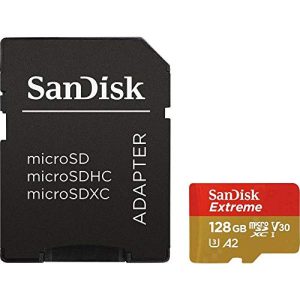
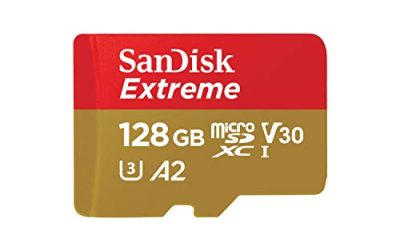
Samsung’s official figure for the Galaxy S7 is 200GB, which was the largest microSD card on sale when the phone launched. A 128GB card is the sweet spot for most owners: it holds thousands of photos, hours of Full HD video and a large offline music library without pushing the phone’s limit. A 200GB card works too and suits anyone who records a lot of 4K video, while a 64GB card is enough if the phone is mostly a backup device. Cards larger than 200GB sometimes work, but Samsung never rated them for this phone, so a 256GB or 512GB card is a gamble rather than a safe buy.
Read the speed classes, not the headline number
Card packaging shouts about read speeds, yet write speed and the speed class shape use on the S7. Look for Class 10 as the minimum, then check the UHS mark: U1 guarantees writes of at least 10MB/s, while U3 guarantees at least 30MB/s and is the safer pick for the S7’s 4K recording. A V30 mark means the same sustained write speed in video terms. The A1 or A2 rating matters only if apps or their data will live on the card, since it covers the small random reads apps need. Remember the S7’s reader is UHS-I, so paying extra for a UHS-II card buys nothing here: the phone cannot use the second row of contacts.
Pick the right card format: microSDHC or microSDXC
MicroSD cards come in two capacity families, and the label tells you which one you are holding. Cards of 32GB and below are microSDHC, formatted with FAT32, while cards of 64GB and above are microSDXC, formatted with exFAT. The Galaxy S7 accepts both, so either family will slot in and work, but the difference matters for large files: FAT32 cannot store a single file larger than 4GB, which can trip up long 4K recordings, while exFAT has no such practical limit. A 64GB or 128GB microSDXC card is therefore the more flexible choice for video, and the phone reads exFAT without any extra setup.
Buy a genuine card from a brand you recognise
Counterfeit microSD cards are common, and a fake card is worse than a slow one: it reports a capacity it does not have, then corrupts photos and video once its real storage fills up. Stick to established memory brands such as SanDisk, Samsung, Kingston, Lexar or PNY, and buy from the brand’s own store or a retailer you trust rather than an unknown marketplace seller with a suspiciously low price. Check that the packaging, printing and serial markings look clean and consistent, and after first use, run a free capacity test on a computer to confirm the card really holds what the label claims. A genuine card from a known brand also carries a warranty, which a fake never will.
Which One Fits Your Situation
There is no single best card for every S7 owner, because the phone gets used in very different ways a decade after launch. The four situations below cover the most common ones: pick the description closest to your own use and the capacity and speed class follow from it. Capacity and speed class are the two choices each situation settles, so once you know your situation the shopping list writes itself. If two descriptions fit you at once, take the larger capacity and the faster speed class of the two.
Still using the S7 as your everyday phone
Daily drivers need room for photos, offline maps and a music library, and 128GB is the default. Pair it with a U3 and V30 rating so 4K clips and burst photos save without delay, and an A1 rating so anything the phone moves to the card opens quickly. Format the card in the phone before moving files, and keep a backup elsewhere, since a card that lives in a daily phone is the only copy of anything stored on it.
Keeping the S7 as a camera and media player
An S7 retired from phone duty still takes good photos and records 4K video, so treat the card as film stock. A 128GB or 200GB microSDXC card with a U3 and V30 rating holds long recording sessions, and exFAT handles the large files 4K produces. Move finished clips to a computer or cloud storage regularly, because a card left in a drawer with the only copy of a holiday is a backup that does not exist yet.
Reviving a spare S7 for travel or the kids
A spare S7 makes a travel camera or a first device for a child, and the card choice can stay modest. A 64GB microSDXC card covers a trip’s photos and a stack of downloaded shows, and Class 10 with a U1 rating is enough when 4K recording is not the priority. Spend the saving on a second card as a spare, and set the camera to save to the card so the phone’s storage stays free for apps and updates.
Storing a large offline music and video library
For offline libraries, capacity matters more than speed, since music and downloaded shows are read more often than they are written. A 200GB card is the ceiling for the S7 and holds a collection, while a 128GB card is plenty for listeners. A U1 rating is enough, and an A1 rating is a bonus if the player app caches artwork or playlists on the card. Load the library from a card reader, which is faster than copying through the phone.
Common Mistakes
Most microSD disappointments on the S7 come from avoidable mistakes rather than faulty cards. The five below show up again and again, and each one takes less than a minute to avoid. Each mistake below is easy to make when buying quickly, and each one is easy to avoid once you know what to look for.
- Buying a full-size SD card instead of microSD. The S7’s tray takes the small microSD format only, and a full-size card will not fit no matter how it is angled. Check the label for the word microSD before ordering, and keep the adapter that comes in the pack for use in a computer, not in the phone. The adapter is useful for moving files on a laptop, but it must never go into the phone’s tray.
- Choosing a card larger than 200GB and assuming it will work. Some bigger cards do work in the S7, but Samsung only rated the phone to 200GB, so a larger card can behave unpredictably or fail after a software update. Stay at or below 200GB unless you are willing to test the card thoroughly and accept the risk. A card that works today can still fail after an update, and recovering photos from a card the phone no longer reads is rarely simple.
- Skipping the in-phone format. A new card usually works straight away, yet formatting it in the phone under Settings, then Storage, makes sure the file system and folder structure match what the S7 expects. Copy anything already on the card elsewhere first, because formatting erases everything on it. The format takes a minute or two, and the phone will warn you that everything on the card will be erased before it starts.
- Treating the card as a backup. A microSD card is storage, not a safety net: cards can corrupt, get lost with the phone or fail without warning. Keep photos and videos copied to a computer or cloud storage as well, especially irreplaceable shots, and treat the card as one copy among two or more. This matters most for photos of family events and trips, which cannot be taken again if the only copy is lost.
- Forcing the tray or inserting the card the wrong way round. The S7’s SIM tray is thin and the card only seats one way, with the contacts facing down. If it resists, stop and check the orientation rather than pushing harder, and use the ejector tool instead of a paperclip that can bend the tray. Line the card up with the outline printed on the tray, press it gently until it sits flat, and slide the tray back in without forcing it.
Frequently Asked Questions
The questions below cover the points S7 owners ask about most often, from the size limit to moving apps and fixing a slow card. If your question is not answered here, the sections above on capacity, speed classes and formatting cover the detail behind each short answer.
Does the Galaxy S7 take a microSD card?
Yes. The Galaxy S7 has a microSD slot in its SIM tray, and Samsung rated it for cards up to 200GB. Both microSDHC cards of 32GB and below and microSDXC cards of 64GB and above are supported. On dual-SIM models the second slot is shared, so you choose between a second SIM and the memory card, while single-SIM models take the SIM and the card together.
What is the largest microSD card the Galaxy S7 supports?
Samsung’s official limit is 200GB, which was the biggest card available when the phone launched in 2016. In practice, some owners report larger cards working, but those were never rated for the S7 and can behave unpredictably. A 128GB or 200GB card is the safe range: it gives generous room for photos and video without stepping outside what Samsung tested.
Can I move apps to the microSD card on a Galaxy S7?
Only partly. The S7 does not support adoptable storage, so the card cannot become part of the phone’s internal memory. Some apps can be moved to the card from Settings, then Apps, by choosing Storage and Change, but many apps refuse, and widgets or apps moved this way can misbehave. Photos, video and music are the files the card handles best.
Why is my new microSD card slower than expected in the Galaxy S7?
The likeliest cause is the phone itself: the S7’s card reader is UHS-I, so any card is capped at that bus speed no matter what its packaging claims. A counterfeit card is the other common cause, since fakes report a large capacity while writing far slower than advertised. Test the card in a computer card reader to see its real speed, and replace it if the numbers fall far short.
FAQ
Does the Galaxy S7 take a microSD card?
What is the largest microSD card the Galaxy S7 supports?
Can I move apps to the microSD card on a Galaxy S7?
Why is my new microSD card slower than expected in the Galaxy S7?
More from Amazon
Programs that pair well with the guide above. Offers and eligibility are set by Amazon and may change.
Free shipping on eligible items, Prime Video and more. Eligible new members can start with a free trial.
Start a Prime free trialAd-free music streaming. Eligible new subscribers can start with a free trial.
Try Music Unlimited freeA Prime membership for ages 18-24 with a trial period. Eligibility is set by Amazon.
See Prime for Young AdultsAudiobooks and podcasts to listen to on the go. Eligible new members can start with a free trial.
Try Audible freeAs an Amazon Associate we earn from qualifying purchases.