Key takeaways
- Formatting the wrong drive: On a computer, double-check the card’s capacity and drive letter before selecting any format command.
- Skipping the backup: Formatting cannot be undone through SteamOS. Copy important files first.
- Using a counterfeit or unreliable card: A card may report a large capacity while holding much less usable storage. Buy from a reputable retailer and keep the receipt.
- Removing the card during downloads: This can corrupt game files and, in some cases, the file system itself.
- Choosing a slow card for a large library: A UHS-I card rated U3, V30, or A2 is a practical target. These labels do not guarantee a specific game-loading time, but they identify cards designed for sustained or application-oriented use.
- Formatting as exFAT for convenience: That format may be useful for moving files between devices, but Steam Deck game storage is best formatted through SteamOS.
- Filling the card completely: Keep some free space available. A nearly full card can make updates and file management more difficult.
Formatting a microSD card for Steam Deck is usually quick, but choosing the wrong option—or removing the card while the Deck is writing—can leave the card unreadable, erase files you meant to keep, or cause downloaded games to fail verification. A proper format also matters because Steam Deck uses a Linux-friendly file system for game storage rather than the format commonly used by cameras and phones. This guide explains how to format a new or previously used card safely in 2026, then troubleshoot the most common problems.
Formatting permanently deletes everything on the card. Back up photos, documents, ROM files, screenshots, and other personal data before beginning. For the most reliable results, use a genuine microSDXC card from a reputable seller. A 1TB gaming card generally costs about $166 to $227 based on speed, brand, and current pricing. For example, the Silicon Power 1TB Superior Gaming Micro SDXC is listed around $166.47, while the SANDISK 1TB Extreme is listed around $226.98.
Our top picks
 Silicon Power 1TB Superior Gaming Micro SDXC
- UHS Speed Class 3 (U3) A2 and Video…
- Design for Gaming Handheld: Steam Deck, ROG Ally…
- High compatibility for different types of devices including…
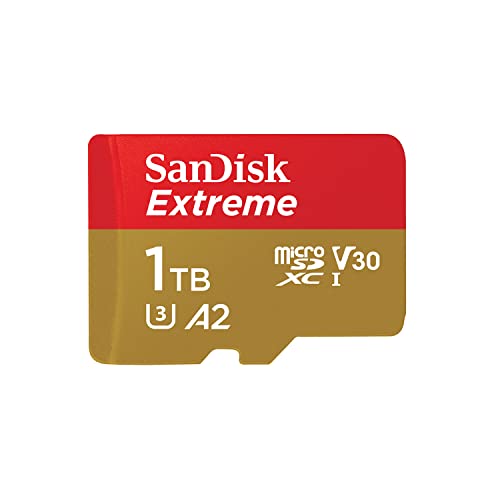 SANDISK 1TB Extreme microSD Card + Adapter
- Compatible with Nintendo-Switch (NOT Nintendo-Switch 2)
- Save time with card offload speeds of up…
- Pair with the SanDisk Professional PRO-READER SD and…
As an Amazon Associate we earn from qualifying purchases at no extra cost to you.
What You Need
| Item | Why | Optional? |
|---|---|---|
| Steam Deck | The Deck can format a compatible card directly through SteamOS. | No |
| microSDXC card | Provides extra storage for games and other Deck files. A UHS-I, U3, A2, or V30 card is a sensible choice for larger game libraries. | No |
| Charged battery or USB-C charger | Prevents an interruption during formatting or a large game installation. The Steam Deck charger is 45 watts. | No |
| Backup location | Stores files before formatting. This may be a computer, external drive, or cloud account. | Only if the card contains data |
| microSD adapter and computer | Useful for copying files or testing a card, but not required for formatting through SteamOS. | Yes |
Step-by-Step
1. Back up the card’s contents — 5 to 30 minutes
Insert the card into a computer, phone, camera, or other device and copy anything you want to keep. Formatting removes the existing file system and data, including folders that may not be visible at first glance. If the card is brand new, you can skip the backup, but confirm that it is the correct card before continuing.
Do not rely on a downloaded game as a backup. Games can usually be downloaded again, but personal files, emulator saves, screenshots, and configuration files may not be recoverable after formatting.
2. Insert the microSD card correctly — 1 minute
Turn the Steam Deck so the screen faces you and locate the microSD slot along the bottom edge. Insert the card with its label facing the back of the Deck and its metal contacts facing the front, following the small diagram near the slot. Press gently until the card clicks into place.
Never force the card. If it does not slide in smoothly, remove it and check its orientation. A microSD card is small—approximately 15 by 11 millimeters—so use care and avoid inserting an adapter into the Deck’s microSD slot.
3. Open the System settings — 1 minute
Press the Steam button to open the main menu. Select Settings, then choose System. Scroll through the System page until you find the section for storage or formatting the SD card.
If the card is not listed, remove it only after shutting the Deck down completely. Reinsert it, restart the Deck, and check the System settings again. A card that is not detected cannot be formatted through SteamOS.
4. Select Format SD Card — 1 minute
Choose Format SD Card. SteamOS will display a warning that formatting erases all content. Read the warning carefully and confirm only if you have selected the intended card and completed your backup.
Steam Deck normally formats the card for use as game storage with the file system it needs. You generally should not format the card as exFAT or NTFS on a computer first if your main purpose is installing Steam games on the Deck. A computer-formatted card may need to be reformatted by SteamOS anyway.
5. Wait for the process to finish — 2 to 10 minutes
Leave the Deck connected to its charger or make sure the battery is comfortably charged. Do not remove the card, press the power button, or force a restart while formatting is in progress. Capacity, card speed, and the card’s condition affect the time.
The Deck may return to the System menu when formatting is complete. If it appears to pause, give it several minutes before taking action. Interrupting a format is more likely to create a corrupted or unrecognized card than waiting a little longer.
6. Confirm the available storage — 1 minute
Return to Settings and review the storage information. The card should appear as an available storage location with less usable space than its advertised capacity. This is normal: manufacturers measure capacity differently from operating systems, and SteamOS also reserves a small amount for file-system management.
Open the Steam library, select a game, and choose the microSD card as the installation location when prompted. For existing games, use the storage manager to move or install titles to the card. Start with one modest download to confirm that installation and launching work normally.
7. Eject the card safely when needed — 1 minute
Do not pull the card while a game is downloading, updating, or saving. Close games, pause or finish downloads, and shut down the Deck before removing the card. If SteamOS provides an eject option in the storage interface, use it first.
Frequent removal is unnecessary when the card is being used as permanent game storage. Leaving it in place reduces the chance of damaging the card or losing track of which device last wrote data to it.
Mistakes to Avoid
- Formatting the wrong drive: On a computer, double-check the card’s capacity and drive letter before selecting any format command.
- Skipping the backup: Formatting cannot be undone through SteamOS. Copy important files first.
- Using a counterfeit or unreliable card: A card may report a large capacity while holding much less usable storage. Buy from a reputable retailer and keep the receipt.
- Removing the card during downloads: This can corrupt game files and, in some cases, the file system itself.
- Choosing a slow card for a large library: A UHS-I card rated U3, V30, or A2 is a practical target. These labels do not guarantee a specific game-loading time, but they identify cards designed for sustained or application-oriented use.
- Formatting as exFAT for convenience: That format may be useful for moving files between devices, but Steam Deck game storage is best formatted through SteamOS.
- Filling the card completely: Keep some free space available. A nearly full card can make updates and file management more difficult.
How Often
Most users should format a microSD card only once: when preparing a new card or resetting one for a different purpose. Reformatting does not improve a healthy card’s speed and will erase installed games and files. If a game has corrupted files, use Steam’s file verification or reinstall the affected title before formatting the entire card.
Consider a fresh format when changing the card from another device, recovering from repeated file-system errors, or preparing it for a new Steam Deck. Back up first, because even a routine reformat removes everything.
When to Call a Pro or Replace
Replace the card if the Deck repeatedly reports formatting errors, games become corrupted after successful downloads, the card disappears during normal use, or copying files produces read and write errors on multiple devices. A card that becomes unusually hot, shows physical cracks, or has damaged contacts should not be used.
Before replacing it, try a full shutdown, reseat the card, and test it in another compatible device. If a computer also reports an incorrect capacity or fails a reputable capacity test, return the card rather than trusting it with game saves. Professional repair is rarely cost-effective for a failing microSD card; back up what remains and replace it.
FAQ
Can I format a microSD card for Steam Deck without a computer?
Yes. Insert the card into the Deck, open Steam > Settings > System, and select Format SD Card. A computer is needed only for backing up files, copying content, or testing a card that the Deck cannot recognize.
Will formatting delete my Steam games?
Yes. Formatting deletes games stored on that card, along with other files. Games purchased through Steam can generally be downloaded again, but local saves or emulator files may require a separate backup.
Why does my 1TB card show less than 1TB?
This is normal. Storage manufacturers advertise decimal capacity, while operating systems calculate space differently. The file system also uses some capacity for organization, so the displayed usable space will be lower than the number printed on the package.
What should I do if Steam Deck will not format the card?
Power the Deck off completely, remove and reinsert the card, and try again while connected to the 45-watt charger. If it still fails, test the card in another device. Persistent errors, missing capacity, or repeated disconnections usually indicate an incompatible, counterfeit, or failing card rather than a setting that needs adjustment.