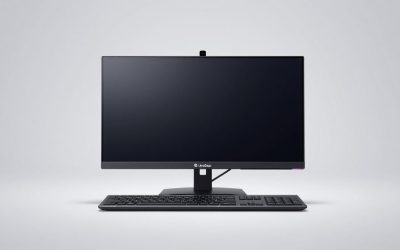
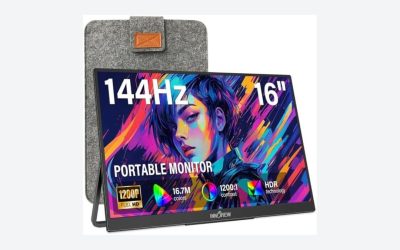
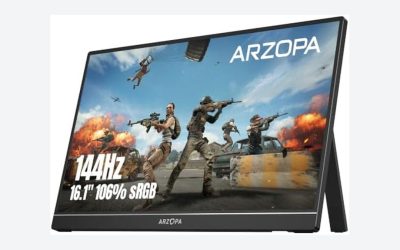
Our Top Picks
For most gamers, a good 144Hz monitor is the better value, while 240Hz is worth paying for mainly if you play competitive games at high frame rates and can notice or use the extra responsiveness. The practical cheap 144Hz vs 240Hz monitor difference is real, but it is smaller than the jump from 60Hz to 144Hz: each 240Hz refresh arrives every 4.17 milliseconds, compared with 6.94 milliseconds at 144Hz.
144Hz vs 240Hz: the numbers that matter
| Specification | 144Hz | 240Hz | What it means in play |
|---|---|---|---|
| Time per refresh | 6.94 ms | 4.17 ms | 240Hz can show a new frame 2.78 ms sooner |
| Frames shown per second | Up to 144 | Up to 240 | Your computer must render at a similar rate to benefit fully |
| Motion samples in one second | 144 | 240 | Fast camera movement looks smoother at 240Hz |
| Typical resolution in affordable models | 1080p or 1440p | Usually 1080p; increasingly 1440p | Higher refresh often comes with a resolution trade-off |
| GPU demand at the same resolution | Lower | About 67% more frames than 144Hz | 240Hz needs a faster GPU and CPU for consistent output |
The refresh-rate difference is not the same as a 2.78 ms reduction in total input lag. Display lag also depends on the monitor’s processing, pixel response time, signal path, game engine, and whether V-Sync or a frame limiter is adding a queue. A fast 240Hz monitor may reduce display-side latency, but a slow 240Hz panel can be less responsive than a well-tuned 144Hz model.

Z-Edge 24 inch 240Hz 144Hz Gaming Monitor, FHD 1080p, IPS PC Gaming | MPRT 1ms, 350nits, 16.7M Colors, 99% sRGB, UG24PJ Frameless Bezel, DP x1, HDMI x1(Black)
Chosen because it lists an explicit depth/thickness.
View on Amazon
Z-Edge 27 inch Curved Gaming Monitor, QHD 1440P 240Hz 165Hz 144Hz | MPRT 1ms, FreeSync, 1500R Curveture 1.07B Colors, 5000:1 Contrast, UG27PX, PIP/PBP, DP x2, HDMI 2.1 x2
Chosen because it lists an explicit depth/thickness.
View on Amazon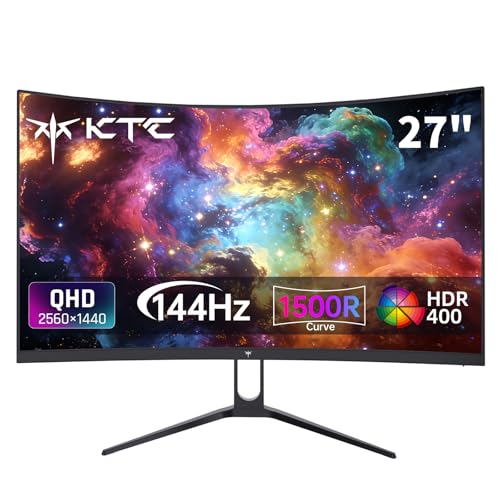
KTC H27S5C 27 Inch Curved Gaming Monitor, 1440P QHD 144Hz Monitor, HDR 400 | 2560x1440 120Hz Curve Monitors, 1500R HVA Panel, Adaptive Sync, 400nits, 129%sRGB, HDMI DP, Eye Care VESA 100x100 Mount
Chosen because it lists an explicit depth/thickness.
View on Amazon
Dell 24 240Hz Gaming Monitor - SE2426HG - 23.8-inch FHD (1920x1080) 240Hz Display, in-Plane Switching (IPS) Technology, AMD FreeSync™ Premium, TÜV 3-Star, 2X HDMI, DisplayPort 1.4, Tilt
One of the consumer electronics options compared in this guide.
View on Amazon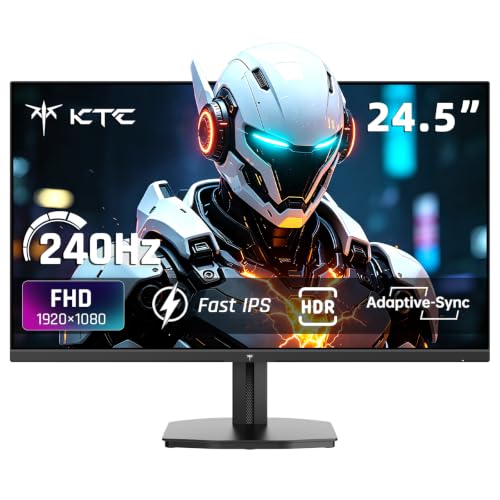
KTC 24.5 Inch 240Hz Gaming Monitor, FHD Fast IPS Computer Monitor H25T7-A | Adaptive Sync, HDR, 1080P 1ms PC Monitor with HDMI DP, Tilt Adjustment, VESA Support, Eye Care
Chosen because it lists an explicit depth/thickness.
View on Amazon
KTC 24.5 Inch 240Hz Gaming Monitor, FHD Computer Monitor Fast IPS, H25T7-A | 1080P 1MS MPRT, Adaptive Sync,114%sRGB, HDR Support, HDMI DP, Tiltable, Eye Care, VESA Mount, HDMI Cable Inc.
Chosen because it lists an explicit depth/thickness.
View on AmazonWhat 240Hz looks like compared with 144Hz
At the same frame rate, 240Hz gives motion more frequent updates. During a rapid turn in a first-person shooter, targets and edges move in smaller steps across the screen. This makes tracking a strafing opponent easier and can make a small enemy model appear less blurred or jumpy.
The advantage is clearest when all three conditions are true:
- The game is actually running above 144 frames per second.
- The monitor has a genuinely fast pixel response rather than only a high refresh specification.
- You sit close enough and play actively enough to notice fine motion changes.
If a game runs at 100–130 fps, switching the monitor from 144Hz to 240Hz does not create additional game frames. It can still reduce the time between available refresh opportunities, but adaptive sync and frame pacing become more important than the headline number.
A simple latency calculation
Imagine a game rendering at 240 fps. One frame takes 4.17 ms. On a 144Hz display, the refresh interval is 6.94 ms. The theoretical average wait for the next scanout is half of each interval: about 2.08 ms at 240Hz versus 3.47 ms at 144Hz. That is an average improvement of approximately 1.39 ms before accounting for pixel response and the rest of the system.
That is measurable, but it is not a dramatic reduction for every player. A 60Hz-to-144Hz upgrade reduces the refresh interval by 9.72 ms, which is why that change usually feels much more obvious.
The panel matters more than the label
Budget 144Hz and 240Hz monitors can use different panel technologies and tuning levels. A 240Hz monitor with visible ghosting, aggressive overshoot, or poor overdrive may look worse in motion than a responsive 144Hz model.
- IPS: Common in affordable gaming monitors, with good colors and viewing angles. Modern fast IPS panels can perform well at both refresh rates, but response varies considerably by model and overdrive mode.
- VA: Usually offers stronger contrast, but dark transitions can be slow on inexpensive models. This may produce dark smearing in shooters even at 240Hz.
- TN: Less common in new general-purpose displays, but some esports-focused models offer very fast transitions at the cost of viewing angles and image quality.
- OLED: Extremely fast pixel transitions and excellent contrast, but generally costs more and requires consideration of burn-in management. It is not automatically the best value for every buyer.
Look for independent response-time measurements across several overdrive settings, not just a manufacturer’s “1 ms” claim. The best setting is often the middle or fast mode; the maximum mode can create bright inverse trails behind moving objects.
Which resolution makes sense?
Affordable 144Hz monitors are available at both 1080p and 1440p. A 240Hz model is often 1080p because pushing 240 frames at 1440p is demanding and requires more bandwidth.
For example, uncompressed 2560×1440 at 240Hz and 8-bit RGB requires:
2,560 × 1,440 × 240 × 24 bits = about 21.2 gigabits per second of active image data.
Blanking intervals and link overhead increase the required connection bandwidth. DisplayPort 1.4 with Display Stream Compression or HDMI 2.1 is commonly used for 1440p at 240Hz, while 1080p at 240Hz is substantially easier for modern DisplayPort and HDMI connections. Check the exact port specification and cable requirement rather than assuming every port supports the advertised maximum.
Decision matrix: who should buy 144Hz or 240Hz?
| Your situation | Better choice | Reason |
|---|---|---|
| Mostly single-player games, strategy, RPGs, and simulators | 144Hz | Spend the budget on resolution, HDR quality, contrast, or size |
| Competitive shooters at 180–300 fps | 240Hz | Higher refresh and lower scanout latency can help tracking and timing |
| Gaming laptop that usually produces 80–140 fps | 144Hz | A 240Hz panel will rarely receive enough frames to justify its cost |
| Powerful PC, 1080p esports settings, serious ranked play | 240Hz | You are more likely to use the available refresh headroom |
| Want one monitor for work, media, and games | 144Hz or 165Hz | Higher resolution and image quality usually improve everyday use more |
| GPU struggles to stay above 144 fps | 144Hz | Upgrade the graphics card or settings before buying more refresh rate |
How to check whether your system can use 240Hz
Do not judge by your average frame rate alone. A system that averages 220 fps but repeatedly falls to 120 fps may feel less consistent than one that holds 165 fps steadily.
- Measure the games you actually play. Use an in-game benchmark or an overlay that displays frame rate and frame-time graphs. Check the one-percent lows, not only the average.
- Test at the intended resolution. A graphics card may exceed 240 fps at 1080p competitive settings but fall below 144 fps at 1440p ultra settings.
- Check the connection. Use the monitor’s specified DisplayPort or HDMI input. Some monitors support their maximum refresh only through one input, and laptops may route an external port through integrated graphics.
- Enable the refresh rate in the operating system. In Windows, open Advanced display settings and select 144Hz, 165Hz, or 240Hz. The monitor’s on-screen menu should show the same active rate.
- Configure adaptive sync. Enable FreeSync or G-SYNC Compatible when supported. A practical starting point is a frame cap two or three frames below the maximum refresh rate, such as 237 fps for 240Hz or 141 fps for 144Hz.
The frame cap prevents the GPU from repeatedly hitting the monitor’s ceiling, where traditional V-Sync can add latency. If your system cannot maintain the cap, set it to a stable value such as 180 or 200 fps on a 240Hz display. Consistent frame times generally feel better than a fluctuating counter that occasionally reaches 240.
How much should you spend?
In 2026, affordable 144Hz and 165Hz monitors commonly occupy the lower gaming-monitor price range, while basic 240Hz 1080p models generally cost more but are no longer premium by definition. General market pricing varies by size, panel, resolution, warranty, and sales, so compare features rather than paying solely for the refresh number.
If the 240Hz option forces you to accept poor ergonomics, weak adaptive sync, severe ghosting, a dim panel, or a resolution downgrade you dislike, a better 144Hz or 165Hz monitor is the smarter purchase. A 144Hz-to-240Hz upgrade is most defensible when the price gap is modest and your PC already delivers the necessary frame rate.
Final verdict
Choose 144Hz when value, image quality, 1440p resolution, or broad game compatibility matters most. Choose 240Hz when you play competitive games, maintain roughly 200–240 fps, and want every practical advantage in motion clarity and display latency.
The cheap 144hz vs 240hz monitor difference is visible during fast movement, but it is subtle compared with the first jump from 60Hz. For most people, a fast-response 144Hz or 165Hz monitor with good adaptive sync is enough. For esports-focused players with suitable hardware, a well-tuned 240Hz model can be worthwhile—provided its panel response, connection support, and real-world frame pacing are as strong as its refresh-rate specification.