Our Top Picks
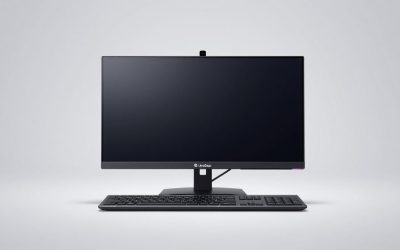
 LG 27G414B-B 27-inch Ultragear IPS 1080p 144Hz 1ms27 inch8.7 x 24.1 x 18.4 Inches9.5 PoundsCheck on Amazon
For most gamers, a 240Hz monitor is worth choosing over 144Hz only when you play competitive games at high frame rates; otherwise, 144Hz delivers nearly the same practical smoothness for less money and lower hardware demand.
144Hz vs 240Hz at a glance
| Factor | 144Hz | 240Hz | What it means in practice |
|---|---|---|---|
| Time per frame | 6.94ms | 4.17ms | 240Hz updates 2.78ms sooner per frame |
| Typical resolution availability | 1080p, 1440p, 4K | 1080p, 1440p, increasingly 4K | 1440p is the common compromise for 240Hz |
| GPU requirement | Moderate to high | High, especially at 1440p or 4K | The game must actually render enough frames to benefit |
| Motion clarity | Very good | Excellent when response times are fast | 240Hz makes rapid tracking and flicks easier to follow |
| Typical value | Excellent for most players | Best for esports and high-end systems | Spend more on 240Hz only if your use case supports it |
What the refresh-rate difference actually changes
A monitor’s refresh rate is the maximum number of screen updates it can display each second. At 144Hz, each refresh lasts approximately 6.94 milliseconds. At 240Hz, it lasts approximately 4.17ms. The difference is therefore 2.78ms between refreshes, not a 96ms reduction.

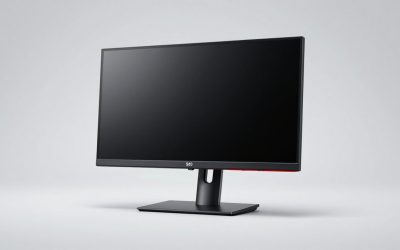
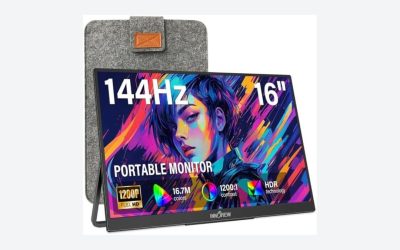
Z-Edge 24 inch 240Hz 144Hz Gaming Monitor, FHD 1080p, IPS PC Gaming | MPRT 1ms, 350nits, 16.7M Colors, 99% sRGB, UG24PJ Frameless Bezel, DP x1, HDMI x1(Black)
Chosen because it lists an explicit depth/thickness.
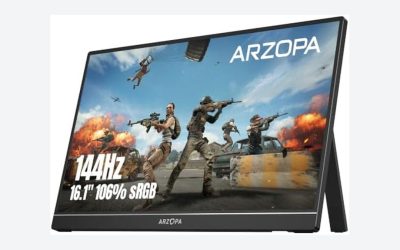
View on AmazonLG 27G414B-B 27-inch Ultragear IPS 1080p 144Hz 1ms G-Sync Gaming Monitor | Full HD (1920 x 1080), FreeSync, HDR10, Built-in Speaker, LG Switch, Reader Mode, HDMI, DisplayPort, Tilt/Height Stand
One of the consumer electronics options compared in this guide.
View on Amazon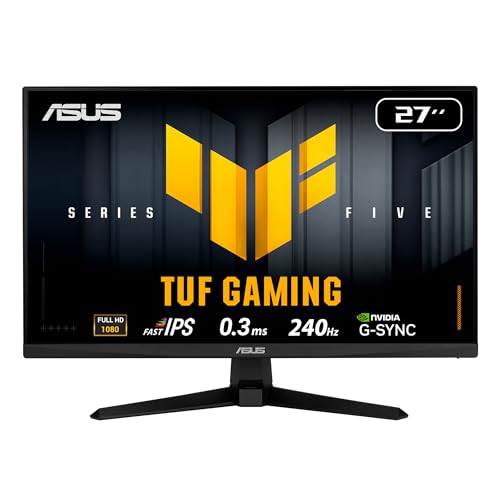
ASUS TUF VG279QM5A 27 Inch 1080p 240Hz Fast IPS G-SYNC Gaming Monitor | ELMB Sync, 0.3ms, FreeSync Premium, Variable Overdrive, 99% sRGB, HDMI, DisplayPort, 3yr warranty
Chosen because it lists an explicit depth/thickness.
View on Amazon
ASUS TUF Gaming VG259QM5A 25 Inch 1080p 240Hz G-SYNC Gaming Monitor | FreeSync Premium, ELMB Sync, Gaming AI, G-SYNC Compatible, DisplayWidget Center, Fast-IPS, 0.3ms, 99% sRGB, 3yr warranty
Chosen because it lists an explicit depth/thickness.
View on AmazonThat distinction matters. Moving from 60Hz to 144Hz produces a major improvement because the frame interval falls from 16.67ms to 6.94ms. Moving from 144Hz to 240Hz is still measurable, but the improvement is more subtle: less sample-and-hold blur, slightly lower display latency, and more frequent visual updates during fast movement.
A 240Hz monitor cannot make a 90-frame-per-second game look like a 240-frame-per-second game. If your computer produces only 100fps, the monitor has fewer new frames to show, although adaptive sync can still make the presentation smooth.
Motion clarity: the main reason to choose 240Hz
Higher refresh rates help most when objects move quickly across the screen. In a competitive shooter, a character crossing your field of view occupies more accurately spaced positions at 240Hz than at 144Hz. This can make target tracking feel cleaner and reduce the perceived jump between frames.
However, refresh rate is only one part of motion clarity. Pixel response time, overdrive tuning, backlight strobing, contrast behavior, and frame-rate consistency also matter. A poorly tuned 240Hz panel with visible ghosting can look worse during motion than a well-tuned 144Hz monitor.
- Choose 240Hz for: Counter-Strike 2, Valorant, Overwatch 2, Rainbow Six Siege, Fortnite performance mode, and similar games where high frame rates and rapid aiming dominate.
- Choose 144Hz for: single-player games, strategy games, RPGs, racing games, general desktop use, and mixed gaming where visual quality matters as much as speed.
For the clearest result, use the monitor’s fastest overdrive setting that does not produce bright inverse ghost trails. The maximum overdrive mode is not automatically the best mode; many displays perform more cleanly at their middle or “Fast” setting.
Input latency: useful advantage, not a magic skill upgrade
Refresh rate affects the display’s scanout timing. In ideal conditions, the average wait for the next refresh is half a refresh interval: about 3.47ms at 144Hz and 2.08ms at 240Hz. That is an average difference of roughly 1.39ms before considering the game engine, GPU queue, USB devices, and the monitor’s own processing.
Total system latency can be much higher if a game is CPU-limited, the frame queue is full, or settings introduce rendering latency. A 240Hz display paired with unstable frame delivery may feel less responsive than a 144Hz display paired with a consistently fast system.
For competitive play, use a wired mouse, enable the game’s low-latency option when available, and avoid unlimited frame rates that cause severe GPU saturation. With adaptive sync, a practical starting point is to cap the game a few frames below the monitor’s maximum—for example, 237fps on a 240Hz display or 141fps on a 144Hz display. This leaves room for synchronization overhead and can prevent the GPU from constantly hitting the ceiling.
Hardware requirements and a bandwidth calculation
The real cost of 240Hz is not just the monitor. Your CPU must prepare frames quickly, and your GPU must render them at the chosen resolution. Competitive players often lower shadows, effects, and resolution scaling to maintain a high, stable frame rate. Cinematic games may remain below 240fps even on powerful hardware, especially with ray tracing enabled.
Resolution multiplies the workload. Consider 2560×1440 at 240Hz:
- 2560 × 1440 = 3,686,400 pixels per frame.
- 3,686,400 × 240 = 884,736,000 pixels per second.
- At 24 bits per pixel, the active image data is approximately 21.2 gigabits per second before blanking, protocol overhead, and HDR metadata.
In real connections, the required link rate is higher than that calculation. DisplayPort 1.4 commonly relies on Display Stream Compression for 1440p at 240Hz, depending on the monitor’s timing and color settings. DisplayPort 2.1 and HDMI 2.1 offer more bandwidth headroom, but the graphics card, cable, monitor input, and operating-system configuration must all support the desired mode.
Before buying, check the monitor’s manual for its exact input limits. A cable labeled “high speed” is not enough by itself; use a certified cable appropriate to the interface, and confirm that the computer exposes 240Hz at the monitor’s native resolution.
Image quality: refresh rate versus resolution
A 1440p 144Hz monitor often provides a better overall image than a 1080p 240Hz model. At common 24-inch sizes, 1080p is about 92 pixels per inch, while 1440p at 27 inches is about 109 pixels per inch. The higher pixel density makes text, fine foliage, distant targets, and interface elements look sharper.
For a competitive player sitting close to a 24-inch display, 1080p at 240Hz can be a sensible choice because it is easier to drive and keeps the entire image within the player’s central vision. For a general-purpose 27-inch setup, 1440p at 144Hz or 165Hz is usually a stronger balance. A 27-inch 1440p 240Hz display is the premium middle ground if your GPU can sustain it.
Panel technology also changes the trade-off. Fast IPS monitors generally offer better viewing angles and color than older TN designs. OLED displays can provide extremely fast pixel transitions and deep blacks, but they cost more, may have different text-rendering characteristics, and require burn-in management habits such as screen-saving features. A higher refresh rate does not guarantee better contrast, HDR, or color accuracy.
Which refresh rate fits your situation?
| Your situation | Recommended choice | Reason |
|---|---|---|
| Mixed games, office work, mid-range GPU | 144Hz or 165Hz | Lower cost and easier frame-rate targets |
| Competitive 1080p gaming above 200fps | 240Hz | Higher motion clarity and lower refresh interval |
| Competitive 1440p gaming around 180–240fps | 1440p 240Hz | Combines sharpness with high responsiveness |
| Story games with ray tracing below 144fps | 144Hz or 165Hz | 240Hz will rarely be fully utilized |
| Laptop or battery-powered gaming setup | 144Hz, unless plugged in | Higher refresh can increase display and rendering power use |
| Upgrading from 60Hz on a limited budget | 144Hz | The largest improvement per dollar is usually here |
How to set up either monitor correctly
1. Select the maximum refresh rate
In Windows, open Settings, System, Display, Advanced display, and select the monitor’s rated refresh rate. Some displays default to 60Hz even when connected correctly.
2. Use the native resolution
Run the monitor at its native resolution for the sharpest image. If performance is insufficient, reduce in-game resolution scaling or use a quality upscaler rather than permanently switching the desktop to a blurry non-native mode.
3. Enable adaptive sync
Turn on FreeSync or G-SYNC Compatible support in the monitor menu and graphics driver. Adaptive sync helps prevent tearing when frame rates fluctuate, provided the frame rate remains inside the monitor’s supported range.
4. Match the frame-rate target to the display
Measure performance in the games you actually play. If a system holds 220–240fps in competitive titles, a 240Hz monitor is justified. If it averages 110–150fps, a 144Hz or 165Hz model may provide a more consistent experience.
5. Tune overdrive and image settings
Start with the monitor’s middle response-time mode, then inspect moving text or a ghosting test. Reduce overdrive if you see bright halos behind objects. Keep sharpening moderate, disable unnecessary motion interpolation, and use the display’s low-latency mode if it does not damage image quality.
Final verdict: is 240Hz worth it?
The answer in the gaming monitor refresh rate 144Hz vs 240Hz decision depends on frame rate, game type, resolution preference, and budget. Choose 240Hz when competitive performance is your priority, your system can sustain at least 200fps, and you are comfortable paying for a fast panel and suitable connection. Choose 144Hz or 165Hz when you want excellent smoothness across a wider range of games, higher resolution for the money, or a less demanding upgrade.
For most buyers in 2026, a good 1440p 144Hz–165Hz monitor remains the safest all-around purchase. A 240Hz model is a targeted upgrade for players who can consistently use it—not a universal replacement for resolution, image quality, or a faster graphics card.