Shopping for a gaming monitor under $300 in 2026 should be simple, but it rarely is. Spec sheets are packed with overclocked refresh rates, “1ms” numbers measured three different ways, and HDR badges that mean almost nothing on a budget panel. The result is that two monitors with nearly identical marketing can feel completely different in a fast-paced match — one crisp and responsive, the other smeared and washed out.
This guide cuts through that noise. We’ve focused on sub-$300 monitors that get the fundamentals right: a genuine high refresh rate, adaptive sync that actually works with your GPU, and panel quality that holds up outside of a showroom. Below you’ll find our shortlist, a straightforward buying checklist, and honest reviews of the models worth your money this year.
Our top picks
 Sceptre New 22-Inch Gaming Monitor
- 【INTEGRATED SPEAKERS】Whether you're at work or in the…
- 【EASY ON THE EYES】 Protect your eyes and…
- 【WIDEN YOUR PERSPECTIVE】Our sleek minimal bezel design ensures…
 LG 24G411A-B 24-inch Ultragear Full HD
- Vivid Color, Fast Response, Total Control - The…
- Vivid Color That Puts You in the Action…
- 120Hz Native Speed (144Hz Overclock) - Enjoy fluid,…
 msi PRO MP243L E14 24-inch IPS 1920
- MSI's 23.8-inch Full HD IPS gaming monitor (1920×1080)…
- TÜV Rheinland certified Flicker Free and Low Blue…
- 144Hz high refresh rate delivers ultra-smooth motion and…
| Product | Key specs | |
|---|---|---|
| Sceptre New 22-Inch Gaming Monitor | 【INTEGRATED SPEAKERS】Whether you're at work or in the… 【EASY ON THE EYES】 Protect your eyes and… 【WIDEN YOUR PERSPECTIVE】Our sleek minimal bezel design ensures… | Check price |
| LG 24G411A-B 24-inch Ultragear Full HD | Vivid Color, Fast Response, Total Control - The… Vivid Color That Puts You in the Action… 120Hz Native Speed (144Hz Overclock) - Enjoy fluid,… | Check price |
| msi PRO MP243L E14 24-inch IPS 1920 | MSI's 23.8-inch Full HD IPS gaming monitor (1920×1080)… TÜV Rheinland certified Flicker Free and Low Blue… 144Hz high refresh rate delivers ultra-smooth motion and… | Check price |
 LG 27G414B-B 27-inch Ultragear Full HD LG 27G414B-B 27-inch Ultragear Full HD | Vivid Color, Fast Response, Total Control - The… 144Hz Refresh Rate - Enjoy fluid, gameplay with… 1ms MBR: Fast-Paced Speed to Victory - 1ms… | Check price |
 ArcticPro 22 Inch Gaming Monitor 144Hz ArcticPro 22 Inch Gaming Monitor 144Hz | [Full HD Resolution] Enjoy the crystal-clear image quality… [Smooth Performance] The monitor features a maximum refresh… [178° Wide Perspective and Tilt Angles] With 178°… | Check price |
 ASUS TUF Gaming 24” ASUS TUF Gaming 24” | 23.8-inch Full HD(1920x1080) gaming monitor with 146Hz (OC)… ASUS Extreme Low Motion Blur Sync (ELMB Sync)… DisplayWidget Center enables easy monitor settings adjustments with… | Check price |
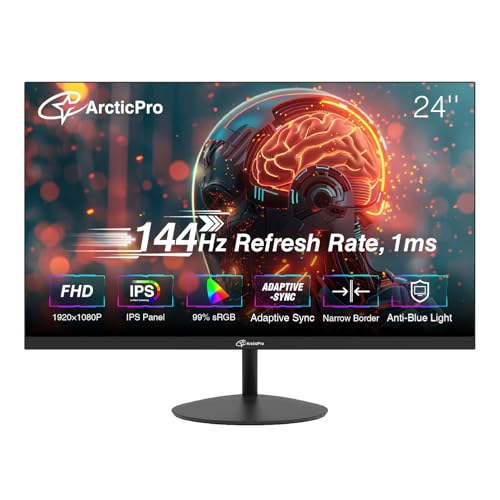 ArcticPro 24 Inch Gmaing Monitor 144Hz ArcticPro 24 Inch Gmaing Monitor 144Hz | [Full HD Resolution] Enjoy the crystal-clear image quality… [Smooth Performance] With a 144Hz refresh rate, fast… [IPS and Wide Color Gamut] With Wide color… | Check price |
 New! Sceptre 24-inch Prime Gaming Monitor DisplayPort New! Sceptre 24-inch Prime Gaming Monitor DisplayPort | 【TRUE TO LIFE COLORS】Experience vibrant and true-to-life colors… 【SEAMLESS CONNECTIVITY & PERFORMANCE】 Seamlessly link your devices… 【EASY ON THE EYES】 Protect your eyes and… | Check price |
As an Amazon Associate we earn from qualifying purchases at no extra cost to you.
⚡ Save on Your Next PC — Amazon Prime
Prime members get fast free shipping on the systems above, plus early access to Prime Day & Black Friday PC deals. New members get a 30-day free trial.
Watch: Best Gaming Monitor Under $300 — Video Review
How to Choose Gaming Monitor Under $300
- Refresh rate over resolution: At this budget, 1080p at 144Hz will feel dramatically smoother than 1440p at 60Hz. Prioritize the higher refresh rate unless you play slower, visually rich single-player games. Also check whether 144Hz is native or only reachable via overclock, since overclocked modes can occasionally be unstable.
- Panel type matters more than you think: IPS panels deliver noticeably better color accuracy and viewing angles than the cheap TN and VA panels that used to dominate this price bracket. In 2026, there’s little reason to settle for anything less than IPS unless you’re buying purely on price.
- Confirm adaptive sync compatibility: FreeSync and G-Sync Compatible certification eliminate screen tearing without the input lag of V-Sync. Verify the supported range — a monitor that only syncs between 48Hz and 144Hz will still tear or stutter if your framerate drops below that floor.
- Treat response time claims skeptically: Nearly every budget monitor advertises “1ms,” but that figure is usually MPRT (motion blur reduction) rather than true gray-to-gray. MPRT modes often dim the screen and can’t run alongside adaptive sync, so check independent measurements before you buy on that spec alone.
- Don’t forget ergonomics and ports: Many sub-$300 monitors ship with tilt-only stands, which forces you into an awkward neck angle or a VESA mount purchase. Height adjustment and at least one DisplayPort input are worth paying a small premium for.
The Best Picks Reviewed
LG 27G414B-B UltraGear 27″
This is the best all-round pick under $300, pairing a 27-inch IPS panel with a native 144Hz refresh rate, G-Sync Compatible and FreeSync support, and — crucially at this price — a genuine height-adjustable stand. The larger screen makes 1080p slightly softer than on a 24-inch panel, but the extra immersion and superior ergonomics are worth that trade for most players.
ASUS TUF Gaming VG249QE5A 24″
ASUS has built a reputation for reliable budget gaming panels, and this 23.8-inch IPS model continues that with 144Hz (overclockable to 146Hz), Extreme Low Motion Blur Sync, and variable overdrive that keeps ghosting in check across the refresh range. The three-year warranty is unusually generous in this segment and makes it an easy recommendation for competitive shooters.
LG 24G411A-B UltraGear 24″
Essentially the smaller sibling to our top pick, this 24-inch UltraGear delivers the same fast IPS panel, 144Hz overclock, and dual G-Sync/FreeSync support in a more pixel-dense package that suits esports titles. The slim stand is tilt-only, so budget for a VESA arm if desk ergonomics matter to you.
MSI PRO MP243L E14 24″
MSI positions this as a hybrid gaming and office display, and that’s an accurate description — you get a 144Hz IPS panel with FreeSync and slim four-side bezels, plus VGA alongside HDMI for older work machines. It’s the smart choice if your monitor pulls double duty during the workday, though the HDR support is nominal at best.
Sceptre E225W-FW144 22″
At 22 inches with 144Hz, HDMI, DisplayPort, and built-in speakers, the Sceptre is the budget entry point for anyone building a first gaming PC or a secondary setup. Color reproduction and contrast won’t match the IPS options above, but for pure framerate-per-dollar in a compact space, it’s hard to beat.
Frequently Asked Questions
Is 1080p still worth buying in 2026?
For gaming under $300, yes. A 1080p panel at 144Hz or higher lets mid-range GPUs hit high framerates consistently, and at 24 inches the pixel density is perfectly sharp at normal viewing distance. Step up to 1440p only if your budget and graphics card can both support it.
Do I need G-Sync or is FreeSync enough?
FreeSync is enough for most people. NVIDIA’s G-Sync Compatible certification simply confirms that a FreeSync monitor has been validated to work correctly with GeForce cards, so a certified display like the LG UltraGear models works well with either brand of GPU.
Are built-in speakers on gaming monitors any good?
They’re convenient, not impressive. Monitor speakers are fine for system sounds, video calls, or background audio, but any budget headset or desktop speaker set will deliver far better positional audio for competitive gaming.
Should I buy a 24-inch or 27-inch monitor?
Choose 24 inches if you play competitive shooters and want your whole field of view within a single glance, and 27 inches if you prefer immersion in single-player games. Be aware that 1080p spread across 27 inches looks noticeably less sharp up close.
Final Thoughts
If you want the strongest overall package under $300, the LG 27G414B-B UltraGear is our top recommendation thanks to its 27-inch IPS panel, native 144Hz performance, and rare height-adjustable stand. Competitive players who value response consistency and long-term support should look at the ASUS TUF VG249QE5A, while anyone building on a tight budget will find the Sceptre E225W-FW144 delivers more frames per dollar than anything else on this list.