Our Top Picks
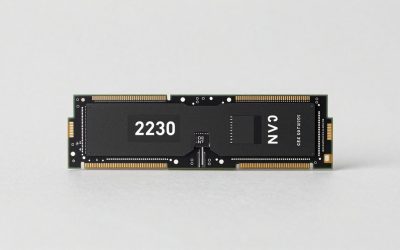
The best SSD for a Steam Deck is the Crucial P310 in the 2TB size for most players. It is a single-sided M.2 2230 drive, the only form factor that fits inside the Deck, and it pairs a fast PCIe Gen4 controller with the largest capacity in this group, so it handles a big game library without constant uninstalling. If you would rather have TLC flash and its higher endurance rating, the Acer MA200 1TB is the safer long-term choice. If you want maximum storage for the money, the TEAMGROUP MP44S 2TB delivers it with reviewers calling it a strong value. The Crucial P310 1TB and Acer MA200 512GB suit smaller libraries, while the Oemgenuine 256GB Micron drive is a basic option for a modest storage boost. One reality check applies to all of them: the Steam Deck runs its SSD slot at PCIe Gen3 speed, so the headline Gen4 numbers will not show up on the Deck itself.
Top 3 Picks
Best overall: Crucial P310 2TB. The 2TB size gives you room for dozens of modern games, the Phison E27T controller is among the most efficient in the 2230 category, and Crucial backs it with a five-year warranty and a 440 TBW endurance rating. It uses QLC flash, which suits the read-heavy workload of gaming.

Crucial P310 2TB M.2 2230 SSD, PCIe Gen4 NVMe, Up to 7,100MB/s, Ideal for Steam Deck, ASUS ROG Ally, MSI Claw, Mini PCs & Ultrabooks, Solid State Drive - CT2000P310SSD2
Chosen because it specifies PCIe Gen4 NVMe and Up to 7.
View on AmazonCrucial P310 1TB M.2 2230 SSD, PCIe Gen4 NVMe, Up to 7,100MB/s, Internal Solid State Drive, Ideal for Steam Deck, ASUS ROG Ally, MSI Claw, Mini PCs & Ultrabooks - CT1000P310SSD2
Chosen because it specifies PCIe Gen4 NVMe and Up to 7.
View on Amazon
Acer MA200 M.2 2230 SSD NVMe 512GB, PCIe Gen 4, Read Speeds Up to 5200 MB/s, Great for Steam Deck, Asus ROG Ally, Microsoft Surface Handheld Gaming Devices Storage Expansion - BL.9BWWA.153
Chosen because it specifies PCIe Gen 4 and Read Speeds Up to 5200 MB/s.
View on Amazon
Oemgenuine OEM Micron 256GB M.2 PCI-e GEN4 NVME SSD Internal Solid State Drive 30mm 2230 Form Factor M Key Steam Deck
Picked as a relevant option in this category.
View on Amazon
Acer MA200 M.2 2230 SSD NVMe 1TB, PCIe Gen 4, Read Speeds Up to 5200 MB/s, Great for Steam Deck, Asus ROG Ally, Microsoft Surface Handheld Gaming Devices Storage Expansion - BL.9BWWA.154
Chosen because it specifies PCIe Gen 4 and Read Speeds Up to 5200 MB/s.
View on Amazon
TEAMGROUP MP44S SSD 2TB SLC Cache Gen 4x4 M.2 2230 PCIe 4.0 NVMe Steam Deck ASUS ROG Ally Mini PCs R/W Speed up to 5000/3500 MB/s TM5FF3002T0C101
Picked as a relevant option in this category.
View on AmazonBest for endurance: Acer MA200 1TB. It uses TLC flash with a 600 TBW rating at 1TB and a five-year warranty, and reviewers describe it as a competent, efficient drive that is good enough for handheld use. It tops out at 1TB, so it is for players who value durability over capacity.
Best for maximum capacity: TEAMGROUP MP44S 2TB. It offers 2TB in the 2230 format with a 450 TBW rating and rated speeds of 5,000 and 3,500 MB/s. Reviewers have called it a worthwhile value option, with the caveat that its QLC flash slows sharply during very long writes.
Quick Comparison
| Product | Best for | Key specs |
|---|---|---|
| Crucial P310 2TB | Large libraries with a modern controller | M.2 2230, PCIe Gen4 NVMe, up to 7,100 MB/s read, QLC flash, 440 TBW, five-year warranty |
| Crucial P310 1TB | Mid-size libraries | M.2 2230, PCIe Gen4 NVMe, up to 7,100 MB/s read, QLC flash, 220 TBW, five-year warranty |
| Acer MA200 512GB | Small upgrades | M.2 2230, PCIe Gen4 NVMe, up to 5,200 MB/s read per the listing, TLC flash, DRAM-less |
| Oemgenuine OEM Micron 256GB | Minimal storage boost or spare parts | M.2 2230 (30mm), PCIe Gen4 NVMe, M key, 256GB, OEM packaging |
| Acer MA200 1TB | TLC endurance in a 1TB drive | M.2 2230, PCIe Gen4 NVMe, up to 5,200 MB/s read, TLC flash, 600 TBW, five-year warranty |
| TEAMGROUP MP44S 2TB | Maximum capacity | M.2 2230, PCIe Gen4 x4, 5,000 MB/s read and 3,500 MB/s write, QLC flash, 450 TBW |
How We Chose
This is a research-based guide. We compared manufacturer specifications, product listings, and independent professional coverage for each drive, and we cross-checked statements where sources disagreed. The first filter was physical: the Steam Deck accepts only a single-sided M.2 2230 drive, so every product here is that size. Next we considered interface and speed, noting that the Deck uses PCIe Gen3, which makes the extra bandwidth of Gen4 drives mostly irrelevant on the Deck itself though useful in other handhelds. We then weighed flash type (TLC or QLC), cache design, endurance ratings in terabytes written, warranty length, and capacity. Where a listing is for an OEM drive with limited public information, we describe the product class and tell you what to verify. Pricing is excluded because it moves constantly; focus on capacity, endurance, and the quality of the controller and flash.
1. Crucial P310 2TB – Best for Large Libraries with a Modern Controller
As an Amazon Associate we earn from qualifying purchases at no extra cost to you.

The Crucial P310 2TB is one of the most popular upgrades for handheld PCs. It is a single-sided M.2 2230 drive using PCIe Gen4 NVMe, with Crucial’s listing quoting speeds up to 7,100 MB/s. Under the hood it uses a Phison E27T controller and Micron 232-layer QLC NAND, and it has no DRAM cache, relying instead on the host memory buffer feature of the system. The 2TB model is rated for 440 TBW with a five-year warranty.
The key point for Steam Deck owners is that the Deck’s slot runs at PCIe Gen3, so the drive’s top speeds are out of reach on the Deck, but the drive’s efficiency and large capacity still make it a great fit. Independent reviewers describe it as one of the fastest 2230 drives and note good power efficiency. It also performs well in handhelds that support Gen4 speeds.
- Form factor: M.2 2230, single-sided
- Interface: PCIe Gen4 NVMe (runs at Gen3 speed in a Steam Deck)
- Flash and controller: Micron 232-layer QLC, Phison E27T, DRAM-less with HMB
- Endurance: 440 TBW, five-year warranty
- Capacity: 2TB
What it does well. Capacity is the reason to buy it. A 2TB drive holds roughly 40 or more modern games, which means you can keep a big backlog installed and avoid the delay of redownloading. Power efficiency is good, which helps battery life in a handheld.
What to watch. QLC flash writes slower than TLC once the fast cache is full, and the endurance rating is lower per terabyte than many TLC drives. For a Deck, where most activity is reading game files, this is rarely an issue. Heavy sustained writing, such as constantly copying huge files, is a poorer fit.
Pros
- Large 2TB capacity in the 2230 size
- Efficient Phison E27T controller
- Five-year warranty
- Strong Gen4 performance in handhelds that can use it
Cons
- QLC flash and a lower endurance rating than TLC rivals
- Write speed drops once the cache fills
- Gen4 speed is wasted in a Steam Deck
Real-world fit in a Steam Deck. Think of the P310 2TB as a library drive. Install the large open-world and live-service games you return to, keep the drive below roughly 85 to 90 percent full so the fast write cache has room to work, and let Steam handle updates overnight. Because the Deck’s bus caps throughput, you will notice responsiveness and capacity far more than any gap in rated speed. If you later move the drive to a handheld or mini PC with a Gen4 slot, it will be able to use more of its rated speed, which gives it a longer useful life than a drive chosen only for the Deck.
Compared with the nearest alternative. The TEAMGROUP MP44S 2TB offers the same capacity with similar QLC endurance but a slower controller. The P310 is the more modern design; the MP44S is the one to consider if you find it at a lower price point.
Who should skip it. If you often move huge files or prefer TLC flash, the Acer MA200 1TB trades capacity for endurance.
2. Crucial P310 1TB – Best for Mid-Size Libraries
The 1TB P310 shares the design of the 2TB version: M.2 2230, PCIe Gen4 NVMe, Phison E27T controller, Micron 232-layer QLC, and no DRAM. The listing states the same up to 7,100 MB/s sequential read figure, and the endurance rating is 220 TBW, exactly half of the 2TB model, with a five-year warranty. It is the right size for players who want a clear step up from a 256GB or 512GB stock drive without paying for 2TB.
In practical terms, 1TB formats to about 930 GB of usable space. If your games average 35 to 40 GB, that is roughly 22 to 25 titles. Several big releases can exceed 100 GB each, so a library of those fills the drive faster. Install the games you play now and keep the rest in the cloud, since Steam can redownload them.
- Form factor: M.2 2230, single-sided
- Interface: PCIe Gen4 NVMe (Gen3 speed in the Deck)
- Flash and controller: Micron 232-layer QLC, Phison E27T, HMB
- Endurance: 220 TBW, five-year warranty
What it does well. It shares the efficiency and modern controller of the 2TB version and suits the vast majority of Deck owners who play a rotating set of games. Gaming is a read-heavy workload, which matches QLC’s strengths.
What to watch. The 220 TBW rating works out to 220 terabytes per terabyte of capacity, which is low compared with TLC drives. Even so, at 40 GB of writes per day it would take around 15 years to reach the rating, far beyond the warranty. The same cache limitation applies as on the 2TB drive.
Pros
- Fast, efficient controller
- Good capacity for a rotating library
- Five-year warranty
Cons
- QLC flash with lower endurance per terabyte
- Gen4 speed unused in the Steam Deck
- Cache-dependent write speeds
Real-world fit in a Steam Deck. The 1TB P310 suits a player who rotates games every few weeks. A good routine is to keep five or six current games installed alongside a few perennial favorites, and uninstall finished ones after you complete them. With cloud saves, reinstalling later costs only download time. It also pairs well with a microSD card for a large collection of older, lighter titles that load quickly from slower storage.
Compared with the nearest alternative. The Acer MA200 1TB gives you TLC flash and a 600 TBW rating at the same capacity, but a slower Gen4 ceiling. On a Steam Deck the speed difference will be invisible, so the decision is between the P310’s efficiency and the MA200’s endurance.
Who should skip it. If you want the maximum endurance rating, take the Acer MA200 1TB. If you need more than 1TB, step up to the 2TB P310.
3. Acer MA200 512GB – Best for Small Upgrades

The Acer MA200 512GB is the entry capacity of Acer’s 2230 line. It is an M.2 2230 NVMe drive with a PCIe Gen4 interface, and the listing quotes read speeds up to 5,200 MB/s. Published specifications for the MA200 family show a Silicon Motion SM2269XT controller, Micron 176-layer TLC flash, no DRAM, and a 64MB host memory buffer. Rated speeds depend on capacity: the 512GB model is rated lower than the 1TB drive, at about 5,000 MB/s read and 4,000 MB/s write according to published specifications, so read the exact figures on the listing you buy.
Independent reviewers describe the MA200 line as good enough: not the fastest in the 2230 category, but efficient, with good random performance and TLC flash that responds well under sustained writing. A five-year warranty is part of the package.
- Form factor: M.2 2230, single-sided
- Interface: PCIe Gen4 x4, NVMe 1.4
- Flash: TLC; controller: Silicon Motion SM2269XT; DRAM-less with HMB
- Rated speed: up to 5,200 MB/s read per the listing; lower for the 512GB size
- Warranty: five years
What it does well. TLC flash gives consistent write behavior and better endurance per terabyte than QLC drives. The 512GB size suits a player whose stock drive is small and who plays a handful of games at a time, or a second Deck used mostly for lighter titles.
What to watch. 512GB fills quickly with modern games, and larger capacities of this model exist. One reviewer noted that the MA200 can run warm and throttle under heavy sustained loads, though gaming rarely stresses a drive that way.
Pros
- TLC flash
- Efficient and well-reviewed as a good-enough 2230 drive
- Five-year warranty
Cons
- Limited capacity for modern games
- Rated speeds drop at 512GB
- May run warm under sustained loads
Real-world fit in a Steam Deck. A 512GB drive works if you mainly play indie games, older titles, and a couple of larger releases at a time. It also works as a second-Deck or family-Deck drive, where a few children’s games and the system are the main contents. Pair it with a microSD card for overflow and set Steam to install by default to the location you prefer, so the internal drive keeps only the games you launch most often.
Planning note. If you are weighing it against a 1TB drive, consider the cost of upgrading twice. Installing a drive takes roughly an hour including the reimage, so buying the size you will need in a year often saves effort.
Compared with the nearest alternative. The Acer MA200 1TB doubles capacity on the same platform and carries a published 600 TBW rating. The 512GB version is for those who want to start small.
Who should skip it. If you plan to keep more than a dozen games installed, choose a 1TB or 2TB drive.
4. Oemgenuine OEM Micron 256GB – Best for a Minimal Storage Boost

This listing is an OEM Micron 256GB M.2 PCIe Gen4 NVMe drive in the 2230 form factor, 30mm long with an M key. OEM means the drive is supplied for system builders rather than in retail packaging, and that matters for warranty handling and documentation. Micron’s 256GB 2230 client drives, such as the 2550 series, are described in public specifications as DRAM-less TLC drives using a Phison E21T controller, with a 64MB host memory buffer, around 4,500 MB/s rated read speed, and a 150 TBW endurance rating. Confirm the exact model on the listing before relying on those figures.
At 256GB, this drive holds the Steam client, the OS partitions, and perhaps four or five modern games. It is a practical choice for a spare, a repair replacement, or a minimal upgrade, not a library drive.
- Form factor: M.2 2230 (30mm), M key
- Interface: PCIe Gen4 NVMe
- Capacity: 256GB
- Class: OEM Micron client drive; confirm model number and warranty terms with the seller
What it does well. It is a proven drive class from a major flash maker, it fits the Steam Deck, and it draws little power. For someone who just needs a working replacement drive, it does the job.
What to watch. 256GB is very small for today’s games, since single titles can exceed 100 GB. OEM drives may come without retail packaging, and warranty support can go through the seller rather than the manufacturer. Documentation can be thin.
Pros
- Fits the Steam Deck’s 2230 slot
- From an established flash maker
- Low power draw
Cons
- Very limited capacity
- OEM packaging and support
- Limited public documentation for the exact listing
Real-world fit in a Steam Deck. A 256GB drive is best treated as a utility part. It is useful if you are repairing a Deck, building a spare, or running a lean setup where games live on a microSD card and the internal drive holds the operating system, the Steam client, and one or two titles. If this is your main plan, look closely at the seller’s return policy, and keep the original drive and packaging details in case anything does not work as expected.
Before you buy. Ask the seller for the exact model number and confirm the drive is single-sided with an M key, because the listing offers only broad specifications. Keep the order records for any return, and run a SMART health check after installation if you want reassurance about the drive.
Compared with the nearest alternative. The Acer MA200 512GB doubles the capacity with retail support and a five-year warranty. For most upgrade buyers it is the better starting point.
Who should skip it. Anyone who wants a library drive. Choose at least 1TB for a primary game drive.
5. Acer MA200 1TB – Best for TLC Endurance in a 1TB Drive

The Acer MA200 1TB is the version of this line that most Deck owners will want. It is a single-sided M.2 2230 drive using PCIe Gen4 x4 NVMe 1.4 with a Silicon Motion SM2269XT controller, Micron 176-layer TLC flash, and a 64MB host memory buffer instead of DRAM. Acer rates it at up to 5,200 MB/s read and 4,700 MB/s write, a 600 TBW endurance rating, and a five-year warranty.
Independent reviewers describe it as good enough in the best sense: reasonably fast, power-efficient, with strong random performance and good sustained write behavior thanks to TLC. One reviewer found its sequential transfers at low queue depth reached only about 5 GB/s, which is irrelevant on a Steam Deck. Another noted it can run warm and throttle under heavy load.
- Form factor: M.2 2230, single-sided
- Interface: PCIe Gen4 x4, NVMe 1.4
- Flash: Micron 176-layer TLC; controller SM2269XT
- Speed: up to 5,200 MB/s read, 4,700 MB/s write
- Endurance: 600 TBW, five-year warranty
What it does well. TLC flash gives it the best endurance per terabyte in this group at 1TB, and consistent write speeds. In a Deck, that means game installs and updates proceed at a steady pace rather than slowing sharply when the cache fills.
What to watch. It tops out at 1TB, so if you need 2TB you must choose another drive. It is not the fastest Gen4 drive on paper, which does not matter on the Deck’s Gen3 bus.
Pros
- TLC flash with a 600 TBW rating
- Efficient and consistent sustained writes
- Five-year warranty
Cons
- No 2TB option in this line
- Can run warm under heavy sustained load
- Lower peak speed than the P310
Real-world fit in a Steam Deck. The MA200 1TB is a set-and-forget drive. TLC flash keeps write speeds steadier during large updates, and the 600 TBW rating means you can ignore endurance for the life of the warranty. That makes it a good choice for players who download frequently, mod games, or use the Deck in desktop mode for tasks beyond gaming. Because its rated speed is lower than the P310’s, it will feel the same on the Deck but may feel slightly slower in a Gen4 handheld.
Thermal note. Because the MA200 draws modest power for a Gen4 drive, it suits the Deck’s tight thermal budget. Reinstalling the original shield correctly matters for both static protection and a tidy fit under the cover.
Compared with the nearest alternative. Against the Crucial P310 1TB, the MA200 offers nearly triple the endurance rating and TLC flash, while the P310 offers a faster controller that the Deck cannot use. For a Steam Deck, the MA200 is the pragmatic 1TB choice.
Who should skip it. If you need 2TB, pick the P310 2TB or the MP44S 2TB.
6. TEAMGROUP MP44S 2TB – Best for Maximum Capacity

The TEAMGROUP MP44S 2TB brought 2TB capacity to the 2230 format, and reviewers have praised it as a solid way to expand a Steam Deck or ROG Ally. It uses the Phison E21T controller and a single package of Micron 176-layer QLC NAND, with no DRAM and a host memory buffer. Rated speeds are up to 5,000 MB/s read and 3,500 MB/s write, the 2TB model carries a 450 TBW rating, and TEAMGROUP provides a five-year limited warranty.
Reviewers found it reaches its rated speeds on Gen4 without a heatsink and with little throttling in typical use. The weak point is sustained writing: one publication saw the drive fall from a few thousand MB/s to roughly 100 MB/s during very long continuous writes once the cache filled. For game installs and updates, that scenario is uncommon, but it is worth knowing.
- Form factor: M.2 2230, single-sided
- Interface: PCIe Gen4 x4 NVMe
- Flash and controller: Micron 176-layer QLC, Phison E21T, HMB
- Speed: up to 5,000 MB/s read, 3,500 MB/s write
- Endurance: 450 TBW, five-year warranty
What it does well. It delivers 2TB in a form factor that fits the Deck and has strong read speeds for loading games. Its endurance rating, 450 TBW, is similar to the 440 TBW of the 2TB P310, which means roughly 225 TBW per terabyte.
What to watch. Its QLC flash slows dramatically during extended writes, and endurance per terabyte is lower than TLC drives such as the MA200. For a handheld that mostly reads, it works well.
Pros
- 2TB capacity in 2230
- Strong read speeds
- Five-year warranty and 450 TBW rating
Cons
- Sustained writes slow sharply after the cache fills
- QLC flash with lower endurance per terabyte
- Older controller than the P310
Real-world fit in a Steam Deck. The MP44S is a capacity play. With 2TB, you can keep both your active games and a deep backlog installed, which removes the habit of deleting and redownloading. The practical advice is the same as for any QLC drive: keep some free space, avoid giant back-to-back file copies, and let big updates run while the Deck is idle. For read-dominant play, you will rarely hit the slow-write behavior that reviewers describe.
Buying note. The MP44S uses a Phison E21T controller that is older than the E27T on the Crucial P310. On a Steam Deck that distinction rarely shows, so capacity, availability, and warranty handling are the practical tiebreakers.
Compared with the nearest alternative. The Crucial P310 2TB is newer and more efficient, with comparable endurance. The MP44S is the alternative when it offers a better deal or when stock of the P310 is short.
Who should skip it. If you regularly copy large files or run big installs back to back, the TLC-based MA200 1TB handles sustained writes better.
What Gen3 Versus Gen4 Really Means on a Steam Deck
Most of the drives in this roundup advertise PCIe Gen4 speeds, and every product page leads with those numbers. It helps to see where the numbers come from and why they matter less in a Deck.
PCIe speed is set by the generation and the number of lanes. Gen3 signals at 8 gigatransfers per second per lane, which after encoding overhead delivers just under 1 GB per second per lane. With four lanes, a Gen3 x4 link tops out around 3.9 GB per second in theory. Gen4 doubles the signaling rate, so a Gen4 x4 link reaches about 7.9 GB per second, which is why drives are rated near 7,000 MB/s. In a Steam Deck the slot works at Gen3, so a drive rated at 7,100 MB/s is held to roughly half that by the bus, and real transfers land below the theoretical ceiling because of protocol overhead.
That does not make a Gen4 drive a bad choice. Gen4 controllers are newer designs and tend to be more power efficient, and the same drive can be moved to a Gen4-capable handheld or a mini PC later. Several listings mention devices such as the ROG Ally and MSI Claw for exactly this reason. But it does mean you should not pay extra for a faster Gen4 rating when the Deck cannot use it.
What matters more for game loading is how quickly the drive handles many small reads at a low queue depth, since games request lots of small assets. Here the difference between drives is small in practice, and the processor, memory, and the game’s own decompression usually set the limit. A drive that is 20 percent faster in a synthetic comparison seldom shortens a loading screen by more than a second or two. Capacity, flash type, and warranty are better criteria than headline speed.
Managing Storage on SteamOS After the Upgrade
A bigger SSD solves the space problem, but a few habits keep it feeling fast.
- Leave free space. SSDs, and QLC drives in particular, use part of their free space as a fast write cache. As the drive fills up, that cache shrinks and writes slow down. Keeping roughly 10 to 15 percent of the capacity free is a sensible target; on a 1TB drive, that means stopping at about 850 to 900 GB used.
- Put your favorites on the SSD and the rest on microSD. The Deck lets you keep separate library locations. Install the games you play weekly on the internal NVMe drive, and park large, rarely played titles on a microSD card if you have one. You can move installs between locations from the storage settings.
- Use Steam Cloud and re-downloads. Uninstalling a game does not delete your cloud-synced saves, so freeing space is low risk when you have a decent connection.
- Watch shader caches. Steam stores shader data per game, and these caches can grow into several gigabytes across a large library. Uninstalling a game clears its cache.
- Update games on a schedule. Large updates write a lot of data at once. If you use a QLC drive, run updates while the Deck is idle and plugged in rather than while you play.
- Keep a note of your drive’s capacity and model. If you need warranty service, the model name and purchase record speed things up.
Troubleshooting a New Steam Deck SSD
Most installs go smoothly. If yours does not, these checks address the common problems.
- The recovery menu does not list the USB drive. Make sure you created the recovery drive with a current image, and that the USB-C adapter is firmly seated. Hold Volume Down and press Power again until the boot menu appears.
- The recovery environment cannot find the SSD. Power down, then reopen the Deck and check that the drive is fully seated in the M.2 slot and secured with its screw. Confirm that the drive is a single-sided 2230 part, and use the latest recovery image, because older images can fail to detect newer SSD controllers.
- Controls do not respond after the reimage. This is expected at first. iFixit notes that buttons, sticks, and touchpads may not register initially, so use the touchscreen to get through setup and let the system finish its updates. Restart afterward.
- The Deck reports less space than you expect. Drive capacity is quoted in decimal units, so a 1TB drive shows about 930 GB, and the system partitions use a portion. That is normal.
- You see random freezes or crashes during heavy use. Check that the shield is reinstalled properly, that no cable is pinched under the board, and that the drive temperature is not the issue by taking a break and retrying. If problems persist, contact the drive maker’s support.
- The old drive needs to be restored. Keep the original drive in an antistatic bag. If the Deck needs service, restoring the original can avoid questions.
Before you start, gather the small items that make the job easier: a precision screwdriver set, a plastic opening pick, tweezers for the shield, a USB-C adapter or hub for the recovery drive, and a clean, static-safe work surface. Take photos of each screw location as you go, because screws of different lengths are used in different places, and mixing them up can damage the board. Work in good light, and set aside at least an hour for your first attempt so you never feel rushed.
If none of these steps resolve the problem, a faulty drive is possible, and a retail drive with a five-year warranty is easier to replace than an OEM part.
TLC Versus QLC Flash for a Handheld Gaming SSD
Three of the six drives here use QLC flash (both Crucial P310 models and the TEAMGROUP MP44S) and the Acer MA200 line uses TLC, so it is worth understanding what the difference means for a Steam Deck.
What the labels mean. TLC stores three bits in each flash cell and QLC stores four. Packing more bits in a cell lowers cost per gigabyte and raises capacity, but it makes writes slower once the drive’s fast cache is full and reduces how many write cycles the cells can survive. That is why QLC drives usually carry lower TBW (terabytes written) ratings than TLC drives of the same size.
Why gaming is a gentle workload. Games are installed once and then read many times. Steam updates rewrite parts of the install, and shader caches and save files add small writes, but the daily write volume for a typical handheld owner is modest, often tens of gigabytes. Reads, which dominate, are not affected by the QLC penalty the same way. This is why independent reviewers repeatedly say the P310 and MP44S are well suited to handhelds despite QLC.
Where QLC falls short. The weak spots are long continuous writes, such as copying several hundred gigabytes between drives, and heavy video capture or file-server style use. After the drive’s pseudo-SLC cache fills, speeds can fall to a fraction of the peak. If you plan to use the Deck as a general-purpose computer with big file transfers, TLC is the more comfortable choice.
Endurance in plain numbers. A rating of 220 TBW means the maker covers writing 220 terabytes over the warranty period. If you write 40 GB per day, that equals 5,500 days, about 15 years. If you write 150 GB per day, which would be unusual for a handheld, it equals about 1,470 days, roughly 4 years. The 600 TBW rating of the MA200 1TB stretches those figures to about 41 years and 11 years respectively. In both cases the five-year warranty is the practical limit, which is why QLC is a reasonable trade-off for most Deck owners.
How to Install a 2230 SSD in a Steam Deck
Swapping the drive is a manageable job for anyone comfortable with small screws and static precautions. This is a general outline; follow iFixit’s current guide for the Steam Deck LCD or Steam Deck OLED, since steps differ slightly by model.
- Back up first. Replacing the drive wipes the original. Save your cloud-synced games and any local files, and confirm that Steam Cloud is covering your save games.
- Prepare a recovery drive. On another computer, download Valve’s SteamOS recovery image from its support site and write it to a USB drive with a tool such as Rufus or balenaEtcher. Use the latest image, because older images can fail to detect newer SSD controllers. A drive of 8GB or larger is enough.
- Power down and open the case. Turn off the Deck, remove the back screws, and lift the back cover carefully, since the cover is held by clips as well as screws.
- Disconnect the battery. iFixit instructs you to disconnect the battery before working on the board. Remove the shield over the motherboard as the guide describes.
- Transfer the shield. The SSD is wrapped in a metal shield or ESD cover that needs to be moved to the new drive. Peel it with tweezers and keep it in good shape; replacements are also available.
- Swap the drive. Remove the mounting screw, slide out the old 2230 drive, and slide in the new one at a slight angle, then secure it and refit the shield.
- Reassemble and reimage. Reconnect the battery, close the case, plug in the recovery USB with a USB-C adapter, hold Volume Down while pressing Power to open the boot menu, choose the USB drive, and select Reimage Steam Deck.
- Finish setup. After the reimage, buttons and sticks may not register at first. Use the touchscreen for setup and let SteamOS update; controls should return after a restart.
If you are not comfortable opening the device, a microSD card is a lower-risk way to add storage, though it will be slower than an internal NVMe drive. Also note that opening the Deck could affect warranty coverage, so read Valve’s policy before you start.
Compatibility Checklist: 2230, 2242, 2280, and Other Handhelds
M.2 drives are named by width and length in millimeters: 2230 is 22mm wide and 30mm long, 2280 is 22mm by 80mm. The Steam Deck, both LCD and OLED, accepts only the 2230 size, and it must be single-sided so that components fit under the shield. The drives in this roundup are all 2230, so physical fit is not the concern; it is worth knowing so you do not accidentally buy a 2280 drive that cannot be installed.
- Interface: The Deck’s SSD slot is PCIe Gen3 x4 according to technical guides. Gen3 x4 has a theoretical maximum just under 4,000 MB/s, so a drive rated at 7,100 MB/s is limited by the slot, not the drive.
- Other handhelds: Listings for the Crucial P310, Acer MA200, and TEAMGROUP MP44S mention compatibility with ASUS ROG Ally, MSI Claw, and similar devices. Some of these support Gen4 speeds and can take advantage of the faster drives, but check your exact device’s specifications first, as slot types and lengths vary.
- Capacity limits: Confirm that your handheld supports the capacity you intend to install. Capacities of 1TB and 2TB are widely supported in modern handhelds.
- Heat: The Deck has a small space and shield around the SSD. Efficient drives help, and none of these drives ship with a thick heatsink, which would not fit anyway.
As a rule, if a listing says Steam Deck compatible and shows a single-sided 2230 form factor, you are fine on size. Look next at flash type, endurance, and capacity.
How to Choose an SSD for Your Steam Deck
1. Capacity: count your games, not your hopes
Start with the size of your library. A drive advertised as 1TB offers about 930 GB of usable space after formatting, and SteamOS and shader caches take a slice. Suppose you keep 20 games installed that average 35 GB each. That is 700 GB, so 1TB works with room for updates. If your average climbs to 60 GB because you favor big open-world games, 20 titles take 1,200 GB, and you need 2TB. A 256GB drive, after the system, leaves roughly 200 GB, which is five or six average games and a very frequent need to uninstall and redownload.
2. Speed: remember the Gen3 slot
Because the Deck’s slot tops out below 4,000 MB/s in theory, paying for the fastest Gen4 label returns nothing on the Deck. Compare the time to copy a 60 GB game: at 3,000 MB/s it takes 20 seconds, and at 300 MB/s, which is what a QLC drive might fall to after its cache is exhausted, it takes 200 seconds. The first number is what you will see for everyday installs; the second only applies if you copy huge amounts of data in one go.
3. Endurance: translate TBW into years
Divide the TBW rating by your daily writes. A 220 TBW drive at 40 GB per day lasts 5,500 days, about 15 years. A 450 TBW drive such as the MP44S 2TB lasts about 11,250 days at 40 GB per day, over 30 years. Even the 150 TBW rating of a small 256GB OEM drive lasts about 3,750 days at the same rate, over 10 years. Normal handheld gaming does not strain any of these ratings, so choose on capacity and flash quality rather than TBW alone.
4. Power draw and heat
Handhelds are battery-powered and thermally cramped. Efficient controllers such as the Phison E27T in the P310 draw little power under load, which helps the Deck run cooler and last longer. The MA200 is also described as power efficient, with some reviewers noting it can run warm in heavy sustained use.
5. Warranty and source
Retail drives from Crucial, Acer, and TEAMGROUP carry five-year warranties handled by the manufacturer. An OEM drive may come with no retail box, with support through the seller. Check warranty terms before you buy, and keep your order records.
6. Three player profiles worked through
The backlog collector. This player owns dozens of games, plays six or seven at a time, and hates waiting for downloads. Library math: ten large games at 60 GB is 600 GB, plus ten medium games at 25 GB is 250 GB, plus a dozen small ones at 5 GB is 60 GB. That totals about 910 GB, which already fills a 1TB drive. A 2TB drive brings utilization to under 50 percent and leaves ample free space for the write cache. The sensible picks are the Crucial P310 2TB or the TEAMGROUP MP44S 2TB.
The commuter. This player keeps a handful of games for short sessions on trains and flights, updates occasionally, and wants the Deck to last on a single charge. Eight games averaging 30 GB is 240 GB, so 1TB is more than enough. Efficiency and reliability matter more than raw capacity, which points to the Crucial P310 1TB for its power-efficient controller or to the Acer MA200 1TB for TLC flash and a higher endurance rating.
The tinkerer. This player uses desktop mode, installs mods, copies large save and capture files, and sometimes moves games between drives. Sustained writing is part of the workload, so the TLC flash of the Acer MA200 1TB is the safer choice, with a microSD card for overflow. If more space is needed, the best option is to keep the MA200 as the primary drive and archive older games to external storage.
7. Decision matrix
| Your situation | Best match | Why |
|---|---|---|
| Large backlog of modern games, mostly reading | Crucial P310 2TB | 2TB capacity, efficient controller, five-year warranty |
| Rotating set of 20 to 25 games | Crucial P310 1TB or Acer MA200 1TB | About 930 GB usable; choose P310 for efficiency or MA200 for TLC endurance |
| Frequent large file copies or installs | Acer MA200 1TB | TLC flash keeps sustained writes steadier than QLC |
| Want the most storage in the 2230 size | TEAMGROUP MP44S 2TB | 2TB with 450 TBW and strong read speeds |
| Modest upgrade from a small stock drive | Acer MA200 512GB | TLC flash and a five-year warranty at a lower capacity |
| Spare drive or a temporary replacement | Oemgenuine OEM Micron 256GB | Proven drive class, but small and OEM-supported |
Frequently Asked Questions
Will a faster Gen4 SSD make my Steam Deck load games faster?
Not noticeably. The Deck’s slot runs at PCIe Gen3, which caps transfers below 4,000 MB/s in theory, and game load times depend heavily on the processor and memory as well. A modern Gen4 drive will still be fast on the Deck, but you gain little by paying for the highest rated speed.
Can I install a 2280 SSD in a Steam Deck?
No. The Steam Deck accepts only a single-sided 2230 drive. A 2280 drive is too long, and double-sided 2230 drives may not fit under the shield. Buy a drive listed as 2230 and, if unsure, single-sided.
Is QLC flash safe for a Steam Deck?
Yes, for typical gaming use. Games are mostly read, and daily writes are low, so the lower endurance rating of QLC is rarely a practical limit. If you do heavy file copying, TLC is the more comfortable choice.
Do I need to reinstall SteamOS after changing the SSD?
Yes. The new drive is blank, so you need Valve’s recovery image on a USB drive and must choose Reimage Steam Deck from the recovery menu. Your cloud saves will sync back after you sign in, but local-only files will be gone.
Do I need a heatsink for a Steam Deck SSD?
No. The Deck has its own shield and limited space, and these 2230 drives are designed to run without a heatsink. Moving the original shield to the new drive is the usual practice.
What size SSD should I buy?
For most owners, 1TB is the sweet spot and 2TB suits large libraries. 512GB suits light use. A 256GB drive is only a stopgap, since a single large game can take up a large part of it.
Will replacing the SSD void my warranty?
Policies can change, so read Valve’s current support terms before opening the device. Many users upgrade storage without issue, but keep the original drive in case you need to restore it for a service request.
Can I use the same drive in a ROG Ally or MSI Claw?
The listings for several of these drives mention those handhelds, so they are designed to fit. Check your device’s specifications for slot length and speed, since some handhelds support Gen4 and can use the faster drives fully.
Final Recommendation by Situation
If you want one answer, the Crucial P310 2TB is the drive to buy for a large library, the Acer MA200 1TB is the pick for TLC reliability, and the TEAMGROUP MP44S 2TB is the alternative for capacity. Smaller libraries can use the Crucial P310 1TB or the Acer MA200 512GB, while the Oemgenuine OEM Micron 256GB is a stopgap. Before you order, confirm the single-sided 2230 form factor, check the listing for the exact capacity and warranty, back up your data, and download the latest SteamOS recovery image. Then enjoy a handheld that no longer forces you to choose which game to delete.
A few last reminders help you avoid regrets. Match capacity to your actual library rather than the largest number on the shelf, because a 1TB drive is plenty for most rotating collections. Treat endurance ratings as a tiebreaker rather than a deciding factor, since all of these drives comfortably outlast a normal warranty period in handheld use. Keep at least one tenth of the drive free so the cache works as designed. And if you ever move the drive into a newer handheld or a mini PC with a Gen4 slot, you will be glad you chose a modern controller, because it will finally use the speed printed on the label.