Key takeaways
- Gaming under pillows or blankets: Restricted airflow raises internal temperature and can affect both battery and performance.
- Leaving the handheld in a parked car: Interior temperatures can climb rapidly, even on mild days.
- Using damaged or bargain-bin charging accessories: A charger or cable with unknown safety protections is not worth risking a device that costs several hundred dollars.
- Charging inside a closed case: Remove the handheld from a tight sleeve or case before charging unless the case is specifically designed for ventilation.
- Draining to 0% as a “calibration” ritual: Modern batteries do not need regular full discharges. If the percentage reading seems inaccurate, use the manufacturer’s support guidance rather than repeatedly draining it.
- Ignoring swelling: A bulging back panel, lifted screen, separating seams, or wobbling shell is a safety issue, not a cosmetic flaw.
- Opening the device without experience: Internal batteries are easily punctured, and replacement may affect warranty coverage.
Battery care matters more on a handheld gaming PC than on a laptop because the battery sits close to a hot APU, display, charging circuitry, and compact cooling system. Poor habits—such as repeatedly draining to 0%, leaving the device in a hot car, using a questionable charger, or gaming at full power while the vents are blocked—can shorten runtime, cause sudden percentage drops, and accelerate battery swelling. A well-maintained lithium-ion battery should deliver steadier performance and remain safer throughout the useful life of the device.
The goal is not to obsess over every percentage point. Instead, use sensible charge limits when available, reduce unnecessary heat, store the handheld properly, and pay attention to physical warning signs. These steps apply to popular Windows-based handhelds and similar portable gaming PCs in 2026.
Our top picks
 EFOHANA 74Wh C41N2208 Gaming Handheld Battery Upgrade
- 【Specifications】Model:C41N2208 // Voltage:15.48V// Capacity:74Wh 4780mAh// Battery type: incresed…
- 【Compatible with Laptop Models】ASUS ROG Ally RC71L PC71L…
- 【Safety Features】Please refer to the instructions before you…
 Yingsholdia 1800mAh Rechargeable AA Batteries
- 【Universal Compatibility】Features metal contact design, seamlessly compatible with…
- 【Extended Gaming Power】Equipped with upgraded 1800mAh Ni-MH cells…
- 【Eco & Cost Effective】Rechargeable design saves 90% cost…
As an Amazon Associate we earn from qualifying purchases at no extra cost to you.
What You Need
| Item | Why | Optional? |
|---|---|---|
| Manufacturer-approved USB-C charger | Provides the correct Power Delivery profile and helps prevent slow charging, overheating, or unstable power delivery. | No |
| USB-C cable rated for 100W or higher | A quality cable supports higher-wattage charging and is less likely to overheat or disconnect under load. | Recommended |
| Microfiber cloth and soft brush | Removes dust around intake and exhaust vents so the cooling system can work efficiently. | Recommended |
| Handheld stand or hard case | Keeps vents clear during charging and protects the device from pressure and impact during storage. | Optional |
| Battery-health or manufacturer utility | Lets you check charging limits, battery condition, updates, and power settings. | Recommended |
| Replacement battery kit, if needed | Useful only when the original battery is degraded, swollen, or no longer holds a practical charge. | Only for replacement |
Step-by-Step
1. Check for battery and firmware controls (10 minutes)
Open your handheld’s manufacturer utility and look for battery-care settings. Depending on the model, these may be called a charge limit, battery preservation mode, smart charging, or battery care mode. If you primarily use the handheld plugged into a dock or charger, set the maximum charge level to 80% if the device offers that option.
Keeping a lithium-ion battery near 100% for weeks at a time creates more chemical stress than keeping it around 70% to 80%. A charge limit is especially useful for desk play, TV docking, downloads, and long sessions connected to wall power.
If you travel with the handheld and need maximum unplugged runtime, turn the limit off temporarily and charge to 100% before leaving. There is no need to avoid a full charge altogether; the concern is prolonged time spent fully charged, especially in a warm environment.
2. Use a properly rated charger and cable (5 minutes)
Use the charger supplied with the handheld whenever possible. If buying a replacement or second charger, choose a reputable USB-C Power Delivery model that meets or exceeds your device’s recommended wattage. Many handheld gaming PCs use 45W to 65W charging, while some docks and higher-performance modes may benefit from 65W to 100W input.
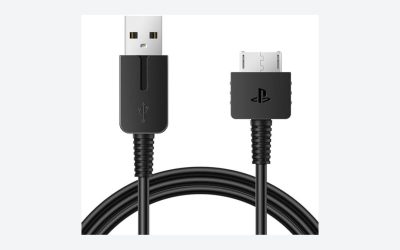
Pair it with a USB-C cable rated for at least 100W. Avoid thin, damaged, loose, or unidentified cables, particularly when gaming while plugged in. A low-quality cable can run hot, charge slowly, or cause the handheld to repeatedly switch between battery and external power.
Do not use a charger that becomes excessively hot, emits odor, makes buzzing noises, or has bent connector hardware. Replace it rather than trying to make it last.
3. Keep heat under control while gaming (5 minutes to set up)
Heat is one of the biggest contributors to battery wear. Place the handheld on a hard, flat surface when charging or playing for long periods. Avoid bedding, sofas, thick blankets, or padded carrying cases that cover intake or exhaust vents.
For demanding games, lower unnecessary heat output before plugging in. Reduce the screen brightness from 100% to about 50% to 70%, select a lower performance profile when frame rates allow, and cap frame rate at 30, 40, or 60 fps where supported. Running at a lower power setting can reduce heat and also extend runtime.
If the chassis feels unusually hot to hold, pause the game, remove any restrictive case, and let the handheld cool in open air for 15 to 30 minutes. Never place it in a refrigerator, freezer, or directly in front of a strong air conditioner vent to cool it rapidly; condensation can damage internal components.
4. Charge before the battery becomes critically low (ongoing)
For everyday use, aim to recharge around 20% to 30% rather than routinely playing until the handheld shuts itself down. Deep discharges are not required for modern lithium-ion batteries and can add wear when repeated often.
It is fine to occasionally run lower during travel or a long gaming session. The key is avoiding a routine where the device sits at 0% for hours or days. If the battery reaches a critically low level, recharge it as soon as practical.
Likewise, do not repeatedly unplug and reconnect at 99% or 100% in an effort to “top off” the battery. Let the built-in charging system manage normal charging cycles.
5. Clean the vents and inspect the charging port (10 minutes monthly)
Turn the handheld completely off and disconnect all power accessories. Use a dry microfiber cloth to wipe the exterior, then use a soft brush to clear visible dust around vents, speaker grilles, and the USB-C port. Do not insert metal objects into the port, and do not spray cleaner directly into openings.
Look for lint packed into the USB-C port, discoloration around the connector, cracked cable insulation, or a plug that no longer fits securely. Charging problems are sometimes caused by debris or a failing cable rather than the battery itself.
If compressed air is used, keep the can upright and use short bursts from several inches away. Excessive force can push debris farther inside or damage fan components.
6. Store the handheld at a partial charge (10 minutes)
If you will not use the device for more than two weeks, charge it to roughly 40% to 60%, shut it down fully, and store it in a cool, dry room. A good storage range is approximately 50°F to 77°F. Avoid direct sunlight, attics, vehicles, garages with extreme seasonal temperatures, and sealed bags near heat sources.
For storage lasting several months, check the battery every 60 to 90 days. Recharge it back to about 50% if it has fallen near 20%. Do not store a handheld completely empty or at 100% for months.
Mistakes to Avoid
- Gaming under pillows or blankets: Restricted airflow raises internal temperature and can affect both battery and performance.
- Leaving the handheld in a parked car: Interior temperatures can climb rapidly, even on mild days.
- Using damaged or bargain-bin charging accessories: A charger or cable with unknown safety protections is not worth risking a device that costs several hundred dollars.
- Charging inside a closed case: Remove the handheld from a tight sleeve or case before charging unless the case is specifically designed for ventilation.
- Draining to 0% as a “calibration” ritual: Modern batteries do not need regular full discharges. If the percentage reading seems inaccurate, use the manufacturer’s support guidance rather than repeatedly draining it.
- Ignoring swelling: A bulging back panel, lifted screen, separating seams, or wobbling shell is a safety issue, not a cosmetic flaw.
- Opening the device without experience: Internal batteries are easily punctured, and replacement may affect warranty coverage.
How Often
- Every gaming session: Keep vents uncovered and avoid prolonged heat buildup.
- When mostly plugged in: Use an 80% charge cap, if available.
- About once a month: Inspect the USB-C port, cable, charger, and vents for dust or damage.
- Every 2 to 3 months: Install manufacturer firmware, driver, and power-management updates after reviewing release notes.
- Every 60 to 90 days in storage: Check charge level and return it to roughly 40% to 60% if needed.
- At any time: Stop using the device and seek service if you notice swelling, a chemical smell, unusual heat while idle, or charging instability.
When to Call a Pro or Replace
Contact the manufacturer, an authorized repair provider, or a qualified electronics technician if the handheld will not charge with known-good accessories, loses power suddenly at 20% or higher, becomes unusually hot during light use, or shows physical deformation. Stop charging immediately if the case begins separating or the screen lifts from the frame.
A replacement battery may be reasonable when runtime has declined enough to disrupt normal use and diagnostics point to battery wear rather than software, a charger, or a charging port. Confirm the exact model number before ordering. For example, an EFOHANA 74Wh C41N2208 replacement kit is specified for certain first-generation Asus ROG Ally variants and is not intended for the ROG Ally X. At about $45.89, the part may seem inexpensive, but labor, tools, warranty implications, and the risk of damaging internal cables should be considered.
Choose professional installation if you have not opened compact electronics before, do not have the correct tools, or see any swelling. Never puncture, bend, crush, or throw a lithium-ion battery in household trash. Follow local battery-recycling rules for disposal.
FAQ
Should I keep my handheld gaming PC plugged in all the time?
You can use it plugged in for long sessions, particularly if the device has a battery charge limit set around 80%. Keep it well ventilated, use a proper charger, and avoid leaving it connected at 100% in a hot room for extended periods.
Is charging to 100% bad for the battery?
No. Charging to 100% is useful before travel or when you need the longest possible playtime. The better habit is avoiding days or weeks of heat and continuous full charge when a lower charge limit would work just as well.
Can I play games while charging?
Yes, provided you use a compatible charger and cable and keep the vents clear. Expect more heat during demanding games, especially at higher power settings. If the device gets unusually hot, lower performance settings or take a cooling break.
How do I know whether the battery is swollen?
Common signs include a raised or separating back cover, a screen lifting at the edges, gaps that were not previously present, or a handheld that no longer sits flat. Turn it off, unplug it, avoid pressing on the affected area, and arrange professional service promptly.